
1. What Are WordPress Users and Roles?
WordPress includes a built-in user management system that allows website owners to create individual accounts, assign permissions, and control what different people can do on a website.
This feature is particularly important for business websites, blogs, online magazines, membership platforms, and websites maintained by multiple authors or administrators.
A WordPress user is an account that allows a person to sign in to the website.
Each account has a username, email address, password, and other profile information.
Depending on the assigned role, the user may be able to write articles, upload images, publish content, manage comments, install plugins, or change website settings.
A WordPress role is a collection of permissions called capabilities.
These capabilities determine which administrative functions a user can access and what actions the user is allowed to perform.
For example, a website owner may need complete administrative access, while a freelance writer may only need permission to write and publish articles.
A customer or registered website member may need an account without permission to modify website content.
WordPress makes it possible to give each person an appropriate level of access rather than sharing one administrator account among everyone.
Proper user management improves website security, simplifies teamwork, and helps protect important settings and content from accidental or unauthorized changes.
This guide explains how to create WordPress users, understand the default roles, change user permissions, manage multiple accounts, remove users safely, and apply security practices to protect your website.
2. Understanding the Default WordPress User Roles
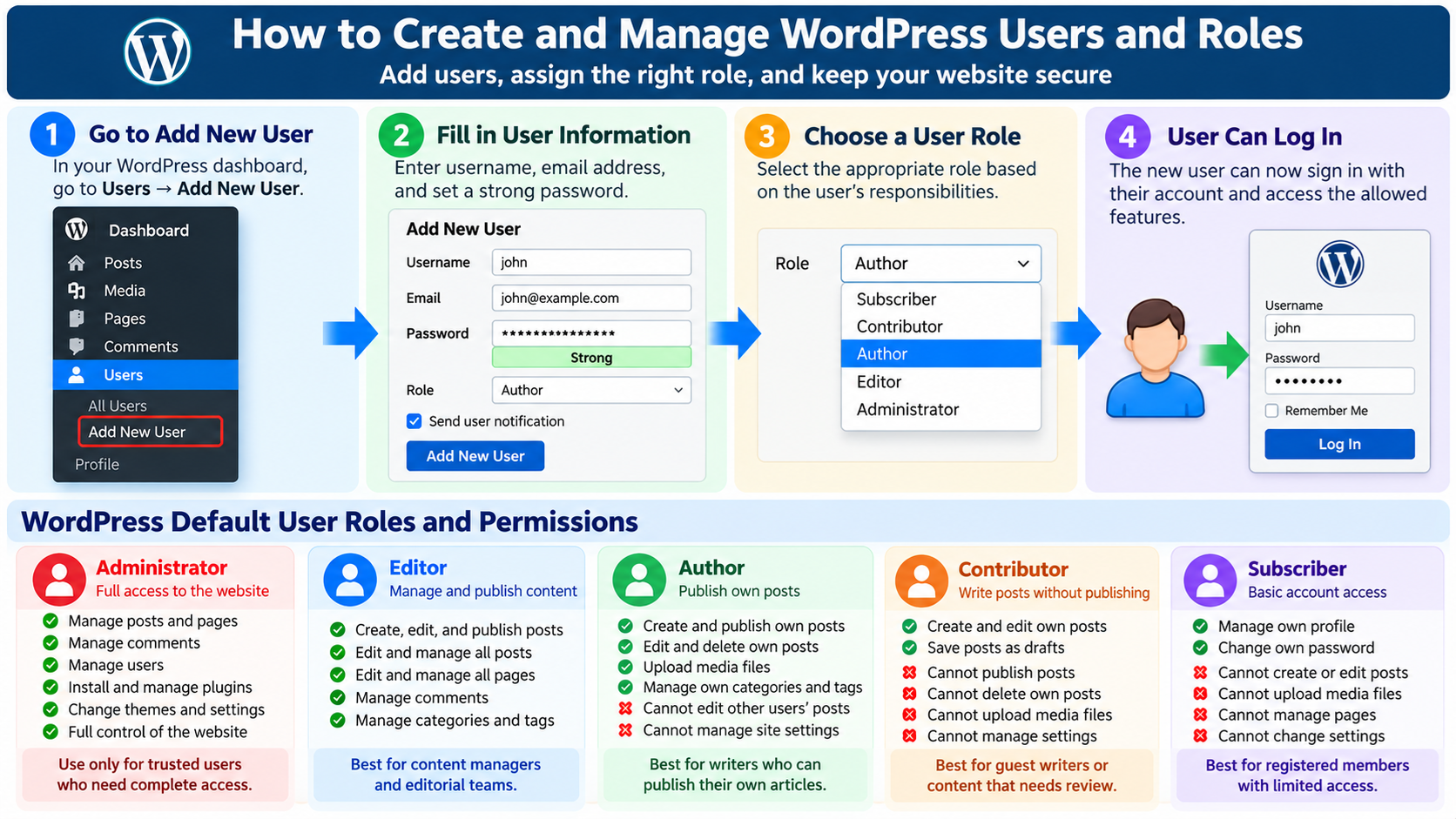
A standard single-site WordPress installation includes five main user roles: Administrator, Editor, Author, Contributor, and Subscriber.
WordPress Multisite installations also have a network-level Super Admin role.
Each role provides a different collection of capabilities. WordPress uses these capabilities to determine whether a user can perform a particular action.
The default roles are designed to meet common website management needs, but themes and plugins can introduce additional roles or modify existing permissions.
For example, an e-commerce plugin may add customer and shop management roles, while a membership plugin may create roles for different subscription levels.
Understanding the built-in roles is the first step toward assigning access safely.
3. Administrator: Full Website Management Access
The Administrator role provides extensive control over a standard single-site WordPress installation.
Administrators can generally manage posts, pages, comments, users, themes, plugins, and website settings.
They can install or remove plugins, modify important configuration options, and perform maintenance tasks.
For example, an Administrator can create new accounts for writers, change an existing user’s role, install a website security plugin, and update WordPress settings.
Because this role has powerful permissions, it should be assigned only to trusted individuals who genuinely need administrative access.
A freelance writer usually does not need Administrator privileges.
Similarly, someone responsible only for editing articles should not receive unrestricted control over plugins, themes, and website configuration.
Compromising an administrator account can have serious consequences.
An attacker who gains administrative access may be able to modify content, create additional accounts, install malicious software, or disrupt the website.
For that reason, administrator accounts should use strong passwords, multifactor authentication, and careful access management.
On WordPress Multisite networks, site Administrators have more limited capabilities because certain network-wide operations are reserved for Super Admins.
4. Editor: Managing Website Content
The Editor role is designed for people responsible for supervising and maintaining published content.
Editors can generally create, edit, publish, and delete posts and pages.
They can also manage content created by other authors, organize categories, and moderate comments.
For example, a technology news website might assign the Editor role to someone who reviews articles, corrects technical errors, organizes categories, and approves content before publication.
An Editor can modify articles written by other users, making this role useful for content managers and editorial teams.
However, Editors do not normally have permission to install plugins, change themes, create administrator accounts, or modify the website’s main configuration.
This separation allows a content manager to perform editorial work without receiving control over the entire WordPress installation.
The Editor role is often appropriate for a trusted employee who manages articles and pages but does not need to maintain the technical infrastructure of the website.
5. Author: Writing and Publishing Own Articles
The Author role is intended for people who create and publish their own content.
Authors can generally write, edit, publish, and delete their own posts. They can also upload media files, such as images, that are used in articles.
For example, a website that publishes technical tutorials may create separate Author accounts for contributors specializing in Linux, WordPress, programming, or computer hardware.
Each writer can sign in, prepare articles, upload illustrations, and publish posts under their own account.
Unlike Editors, Authors cannot normally edit or delete posts belonging to other users.
Authors also do not receive general permission to manage website settings, install plugins, or change themes.
One important distinction is that the default Author role primarily manages posts rather than WordPress Pages.
Creating and editing ordinary Pages requires additional capabilities that Authors do not receive by default.
For trusted writers who can publish without editorial approval, the Author role is often a practical choice.
6. Contributor: Writing Without Publishing Permission
The Contributor role is useful for writers whose work should be reviewed before publication.
Contributors can create and edit their own posts, but they cannot publish them directly.
Instead, they can save drafts and submit posts for review, allowing a user with appropriate publishing permissions to review and publish the content.
For example, a business website may accept articles from guest contributors.
Instead of granting them permission to publish immediately, the website owner can assign the Contributor role.
This arrangement provides an additional level of editorial control.
Contributors also cannot upload media files under the default WordPress capabilities.
If they need to submit images, the website owner must provide an approved workflow or use suitable permission customization.
The Contributor role is particularly useful for new writers, guest authors, temporary collaborators, and organizations that require editorial approval.
7. Subscriber: Basic Account Access
The Subscriber role provides very limited access to WordPress administration features.
Subscribers can generally sign in and manage their own profile information, including supported account preferences and password changes.
They cannot publish posts, edit website pages, install plugins, or change website settings.
This role is useful for websites that allow visitors to register accounts without granting them administrative or editorial privileges.
For example, a membership website may allow registered users to access member-related features provided by a plugin.
However, the Subscriber role alone does not create a complete membership system, private content platform, or paid subscription service.
Those functions normally require additional software or configuration.
For ordinary users who only need an account, Subscriber is generally the safest built-in role.
8. Super Admin: Managing WordPress Multisite Networks
WordPress Multisite allows multiple websites to operate within a single WordPress installation.
In this environment, WordPress provides an additional role known as Super Admin.
A Super Admin can manage network-wide settings, sites, users, themes, plugins, and other administrative functions.
For example, an organization operating multiple department websites within a WordPress network may use Super Admin accounts to manage the overall installation.
Individual sites within the network may still have their own Administrators, Editors, Authors, Contributors, and Subscribers.
However, site Administrators do not automatically receive permission to install plugins or modify all network-wide settings.
The Super Admin role is intended for network management rather than routine content editing.
On a standard single-site WordPress installation, you generally do not need to manage a separate Super Admin role.
9. How to Create a New WordPress User
Creating a new user account is straightforward when you have the appropriate administrative permissions.
First, log in to your WordPress Dashboard.
Navigate to Users → Add New User. Depending on the WordPress interface, the menu may also appear as Users → Add New.
The Add New User screen contains several fields for the new account.
Enter a username. This will be used to identify the account and is normally required when signing in.
Choose the username carefully because WordPress does not provide a standard interface for changing an existing username later.
Next, enter a valid email address. WordPress uses this address for account notifications, password recovery, and other user-related messages.
You can also enter the person’s first name, last name, and website address if appropriate.
WordPress normally generates a strong password automatically, although the administrator may be able to set a different password.
Avoid using simple passwords or predictable combinations of names and numbers.
If the interface provides an option to send the new user an email notification, enable it when the person should receive account setup information.
Next, select the appropriate role from the Role dropdown menu.
For example, choose Author for a trusted writer, Editor for a content manager, or Subscriber for someone who only needs basic account access.
Finally, click Add New User.
WordPress will create the account and display it in the users list.
The new user can then sign in using the appropriate credentials and permissions.
10. How to View All WordPress Users
To manage existing user accounts, open your WordPress Dashboard and navigate to Users → All Users.
This screen displays a list of registered accounts.
For each user, WordPress normally shows information such as username, email address, assigned role, and the number of published posts associated with the account.
You can use the search feature to find a specific user by name, username, or email address.
WordPress also provides role-based filters that allow you to view accounts belonging to a particular role.
For example, selecting Authors displays users with the Author role, while selecting Administrators shows accounts with administrative permissions.
This screen is especially useful for websites containing many registered users or multiple content contributors.
Regularly reviewing the users list can help identify accounts that are no longer needed, accounts with excessive privileges, and unfamiliar users that require investigation.
11. How to Edit an Existing WordPress User
WordPress allows administrators to update many aspects of an existing user account.
Go to Users → All Users and locate the account you want to modify.
Click the username or select Edit.
The user profile screen allows you to change supported account details, including first name, last name, nickname, display name, email address, biography, and other settings.
Some plugins may add additional profile fields.
For example, you may want to update an author’s public display name so that articles show a professional name instead of an internal account identifier.
WordPress separates the username used for account identification from the display name shown publicly.
This distinction is useful because a writer can publish articles under a professional display name without exposing the account’s exact login identifier in the article heading.
However, changing the display name does not guarantee that the username or author identity cannot be discovered through other WordPress features, author archives, APIs, or plugins.
After making changes, click Update User or the corresponding save button.
For security reasons, users should generally manage their own passwords through approved account settings or password reset procedures.
12. How to Change a WordPress User Role
Sometimes a user’s responsibilities change.
For example, a Contributor may become a trusted Author, or an Author may be promoted to Editor.
WordPress allows administrators with the appropriate capabilities to change existing roles.
Go to Users → All Users and locate the account.
Click Edit to open the user’s profile settings.
Find the Role dropdown menu and select the appropriate new role.
For example, change Contributor to Author when the person should be allowed to publish their own posts.
Click Update User to save the change.
The user’s available administrative functions will change according to the capabilities associated with the new role.
Be careful when upgrading a user to Administrator. This grants extensive control over the website.
Before changing permissions, verify what the person actually needs to do.
If the user only needs to manage articles, Editor is usually more appropriate than Administrator.
If the user only needs to create drafts, Contributor is often sufficient.
13. How to Change Roles for Multiple Users at Once
WordPress provides bulk user management features that can save time when maintaining larger websites.
For example, you may have dozens of contributors who need to be assigned the Author role.
Instead of editing every account individually, go to Users → All Users.
Select the checkboxes next to the users you want to modify.
Locate the dropdown labeled Change role to, or its equivalent in the current interface.
Choose the desired role and click Change.
WordPress will update the selected users according to the requested role change.
You can use role filters and pagination to organize the process.
However, bulk role changes should be performed carefully.
For example, accidentally selecting Administrator could grant extensive access to many users.
Before submitting a bulk change, review the selected accounts and confirm that the new role is appropriate for every user.
If your website has thousands of registered accounts, specialized management tools or WP-CLI may provide additional options for controlled bulk operations.
14. How to Delete a WordPress User Safely
Deleting an account requires special care because the user may have created published articles or other important content.
To remove an account, go to Users → All Users.
Locate the user and select Delete.
WordPress may ask how to handle content associated with the account.
On a typical single-site WordPress installation, you can choose to delete the associated content or attribute it to another existing user.
If you select the content deletion option, posts and other supported content belonging to that user may be removed.
If you choose to attribute the content to another user, WordPress can reassign supported content ownership before deleting the account.
For example, if a former employee wrote 50 technical articles, you probably want to preserve those articles rather than delete them.
In that case, choose the option to attribute the content to an existing administrator or editorial account.
This is especially important for websites that have imported articles from older WordPress installations.
Some imported user accounts may no longer represent active contributors, but their articles may still be valuable.
Always verify the content ownership options before confirming deletion.
Also remember that plugins may store user-related data differently.
Deleting a WordPress account does not necessarily remove or transfer every piece of data maintained by third-party plugins.
Create a backup before performing bulk user deletions.
15. How to Reassign Articles to Another Author
Sometimes you need to change the author of an article without deleting the original user account.
For example, a technical article may have been imported from an older website and assigned to an account that is no longer active.
WordPress allows authorized users to change post authorship.
Go to Posts → All Posts and open the article.
In the post settings, locate the Author option, if available.
Choose the appropriate user and save the article.
The article will then be associated with the selected author.
You can also use the Posts screen to change authors for multiple posts, depending on the available editing and bulk editing features.
For a website containing many imported articles, this can be useful when consolidating content under a smaller number of editorial accounts.
However, changing an article’s author may also affect author archive pages, displayed bylines, structured data, or theme-specific metadata.
If preserving original authorship is important, consider retaining the original author information in an appropriate field rather than replacing it without explanation.
16. How to Set the Default Role for New Users
WordPress allows administrators to configure the role assigned to newly registered users.
Go to Settings → General in the WordPress Dashboard.
Locate the Membership section and the New User Default Role setting.
The default role is commonly Subscriber.
For a public website that allows visitor registration, Subscriber is generally the safest standard choice because it provides minimal administrative permissions.
Avoid setting the default role to Administrator, Editor, or Author unless your application has a carefully controlled and justified reason for doing so.
If public registration is enabled, a high-privilege default role could allow untrusted visitors to obtain access they should never receive.
The Membership option labeled Anyone can register determines whether WordPress permits public self-registration through its standard registration system.
If your website does not need public user registration, leave this option disabled.
You can still manually create accounts for employees and collaborators through the administrative interface.
After reviewing these settings, click Save Changes.
Some membership or e-commerce plugins manage their own registration flows and role assignments, so verify how those extensions interact with WordPress settings.
17. WordPress User Roles vs. Capabilities
A WordPress role is a collection of capabilities.
A capability represents permission to perform a particular action.
For example, the capability to edit posts allows a user to perform certain editing operations, while the capability to publish posts allows a user to publish articles.
Other capabilities control actions such as managing categories, moderating comments, editing pages, uploading files, and managing plugins.
WordPress checks capabilities when determining whether an account is allowed to perform an operation.
This system is more flexible than simply assigning a broad label to every user.
For example, a website may need an editorial assistant who can edit posts but cannot publish them.
Instead of granting unnecessary permissions, a customized role can provide exactly the capabilities required.
The principle behind this approach is called least privilege.
Least privilege means that each user should receive only the access necessary to perform their assigned responsibilities.
This principle reduces the risk of accidental changes and limits the damage that can occur if an account is compromised.
18. How to Create Custom WordPress User Roles
The default WordPress roles are sufficient for many websites, but some organizations need more specific permissions.
For example, a company may want a user who can manage products but cannot modify plugins, or a writer who can upload images but cannot publish posts.
Custom user roles can be created through suitable role-management plugins or through custom WordPress development.
Role-management plugins may provide interfaces for creating roles, copying existing permissions, and enabling or disabling individual capabilities.
When selecting a plugin, choose one that is actively maintained, compatible with your WordPress version, and appropriate for your website’s security requirements.
Before changing roles and capabilities, create a backup and test the changes.
A misconfigured role could unintentionally give users access to sensitive administrative functions or prevent legitimate staff members from completing their work.
WordPress also provides developer functions for registering roles and assigning capabilities, but these should be used carefully because role definitions are stored in the database.
For complex websites, custom permissions should be planned as part of the overall application architecture rather than introduced through untested changes.
19. How to Secure WordPress User Accounts
User account security is a major part of WordPress website security.
Attackers frequently target login pages using password guessing, credential stuffing, and other automated techniques.
Credential stuffing occurs when attackers try username and password combinations previously exposed through unrelated services.
Strong passwords are essential because weak or reused passwords can make automated attacks easier.
Each WordPress user should have a unique password that is not reused on other websites.
Long, randomly generated passwords stored in a reputable password manager are generally preferable to short passwords based on familiar words or predictable patterns.
Multifactor authentication adds another layer of protection by requiring an additional verification factor during login.
For administrator accounts, multifactor authentication is particularly important.
You should also keep WordPress core, themes, and plugins updated, because account protection alone cannot prevent attacks exploiting software vulnerabilities.
Remove unnecessary accounts, review administrative permissions, and monitor suspicious activity.
Security tools can help detect repeated login failures and automated attacks, but they should be configured to avoid unnecessarily blocking legitimate users.
A secure website combines account security, software maintenance, backups, network protection, and appropriate server configuration.
20. Limit WordPress Login Attempts
WordPress websites connected to the public internet may receive large numbers of automated login requests.
Attackers may attempt to guess passwords using known usernames or lists of common credentials.
One defensive measure is to limit repeated failed login attempts.
A suitable login protection plugin or security service can temporarily restrict requests after repeated authentication failures.
For example, a website might temporarily block an IP address or apply additional verification after several unsuccessful attempts.
However, overly aggressive settings can lock out legitimate users, especially when multiple people share a public IP address or when attackers deliberately trigger failures against known accounts.
Login limits should therefore be combined with strong passwords, multifactor authentication, monitoring, and sensible recovery procedures.
If you use multiple security plugins, check that their login protection mechanisms do not conflict.
For example, two plugins may both enforce lockouts, produce duplicate notifications, or create inconsistent blocking behavior.
A firewall or CDN may provide additional protection at the network or application layer.
However, a CDN or firewall should not be treated as a replacement for secure WordPress credentials and software maintenance.
21. Should You Use the Username “admin”?
The username admin is commonly targeted by automated login attempts because attackers may assume that some WordPress installations use it for an administrative account.
Using a less predictable username may reduce some automated guessing attempts, but it is not a substitute for proper authentication security.
WordPress usernames are not always secret.
Depending on your website configuration, author archive URLs, WordPress APIs, theme behavior, and other features may reveal information associated with user accounts.
Therefore, security should not depend on hiding the administrator username.
If your website uses an older administrative account with the username admin, you may choose to create a new Administrator account using a different username.
After verifying that the replacement account has the required permissions, you can consider removing the old account while preserving its associated content.
Do not delete the only working Administrator account.
Before making account changes, verify that you can successfully sign in with the replacement account.
Strong passwords and multifactor authentication remain more important than username obscurity.
22. How to Protect Administrator Accounts
Administrator accounts require special protection because they can modify critical website settings.
First, keep the number of administrator accounts as small as practical.
For a website managed by one person, a single primary administrative account and a carefully protected recovery arrangement may be sufficient.
For a business with multiple technical administrators, each person should have an individual account rather than sharing credentials.
Individual accounts improve accountability because administrative actions can be associated with specific users.
Second, require strong authentication. Use unique passwords, multifactor authentication, and secure password recovery procedures.
Third, avoid using an Administrator account for routine writing tasks when a lower-privilege account would be appropriate.
Fourth, monitor changes to user accounts, plugins, themes, and important settings.
Some security and activity logging plugins can record administrative events to help identify unexpected modifications.
Finally, protect the email accounts associated with WordPress administrators. An attacker who compromises an administrator’s email account may be able to initiate password recovery.
Website security depends on protecting both the WordPress login and the supporting identity and recovery systems.
23. How to Manage Users on a Multi-Author Website
Websites with multiple contributors benefit from a clear editorial workflow.
For example, a technical publication might assign an Administrator to manage the website, an Editor to supervise content, several Authors to publish articles, and Contributors to prepare drafts for review.
Each person receives a role based on their responsibilities.
Editors can review technical accuracy, improve formatting, manage categories, and publish approved articles.
Authors can create and maintain their own posts.
Contributors can prepare drafts without immediately making them public.
This separation is especially useful when working with temporary writers or outside contractors.
It reduces the risk of accidental modifications and keeps publication authority under appropriate supervision.
For larger editorial teams, workflow plugins may provide additional functionality such as editorial comments, assignments, review stages, and publication schedules.
However, the built-in WordPress role system is often sufficient for a small or medium-sized content website.
24. Managing Users After Importing WordPress Content
When migrating articles from one WordPress installation to another, user management can become more complicated.
The WordPress Importer can import posts and associate them with existing or newly created author accounts, depending on the import options and source data.
For example, an older website may contain hundreds of articles written under usernames that are no longer active.
During an import, you may have the opportunity to assign imported content to an existing user.
This is often useful when consolidating older articles under a current administrator or editorial account.
If articles have already been imported, you can review their authors using Posts → All Posts.
For smaller collections, changing the author through the post editor or bulk editing tools may be sufficient.
For larger collections, carefully planned bulk author reassignment may be more efficient.
Before removing obsolete user accounts, confirm that their published content has been preserved or reassigned appropriately.
Do not automatically delete old users if the website still relies on those accounts for author archives, content ownership, or plugin-related data.
It is also important to distinguish between changing the author of a post and changing the permissions of the user account. These are separate operations.
25. WordPress Users and WooCommerce Roles
If your WordPress website uses WooCommerce, additional user roles are commonly available.
For example, WooCommerce typically adds Customer and Shop Manager roles.
The Customer role is designed for people who purchase products or services through the store. Customers can manage account information and access order-related features supported by WooCommerce.
The Shop Manager role provides access to many store management functions, including products and orders, without granting the same broad access as a standard WordPress Administrator.
However, WooCommerce roles and capabilities may vary depending on plugin versions and additional extensions.
A store owner should review the actual permissions before assigning a role to an employee.
For example, someone responsible only for order processing may not need access to sensitive website settings or unrelated customer information.
Custom capabilities and workflow plugins may help organizations establish more precise access controls.
The objective is to give employees enough permission to complete their work without exposing unnecessary administrative functions.
26. Common WordPress User Management Problems
Several issues can occur when managing WordPress accounts.
One common problem is that a new user cannot log in.
This may be caused by an incorrect password, an incorrect login address, an account issue, or a security plugin that temporarily restricts access.
Another problem is that a user cannot access a particular Dashboard menu. This is often caused by the user’s assigned role lacking the required capability.
For example, a Contributor may be unable to upload images because that permission is not included in the default role.
An Author may also be unable to edit ordinary WordPress Pages because the default Author role primarily manages posts.
Another issue is that password reset emails are not delivered.
This may involve WordPress email delivery configuration, server mail restrictions, spam filtering, or incorrect account email addresses.
For websites experiencing persistent email delivery problems, a properly configured transactional email service or SMTP-based delivery solution may help.
Administrators may also encounter accounts that appear unexpectedly.
Unknown administrative accounts should be investigated promptly because they may indicate unauthorized access, an insecure registration configuration, or a compromised plugin or website.
Avoid deleting suspicious accounts before collecting relevant evidence if a security incident is suspected.
27. What to Do If an Unknown Administrator Appears
An unfamiliar Administrator account should be treated as a potential security concern.
First, verify whether the account was created by an authorized employee, developer, migration process, or legitimate plugin.
If the account cannot be explained, review available activity logs and recent administrative changes.
Check when the account was created, what email address is associated with it, and whether there are signs of unauthorized access.
Also inspect other administrator accounts and review recently installed or modified plugins.
Before making destructive changes, preserve relevant logs and create a secure backup if you suspect a compromise.
If an attacker may have administrative access, simply deleting the suspicious user may not be enough.
The attacker could have modified files, added malicious plugins, created other access mechanisms, or obtained credentials.
A proper incident response may require resetting passwords, revoking sessions, checking files, reviewing server access, and restoring clean components.
For a business website, contact your hosting provider or a qualified WordPress security professional if the scope of the compromise is uncertain.
28. Best Practices for WordPress User and Role Management
Effective WordPress user management begins with assigning appropriate permissions.
Use Administrator accounts only for people who need full site management access.
Assign Editor to trusted content managers, Author to writers who can publish their own posts, Contributor to writers whose work requires review, and Subscriber to people who only need basic account access.
Give every person an individual account rather than sharing passwords.
Use strong, unique passwords and multifactor authentication, particularly for accounts with elevated privileges.
Disable public registration if the website does not need it, and keep the default registration role at a low privilege level.
Review user accounts periodically, especially after employees leave, contracts end, or major website migrations are completed.
Remove unnecessary accounts carefully and preserve associated content where appropriate.
Keep WordPress and its extensions updated, and maintain reliable backups.
For larger websites, consider maintaining a documented list of who has administrative access and why that access is required.
These practices reduce security risks while making collaboration easier and more organized.
29. WordPress User Management Checklist
Before adding a new user, confirm that the person genuinely needs an account and determine the minimum permissions required for their responsibilities.
When creating the account, use a unique username, a valid email address, and a strong password.
Assign the appropriate role and enable additional authentication protection where available.
After creating the account, verify that the user can access the required functions without receiving unnecessary privileges.
When changing a user’s role, review the consequences before saving. Be particularly cautious when granting Administrator or other high-privilege access.
Before deleting an account, identify associated posts and other relevant content. Reassign ownership when necessary and preserve a backup.
For websites that accept public registrations, verify that the default role is appropriately restricted.
Periodically review administrator accounts, failed login attempts, unused users, plugin-added roles, and any suspicious changes.
Finally, ensure that at least one trusted administrator retains reliable access to the website and its recovery procedures.
30. Conclusion
WordPress provides a flexible user and role management system that allows website owners to control access without sharing administrator credentials.
The five standard roles on a single-site installation are Administrator, Editor, Author, Contributor, and Subscriber.
Each role provides a collection of capabilities suitable for different responsibilities.
Administrators manage the website, Editors supervise content, Authors publish their own articles, Contributors prepare content for review, and Subscribers have limited account access.
WordPress Multisite adds the Super Admin role for network-level administration, while plugins can introduce additional roles and customized permissions.
Creating and managing users is straightforward through the Users section of the WordPress Dashboard. However, assigning roles, deleting accounts, and changing permissions should always be handled carefully.
For websites with multiple authors, a properly configured role system improves collaboration and reduces the risk of accidental changes.
For business websites, restricting administrator access and protecting accounts with strong authentication are essential parts of website security.
The most important principle is to give each user only the permissions needed to perform their work. A carefully managed WordPress user system protects your website, preserves content, and makes long-term administration easier.
By combining appropriate roles, individual accounts, regular access reviews, strong passwords, multifactor authentication, and reliable backups, you can maintain a safer and more organized WordPress website.