
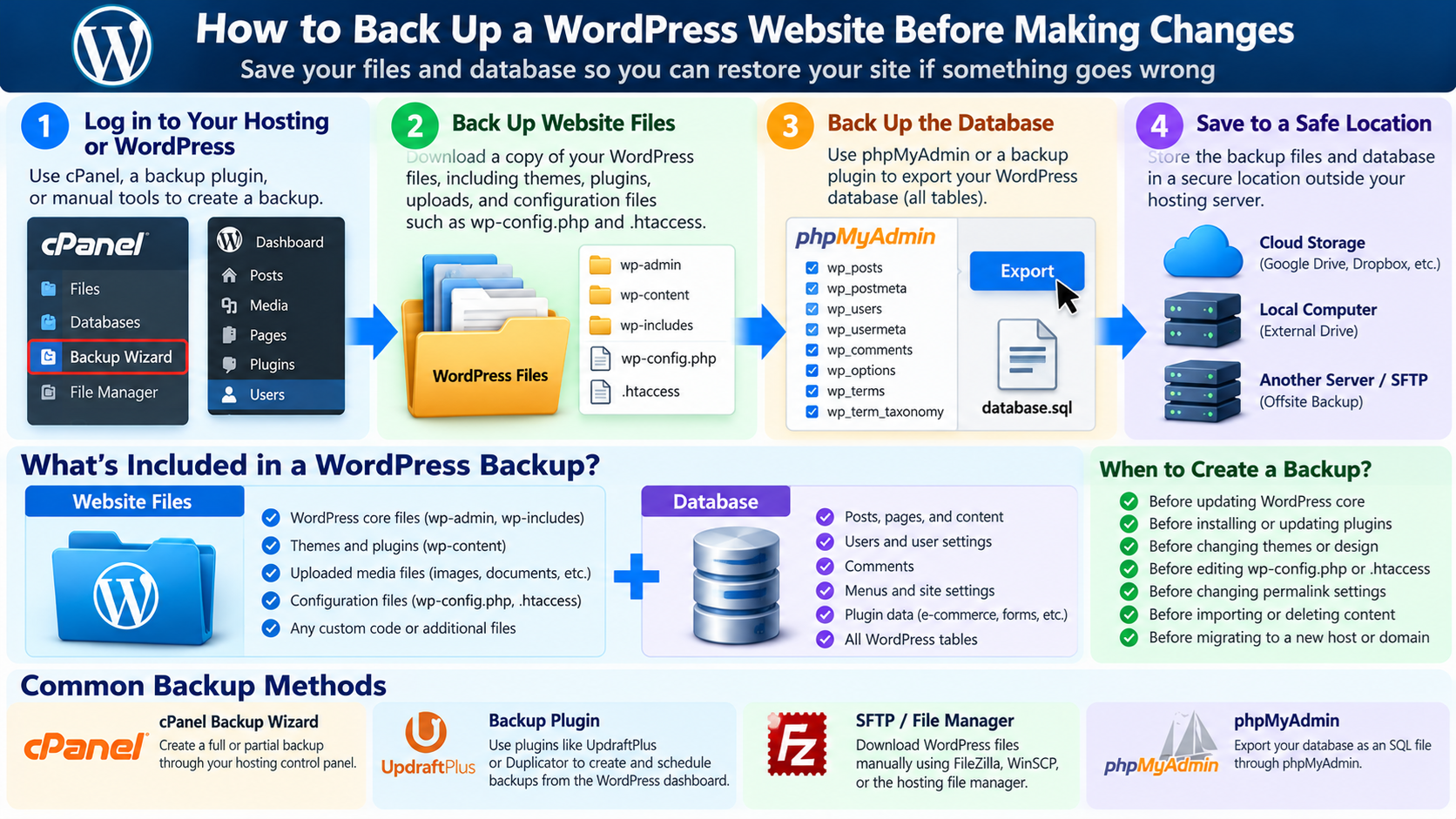
1. Why Should You Back Up WordPress Before Making Changes?
Backing up your WordPress website is one of the most important precautions you can take before installing plugins, updating themes, modifying configuration files, changing database settings, or making other significant changes.
WordPress is a powerful and flexible content management system, but even a small modification can sometimes create unexpected problems.
A plugin update may introduce a compatibility issue, a theme change may affect the layout, or an incorrect server configuration may prevent visitors from accessing the website.
In more serious situations, a software error, security incident, database problem, or accidental deletion could result in lost content or an unavailable website.
A reliable backup provides a recovery point. If something goes wrong, you can restore the website to a previously working state instead of attempting to reconstruct everything manually.
For example, imagine that you are preparing to update several WordPress plugins.
The existing website is working correctly, but after updating one plugin, the administrator dashboard becomes inaccessible.
If you created a verified backup immediately before the update, you have a much better chance of restoring the original working configuration.
Without a backup, troubleshooting may become more complicated, especially if the problem affects the database or important website files.
A backup should not be treated as an optional activity performed only when something appears dangerous. It should be part of normal website maintenance.
This guide explains what must be included in a complete WordPress backup, how to back up your website using cPanel, backup plugins, SFTP, and phpMyAdmin, and how to verify that your backup can actually be restored.
2. What Does a Complete WordPress Backup Include?
A typical self-hosted WordPress website consists of two essential components: website files and a database.
A complete backup must preserve both components if you want to restore the website accurately.
Website files include the WordPress core software, installed themes, plugins, uploaded images, documents, and important configuration files.
These files determine how WordPress runs, which extensions are available, and what media content can be displayed.
The database stores most of the website’s content and settings.
This includes posts, pages, comments, user accounts, menus, plugin settings, and other information managed through WordPress.
For example, if you back up only the wp-content directory, you may preserve your images, plugins, and themes, but you will not necessarily preserve the articles and website settings stored in the database.
Similarly, exporting only the database will not preserve uploaded photographs, custom theme files, or plugin code.
A complete website recovery usually requires a matching set of files and database information.
Some WordPress installations also depend on resources outside the standard WordPress directory, such as external storage, private configuration files, additional databases, server configuration, or third-party services.
These dependencies should be identified when planning a complete recovery strategy.
3. Understand the WordPress File Structure
Before performing a manual backup, it helps to understand the basic WordPress directory structure.
A typical WordPress installation contains three important directories: wp-admin, wp-includes, and wp-content.
The wp-admin directory contains administrative components used by the WordPress dashboard.
The wp-includes directory contains core WordPress libraries and other functionality required by the application.
The wp-content directory is particularly important because it normally contains installed plugins, themes, and uploaded media.
For example, images uploaded through the WordPress Media Library are typically stored in directories under wp-content/uploads.
The website’s document root also contains important files such as wp-config.php and index.php.
The wp-config.php file contains database connection information and other configuration settings.
It may also include authentication keys and additional custom definitions.
On Apache or compatible LiteSpeed hosting configurations, the .htaccess file may contain WordPress rewrite rules, HTTPS redirects, access restrictions, and other server instructions.
Because files beginning with a period are hidden on many systems, you may need to enable hidden-file visibility in your file manager to see .htaccess.
A complete file backup should preserve the required WordPress files, custom modifications, uploads, and applicable configuration files.
You should also preserve relevant file permissions and ownership information where possible, since these may matter during restoration.
4. Understand What the WordPress Database Stores
WordPress commonly uses MySQL or MariaDB to store website content and configuration data.
The database contains tables that represent different types of information.
For example, the posts table stores posts, pages, and certain other content types. Other tables store metadata, users, user metadata, comments, taxonomies, and website options.
WordPress plugins may create additional database tables to store their own information.
For example, an e-commerce plugin may maintain product, order, or customer-related records, while a security plugin may store configuration settings and activity information.
The exact database structure depends on the WordPress installation and its plugins.
When creating a database backup, make sure you export all relevant tables, not just the standard WordPress tables.
Also remember that backing up a database does not automatically create a backup of the entire website.
A database export and a file backup must normally be retained together as one recovery set.
For websites with rapidly changing data, the timing of the database and file backups can be important.
A large mismatch between the two can create inconsistencies during restoration.
5. When Should You Back Up Your WordPress Website?
A WordPress backup should be created before making changes that could affect website functionality, stored content, security, or server configuration.
One common example is updating WordPress core.
Although WordPress updates are designed to preserve existing data, compatibility problems or interrupted updates can occasionally cause failures.
Plugin updates are another important situation. A plugin may change database tables, modify settings, or interact differently with the current theme.
Theme updates and theme replacements can also affect layouts, templates, custom code, and website functionality.
Backups are especially important before editing wp-config.php, .htaccess, PHP configuration, web server settings, or database configuration.
You should also create a backup before migrating WordPress to another hosting provider, changing domain names, modifying permalink structures, importing large quantities of content, or performing bulk database operations.
For example, if you plan to import hundreds of articles from an XML file, a backup allows you to recover if the import produces duplicate content, incorrect authorship, or other unexpected results.
In addition to these event-based backups, websites should maintain a regular automated backup schedule.
The appropriate frequency depends on how frequently the website changes and how much recent data the owner can afford to lose.
6. Choose a WordPress Backup Method
There are several ways to back up a WordPress website.
The most common options include backup tools provided by your hosting company, WordPress backup plugins, manual file downloads, database exports, and server-level backup systems.
Each method has advantages and limitations.
Hosting control panel backups can provide convenient access to website files and databases.
Some hosting services also offer automated backup schedules, restore points, and remote storage.
WordPress backup plugins are convenient for users who prefer managing backups directly from the WordPress dashboard.
Manual backups provide greater control over individual files and database exports, but require more technical knowledge.
Server-level backup systems may provide additional capabilities such as snapshots, incremental backups, or account-level recovery.
For an important business website, relying on only one backup mechanism is not ideal.
A combination of automated backups and independently stored recovery copies provides stronger protection.
The best backup method is the one that preserves all necessary data, can be restored reliably, and matches the website’s recovery requirements.
7. How to Back Up WordPress Using cPanel
Many WordPress hosting plans provide cPanel, a web-based control panel for managing website files, databases, domains, and other hosting features.
If your hosting account includes cPanel, you may be able to create backups without installing an additional WordPress plugin.
First, log in to your hosting account and open cPanel.
Locate the Files section. Depending on the cPanel version and hosting provider’s configuration, you may see Backup, Backup Wizard, or another backup management interface.
The Backup Wizard provides a guided approach to creating full or partial account backups.
Open Backup Wizard and select Back Up.
You will typically see options for a Full Backup or a Partial Backup.
A full account backup is intended to preserve the account’s supported data, potentially including website files, databases, email-related information, and other account configuration.
A partial backup allows you to download selected components, such as the home directory or a database.
For a WordPress website, you must ensure that both its files and database are included in your recovery plan.
If you select Full Backup, follow the prompts to choose the backup destination and begin generating the archive.
When the archive becomes available, download it to a secure location outside the hosting account.
One important limitation is that a full cPanel account backup generally cannot be automatically restored through the ordinary cPanel Backup Wizard.
A complete account restoration may require WHM access or assistance from the hosting provider.
For this reason, understand the restoration procedure before relying on a particular backup format.
8. How to Download a WordPress File Backup Through cPanel
If you want to back up WordPress files independently, cPanel File Manager provides a convenient option.
Log in to cPanel and open File Manager.
Locate the directory containing your WordPress installation. For a primary domain, this may be public_html, although some hosting accounts use a different document root.
Do not assume that every WordPress installation is located directly inside public_html. Addon domains, subdomains, and custom installations may use separate directories.
Once you have located the correct WordPress directory, verify that it contains recognizable WordPress files and folders.
Select the relevant files and directories, then use the available compression feature to create an archive.
For example, you may create a ZIP archive containing the WordPress installation files.
After the archive has been generated, download it to your computer.
Check that the downloaded file exists and has a plausible size.
Do not leave sensitive backup archives inside a publicly accessible website directory longer than necessary.
A backup archive may contain database credentials, authentication secrets, private documents, or other information that should never be publicly downloadable.
If the archive was created under the website’s document root, remove the server-side copy after verifying the download, provided it is not required by a managed backup system.
Remember that a ZIP archive of the WordPress directory normally does not include the database unless you have separately exported it and deliberately included the export.
9. How to Back Up the WordPress Database Using phpMyAdmin
phpMyAdmin is a web-based database administration tool commonly available through hosting control panels.
It allows you to inspect MySQL or MariaDB databases and export their contents.
To back up your WordPress database, log in to cPanel and open phpMyAdmin.
You will see a list of databases that your hosting account can access.
Select the database used by your WordPress installation.
If you are unsure which database belongs to the website, examine the DB_NAME setting in wp-config.php.
Do not publicly share the contents of this configuration file because it contains sensitive information.
After selecting the correct database, open the Export tab.
For a typical small WordPress database, the Quick export method using SQL format may be sufficient.
If you need more control, choose Custom export and review the selected tables and available export options.
Make sure all required WordPress and plugin tables are included.
Start the export and save the resulting SQL file to your computer.
Depending on the tool configuration, the export may be downloaded as an SQL file or a compressed archive.
For large databases, phpMyAdmin may encounter execution time limits, memory restrictions, or download problems.
In such cases, a hosting backup system or a suitable database command-line export tool may be more reliable.
A database export should be checked for completeness before it is treated as a usable backup.
10. How to Back Up WordPress Using a Backup Plugin
WordPress backup plugins provide an alternative for website owners who prefer to manage backups from the WordPress dashboard.
Examples of established backup solutions include UpdraftPlus, Duplicator, and other actively maintained WordPress backup tools.
Before installing a plugin, check its compatibility with your WordPress version and review its features, maintenance history, and restore capabilities.
Once you have selected a suitable plugin, log in to the WordPress Dashboard and navigate to Plugins → Add New Plugin.
Search for the plugin, install it, and activate it.
Open the plugin’s settings or backup interface.
Most backup plugins provide an option to create a new backup immediately.
Depending on the plugin, you may be able to choose whether to include the database, plugins, themes, uploads, and other files.
For a complete WordPress backup, make sure that all required components are included.
Start the backup process and allow it to finish.
After completion, confirm that the plugin reports a successful result and that all expected backup components are available.
Do not assume that a backup is complete simply because the plugin displays a notification.
Review the backup details and check for warnings, missing components, or storage errors.
11. How to Store WordPress Backups Outside Your Hosting Server
A backup stored only on the same server as the live website may not provide sufficient protection.
If the server fails, the hosting account is compromised, or files are accidentally deleted, the backup could be lost along with the website.
For this reason, it is important to maintain independent backup copies.
You can store backups on a separate storage service, a secure cloud storage account, a different server, or an encrypted local storage device.
Some WordPress backup plugins support remote destinations such as compatible cloud storage services or SFTP servers.
When configuring remote storage, verify that the backup is actually transferred to the selected destination.
Avoid storing backup archives in public folders or sharing them through unrestricted links.
WordPress backups may contain passwords in hashed form, database credentials, private customer data, and other sensitive information.
Use encryption where practical, restrict access, and protect the storage account with strong authentication.
A useful approach is the 3-2-1 backup principle: maintain three copies of important data, use two different storage types or systems, and keep at least one copy offsite.
For websites requiring stronger protection against ransomware or administrative compromise, consider immutable backups or storage that cannot be modified through ordinary website credentials.
12. How to Back Up WordPress Files Using SFTP
SFTP stands for SSH File Transfer Protocol. It provides an encrypted method for transferring files between your computer and a remote server.
SFTP is generally preferable to traditional unencrypted FTP because it protects credentials and file contents during transmission.
To use SFTP, you need access credentials provided by your hosting company and an SFTP client such as FileZilla or WinSCP.
Open the client and create a connection to your hosting server.
Enter the hostname, username, authentication information, and appropriate port.
After connecting, navigate to the directory containing your WordPress installation.
Download the necessary WordPress files and directories to a secure folder on your computer.
This should include wp-content, the relevant WordPress core files, and configuration files such as wp-config.php, along with any other files required for the installation.
If you need a complete file backup, preserve all necessary custom files rather than downloading only themes and uploads.
Keep in mind that SFTP file transfers do not automatically export the MySQL or MariaDB database.
You must create a separate database backup using phpMyAdmin, a database backup tool, or another supported method.
For large websites, downloading many individual files may take longer than downloading a compressed server-side archive.
However, SFTP remains useful when the WordPress dashboard is unavailable or when you need direct access to website files.
13. Back Up WordPress Before Updating Plugins
Plugin updates are among the most common maintenance tasks performed on WordPress websites.
Although many updates are routine, compatibility problems can occur when a new plugin version interacts differently with the theme, WordPress core, or other installed plugins.
Before applying significant updates, create a fresh backup.
For an important website, verify the backup and consider testing the update on a staging installation first.
Next, record which plugin versions are currently installed.
Update one plugin or a small related group at a time when practical, especially if the plugins perform critical functions.
After the update, check the homepage, important content pages, login function, contact forms, and any other affected features.
If the website uses WooCommerce or another transactional system, test the relevant workflows carefully.
If an update causes problems, first determine whether a safe configuration change, supported rollback, or plugin-specific recovery method can resolve the issue.
Restoring the entire website from backup should be considered carefully because it may overwrite new content or customer activity created after the backup.
For sites with active orders, registrations, or comments, restoring only the affected files may sometimes be preferable to restoring the whole database.
14. Back Up WordPress Before Updating Themes
Themes control much of a WordPress website’s visual appearance and may also provide templates, custom functions, and theme-specific configuration.
Changing or updating a theme can affect navigation menus, widgets, page layouts, headers, footers, and other design elements.
Before updating a theme, create a backup of the website files and database.
If you have modified theme files directly, preserve those customizations before replacing the theme.
A parent theme update can overwrite changes made directly to the parent theme files.
For this reason, WordPress developers commonly recommend using child themes or other supported customization methods when modifying theme behavior.
After a theme update, review the homepage, article layouts, navigation, mobile display, and other important sections.
Also check whether custom CSS and theme settings still behave as expected.
If you are switching to a completely different theme, testing in a staging environment is preferable.
A complete backup gives you a recovery point if the new theme causes serious compatibility problems.
15. Back Up WordPress Before Editing wp-config.php
The wp-config.php file is one of the most important configuration files in a WordPress installation.
It contains database connection details and other settings required for WordPress to operate.
Incorrect modifications can prevent WordPress from connecting to its database or loading correctly.
Before editing this file, download a separate copy and keep it in a secure location.
You should also create a current database backup if the planned change may affect database connections, prefixes, or data.
When making edits, change only the necessary settings and preserve the existing file structure.
Avoid uploading wp-config.php to public file-sharing services or including its contents in publicly accessible troubleshooting messages.
After updating the file, test the website immediately.
If WordPress displays a database connection error, a PHP error, or another unexpected result, compare the modified file with the backup.
Restoring the previous working file may resolve an incorrect configuration change.
However, if you also changed database credentials or server configuration, restoring the file alone may not be sufficient.
16. Back Up WordPress Before Editing .htaccess
On Apache and compatible LiteSpeed hosting systems, the .htaccess file may control URL rewriting, redirects, access restrictions, and other server behavior.
For WordPress websites, it commonly contains rules that allow readable permalink URLs to function correctly.
Website administrators may also use .htaccess to configure HTTPS redirects, restrict access to sensitive files, control directory listings, or apply other security settings.
Because the file affects web server request handling, incorrect rules can cause 403 Forbidden errors, 404 Not Found errors, redirect loops, or 500 Internal Server Errors.
Before editing .htaccess, download a copy of the existing file.
If you are using cPanel File Manager, enable the option to display hidden files so the file becomes visible.
Preserve custom security rules and any configuration added by WordPress or plugins.
Do not replace the entire file with a generic example unless you fully understand the existing configuration.
After making changes, test the homepage, individual posts, login page, and important redirects.
If the website stops working, restore the previous file when appropriate and investigate the incorrect rule.
Remember that Nginx does not use .htaccess files in the same way. Nginx configuration changes require a different backup and recovery procedure.
17. Back Up WordPress Before Changing Permalinks
WordPress permalink settings determine the URL structure used for posts and other content.
Changing these settings on an established website can affect thousands of existing URLs.
For example, changing an article URL from https://example.com/2024/05/wordpress-security/ to https://example.com/wordpress-security/ may require redirects and updates to internal links.
Before making this change, create a complete WordPress backup and record the existing permalink structure.
Also prepare a list of important URLs and a plan for permanent redirects.
After modifying the settings under Settings → Permalinks, test the new URLs and verify that older addresses still lead to the correct content.
A database and file backup can help recover from configuration errors, but it does not automatically preserve search engine rankings or external links.
Proper redirects are still required when old URLs would otherwise become inaccessible.
For established websites with substantial traffic, changing permalink structures should be treated as a planned website migration rather than a minor cosmetic adjustment.
18. Back Up WordPress Before Importing or Deleting Content
Bulk content operations can affect large portions of the WordPress database.
For example, importing articles from an XML file may create new posts, categories, media references, or author assignments.
Similarly, deleting many posts, changing authors in bulk, or modifying categories can affect hundreds or thousands of records.
Before performing these operations, create a database backup.
If the operation also involves uploaded images, themes, plugins, or migration files, create a file backup as well.
For large imports, consider processing content in smaller batches when supported by the importing tool.
After each batch, verify that the expected articles were imported correctly and that no unexpected duplicates or ownership problems appeared.
If imported articles use historical author accounts, review the author assignment options before completing the import.
A backup allows you to recover from major mistakes, but restoring an earlier database may also remove legitimate changes made afterward.
For this reason, content imports on busy websites should be carefully scheduled and monitored.
19. What Is a WordPress Staging Website?
A staging website is a separate copy of a WordPress installation used for testing changes.
It allows you to experiment with themes, plugins, PHP versions, and website configuration without immediately affecting the public website.
For example, before installing a new security plugin, you can test it on staging to see whether it blocks important website functions or conflicts with existing plugins.
Some hosting providers include staging tools in their hosting plans.
Other websites use dedicated staging plugins or manually created testing environments.
A staging website should be protected from unauthorized public access and search engine indexing.
It should also be clearly separated from the production website, particularly when using payment systems, email delivery, or customer accounts.
Staging is valuable, but it is not a replacement for backups.
If the production server fails or the hosting account is compromised, a staging copy on the same server may also become unavailable.
The safest approach is to use staging for testing and independent backups for recovery.
20. How to Verify That a WordPress Backup Is Complete
Creating a backup file does not necessarily mean the website can be restored.
A backup may be incomplete because of storage limits, execution timeouts, file permissions, database export failures, or interrupted transfers.
After creating a backup, confirm that the backup process completed successfully.
Check whether the expected files and database export are present.
If you created a ZIP or other compressed archive, verify that the archive can be opened and its contents can be listed.
Look for important directories such as wp-content and configuration files required by the installation.
For database backups, verify that the export contains the expected tables and does not appear truncated.
Compare the backup size with previous known-good backups when practical.
A sudden unexplained reduction in size can indicate missing data, although size alone is not proof of completeness.
The strongest verification method is to restore the backup to a separate testing environment and confirm that the website functions correctly.
A successful test should include loading pages, verifying uploaded images, checking database content, and testing important website functionality.
Only after testing should a backup be considered a verified recovery point.
21. How to Test a WordPress Backup Restoration
A restoration test is the most reliable way to determine whether your backup is usable.
Ideally, perform the test on a staging server or another isolated environment rather than overwriting the live website.
Start with a compatible hosting environment and a clean destination.
Restore the website files according to the method supported by your backup system.
Next, restore the database using the appropriate database management tool or plugin.
If the restored environment uses different database credentials, update wp-config.php accordingly.
If the domain name or site URL differs from the original installation, additional configuration may be necessary.
When modifying WordPress URLs in a database, use a tool that correctly handles serialized data and other WordPress-specific structures.
After restoration, check that WordPress loads successfully.
Verify the homepage, posts, pages, images, navigation menus, plugins, and administrative dashboard.
Also test forms, logins, and other important functions, taking care not to send real emails, process payments, or modify production services unintentionally.
If the website works correctly in the isolated environment, you have stronger evidence that the backup can be used for recovery.
22. How to Restore WordPress If an Update Fails
If a WordPress update causes a serious failure, the first step is to identify the affected component.
For example, if a newly updated plugin causes an error, disabling that plugin may restore website functionality without requiring a complete backup restoration.
If a theme update causes layout problems, reverting the theme or restoring the previous theme files may be sufficient.
However, if the database has been damaged or major configuration changes have occurred, a broader restoration may be necessary.
Before restoring, preserve any important data created after the backup.
This is especially important for websites with customer orders, new registrations, comments, or frequently updated content.
Follow the restoration procedure associated with your backup system.
For a typical file-and-database recovery, restore the required website files and database as a consistent set.
After restoration, check the database connection, file permissions, permalink behavior, and website functionality.
Clear relevant caches if visitors continue seeing outdated pages or error responses.
A successful restoration should return the website to a known working state, but it may not automatically recover data created after the selected backup point.
23. How Often Should You Back Up WordPress?
Backup frequency depends on how often your website changes and how much data you can afford to lose.
For a small informational website that changes only occasionally, daily backups may be sufficient, supplemented by an additional backup before major updates.
For an active blog publishing several articles every day, daily backups may still be useful, but more frequent database backups could reduce potential content loss.
For e-commerce websites, membership websites, and applications that process frequent transactions, backup requirements may be much stricter.
For example, if an online store receives orders throughout the day, restoring a database backup from the previous night could result in missing order records.
This makes it important to consider the Recovery Point Objective, or RPO.
RPO describes the maximum amount of data loss, measured in time, that the organization is prepared to accept.
Another important concept is the Recovery Time Objective, or RTO.
RTO describes how quickly the website should be restored after a disruption.
A website that must recover within a short period may require automated backups, documented restoration procedures, and access to replacement infrastructure.
Backup frequency should therefore be based on business requirements, not simply on convenience.
24. How Many WordPress Backups Should You Keep?
Keeping only the latest backup can be risky.
For example, if a website becomes infected with malware and the problem remains undetected for several days, recent backups may already contain the compromised files.
Maintaining multiple recovery points increases the chance of finding a clean and usable version.
A practical retention strategy might include daily backups for recent changes, weekly backups for medium-term recovery, and monthly backups for longer-term reference.
The exact retention period depends on storage costs, website activity, business requirements, and data protection obligations.
For important websites, consider maintaining at least one independent backup that cannot be altered using ordinary WordPress administrative credentials.
Backups should also be removed according to an established retention policy, especially when they contain personal information or other sensitive data.
Keeping every backup forever is not necessarily appropriate.
The objective is to preserve enough recovery history while controlling storage consumption and limiting unnecessary exposure of sensitive information.
25. Why Backups Should Be Protected from Hackers
A WordPress backup may contain some of the most sensitive information associated with the website.
For example, a database export may include user records, password hashes, email addresses, comments, plugin settings, and other stored data.
Website file backups may contain wp-config.php, which includes database credentials and security-related configuration.
If attackers obtain an unprotected backup archive, they may be able to access information that is not normally visible through the public website.
For this reason, backup files should not be placed in publicly accessible directories without effective access protection.
Use secure storage, encryption where appropriate, restricted permissions, and separate credentials.
If your backup plugin stores archives on the hosting server, verify that its storage location and access protections are appropriate.
Avoid emailing large unencrypted database exports or sharing backup files through public download links.
Backup storage should be treated as part of the website’s security infrastructure.
A strong backup strategy must protect both the availability and confidentiality of the stored data.
26. Common WordPress Backup Mistakes to Avoid
One common mistake is backing up only the WordPress files while forgetting the database.
Without the database, posts, pages, users, and many settings may not be recoverable.
Another mistake is saving backups only on the same hosting server as the website.
This creates a shared point of failure because a server outage or compromised account could affect both the live site and the backup.
Some website owners rely entirely on an automated backup schedule without verifying whether backups are completing successfully.
A scheduled task may fail because of insufficient disk space, database errors, expired storage credentials, or other problems.
Another mistake is creating a backup but never testing restoration.
An archive that exists on disk is not necessarily a usable recovery point.
Website owners should also avoid storing backup archives in publicly accessible folders or forgetting to remove temporary archives after downloading them.
Finally, do not assume that every hosting plan automatically includes the same backup and recovery services.
Backup frequency, retention periods, storage locations, and restoration support vary by provider and plan.
Always verify the actual service features rather than assuming that all hosting backups are equivalent.
27. Does a Hosting Provider Automatically Back Up WordPress?
Many hosting providers offer backup features, but the available protection varies significantly.
Some plans include automated daily backups, while others provide weekly backups, scheduled snapshots, or optional backup services.
Certain providers maintain backups on separate storage systems, while others may use different retention and recovery arrangements.
Some backup services support one-click restoration, while others require users to download archives or contact technical support.
It is important to understand what the hosting provider actually backs up.
For example, an account-level backup may include website files, databases, and email data, while a WordPress-specific backup may include only the WordPress installation.
You should also check how long backups are retained and whether restoration incurs additional charges.
Even when a hosting provider includes automated backups, maintaining an independent backup is a sensible precaution.
For business websites, backup and recovery capabilities should be evaluated alongside uptime, security, storage, technical support, and other hosting features.
A reliable hosting environment can simplify website recovery, but responsibility for protecting important content should not depend entirely on a single backup service.
28. How to Prepare a WordPress Backup Before Making Major Changes
Before installing a major plugin, changing a theme, upgrading PHP, modifying server configuration, or migrating the website, establish a clear recovery point.
Begin by confirming that the website is currently working correctly.
Open the homepage, important pages, and WordPress Dashboard. Check whether there are existing errors or plugin warnings.
Next, create a complete backup that includes the database and required website files.
Download or transfer the backup to a secure location outside the live hosting environment.
Verify that the backup contains the expected components.
Record the time of the backup and the versions of WordPress, the active theme, and any important plugins.
If the planned change affects server settings, preserve copies of the relevant configuration files as well.
For a major change, test the modification on a staging environment before applying it to the live website.
When ready, perform the production change during an appropriate maintenance period.
Afterward, check the homepage, login functions, articles, forms, and other important features.
If something fails, use the documented rollback procedure rather than making multiple unrelated changes that could complicate recovery.
29. WordPress Backup Checklist
Before making changes to your WordPress website, confirm that the following tasks have been completed.
Website files: Preserve the WordPress installation files, wp-content directory, uploaded media, themes, plugins, custom code, and required configuration files.
Database: Export the correct WordPress database, including all necessary tables created by WordPress and installed plugins.
Backup storage: Save at least one backup copy outside the live hosting server and protect it from unauthorized access.
Verification: Confirm that the archives and database exports are present, complete, and accessible. Test restoration whenever practical.
Recovery preparation: Record the current working configuration and understand how the backup will be restored if the planned change fails.
Change management: Test significant modifications in staging, apply changes carefully, and verify website functionality afterward.
Long-term maintenance: Schedule automatic backups, retain multiple recovery points, monitor backup failures, and periodically review storage security.
A backup checklist is especially useful when several people manage the same website or when maintenance operations occur frequently.
30. Conclusion
Backing up a WordPress website before making changes is a fundamental part of responsible website administration.
A complete WordPress backup normally requires both website files and the database.
Website files preserve WordPress software, themes, plugins, uploaded media, and configuration, while the database stores posts, pages, users, settings, and much of the website’s content.
You can create backups through cPanel, WordPress backup plugins, SFTP, phpMyAdmin, or other supported hosting tools.
The method you choose should match the size, complexity, and recovery requirements of your website.
For important websites, a backup should be created before major WordPress updates, plugin installations, theme changes, server configuration modifications, content imports, or database operations.
However, creating a backup file is only the beginning. The backup must be stored securely, checked for completeness, and periodically tested through a restoration procedure.
A reliable backup strategy also includes multiple recovery points, offsite storage, appropriate retention periods, and a clear understanding of how much data the website can afford to lose.
The most important rule is simple: before changing a working WordPress website, create a complete and verified recovery point so you can return to a known working state if something goes wrong.
By combining regular automated backups with careful manual backups before significant changes, you can reduce the risk of permanent data loss, shorten recovery time, and maintain a more reliable WordPress website.