
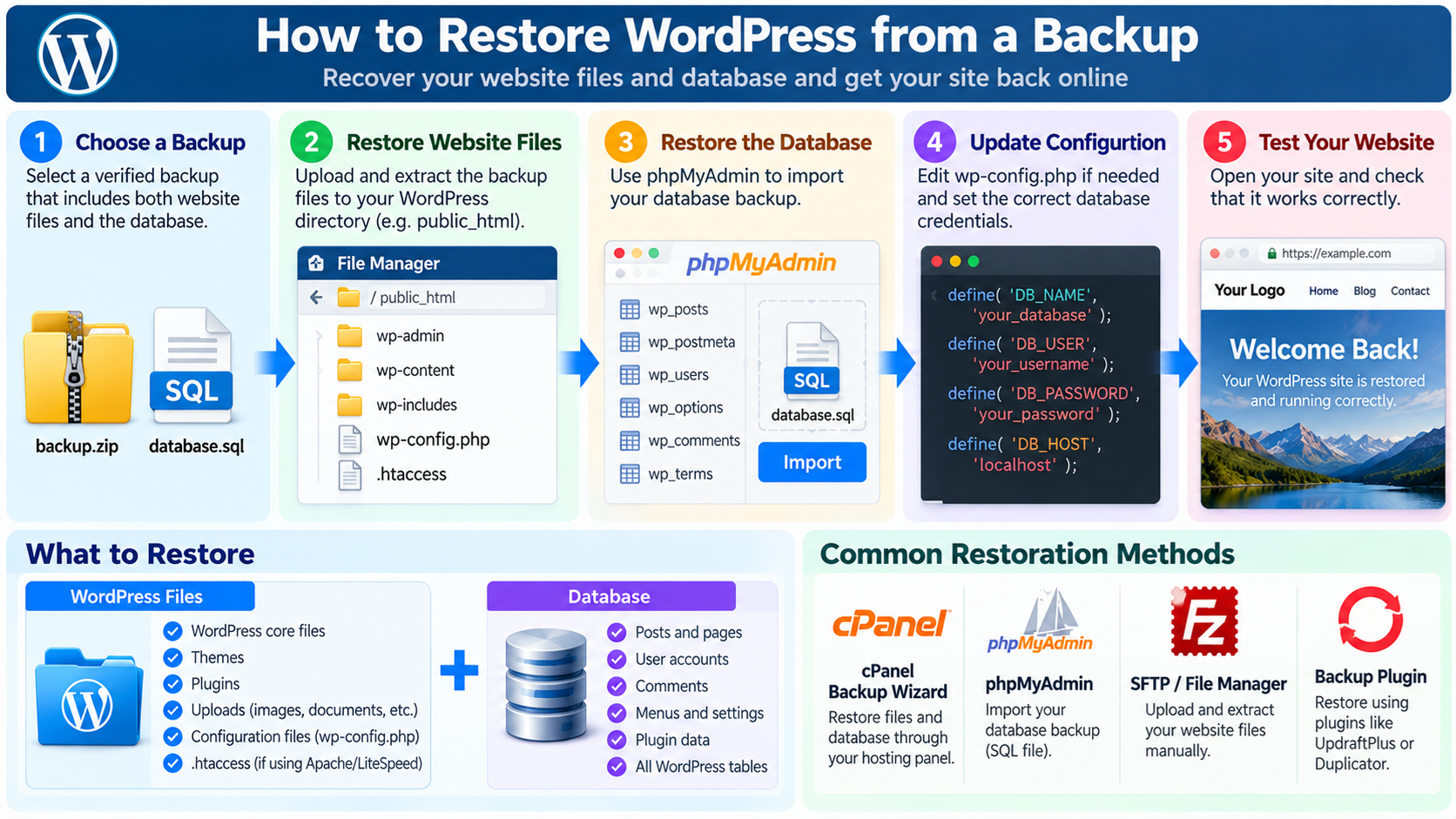
1. What Does It Mean to Restore a WordPress Website?
Restoring a WordPress website means recovering its files, database, settings, and content from a previously created backup.
The purpose is to return the website to a known working condition after a technical problem, unsuccessful update, accidental deletion, security incident, or server failure.
WordPress websites depend on multiple components working together.
The WordPress application files provide the content management system, themes control the website’s appearance, plugins add functionality, and the database stores most posts, pages, users, comments, and settings.
If any important component becomes damaged, missing, or incorrectly configured, the website may stop working properly.
For example, a plugin update may cause a PHP error that prevents WordPress from loading.
A database problem may produce an “Error establishing a database connection” message.
An incorrect modification to a configuration file may cause a 500 Internal Server Error.
In these situations, a suitable backup can help recover the website without rebuilding it from the beginning.
However, restoring WordPress requires more than simply uploading a ZIP file.
You must understand what the backup contains, which parts of the website need to be restored, and whether restoration could overwrite newer information.
This guide explains how to restore WordPress using a backup plugin, cPanel, phpMyAdmin, SFTP, and manual recovery procedures.
It also covers common restoration problems, security considerations, and steps to verify that the website works correctly afterward.
2. When Should You Restore WordPress from a Backup?
Restoring a backup is appropriate when the website has suffered a problem that cannot be resolved safely through a simpler repair.
One common situation is a failed WordPress update.
For example, a new plugin version may conflict with the active theme or another plugin, causing the website to display errors or become inaccessible.
Another situation is accidental deletion. If important website files, posts, pages, or settings have been removed, restoring an earlier backup may recover the missing information.
Database corruption can also make restoration necessary.
If database tables become damaged or important records are lost, a valid database backup may provide a recovery point.
Security incidents are another reason for restoration.
If an attacker modifies WordPress files or introduces malicious code, restoring verified clean files and database content may be part of the recovery process.
Website migrations can also require restoration.
When moving WordPress to a different hosting server, the website files and database must be transferred and configured correctly.
However, not every WordPress problem requires a complete restoration.
For example, if a single plugin causes an error, disabling or replacing that plugin may be safer than restoring the entire website.
The correct recovery method depends on the cause of the problem and which parts of the website are affected.
3. Understand What a Complete WordPress Backup Contains
Before restoring WordPress, examine the backup and determine which components it includes.
A typical WordPress website has two essential components: website files and a database.
The website files include WordPress core files, installed themes, plugins, uploaded images, documents, and configuration files.
Important WordPress directories normally include wp-admin, wp-includes, and wp-content.
The wp-content directory is particularly important because it usually contains themes, plugins, uploaded media, and other site-specific files.
The database stores posts, pages, comments, user accounts, navigation settings, plugin configuration, and much of the information managed through the WordPress Dashboard.
A complete restoration normally requires a compatible set of website files and database content.
For example, restoring the database without restoring uploaded images may result in articles that reference missing media files.
Similarly, restoring old plugin files while keeping a newer database structure may introduce compatibility problems.
Some backup systems store everything in one archive, while others create separate archives for the database, plugins, themes, uploads, and other files.
Always identify the backup format before beginning restoration.
4. Check the Backup Before Restoring Anything
The first step is to verify that the backup is available and appears usable.
Locate the backup archive on your computer, hosting server, remote storage account, or backup plugin interface.
Check the backup date and time. The most recent backup is not always the best choice, especially if a problem began before that backup was created.
For example, if a website was compromised several days ago but the problem was discovered today, yesterday’s backup may already contain malicious files.
Check whether the backup includes both the website files and the database.
If the backup is stored in a compressed archive, verify that it can be opened and that the expected files are present.
Look for important directories, configuration files, and database exports.
If the backup consists of several files, make sure all required components belong to the same recovery point.
For important websites, it is preferable to test the backup in a staging environment before restoring the live site.
A backup that exists but cannot be successfully restored may provide little practical protection.
5. Create a Backup of the Current Website Before Restoration
Even when the current WordPress website is malfunctioning, you should preserve its existing state before overwriting anything.
This may seem unnecessary because the purpose of restoration is to recover from a problem.
However, the current website may contain newer content or information that is not included in the older backup.
For example, an online store may have received new orders after the backup was created.
A blog may contain recently published articles, and a membership website may have added new user accounts.
Restoring an older database could overwrite these records.
Before beginning restoration, create a fresh backup of the current files and database whenever possible.
If WordPress cannot load, you may still be able to access the files through cPanel File Manager or SFTP and export the database through phpMyAdmin.
Store this emergency backup separately from your older recovery point.
Do not overwrite the only available backup file.
Preserving the current state also provides useful evidence when investigating a technical failure or suspected security incident.
6. Decide Between a Full Restore and a Partial Restore
WordPress restoration can be divided into two main approaches: full restoration and partial restoration.
A full restoration replaces the website’s relevant files and database with the versions stored in the selected backup.
This may be appropriate after a serious server failure, extensive data corruption, or a disaster that affects most of the website.
However, a full restore can remove changes made after the backup date.
A partial restoration replaces only the affected components.
For example, if a theme update causes a problem, restoring the previous theme files may resolve the issue without replacing the database.
If a plugin update fails, restoring the previous plugin version may be sufficient.
If several database records were accidentally deleted, a carefully planned database recovery may be necessary.
Partial restoration is often preferable when the website continues receiving orders, registrations, comments, or other important data.
The goal should be to repair the damaged components while preserving as much valid current information as possible.
7. How to Restore WordPress Using a Backup Plugin
Many WordPress backup plugins provide restoration tools that simplify the recovery process.
Examples of backup solutions include UpdraftPlus, Duplicator, and other actively maintained WordPress backup products.
The exact restoration procedure depends on the plugin and backup format.
First, log in to the WordPress Dashboard if it remains accessible.
Open the backup plugin’s management interface.
Find the list of available backups and identify the recovery point you want to use.
Review the date, time, and included components.
Some plugins allow you to restore individual sections such as the database, plugins, themes, or uploaded media.
If the problem only affects one component, consider restoring that component rather than the entire website.
Select the appropriate backup and follow the plugin’s restoration instructions.
The plugin may extract archives, replace files, import database tables, and perform other necessary recovery operations.
After the process finishes, review the reported status and any warning messages.
Do not assume restoration succeeded simply because the plugin displayed a completion message.
Open the homepage, test important pages, and verify the relevant functions.
Also remember that plugin restoration interfaces and available features may differ between free and paid versions.
8. What If the WordPress Dashboard Is Not Accessible?
A common recovery problem occurs when the WordPress Dashboard itself is unavailable.
For example, a broken plugin or PHP error may prevent access to example.com/wp-admin/.
In this situation, a backup plugin installed inside WordPress may not be usable through its normal interface.
You may need to restore the website using hosting tools instead.
If your hosting account provides cPanel, open File Manager to access the website files.
You may also use SFTP to connect to the server and upload replacement files.
If a plugin is causing the problem, temporarily disabling it by renaming its directory may allow WordPress to load again.
This should be done carefully because some plugins provide essential website functions.
If the database is damaged, phpMyAdmin or another database management tool may be required.
For a complete hosting account failure, contact your hosting provider to determine whether an account-level backup can be restored.
The important point is that WordPress restoration does not always require access to the WordPress Dashboard.
Server-level file and database access can provide alternative recovery methods.
9. How to Restore WordPress Using cPanel Backup Wizard
Many web hosting providers offer cPanel, which includes tools for managing website files, databases, and backups.
If your hosting account includes Backup Wizard, you may be able to restore supported partial backup archives through the control panel.
Log in to cPanel and locate Backup Wizard under the Files section.
Open the tool and select Restore.
Depending on the available features, you may see restoration options for the home directory, MySQL databases, email forwarders, or email filters.
Choose the type of partial backup you need to restore.
For example, if you are restoring a compatible home directory backup, select the Home Directory option.
Click Choose File and locate the appropriate backup archive on your computer.
Upload the file and follow the restoration process.
If you are restoring a database backup, select the corresponding MySQL database restore option and upload a supported database backup file.
Make sure the selected backup matches the correct WordPress installation.
A home directory restoration may affect more than one website or application if the hosting account contains multiple installations.
Also note that cPanel Backup Wizard does not automatically restore full cPanel account backup archives. Full account restoration normally requires WHM or assistance from the hosting provider.
Always review the backup type and restoration scope before proceeding.
10. How to Restore a Full cPanel Account Backup
A full cPanel account backup can contain website files, databases, email-related information, and other account configuration data.
This type of backup is different from a WordPress-only backup.
A full account restoration is generally performed through WHM or another account restoration mechanism available to the hosting administrator.
Ordinary cPanel users typically cannot automatically restore a complete full-account backup through Backup Wizard.
If you have a full cPanel backup and need to restore the entire hosting account, contact your hosting provider or use the appropriate WHM restoration interface if you have the required administrative access.
For hosting administrators, WHM provides account restoration tools that can recover supported account data from compatible backups.
However, a full account restore may affect domains, databases, email accounts, files, and other services associated with the hosting account.
It should therefore be planned carefully.
For a WordPress-only problem, restoring an entire hosting account may be unnecessary and could overwrite unrelated information.
If possible, determine whether a partial file or database restoration can resolve the issue instead.
11. How to Restore WordPress Files Using cPanel File Manager
If you have a backup of the WordPress installation files, you can restore them manually through cPanel File Manager.
First, log in to cPanel and open File Manager.
Locate the directory containing the affected WordPress installation.
For a primary domain, this may be public_html, but addon domains and custom installations may use different document roots.
Confirm that you have selected the correct directory before modifying files.
Next, create a backup of the current directory if one does not already exist.
Upload the archive containing the files you intend to restore.
If the archive is compatible with File Manager’s extraction tools, extract it into an appropriate temporary directory.
Inspect its folder structure before copying files into the live installation.
Some archives contain an additional parent directory. Extracting them directly into the document root without checking can place WordPress files in the wrong location.
After verifying the archive contents, replace only the files required by your recovery plan.
Be especially careful with wp-config.php because it contains database connection settings that may differ between servers.
Also preserve applicable custom server configuration files, including .htaccess on compatible web servers.
Once the files have been restored, check their permissions and ownership.
Remove temporary archives from publicly accessible directories after confirming that they are no longer needed.
Remember that restoring WordPress files alone does not restore database content.
12. How to Restore WordPress Files Using SFTP
SFTP provides an encrypted way to transfer files between your computer and the hosting server.
You can use an SFTP client such as FileZilla or WinSCP to perform manual restoration.
First, obtain the correct SFTP connection details from your hosting provider.
Connect to the server and navigate to the WordPress installation directory.
Before replacing files, download a copy of the current affected files if possible.
Next, locate the backup files on your computer.
Upload the required files and directories to the appropriate location on the server.
For example, if a theme update damaged the active theme, you may restore the previous version of that theme rather than replacing the entire WordPress installation.
If you are performing a complete file restoration, confirm that the backup includes the necessary WordPress core files, plugins, themes, uploads, and configuration files.
Do not indiscriminately merge incompatible versions of WordPress core, plugins, and database structures.
After uploading, verify file permissions and confirm that the website loads.
If the backup was created on another server, file ownership and configuration settings may need adjustment.
SFTP is especially useful when the WordPress Dashboard is inaccessible but server file access remains available.
13. How to Restore a WordPress Database Using phpMyAdmin
phpMyAdmin is a database administration tool commonly available in cPanel and other hosting environments.
It allows you to import SQL backup files into MySQL or MariaDB databases.
Before importing a database backup, verify that you have selected the correct database and preserved a copy of its current contents.
Log in to cPanel and open phpMyAdmin.
Select the database associated with your WordPress installation.
You can usually identify the database name by examining the DB_NAME setting in wp-config.php.
If the backup is intended to replace the entire database, a clean target database may be preferable to importing old tables over incompatible existing tables.
However, deleting or emptying database tables is destructive. Never remove existing tables until you have a verified backup and have confirmed the correct restoration procedure.
For a safer recovery, you can create a new database and import the SQL backup there, provided your hosting account has the necessary permissions and resources.
Open the Import tab in phpMyAdmin.
Choose the SQL backup file from your computer.
Confirm the import format and available settings, then start the import.
After the import completes, review any error messages and verify that the expected WordPress tables are present.
If you restored into a different database, update the database connection settings in wp-config.php.
Do not publicly disclose database credentials.
For large databases, phpMyAdmin may encounter upload size restrictions or execution timeouts.
In these cases, command-line tools or hosting-provider restoration services may be more appropriate.
14. Restore WordPress Files and Database in the Correct Order
When manually restoring a complete WordPress installation, files and database contents should be treated as one compatible recovery set.
The WordPress documentation generally recommends restoring the files first and then restoring or importing the database.
Begin by preparing the destination hosting environment.
Verify that the required PHP version, database server, and supporting services are available.
Next, restore the WordPress files, including the necessary core files, plugins, themes, uploads, and configuration.
Then restore the matching database backup.
If the database credentials or server environment have changed, update wp-config.php with the correct connection information.
After restoring the database, verify that WordPress can connect successfully.
If the website was moved to a different domain or directory, additional URL adjustments may be required.
Finally, test the website and confirm that the restored files and database correspond to compatible WordPress and plugin versions.
Restoring mismatched components can create errors even when the individual backup files are not corrupted.
15. How to Restore WordPress After a Failed Plugin Update
Plugin updates can sometimes introduce compatibility problems that affect the entire website.
For example, a newly updated plugin may require a newer PHP version or may conflict with another extension.
If WordPress becomes inaccessible immediately after a plugin update, identify the plugin most likely responsible.
When possible, check the server’s PHP error log or WordPress debugging information to confirm the cause.
If the Dashboard is unavailable, you may be able to disable the affected plugin through File Manager or SFTP by renaming its directory under wp-content/plugins.
This changes whether WordPress can load that plugin, but it does not automatically reverse database changes the plugin may have made.
If disabling the plugin restores access, you can investigate the compatibility issue and decide whether to install a supported version.
If you have a verified backup of the previous plugin files, restoring them may resolve a code-level problem.
However, a downgrade is not always safe if the newer plugin version modified database tables or stored data.
In that situation, consult the plugin’s rollback guidance or restore a compatible backup in a staging environment.
Avoid restoring the entire website database unnecessarily, especially when new articles, comments, or transactions have been created since the backup.
16. How to Restore WordPress After a Theme Update
A failed theme update can cause layout problems, missing design elements, PHP errors, or other unexpected behavior.
If the problem began immediately after updating the active theme, check whether the theme version is compatible with your installed WordPress and PHP versions.
If the Dashboard remains accessible, you may be able to temporarily activate another compatible theme.
This can help determine whether the active theme is responsible for the problem.
If the Dashboard is unavailable, File Manager or SFTP may provide access to the theme directory under wp-content/themes.
A backup of the previous theme version can be used to restore the affected theme files.
However, do not overwrite custom modifications without first preserving them.
If the website uses a child theme, make sure both the parent theme and child theme remain compatible.
Also remember that many theme settings are stored in the WordPress database. Replacing theme files alone may not restore every previous design setting.
For major theme migrations, a full staging restoration is often the safest way to investigate differences before changing the live website.
17. How to Restore WordPress After Editing .htaccess
The .htaccess file is commonly used on Apache and compatible LiteSpeed servers to manage URL rewriting, redirects, and other server behavior.
An incorrect .htaccess rule can cause 403 Forbidden errors, redirect loops, broken permalinks, or 500 Internal Server Errors.
If the website stopped working immediately after editing this file, restoring the previous version may resolve the problem.
Use cPanel File Manager or SFTP to access the WordPress document root.
Enable hidden-file visibility if necessary.
Locate .htaccess and preserve the current version before replacing it.
Upload the known working copy from your backup.
After restoring the file, test the homepage, individual posts, login page, and important redirects.
Do not replace a customized .htaccess file with generic WordPress rules unless you understand which security and application settings would be lost.
If your website uses Nginx, restoration procedures differ because Nginx does not use .htaccess for its ordinary server configuration.
In that case, review the relevant Nginx configuration or contact the hosting administrator.
18. How to Restore WordPress After a Database Connection Error
An “Error establishing a database connection” message indicates that WordPress cannot successfully connect to its configured database.
This does not always mean that the database is damaged.
The problem may result from incorrect credentials, an unavailable database service, a database user permission issue, or a server resource problem.
Before importing a database backup, check wp-config.php.
Verify that the configured database name, username, password, and host match the actual database connection information.
If the credentials are correct, confirm that the database server is running and that the hosting account can access the database.
You can use phpMyAdmin or the hosting control panel to determine whether the database is accessible.
If the database exists and its tables are intact, restoring from backup may be unnecessary.
If important tables are missing or corrupted, a database restoration may be appropriate.
Always identify the cause before overwriting the current database.
Restoring a database will not correct an unavailable database server or invalid connection credentials.
19. How to Restore WordPress After a Malware Infection
Restoring a backup after a security incident requires additional precautions.
If a website has been compromised, the attacker may have modified files, created unauthorized user accounts, inserted malicious database content, or established other ways to regain access.
Simply restoring an older backup may not solve the underlying security problem.
First, preserve relevant evidence and determine the approximate period of compromise when possible.
Next, identify a backup that predates the infection and verify that it is not itself compromised.
A staging environment can help examine the backup before it replaces the live website.
After restoring clean content, update WordPress core, plugins, themes, and other affected software.
Remove unauthorized accounts and investigate how the attacker obtained access.
Reset compromised credentials, including WordPress administrator passwords and any affected hosting or database credentials.
Review authentication keys, active sessions, file permissions, and server configuration.
For serious compromises, contact your hosting provider or a qualified security professional.
Remember that an infected backup may reintroduce malicious code during restoration.
The recovery is not complete until the underlying vulnerability has been addressed and the website has been checked for unauthorized changes.
20. How to Restore Only WordPress Images and Uploaded Files
Sometimes website content is still present, but images or other uploaded media are missing.
For example, a failed migration or accidental file deletion may remove the contents of wp-content/uploads.
In this situation, you may not need to restore the entire database.
Instead, locate a suitable backup containing the missing media files.
Use File Manager, SFTP, or a backup plugin’s selective restore feature to recover the affected uploads.
WordPress normally organizes uploaded media into directories under wp-content/uploads, often based on year and month.
Preserve the original directory structure when restoring the files.
After uploading, open several articles and verify that their images display correctly.
Keep in mind that WordPress stores media attachment information in the database.
If the database records remain intact and the original files are restored to the expected locations, the media may become accessible again without further changes.
However, some thumbnails and generated image sizes may need to be regenerated.
If the database attachment records were also deleted, restoring files alone may not fully recover the original Media Library information.
21. How to Restore a WordPress Website to a New Hosting Server
Moving WordPress to another hosting provider often involves restoring the website from a backup.
First, prepare the new hosting environment.
Create the required domain configuration, database, and database user.
Make sure the server supports the WordPress version and the required PHP extensions.
Next, upload the WordPress files to the correct document root.
Import the database into the new database server.
Update wp-config.php with the new connection details.
If the domain name remains unchanged, you may not need to modify the stored WordPress URLs.
If the domain changes, update the site URL and other relevant references using a WordPress-aware migration tool that correctly handles serialized data.
Test the restored website before directing public traffic to the new server.
For example, you may use a staging domain or another controlled testing method.
Verify the homepage, posts, images, login functions, plugins, forms, and HTTPS configuration.
When the new website is ready, update the appropriate DNS records to direct visitors to the new hosting environment.
During DNS propagation, some visitors may continue reaching the old server. For websites with frequently changing data, plan carefully to avoid data divergence.
Do not immediately delete the old installation until the migration has been verified and a rollback plan is no longer needed.
22. How to Handle WordPress URL Changes After Restoration
A WordPress backup may contain references to the original website address.
If the restored website uses a different domain or directory, these references may need updating.
For example, a backup originally created for https://old-example.com may be restored to https://new-example.com.
WordPress stores the primary site URL in its configuration and database settings, but additional references may appear in post content, plugin options, theme settings, and other data.
Changing only the main site address may not update every stored URL.
A suitable WordPress migration or search-and-replace tool can help update references.
However, WordPress database content may contain serialized data structures.
An ordinary text replacement operation can damage serialized information if it changes string lengths without updating the stored structure correctly.
Use tools designed to handle WordPress database formats.
After updating URLs, check images, internal links, navigation menus, canonical references, and plugin functionality.
If the public domain has changed permanently, also configure appropriate redirects from the old domain when possible.
23. How to Avoid Losing Recent Posts, Orders, and User Data
One of the biggest risks during WordPress restoration is overwriting newer database information.
For example, imagine an online store has a backup from Monday, but customers placed orders on Tuesday and Wednesday.
If you restore the entire Monday database on Wednesday, records created after the backup may be lost from the restored database.
The same problem can affect new posts, comments, user registrations, form submissions, and membership information.
Before restoring, identify which data has changed since the selected recovery point.
If only plugin or theme files are damaged, restore those files without replacing the database whenever possible.
If a database restoration is unavoidable, preserve the current database and determine whether newer records can be recovered or transferred safely.
For complex e-commerce websites, merging database changes can be difficult because orders, customers, payments, inventory, and plugin metadata may be stored across multiple related tables.
Do not attempt to merge these records through simple copy-and-paste database operations.
For transactional websites, a carefully planned recovery process and application-aware restoration tools may be necessary.
24. How to Test WordPress After Restoration
After restoring WordPress, verify that the website is functioning correctly before considering the recovery complete.
Start by opening the homepage in a browser.
Confirm that the website loads over HTTPS and displays the expected layout.
Next, open several posts and pages.
Check whether article content, images, navigation menus, and links appear correctly.
Log in to the WordPress Dashboard and verify that administrative functions are available.
Review the Plugins and Themes screens to make sure the expected software versions are installed.
Test contact forms and other important website functions.
If the website uses WooCommerce, check products, checkout configuration, customer accounts, and order records without creating unintended real transactions.
Also inspect server error logs for new PHP warnings or failures.
Verify that important redirects and permalink URLs still work.
If the website uses caching or a CDN, clear relevant caches after confirming that the restored content is correct.
A successful restore should be measured by actual website functionality, not simply by whether the restoration tool reported success.
25. Why Is WordPress Still Showing an Old Version After Restoration?
Sometimes restoration completes successfully, but visitors continue seeing the previous website content or an outdated error page.
Caching is one possible cause.
WordPress caching plugins, server-side caches, browser caches, and content delivery networks may retain previously generated content.
After confirming that the correct files and database are present, clear the relevant caches.
If you use a CDN such as Cloudflare, review the applicable cache rules and purge outdated cached resources when necessary.
However, do not assume every old-content problem is caused by caching.
You may have restored the wrong database, uploaded files to the wrong directory, or changed a staging installation rather than the live website.
Check the WordPress document root and database connection settings.
Also verify that the domain is pointing to the intended hosting server.
DNS changes and multiple hosting environments can make it appear as though WordPress restoration did not work.
A systematic check of files, database, domain routing, and caching usually helps identify the cause.
26. What to Do If WordPress Shows a White Screen After Restoration
A blank or white page may indicate a PHP error, incompatible plugin, incorrect theme, or other application failure.
The first step is to examine available server error logs.
If necessary, enable appropriate WordPress debugging in a controlled manner.
For a public production website, avoid displaying detailed PHP errors to visitors because error messages may expose internal file paths or sensitive configuration information.
Instead, use secure error logging.
Check whether the restored WordPress files and database correspond to compatible software versions.
If the backup contains an older plugin or theme that is incompatible with the current PHP version, restoration may not produce a working website.
You may need to restore the original compatible PHP environment temporarily, update the affected software, or use another supported recovery approach.
Also check whether the restoration omitted necessary files.
A successful archive extraction does not guarantee that every required component was restored correctly.
If the problem persists, test the backup in a separate environment to isolate the compatibility issue.
27. How to Fix File Permission Problems After Restoration
File permissions control how the web server and other users can access website files and directories.
After a manual restoration or migration, incorrect permissions can prevent WordPress from loading, uploading media, or updating files.
For many conventional Linux hosting environments, directories commonly use permissions such as 755 and ordinary files commonly use 644.
However, these are not universal requirements. The correct permissions depend on the hosting environment, file ownership, PHP execution model, and server configuration.
Sensitive configuration files may require stricter settings.
Do not set all WordPress files and directories to 777 in an attempt to resolve permission errors.
Excessively permissive access can create security risks.
Instead, inspect the file ownership and permissions and compare them with the requirements of your hosting provider.
If the restore was performed under a different account or server user, ownership may need correction by the hosting administrator.
A properly restored WordPress installation should use permissions that allow required application functions without granting unnecessary write access.
28. How to Restore WordPress from an Older Backup
Sometimes the newest backup is not suitable.
For example, a website may have been affected by a faulty plugin several days before the problem became obvious.
A recent backup might already include the faulty plugin or damaged configuration.
In this situation, an older backup may provide a cleaner recovery point.
Review the available backup history and identify when the website was last known to be working correctly.
Compare backup dates with the timeline of updates, configuration changes, errors, or security events.
If possible, restore candidate backups to a staging environment and test them before choosing one for production.
Be aware that an older backup will contain older content and settings.
The longer the time between the backup and the restoration, the more recent changes may need to be recovered separately.
For an active website, this can create substantial data reconciliation work.
Maintaining multiple recovery points is important precisely because the most recent backup is not always the most useful one.
29. Common WordPress Restoration Mistakes
A common mistake is restoring only the files while forgetting the database.
This may leave the website with incompatible content and application files.
Another mistake is importing a database into the wrong database name or modifying the wrong WordPress installation.
This is particularly dangerous on hosting accounts containing multiple websites.
Some administrators also restore a database without preserving newer orders, registrations, or other records.
Another problem is overwriting wp-config.php with a version containing incorrect database credentials.
Restoring an old .htaccess file may also remove important security rules or redirects added after the backup date.
Some website owners assume that every backup archive can be restored automatically through cPanel, even though full account backups and partial backups have different restoration requirements.
A further mistake is failing to verify the website after restoration.
The homepage may load while forms, images, plugins, or administrative functions remain broken.
Finally, restoring a compromised backup without addressing the original vulnerability may expose the website to another attack.
The safest recovery process combines backup verification, controlled restoration, testing, and security review.
30. How to Prepare a WordPress Disaster Recovery Plan
A disaster recovery plan describes how a website will be restored after a serious technical failure or security incident.
For a small personal website, the plan may be relatively simple.
For a business website, it should identify where backups are stored, who can access them, and how the website can be restored if the normal administration interface is unavailable.
The plan should also document important infrastructure details, such as the hosting provider, database requirements, domain configuration, PHP compatibility, and backup storage locations.
Avoid storing passwords directly in an unprotected recovery document. Credentials should be maintained securely through an appropriate credential management system.
A disaster recovery plan should establish how much data loss is acceptable.
This is called the Recovery Point Objective, or RPO.
For example, if the business can tolerate losing no more than one hour of recent data, the backup and recovery strategy must support that requirement.
The plan should also define the Recovery Time Objective, or RTO, which describes how quickly service should be restored after a disruption.
For important websites, periodic restoration testing helps verify that the recovery plan remains practical.
31. WordPress Restoration Checklist
Before restoring WordPress, verify that the selected backup is complete, accessible, and appropriate for the problem you are trying to solve.
Preserve the current website files and database whenever possible, especially if new content or transactions may exist after the backup date.
Determine whether a full restoration is necessary or whether replacing only an affected plugin, theme, directory, or database component would be safer.
If you use cPanel, confirm whether the backup is a partial backup or a full account backup and select the correct restoration method.
If you restore manually, verify the document root, database name, credentials, file ownership, and compatibility of the restored components.
For database imports, confirm that the correct tables are restored and that the operation will not unintentionally overwrite valuable current data.
After restoration, test the homepage, posts, images, login page, administration area, forms, and other important functions.
Review server error logs, confirm HTTPS works, verify redirects, and clear outdated caches where appropriate.
If the restoration follows a security incident, investigate the cause and secure the environment before considering the recovery complete.
Finally, create a new verified backup once the website is stable.
32. Conclusion
Restoring WordPress from a backup is an essential recovery procedure that can help repair a website after software failures, accidental deletions, database problems, migrations, or security incidents.
A complete WordPress restoration normally requires both website files and the corresponding database.
Depending on your hosting environment, you may be able to restore WordPress using a backup plugin, cPanel Backup Wizard, hosting-provider recovery tools, phpMyAdmin, or SFTP.
The correct method depends on the backup format, the scope of the problem, and the available server access.
For many problems, a partial restoration is safer than replacing the entire website. Restoring only affected files can help preserve newer content and database records.
For more serious failures, a complete restoration may be necessary, but the backup should be verified and the effect on current data carefully considered.
A successful restoration also requires testing. The website should load correctly, administrative access should work, and important functions should behave as expected.
The most important rule is to restore only what is necessary, preserve newer data whenever possible, and verify that the recovered website is fully functional before returning to normal operation.
By maintaining reliable backups, testing recovery procedures, and documenting your hosting environment, you can reduce the consequences of unexpected WordPress failures and protect the long-term availability of your website.