
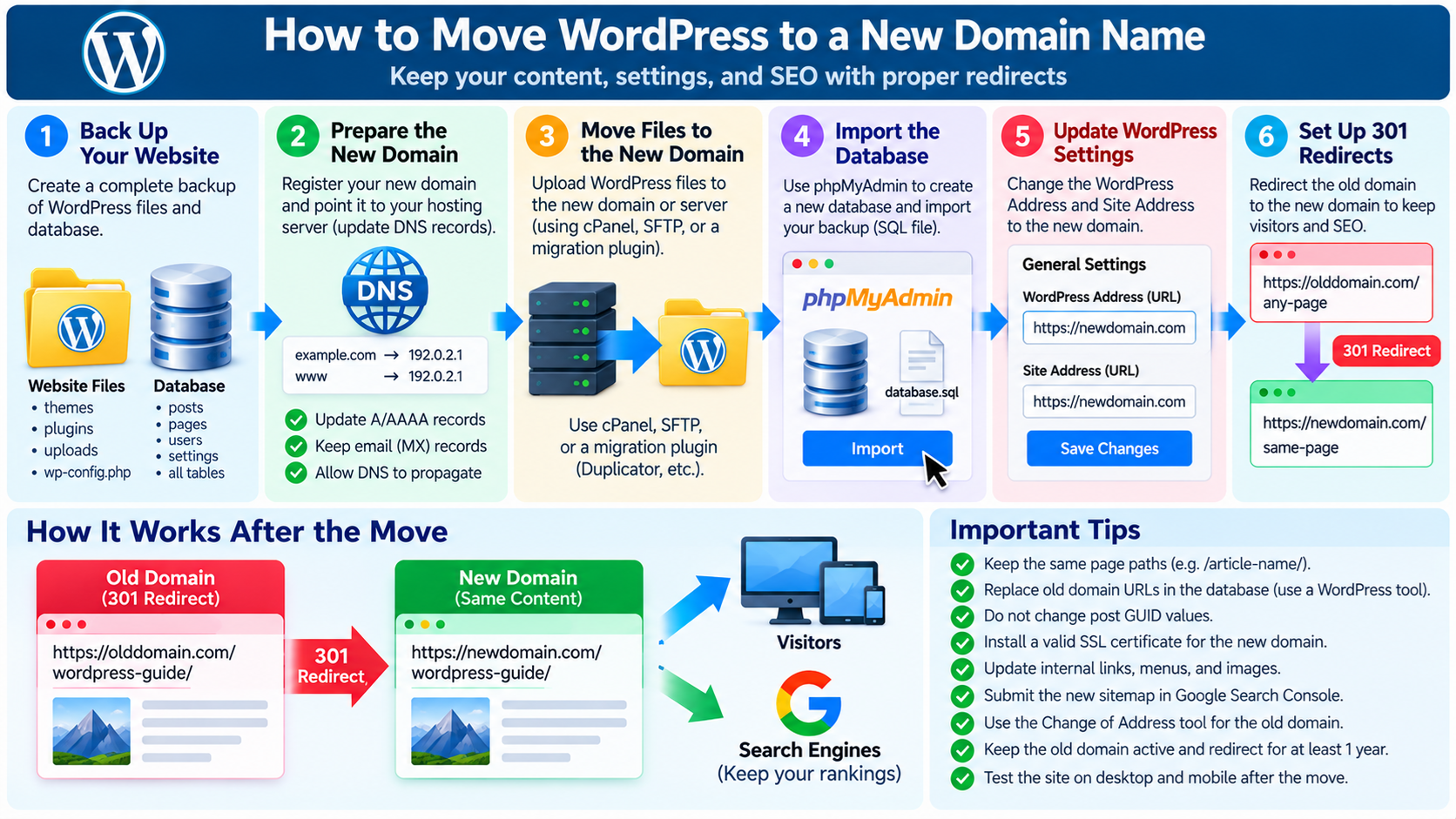
1. What Does It Mean to Move WordPress to a New Domain?
Moving WordPress to a new domain name means changing the primary web address visitors use to access your website while preserving its existing content, design, functionality, and settings.
For example, you might move a website from https://oldexample.com to https://newexample.com because your business has changed its name, you have purchased a better domain, or you want to establish a new brand.
A WordPress domain migration is different from simply registering a new domain name.
Your existing WordPress installation may contain hundreds of articles, uploaded images, plugins, themes, user accounts, internal links, and database settings that reference the original domain.
These components must continue working after the domain change.
A successful migration also requires planning for search engines and visitors who still use the old addresses.
If someone has bookmarked an article on your original domain, that bookmark should ideally redirect to the corresponding page on the new domain.
WordPress provides flexible tools for moving websites between domains, but the process requires care.
Incorrect URL changes, incomplete database updates, missing files, or improperly configured redirects can cause broken images, login problems, 404 errors, and temporary search traffic losses.
This guide explains how to move WordPress to a new domain name using hosting tools, WordPress settings, migration plugins, and database management utilities.
It also covers DNS configuration, SSL certificates, permanent redirects, SEO considerations, and troubleshooting.
2. Understand the Difference Between Changing a Domain and Changing Hosting
Before beginning a migration, determine whether you are changing only the domain name or moving the website to another hosting server as well.
If you are keeping the same hosting account and server, the migration may be relatively simple.
You may only need to add the new domain to your hosting account, update WordPress URLs, replace old domain references, configure HTTPS, and redirect the old domain.
For example, a WordPress website hosted on a cPanel server might continue using the same files and database after changing its primary public domain.
However, adding the new domain does not automatically mean the web server will use the existing WordPress document root.
The domain must be configured to serve the correct website directory.
If you are also changing hosting providers, the process becomes more involved.
You must transfer WordPress files, export and import the database, configure database credentials, verify server compatibility, and point the new domain to the new hosting environment.
A domain migration may therefore involve changes to DNS, web server configuration, WordPress settings, database content, and search engine indexing.
Understanding which components are actually changing helps avoid unnecessary work and reduces the risk of errors.
3. Why Would You Move WordPress to a New Domain?
There are several legitimate reasons to move an established WordPress website to a different domain.
One common reason is business rebranding. A company may change its business name and want its website address to reflect the new identity.
Another reason is obtaining a shorter or more memorable domain name.
For example, a company that originally used a long domain might later acquire a shorter name that is easier for customers to remember.
Some website owners move to a different top-level domain, such as changing from a country-specific domain to a .com domain.
Others move because their original domain no longer accurately describes their products, services, or intended audience.
A migration may also be necessary when consolidating multiple websites into a single domain.
However, changing domains should not be treated as an automatic SEO improvement.
A new domain does not inherently rank better simply because it is shorter or contains different keywords.
If your current domain already receives substantial search traffic and has valuable backlinks, keeping it may be preferable unless there is a clear business reason for changing.
A domain migration should be considered a planned website move rather than a routine WordPress setting adjustment.
4. Check the New Domain Before Starting
Before moving WordPress, confirm that the new domain is registered, active, and under your control.
Log in to your domain registrar’s management interface and verify that you can access the domain’s DNS settings.
Check the domain’s registration status and make sure it is not expired, suspended, or subject to another problem that could prevent normal use.
You should also review whether the new domain has previously been used by another website.
A domain’s history can sometimes reveal previous content, spam activity, or unrelated uses that may affect your migration planning.
If the domain previously hosted another website, examine its existing DNS records before making changes.
Some records may support email, domain verification, or other services that should not be removed.
It is also useful to verify that the domain is not currently serving an unrelated website or redirecting somewhere unexpected.
A new domain should be prepared before you change the existing WordPress installation.
For important websites, establish a clear migration plan that identifies who controls the domain, hosting account, DNS service, SSL configuration, and WordPress administration.
5. Back Up Your WordPress Website Before Moving
A complete backup is essential before changing the WordPress domain.
Your backup should include both the WordPress files and the database.
WordPress files include themes, plugins, uploaded images, documents, WordPress core files, and configuration files such as wp-config.php.
The database contains posts, pages, comments, users, menus, plugin settings, and other content.
You can create a backup using a WordPress backup plugin, cPanel Backup Wizard, File Manager, SFTP, or a hosting provider’s backup system.
If you use cPanel, you may be able to create a full account backup or download separate copies of the website files and database.
If you prefer a manual backup, download the complete WordPress installation directory and export the database using phpMyAdmin.
Store the backup in a secure location outside the live hosting environment.
Make sure the backup can be opened and contains the expected files and database tables.
For an established website, preserve a copy of the original site before beginning the migration. This gives you a recovery point if something goes wrong.
If the website receives frequent orders, comments, or user registrations, plan how to preserve changes made during the migration window.
6. Record Your Existing Website Configuration
Before changing anything, record the important settings of the original WordPress website.
Log in to the WordPress Dashboard and open Settings → General.
Record the current WordPress Address (URL) and Site Address (URL).
These values are often identical, but they can differ when WordPress core files are installed in a subdirectory while the public website is served from another address.
Next, open Settings → Permalinks and record the current permalink structure.
You should normally preserve the existing path structure during a domain migration.
For example, if an article is available at https://oldexample.com/wordpress-security/, the preferred new address will often be https://newexample.com/wordpress-security/.
Keeping the article path unchanged simplifies redirect planning and reduces the number of variables involved in the migration.
Also record the active theme, important plugins, PHP version, database configuration, and any custom server rules.
If your site uses a CDN, caching service, firewall, or special redirects, document the relevant settings.
This information will help you identify and correct problems after the move.
7. Prepare the New Domain in Your Hosting Account
The next step is to configure the hosting environment so the new domain can serve your WordPress website.
If you use cPanel, log in to your hosting account and locate the Domains section.
Depending on the hosting plan and cPanel configuration, you may be able to add the new domain as an additional domain or modify an existing domain assignment.
The important setting is the document root, which determines which directory the web server uses when visitors open the new domain.
For example, if your WordPress installation is located in public_html, the new domain must be configured to serve the intended WordPress directory.
However, some hosting providers do not allow additional domains to share certain document roots, and changing an account’s primary domain may require assistance from the hosting provider.
Do not assume that adding a domain automatically changes the primary WordPress address.
If you are moving to a different hosting account, create the appropriate destination directory and database environment before transferring the website.
Avoid deleting the old website or replacing its files at this stage.
The original installation should remain available until the new site has been tested and the migration is ready.
8. How to Move WordPress Files to a New Domain
If the new domain uses the same WordPress installation directory, you may not need to copy the website files at all.
However, if the new domain points to a different directory or hosting server, the WordPress files must be transferred.
You can use cPanel File Manager, SFTP, or a WordPress migration plugin.
For a manual transfer, locate the existing WordPress installation directory.
Download or archive the required files, including wp-admin, wp-includes, wp-content, and the files in the installation root.
Make sure important configuration files are included.
Next, upload the files to the destination directory.
If you are using a compressed archive, extract it into the correct location.
Be careful not to create an unnecessary extra directory level.
For example, the WordPress files should not accidentally end up inside public_html/backup/ if the web server expects them directly under public_html.
After uploading, verify that the file structure is correct.
Do not delete the original files until the migration has been completed successfully.
9. How to Export the WordPress Database
If you are moving WordPress to a different hosting account or database server, you must also transfer its database.
One common method is to use phpMyAdmin.
Log in to your original hosting control panel and open phpMyAdmin.
Select the database associated with your WordPress installation.
If you are unsure which database is being used, examine the DB_NAME setting in wp-config.php.
Once the correct database is selected, open the Export tab.
For many websites, an SQL export is appropriate.
You can use the Quick export option for a straightforward database export or the Custom option when you need additional control.
Make sure the export includes all relevant WordPress tables, including any additional tables created by plugins.
Download the SQL file to your computer.
For large databases, phpMyAdmin may encounter upload or execution limits. In that case, a hosting backup system or command-line database tool may be more suitable.
Keep the exported database file secure because it may contain user information, password hashes, and sensitive plugin settings.
10. How to Import WordPress into the New Database
If the destination server uses a different database, create a new MySQL or MariaDB database through the hosting control panel.
Create an appropriate database user and grant the required permissions to the new database.
Next, open phpMyAdmin on the destination server.
Select the target database and choose the Import tab.
Upload the SQL backup file and start the import.
After the import finishes, check that the expected WordPress tables are present.
If the database import fails, examine the error message before trying again.
Common causes include upload size limits, execution timeouts, database version differences, and existing table conflicts.
Do not repeatedly import the same database over existing tables without understanding the effect.
Once the database is ready, open wp-config.php in the destination WordPress installation.
Update the database name, username, password, and host values if they differ from the original server.
The WordPress table prefix should remain consistent with the imported database unless you are intentionally performing a separate, carefully planned prefix migration.
After saving the configuration, test the database connection.
If the WordPress installation cannot connect to the database, verify the credentials and database server before making unrelated changes.
11. Change the WordPress Address and Site Address
Once the new domain is correctly configured and the website is ready to use it, update the WordPress URL settings.
In a standard single-site WordPress installation, go to Settings → General.
Locate WordPress Address (URL) and Site Address (URL).
The WordPress Address identifies where the WordPress core files are accessible. The Site Address identifies the public website address.
For a conventional installation at the root of the new domain, both values will usually be https://newexample.com.
If WordPress is installed in a special subdirectory arrangement, the two values may legitimately differ.
Change the values according to the actual installation layout and save the settings.
WordPress may log you out or redirect the browser to the new domain.
This is normal because the application now recognizes the new address.
However, do not change these settings before the destination domain and web server are prepared. Doing so can temporarily make the original dashboard inaccessible.
For a server migration, it is often safer to perform and test the URL changes in the destination copy rather than prematurely changing the production website.
WordPress also provides recovery methods through wp-config.php and database settings when the Dashboard is unavailable.
12. How to Change WordPress URLs Using phpMyAdmin
If you cannot access the WordPress Dashboard after changing domains, you may need to correct the website address directly through the database.
Open phpMyAdmin and select the database associated with the affected installation.
Locate the WordPress options table.
Its default name is wp_options, but the table prefix may be different.
Find the records with option_name values of siteurl and home.
These settings correspond to the WordPress Address and Site Address.
Edit the values to reflect the correct destination URLs.
For example, both may be changed to https://newexample.com when WordPress is installed at the domain root.
Save the changes and attempt to open the new site’s administration area.
This method can correct the primary website URLs, but it does not replace every old domain reference stored elsewhere in the database.
For a complete migration, additional URL replacement may still be required.
Before modifying database values, preserve a current database backup and verify that you are working with the correct installation.
13. Replace Old Domain References Safely
Changing the main WordPress URL settings does not automatically update every reference to the original domain.
Old URLs may remain in article content, image links, navigation settings, widgets, custom fields, theme options, and plugin configuration.
For example, an image may still use https://oldexample.com/wp-content/uploads/example.jpg even after the website has moved to https://newexample.com.

If these references are not updated, the new website may continue requesting resources from the original domain.
A WordPress-aware search-and-replace tool can help update stored references.
One option is WP-CLI, a command-line management tool for WordPress.
Another option is a suitable database search-and-replace plugin that supports WordPress data structures.
It is important to use a method that correctly handles serialized data.
WordPress and its plugins sometimes store arrays or objects in serialized formats that include information about string lengths.
A basic text replacement may corrupt these values if the length of a stored URL changes.
For example, replacing a long domain name with a shorter domain through an ordinary database text operation can damage serialized settings.
Use a reliable WordPress-compatible tool, review the planned replacements, and perform a dry run if the tool supports it.
Do not indiscriminately replace email addresses, historical references, external URLs, or other values that should remain unchanged.
14. Preserve GUID Values During Database Migration
WordPress stores a globally unique identifier, commonly called a GUID, for posts and other content records.
The GUID may look like a URL, but its purpose differs from the ordinary public permalink.
For example, an existing post GUID might contain the original domain name.
When moving WordPress to a new domain, you should not automatically replace GUID values merely to make them match the new site address.
WordPress documentation advises preserving GUID values during normal site migrations because they are intended to remain stable identifiers.
Changing them can affect systems such as feed readers that use these identifiers to recognize previously published content.
When using WP-CLI or another migration tool, make sure your replacement strategy does not unintentionally modify GUID records.
This is one reason why a WordPress-aware migration process is preferable to an unrestricted database-wide text replacement.
15. How to Move WordPress Using a Migration Plugin
A WordPress migration plugin can simplify the process of moving files, database content, and settings to a new domain.
Examples of established migration solutions include Duplicator, All-in-One WP Migration, and other compatible WordPress migration tools.
Before selecting a plugin, check its current compatibility, backup format, database handling, and available features.
Some plugins impose file size or migration limitations depending on the edition and hosting configuration.
A typical migration process begins by installing the plugin on the original WordPress website.
You then create a migration package or backup containing the required website files and database.
Next, prepare the destination domain and hosting environment.
Depending on the plugin, you may upload the package to the destination server or install the same plugin on a new WordPress installation and import the backup.
The migration tool may update domain references automatically.
After the process finishes, sign in to the destination WordPress Dashboard and verify the content.
Although migration plugins automate many operations, they do not eliminate the need to check DNS, SSL certificates, email configuration, redirects, and search engine settings.
A successful import message does not guarantee that every feature is working correctly.
16. Configure DNS for the New Domain
DNS, or Domain Name System, connects domain names to the network addresses and services used by a website.
After preparing the WordPress installation, configure the new domain so visitors can reach the intended hosting server.
Log in to the DNS management service for the new domain.
Depending on the hosting arrangement, you may need to configure A records, AAAA records, CNAME records, or other DNS settings.
An A record associates a hostname with an IPv4 address, while an AAAA record associates it with an IPv6 address.
A CNAME record creates an alias from one hostname to another, subject to DNS rules and provider capabilities.
For example, you may configure the new domain to point to the IP address of the web hosting server.
If your domain uses Cloudflare or another DNS provider, make the changes in the authoritative DNS management system rather than assuming they must be changed at the registrar.
Be careful not to remove unrelated DNS records.
MX records are commonly used for email delivery, while TXT records may support email authentication, domain verification, and other services.
Changing website DNS should not unnecessarily interrupt email.
After saving the records, allow time for DNS changes to propagate according to existing caching and TTL settings.
17. Configure SSL and HTTPS on the New Domain
Before directing visitors to the new website, make sure the domain has a valid TLS certificate and supports HTTPS.
HTTPS encrypts communication between visitors and the website endpoint, helping protect information transmitted over the connection.
A certificate issued for the old domain does not automatically provide coverage for the new domain unless the new hostname is included in the certificate.
If your hosting provider supports automated certificate issuance, you may be able to request or install a certificate through the hosting control panel.
Some hosting environments use cPanel AutoSSL or other certificate management systems.
If the new domain uses Cloudflare, review both the visitor-to-Cloudflare connection and the Cloudflare-to-origin connection.
For appropriate end-to-end encryption, the origin server should support HTTPS with a valid certificate and the encryption mode should match the deployment requirements.
Cloudflare Full (strict) mode is generally preferred when the origin has a valid compatible certificate.
Do not assume that enabling HTTPS at a CDN automatically secures communication between the CDN and the hosting server.
After configuring the certificate, open https://newexample.com and verify that the browser does not display certificate warnings.
Also check important pages and resources for mixed-content problems caused by old HTTP references.
18. Set Up 301 Redirects from the Old Domain
One of the most important steps in a WordPress domain migration is redirecting old URLs to their new destinations.
A 301 redirect tells browsers and search engines that a resource has moved permanently.
For example, https://oldexample.com/wordpress-security/ should redirect to https://newexample.com/wordpress-security/ if the article retains the same path.
This allows existing bookmarks, external links, and search engine results to continue leading visitors to the correct content.
Ideally, each old URL should redirect directly to its corresponding new URL.
Do not redirect every article to the new homepage simply because the old domain has changed.
For example, a visitor opening an old tutorial should reach the migrated tutorial, not an unrelated landing page.
You can configure redirects through Apache or LiteSpeed rewrite rules, Nginx configuration, a suitable hosting control panel, or another reliable redirect system.
For large websites, server-level redirects are often more efficient than processing every old-domain request through WordPress.
The old domain must remain registered and configured so it can continue receiving requests and issuing redirects.
19. How to Redirect an Entire Domain Without Changing Article Paths
If all article paths remain unchanged, the migration is usually easier to manage.
For example, an old article located at https://oldexample.com/linux-basics/ can move to https://newexample.com/linux-basics/.
In this case, a carefully designed domain-wide redirect may preserve the requested path while changing the hostname.
The correct implementation depends on the web server and any existing redirects.
If you use Apache or compatible LiteSpeed hosting, a redirect may be implemented through appropriate .htaccess rewrite rules.
If you use Nginx, it is generally configured in the server configuration.
Before adding a domain-wide redirect, verify that it applies only to the old hostname and does not accidentally redirect the new domain back to the old one.
Otherwise, visitors may encounter redirect loops.
Also preserve query strings where required by the application.
If you changed individual article slugs during migration, those pages may need additional URL mappings.
For established websites, keeping the original article paths is usually the simplest approach.
20. Avoid Redirect Loops and Redirect Chains
A redirect loop occurs when a URL repeatedly redirects back to itself or another URL in a circular sequence.
For example, the old domain might redirect to the new domain, while another rule on the new domain redirects visitors back to the old domain.
Browsers may eventually display an error indicating too many redirects.
Redirect chains are another problem.
A chain occurs when a visitor moves through several intermediate addresses before reaching the final page.
For example, an old HTTP URL might redirect to an old HTTPS URL, then to a new HTTP URL, and finally to the new HTTPS URL.
Although some chains work, they introduce unnecessary latency and can complicate troubleshooting.
Configure redirects to reach the final preferred HTTPS destination directly whenever practical.
Test different hostname variants, including www and non-www addresses if they were previously used.
Also check old article URLs, category archives, and other important paths.
The final destination should normally return HTTP 200 OK rather than another redirect or a 404 error.
21. Update WordPress Permalinks After Migration
After moving the website, review WordPress permalink settings.
Log in to the new WordPress Dashboard and navigate to Settings → Permalinks.
Verify that the selected structure matches the expected URL format.
For example, if the original website used Post Name permalinks, keeping the same structure usually simplifies the migration.
If the structure is correct, saving the settings can refresh WordPress rewrite rules where supported.
This may help resolve certain permalink routing problems.
However, saving permalink settings is not a substitute for configuring the web server correctly.
On Apache and compatible LiteSpeed systems, appropriate rewrite rules must be available.
On Nginx, the relevant routing is managed through server configuration rather than ordinary .htaccess files.
Avoid changing the permalink structure and domain name at the same time unless there is a strong reason.
Making both changes together increases the number of old-to-new URL relationships that must be managed.
22. Update Internal Links and Images
After replacing old domain references, inspect the website for remaining links to the original address.
Internal links may appear in article content, menus, sidebar widgets, footer sections, page builder layouts, and custom fields.
Some image URLs may also continue pointing to the previous domain.
Open several articles and verify that images load from the expected location.
Check background images, CSS files, JavaScript resources, downloadable documents, and embedded media.
If your website uses a page builder, review its instructions for updating URLs and regenerating cached CSS or other generated files.
For example, some builders store layout information in database structures that require specialized migration tools.
Use browser developer tools or a suitable website crawler to identify failed resource requests.
Not every reference to the old domain must necessarily be changed. Historical citations, intentional external references, and certain identifiers may need to remain intact.
The objective is to update functional website references without damaging unrelated content.
23. Check Canonical URLs and XML Sitemaps
Canonical URLs identify the preferred addresses for individual pages.
After migrating to a new domain, canonical references should generally point to the new domain’s preferred URLs.
For example, the canonical URL for a migrated article should normally identify https://newexample.com/wordpress-security/ rather than its old-domain equivalent.
WordPress SEO plugins may generate canonical tags automatically, but you should verify that they reflect the updated domain.
Also inspect your XML sitemap.
A sitemap helps search engines discover important website URLs.
WordPress includes basic sitemap functionality, and SEO plugins may provide more advanced sitemap generation.
After migration, the sitemap should list the new URLs.
If you previously submitted an old-domain sitemap to search engines, keep the old domain’s redirects working while establishing the new sitemap.
The old domain should not continue serving duplicate indexable copies of the same articles.
A consistent combination of permanent redirects, correct canonical URLs, and updated sitemaps helps search engines understand the migration.
24. Use Google Search Console After Changing Domains
Google Search Console is useful for monitoring how Google discovers and indexes your migrated website.
Before beginning the migration, make sure you have appropriate Search Console access for the old domain.
After preparing the new website, verify ownership of the new domain as well.
Submit the new domain’s XML sitemap.
Then, for a full domain migration that meets Google’s requirements, use the Change of Address tool associated with the old site’s Search Console property.
This tool helps notify Google that your website has moved from one domain or subdomain to another.
It should be used after the new site is ready and appropriate redirects have been configured.
The Change of Address tool is not intended for every type of URL change. For example, moving from HTTP to HTTPS on the same domain does not require this tool.
After submitting the migration information, monitor indexing reports and search performance.
Check whether Google is discovering the new URLs and whether old URLs are being replaced in search results.
Temporary fluctuations are possible while Google processes the move.
Do not assume that a domain migration will be completed immediately after submitting the new sitemap.
25. Will Moving WordPress to a New Domain Hurt SEO?
A domain migration can temporarily affect search engine visibility because the URLs associated with your content are changing.
Search engines must crawl the new website, process redirects, evaluate canonical signals, and update their indexes.
Even when the migration is performed correctly, rankings and search traffic may fluctuate.
Proper permanent redirects help search engines connect old URLs with their new destinations.
However, redirects do not guarantee that rankings will remain identical.
The risk of disruption increases when important pages disappear, redirects point to irrelevant destinations, content changes substantially, or search engines cannot crawl the new website.
For this reason, it is generally better to preserve article paths and content during the domain migration.
If you also want to redesign the website, reorganize categories, or rewrite large amounts of content, consider performing those changes separately.
Keeping the migration focused on the domain reduces the number of variables involved.
For established websites with valuable organic traffic, careful preparation and monitoring are essential.
26. How Long Should You Keep the Old Domain?
After moving WordPress to a new domain, do not immediately abandon the original domain.
Visitors may continue using old bookmarks, previously shared links, and search engine results.
Other websites may also contain backlinks that point to your old domain.
Keeping the old domain active allows those requests to be redirected to the appropriate new addresses.
Google generally recommends maintaining site-move redirects for at least one year. Keeping important redirects longer, ideally for as long as practical, can benefit visitors who continue using historical links.
For many businesses, maintaining the original domain registration is a relatively small expense compared with the potential cost of losing important referrals.
You should also protect the old domain against expiration or unauthorized transfer.
If the original domain previously supported email, review whether existing email addresses must remain operational or forward messages to new addresses.
A domain migration is not complete simply because the new website works. Historical links and supporting services may need long-term maintenance.
27. Do Not Forget Email When Changing Domains
A WordPress domain migration can also affect business email services.
For example, a company changing from oldexample.com to newexample.com may want to start using addresses such as contact@newexample.com.
Website hosting and email hosting are separate services, even when they are managed through the same hosting account.
Before changing DNS, identify the email provider and the records required for mail delivery.
Important records may include MX, SPF, DKIM, and DMARC configurations.
MX records identify mail servers responsible for receiving messages.
SPF and DKIM support email authentication, while DMARC provides policies and reporting related to domain-based email authentication.
If you remove or replace the wrong DNS records, email delivery may stop working even though the website remains accessible.
Set up new mailboxes or aliases as needed and test email sending and receiving.
If customers still use old email addresses, consider keeping those addresses active or forwarding messages for an appropriate transition period.
Do not assume that moving WordPress automatically transfers email accounts or stored mailbox messages.
28. Update External Services and Website Integrations
Many WordPress websites use external services that reference the website’s domain.
For example, contact form services, payment providers, analytics platforms, social login systems, and API integrations may require updated URLs.
If a plugin uses OAuth authentication, the new domain may need to be added to the service’s authorized redirect URI list.
Payment systems may use callback or webhook URLs that must be updated after migration.
Security services may require verification or new domain configuration.
Analytics platforms may also need adjustments to tracking settings or reporting configuration.
If your website uses Google Analytics, review the relevant web data stream settings and any domain-specific filters or integrations.
If you use Cloudflare, confirm that the new domain has the correct DNS records, TLS configuration, firewall settings, and caching behavior.
Also review backup destinations and scheduled tasks.
For business websites, test all important integrations rather than assuming they will automatically follow the domain change.
29. How to Move WordPress Without Significant Downtime
A carefully planned migration can minimize interruption to visitors.
Start by preparing the new domain and destination hosting environment before making public DNS changes.
Transfer the files and database, update the WordPress URL configuration in the destination copy, and test the new installation using an appropriate staging or preview method.
Make sure the new domain has a valid HTTPS certificate.
If you need to update DNS records, review their TTL values ahead of the migration.
TTL, or Time to Live, determines how long DNS resolvers may cache a record.
Reducing TTL in advance can help some DNS changes become visible more quickly, but it cannot instantly clear records that have already been cached.
For websites with frequently changing content, plan how to prevent writes from being split between old and new environments.
For example, a brief maintenance or read-only period may be necessary during final database synchronization.
After completing the migration, activate the appropriate redirects and monitor the website.
Keep the original environment available until the new installation is stable and important data has been verified.
The goal is to make the transition predictable rather than relying on an immediate, untested DNS switch.
30. Common Problems After Moving WordPress to a New Domain
Several problems can appear after a WordPress domain migration.
One common problem is that the homepage works but individual articles return 404 errors. This may indicate incorrect permalink configuration or missing web server rewrite rules.
Another problem is that images fail to load because their stored URLs still reference the original domain.
Login problems may occur when WordPress URL settings, cookies, redirects, or security plugins are not configured correctly.
A redirect loop may occur if the old and new domains contain conflicting redirect rules.
HTTPS warnings may appear when the new domain does not have a valid certificate or when some resources are still loaded over HTTP.
Some websites display old content because a browser, WordPress cache, server cache, or CDN is still serving previously generated pages.
If WordPress cannot connect to its database, verify the credentials in wp-config.php and confirm that the new database server is accessible.
The most effective troubleshooting approach is to identify the affected component rather than making multiple unrelated changes.
31. How to Fix WordPress Login Problems After a Domain Change
If the WordPress login page continues redirecting to the old domain, check the stored WordPress Address and Site Address.
These settings may still contain the original URL.
If the Dashboard is inaccessible, use phpMyAdmin to inspect the corresponding home and siteurl values in the WordPress options table.
Also check whether WP_HOME or WP_SITEURL has been explicitly defined in wp-config.php.
Values defined in wp-config.php can override the corresponding database settings during WordPress operation.
If those constants still reference the old domain, changing the database values alone may not resolve the problem.
Review caching and security plugins that may enforce redirects or domain-specific restrictions.
Also check whether browser cookies are associated with an outdated hostname.
After correcting the configuration, test the login page through the new HTTPS address.
Avoid repeatedly changing database records without identifying why WordPress is redirecting incorrectly.
32. What If the New Domain Shows the Wrong Website?
If the new domain displays a default hosting page, an unrelated website, or an empty directory, the problem may involve DNS or hosting configuration.
First, verify that the new domain resolves to the expected hosting server.
Next, check the domain assignment in the hosting control panel.
Confirm that the configured document root contains the intended WordPress installation.
On accounts hosting multiple websites, each domain may use a separate directory.
If the domain points to the wrong directory, WordPress URL settings alone will not resolve the issue.
Also check whether a CDN or reverse proxy is routing requests to the expected origin server.
If you recently changed DNS, some resolvers may still have cached older records.
Do not move or delete website files until you have confirmed the correct document root and server configuration.
33. Special Considerations for WordPress Multisite
WordPress Multisite allows multiple websites to operate within a single WordPress installation.
Moving a Multisite network to a new domain is generally more complicated than migrating a standard single-site WordPress installation.
A Multisite network may contain multiple site addresses, network settings, domain mappings, and database records that reference different hostnames.
Changing the primary domain can affect individual sites and network administration.
The usual single-site Settings → General procedure is not sufficient for every Multisite migration.
You may need to update network-specific database settings, configuration constants, and individual site mappings.
Plugins, themes, media storage, and domain-specific configuration may also require additional attention.
Before migrating a Multisite installation, create a complete network backup and test the process in an isolated environment.
For production Multisite networks, consult the applicable WordPress documentation or use an experienced administrator familiar with network migrations.
34. WordPress Domain Migration Checklist
Before moving WordPress to a new domain, confirm that the new domain is registered, active, and under your control.
Create a complete backup of the original WordPress files and database, and preserve a separate copy outside the hosting server.
Record the original WordPress URL settings, permalink structure, hosting configuration, and important external integrations.
Prepare the new domain’s hosting configuration and verify the correct document root.
If changing hosting servers, transfer the website files, create the destination database, import its contents, and update wp-config.php.
Change the WordPress URL settings at the appropriate stage of the migration.
Use a WordPress-compatible search-and-replace method to update necessary domain references without corrupting serialized data or unnecessarily modifying GUID values.
Configure DNS and install a valid HTTPS certificate for the new domain.
Set up permanent redirects so old URLs lead to their corresponding new destinations.
Update internal links, canonical URLs, XML sitemaps, and relevant external integrations.
Verify the new domain in Google Search Console, submit the sitemap, and use the Change of Address tool when applicable.
Test the homepage, articles, images, WordPress login, forms, email services, and other important functions.
Finally, monitor server errors, redirect behavior, indexing changes, and website traffic after the migration.
35. Conclusion
Moving WordPress to a new domain name is a manageable process, but it involves more than changing the website address in the WordPress Dashboard.
A successful migration requires preparation of the new domain, complete backups, correct hosting configuration, careful database updates, secure HTTPS connections, and permanent redirects from the original URLs.
If the website is also moving to another hosting server, you must transfer the WordPress files and database and ensure that the destination environment is compatible with the application.
For established websites, SEO preservation is especially important. Existing URLs may have accumulated backlinks, search traffic, and bookmarks over many years.
Permanent redirects, correct canonical URLs, updated sitemaps, and careful monitoring help search engines and visitors transition to the new domain.
Whenever possible, preserve the existing article paths and avoid combining the domain migration with major content or permalink changes.
The original domain should remain registered and capable of redirecting visitors for the long term.
The most important principle is to prepare and test the new WordPress website before switching public traffic, then preserve access to old URLs through reliable permanent redirects.
With a verified backup, an organized migration process, and careful post-migration testing, you can move WordPress to a new domain while minimizing downtime, broken links, content loss, and search engine disruption.