
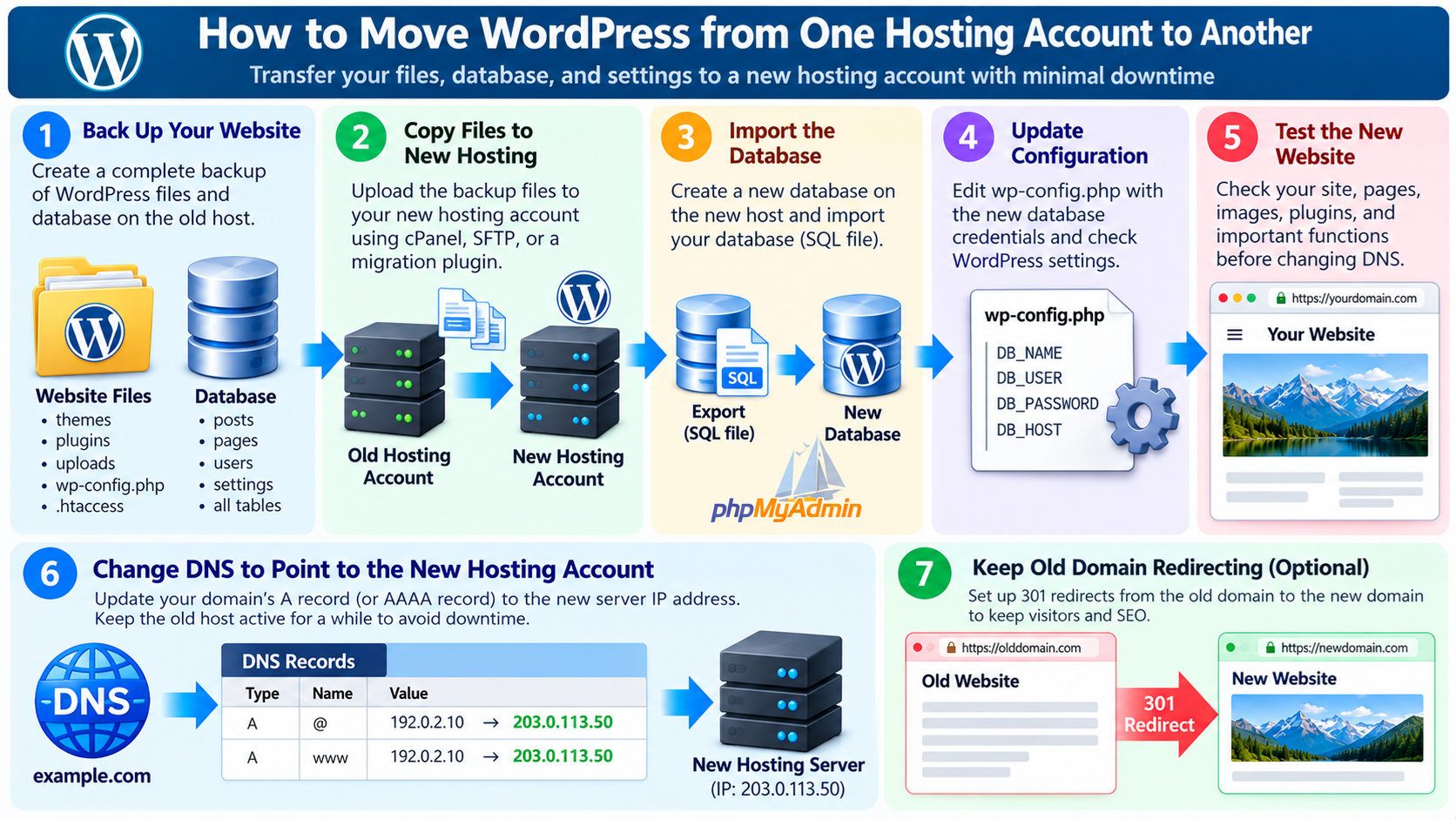
1. What Does It Mean to Move WordPress to Another Hosting Account?
Moving WordPress from one hosting account to another means transferring an existing WordPress website, including its files, database, themes, plugins, uploaded media, and configuration settings, from one hosting environment to a different hosting account.
The purpose is to keep the website functioning normally while changing where its resources are stored and managed.
For example, you may have a WordPress website running on a shared hosting account and decide to move it to a new account with more storage, better performance, improved security, or additional server resources.
You might also transfer the website between two cPanel accounts, move from one hosting provider to another, or migrate from shared hosting to a VPS.
In many cases, the domain name remains unchanged.
Visitors continue entering the same website address, but DNS eventually directs their requests to the new hosting server.
A successful migration should preserve the website’s articles, pages, images, navigation menus, user accounts, plugins, theme settings, and other important information.
Ideally, visitors should not notice any significant interruption.
However, moving WordPress involves more than copying a few files.
WordPress stores much of its information in a database, and the application depends on configuration settings that must match the destination hosting environment.
This guide explains how to transfer WordPress between hosting accounts using cPanel, File Manager, phpMyAdmin, SFTP, migration plugins, and hosting-provider transfer tools.
It also covers database configuration, DNS changes, SSL certificates, email services, troubleshooting, and post-migration verification.
2. Why Would You Move WordPress to Another Hosting Account?
There are several reasons why a website owner may decide to transfer WordPress to a different hosting account.
One common reason is website growth.
A small WordPress website may initially run well on a basic shared hosting plan, but increased traffic, additional plugins, larger databases, or more demanding applications may require additional resources.
Another reason is performance.
A new hosting environment may provide more suitable CPU resources, memory, storage performance, PHP configuration, or database capacity.
Some website owners migrate because they need additional security features, better backup options, more flexible server configuration, or a different hosting control panel.
A business might also consolidate several websites under one hosting account or separate websites into different accounts for administrative or security reasons.
For example, if several WordPress installations share one hosting account, moving an important business website into a separate account can provide clearer resource allocation and access management.
A migration may also be necessary when changing hosting providers, upgrading to a VPS, or transferring website management responsibilities to another organization.
Whatever the reason, the migration should be planned carefully because interruptions can affect visitors, search engine crawlers, customer transactions, and administrative access.
3. Understand the Difference Between Hosting Migration and Domain Migration
A hosting migration and a domain migration are not the same operation.
When moving WordPress to a new hosting account, the website’s domain name often remains unchanged.
For example, https://example.com may initially point to a WordPress installation on Server A.
After migration, the same domain points to Server B, where a copy of the website has been prepared.
The website address remains https://example.com.
In contrast, a domain migration changes the public website address, such as moving from https://oldexample.com to https://newexample.com.
A domain migration usually requires additional steps involving URL replacement, permanent redirects, canonical URLs, and search engine migration tools.
If you are changing only the hosting account while keeping the same domain and permalink structure, you normally do not need to replace the domain name throughout the WordPress database.
This makes hosting-only migrations simpler in some respects.
However, you must still transfer the files and database, configure the new hosting environment, and direct the domain to the appropriate server.
Understanding this distinction helps prevent unnecessary database modifications and accidental changes to existing URLs.
4. Check the Requirements of the New Hosting Account
Before transferring WordPress, verify that the destination hosting account can support your website.
Start by checking the PHP version supported by the new hosting environment. WordPress core, themes, and plugins may have specific PHP compatibility requirements.
Next, review the available MySQL or MariaDB version and database configuration.
Some plugins require particular PHP extensions or server capabilities.
For example, image processing, international text handling, caching, encryption, and database communication may depend on specific PHP modules.
Check the destination account’s storage capacity, memory limits, CPU allocation, inode limits, and other resource restrictions.
A website containing thousands of images or large backup archives may require substantially more disk space during migration than its normal operating size.
Also verify whether the hosting plan supports the required number of domains, databases, email accounts, scheduled tasks, and SSL certificates.
If the website uses WooCommerce, a membership system, or another resource-intensive application, check whether the destination hosting plan provides adequate performance and supports the required background tasks.
Moving a website to a different account does not automatically improve performance.
The new environment must actually provide suitable resources and configuration.
5. Create a Complete Backup of the Existing WordPress Website
The first major step in any WordPress migration is creating a complete backup.
A standard WordPress installation consists of website files and a database. Both components must be preserved.
Website files include WordPress core files, installed plugins, themes, uploaded media, and important configuration files such as wp-config.php.
The database stores posts, pages, comments, users, menus, plugin settings, and other application data.
You can create the backup using cPanel Backup Wizard, a WordPress backup plugin, File Manager, SFTP, or an appropriate server-level backup system.
If your hosting account supports automated backups, you may already have recovery points available.
However, creating a fresh independent backup immediately before migration is still recommended.
Store the backup outside the original hosting account whenever practical.
Verify that the backup contains the expected files and database tables.
If your website receives frequent orders, user registrations, comments, or other changes, plan how to preserve data created after the initial backup.
A backup represents the website at a particular point in time. It does not automatically include changes that occur afterward.
6. Record Your Current WordPress Configuration
Before moving the website, document the settings of the existing installation.
Log in to the WordPress Dashboard and open Settings → General.
Record the WordPress Address and Site Address.
If the domain name will remain unchanged, these values will normally remain the same after migration.
Next, open Settings → Permalinks and record the existing permalink structure.
Review the installed plugins, active theme, WordPress version, and PHP configuration.
Also identify any special website functions, such as scheduled tasks, email delivery, external API connections, caching, security plugins, and payment integrations.
If the website uses custom redirects or security rules in .htaccess, preserve a copy of that file.
For Nginx servers, document the applicable web server configuration if you have access to it.
Check whether the website uses a CDN such as Cloudflare and identify where its authoritative DNS records are managed.
This information will be useful when preparing the new hosting environment and troubleshooting problems.
7. Choose the Best WordPress Migration Method
Several methods can be used to transfer WordPress between hosting accounts.
If both accounts use cPanel and the hosting provider supports account transfers, a full cPanel account migration may be the simplest option.
This method can transfer more than WordPress, potentially including databases, email accounts, domain configuration, and other hosting data.
If you only want to move one WordPress website, manually transferring its files and database may provide greater control.
A WordPress migration plugin can also simplify the process by packaging the website and importing it into the destination environment.
For administrators with SSH access, command-line tools can provide efficient methods for transferring large websites and databases.
The best method depends on the hosting control panels, available permissions, website size, and whether you are moving one website or an entire hosting account.
For a small WordPress website, a migration plugin or cPanel File Manager may be sufficient.
For a large business website, server-level transfer tools, staging tests, and a carefully planned synchronization process may be more appropriate.
8. How to Transfer WordPress Between Two cPanel Accounts
If the source and destination hosting accounts both use cPanel, account transfer tools may simplify the migration.
Hosting administrators with the appropriate WHM permissions may be able to use the Transfer Tool or the Transfer or Restore a cPanel Account interface.
These tools are designed to move or restore hosting account data, rather than only WordPress content.
Depending on permissions and the migration method, the transfer may include website files, databases, email accounts, DNS information, and other supported account configuration.
If you do not have WHM access, contact the destination hosting provider to determine whether they offer account migration assistance.
Alternatively, you can create a backup through the original cPanel account and restore the required components manually.
It is important to understand that a full cPanel account backup cannot normally be automatically restored through the ordinary cPanel Backup Wizard.
Full-account restoration generally requires WHM-level functionality or help from the hosting provider.
Also remember that moving a complete hosting account may affect additional websites and email services associated with that account.
If you only need to move one WordPress installation, a WordPress-specific migration may be safer than transferring the entire account.
9. How to Create a cPanel Full Account Backup
Log in to the original hosting account and open cPanel.
Locate Backup or Backup Wizard in the Files section.
If the interface supports full account backups, select the option to generate a complete backup.
Choose the appropriate destination and start the backup process.
The backup may include website files, databases, and other account information supported by the hosting configuration.
Large accounts can require substantial temporary disk space while the archive is being generated.
When the backup is ready, download it to a secure location or transfer it to an approved backup destination.
Do not assume that the backup archive can simply be uploaded through the destination account’s ordinary File Manager and automatically restore the account.
A full cPanel backup uses a specific archive structure and typically requires appropriate WHM restoration tools.
If the new hosting provider supports account-level migration, ask whether they can use the archive to recreate the account.
Before transferring, confirm whether the destination account already contains important files or databases.
Restoring an account over an existing account may overwrite data, depending on the restoration options.
10. How to Copy WordPress Files Using cPanel File Manager
If you are performing a manual migration, begin by copying the WordPress files.
Log in to the original cPanel account and open File Manager.
Locate the WordPress installation directory.
For a primary domain, this may be public_html, although addon domains and custom configurations may use different directories.
Verify that the directory contains the expected WordPress files and folders.
Common directories include wp-admin, wp-content, and wp-includes.
Select the WordPress files and create a compressed archive using the File Manager compression feature.
A ZIP archive is often convenient because it combines many files into one downloadable package.
Download the archive to your computer.
Next, log in to the destination cPanel account.
Open File Manager and navigate to the document root configured for the domain.
Upload the archive and extract it into the appropriate directory.
Check that WordPress files are located directly in the intended installation path.
For example, if the website should run from public_html, make sure its index.php and other core files are in the correct location rather than accidentally placed inside an additional nested directory.
Do not delete the original website until the migration has been verified.
11. How to Transfer WordPress Files Using SFTP
SFTP is another reliable method for transferring WordPress files between hosting accounts.
SFTP stands for SSH File Transfer Protocol and provides encrypted file transfers between a client computer and a remote server.
You can use an SFTP client such as FileZilla or WinSCP.
First, connect to the original hosting account and locate the WordPress installation.
Download the required files and directories to your computer.
Next, connect to the destination hosting account and upload the files to the correct document root.
Make sure hidden files and important configuration files are included.
For example, wp-config.php and .htaccess may be required for the website to function correctly.
If the destination server uses Nginx, its web server routing configuration will be handled differently from Apache .htaccess rules.
SFTP is useful when File Manager is unavailable or when you need precise control over which files are transferred.
However, transferring thousands of individual small files can take considerable time.
For larger websites, creating an archive on the source server and transferring the archive may be more efficient.
Remember that SFTP transfers files, not the contents of a MySQL database. A separate database transfer is normally required.
12. How to Export the WordPress Database
After preparing the website files, export the WordPress database from the original hosting account.
One common method is to use phpMyAdmin.
Log in to the original cPanel account and open phpMyAdmin.
Locate the database associated with the WordPress installation.
If you are unsure which database is being used, inspect the DB_NAME setting in wp-config.php.
Select the correct database in phpMyAdmin.
Open the Export tab.
For many websites, the Quick export option with SQL format is suitable.
For more control over tables and export options, use Custom export.
Make sure all necessary WordPress tables and plugin-created tables are included.
Download the resulting SQL file to your computer.
For large databases, phpMyAdmin may encounter execution limits, memory restrictions, or file size limitations.
In such cases, a suitable database command-line utility or hosting backup service may be more reliable.
Do not expose the database export through a public website directory. It may contain sensitive account and application information.
13. Create a Database in the New Hosting Account
Before importing WordPress data, create a suitable database on the destination hosting account.
Log in to the new cPanel account and open its database management interface.
Depending on the cPanel version, this may be named Manage My Databases, MySQL Databases, or a similar option.
Create a new database.
Next, create a database user with a strong password, or select an appropriate existing database user if the hosting configuration permits it.
Assign the user to the new database and grant the permissions required by WordPress.
Record the database name, username, password, and database host securely.
On cPanel systems, database names and usernames may include an account-specific prefix.
For example, a database created under one cPanel account may have a different full name from the corresponding database under another account.
This is an important reason why WordPress database credentials often need to be updated during hosting migrations.
After creating the database, verify that it is accessible through phpMyAdmin.
14. Import the WordPress Database into the New Account
Open phpMyAdmin in the destination hosting account.
Select the new database you created.
Choose the Import tab and locate the SQL backup file exported from the original website.
Upload the file and begin the import.
When the process completes, review the result and check for errors.
The database should contain the expected WordPress tables, including posts, post metadata, users, options, comments, and any tables created by plugins.
The table names may use a custom prefix rather than the default wp_ prefix.
If the import fails because of file size limits, execution timeouts, or database compatibility problems, investigate the error rather than repeatedly importing incomplete data.
For large WordPress databases, command-line import tools may be necessary.
It is also important to ensure that the destination database does not already contain conflicting tables or unrelated application data.
For a straightforward full WordPress migration, importing into a clean database is often easier to manage than merging two existing installations.
15. Update wp-config.php with the New Database Credentials
WordPress uses wp-config.php to connect to its database.
After moving the files and importing the database, you may need to update this file with the destination account’s database credentials.
Open wp-config.php in the new WordPress installation using File Manager or another secure editing method.
Locate the database configuration values.
DB_NAME identifies the database name.
DB_USER identifies the database username.
DB_PASSWORD contains the database user’s password.
DB_HOST identifies the database server hostname or connection endpoint.
Update these values so they match the destination hosting account.
Also verify that the table prefix corresponds to the tables imported into the new database.
Do not change the table prefix casually during migration. An incorrect prefix can cause WordPress to behave as though it has not been installed.
Save the file and test the database connection.
Avoid posting the full contents of wp-config.php in public forums or support messages because it may contain sensitive credentials.
If WordPress displays an “Error establishing a database connection” message, check the database configuration and user permissions before making unrelated changes.
16. Do You Need to Change WordPress URLs?
If the domain name remains exactly the same, you usually do not need to change the WordPress Address or Site Address.
For example, if https://example.com is being moved from one hosting account to another, the public website URL remains unchanged.
The existing WordPress database should continue using https://example.com.
This is an important difference between moving hosting accounts and changing domain names.
There is normally no reason to perform a database-wide domain replacement when the domain has not changed.
However, if you used a temporary staging address during migration, make sure the final website configuration uses the intended production domain.
Also check whether staging URLs were accidentally written into WordPress content or plugin settings during testing.
Some migration plugins can handle these references automatically, but the results should be verified.
For a same-domain hosting migration, preserving existing URLs reduces the risk of broken links and search engine disruption.
17. How to Test WordPress Before Changing DNS
One of the safest migration practices is to test the WordPress installation on the destination server before directing public traffic to it.
If the destination hosting provider offers a staging URL or preview feature, you may be able to use that method.
However, temporary URLs do not always work correctly with WordPress because the application may continue generating absolute URLs based on its configured domain.
An alternative is to use a temporary local hosts file entry on your computer.
A hosts file entry allows your computer to resolve the website’s domain to a specific IP address without changing public DNS.
For example, you can configure your computer to connect to the destination server when you open https://example.com, while most other visitors continue reaching the original server.
This allows you to test the new installation using the actual domain name.
The destination server must already be configured to recognize the domain, and HTTPS testing requires suitable certificate support.
A hosts file entry affects only the computer on which it is configured.
Remember to remove or restore the temporary hosts file entry after testing.
For important websites, this approach can reduce migration risk by allowing the new installation to be verified before DNS changes.
18. Check the WordPress Homepage and Internal Pages
Once the destination WordPress installation is accessible, begin testing.
First, open the homepage and confirm that it displays the expected content and layout.
Next, open several posts and pages.
Check whether article text, images, navigation menus, and internal links work correctly.
Verify that the active theme is installed and that its styling loads properly.
Inspect the WordPress Media Library and confirm that uploaded images are present.
Test links to documents, downloadable files, and other media.
If the website uses a custom homepage, page builder, or complex theme, examine the corresponding layouts carefully.
Also check the header, footer, sidebars, and mobile display.
A website may appear correct on its homepage while other parts remain broken because of missing files, plugin settings, or server configuration differences.
Testing representative content helps identify these problems before the migration becomes public.
19. Test WordPress Plugins and Important Features
Plugins may depend on server settings that differ between hosting accounts.
For example, a plugin might require a particular PHP extension, scheduled task, image processing library, or outgoing network connection.
Open the WordPress Dashboard on the destination installation.
Review the installed plugins and check for error messages.
Test important functions such as contact forms, search, login, file uploads, backups, and security protection.
If the website uses WooCommerce, review the product catalog, cart, checkout configuration, and order information.
Avoid performing unintended live payments during testing.
If the website uses a membership plugin, confirm that user roles and access permissions are intact.
If your website depends on external APIs, verify that the new server IP address or hostname is permitted by those services.
Some external systems restrict access based on IP address, domain, credentials, or callback URL.
A successful file and database transfer does not guarantee that every plugin integration will continue working without adjustment.
20. Configure SSL and HTTPS on the New Hosting Account
Before directing visitors to the new hosting account, verify that HTTPS works correctly.
Even if the domain name remains unchanged, the destination server may require its own TLS certificate.
If your hosting provider supports automated certificate issuance, you may be able to use AutoSSL or another certificate management feature.
Some hosting providers also support certificates issued through Let’s Encrypt or other certificate authorities.
The certificate must cover the relevant hostname, such as example.com and www.example.com if both are used.
If the domain uses Cloudflare or another reverse proxy, verify the configuration for both the visitor-facing connection and the connection between the proxy and the origin server.
For Cloudflare Full (strict) mode, the origin server must present a certificate that meets Cloudflare’s validation requirements.
A CDN certificate does not automatically replace the need for a suitable origin certificate when using strict origin validation.
After configuration, test HTTPS access to the homepage and representative internal pages.
Check for certificate errors, mixed-content warnings, and redirect loops.
Do not switch DNS until the destination server is ready to handle normal secure traffic.
21. Understand DNS Before Switching Hosting Accounts
DNS determines where visitors are directed when they enter your domain name.
When a website moves to a different server, the domain’s DNS records may need to be updated.
If the destination server uses a different IPv4 address, you may need to change the domain’s A record.
If an AAAA record is configured, verify that its IPv6 address also points to the intended destination or remove an obsolete record when appropriate.
Some websites use CNAME records, load balancers, reverse proxies, or CDN services that require a different approach.
Before changing DNS, identify which service is authoritative for the domain.
If your domain uses external DNS management, changing records in the hosting account’s local DNS zone may not affect public traffic.
For example, a website using Cloudflare authoritative DNS must have its relevant public records updated through Cloudflare.
Do not change nameservers unnecessarily when moving hosting accounts.
Often, updating the appropriate A or AAAA records is sufficient.
Changing nameservers can affect the entire DNS zone, including email and other services, and should be performed only when intentionally transferring DNS management.
22. How to Point Your Domain to the New Hosting Server
After verifying that the destination WordPress installation works, you can update the domain’s DNS configuration.
Log in to the authoritative DNS management service.
Locate the records used to direct web traffic to the existing hosting server.
Update the necessary records so requests reach the new hosting environment.
For example, if the website uses an A record for the root domain, replace the old server’s IPv4 address with the correct new address.
Review the www hostname separately, because it may use a CNAME or another record.
Do not remove MX, SPF, DKIM, DMARC, or other unrelated records simply because the web hosting server is changing.
Save the DNS changes.
DNS resolvers may continue using previously cached records until the relevant TTL values expire.
TTL stands for Time to Live and determines how long a DNS response may be cached.
Lowering TTL sufficiently ahead of migration can reduce some caching delays, but it does not invalidate records that have already been cached.
Keep the original hosting account active while DNS changes propagate and the new website is being verified.
23. How to Minimize Downtime During WordPress Migration
A carefully planned WordPress migration can often be completed with little interruption.
The key is to prepare and test the destination installation before changing public traffic routing.
Start by transferring the website files and database.
Configure WordPress, PHP, the database connection, web server routing, and HTTPS.
Test the destination site using a controlled method.
For websites containing mostly static articles and pages, the final DNS change may be relatively straightforward.
However, dynamic websites require additional planning.
For example, if visitors continue placing orders on the old server while some visitors are already reaching the new server, the two databases may begin containing different information.
This is known as data divergence.
To avoid losing transactions, establish a final synchronization procedure.
For a busy website, this may involve temporarily disabling writes, placing the application into maintenance mode, performing a final database transfer, and then switching traffic.
The correct method depends on the application and its data consistency requirements.
Do not assume that a simple DNS change automatically synchronizes databases between two servers.
24. How to Handle WordPress Database Changes During Migration
A WordPress database can change continuously while the website is running.
New comments, contact form submissions, user registrations, orders, and plugin activity may modify database records.
If you copy the database in the morning but switch DNS several hours later, the destination database may be missing changes made during that interval.
For a simple informational website, the amount of new data may be small.
For a busy e-commerce or membership website, the difference may be significant.
A safer process is to prepare the destination server using an initial backup, test the installation, and then perform a final synchronization close to the actual cutover.
If the application requires strict consistency, temporarily stop or restrict updates during the final transfer.
After the database has been synchronized, direct traffic to the destination server.
For complex systems, application-aware migration tools or database replication techniques may be appropriate.
However, these methods require careful configuration and should not be introduced without understanding their consistency and failure characteristics.
25. What Happens to Email When You Move Hosting Accounts?
Email services deserve special attention during hosting migrations.
Many cPanel accounts provide both website hosting and email accounts.
If your original hosting account manages email for the domain, moving the website to another account does not automatically guarantee that mailboxes and stored messages will be transferred.
First, identify where your domain’s email is currently hosted.
If you use an external email provider such as Microsoft 365 or Google Workspace, the mailboxes may remain independent of the website hosting migration.
In that case, avoid changing the existing MX and related email authentication records unnecessarily.
If email is hosted on the original cPanel server, decide whether to keep email there temporarily or transfer the mailboxes to the new hosting account.
A full hosting account transfer may include supported email account data, but the actual result depends on the transfer method and server configuration.
Manual WordPress file and database migrations normally do not transfer mailbox contents.
Before changing email routing, preserve important messages, create the necessary destination mailboxes, and test sending and receiving.
Also review SPF, DKIM, and DMARC records to ensure legitimate outgoing mail continues to authenticate correctly.
26. Verify WordPress Email Delivery After Migration
WordPress sends email for several important functions, including password resets, account notifications, administrative messages, and plugin-generated notifications.
Moving to another hosting server can change the way outgoing email is delivered.
For example, the destination server may use different PHP mail settings, outgoing SMTP restrictions, or mail authentication requirements.
If the website uses an SMTP plugin or transactional email service, review its configuration.
Some services may restrict sending by authorized domain, API key, or server IP address.
After migration, send a test email using an appropriate method.
Check whether password reset messages and contact form notifications are delivered successfully.
If messages fail, review the mail logs and service configuration.
Also confirm that DNS records required for email authentication remain correct.
Do not assume that WordPress email delivery will continue working simply because the homepage loads successfully.
For business websites, email functionality should be included in the migration testing checklist.
27. Check WordPress Cron Jobs and Scheduled Tasks
WordPress uses a scheduling mechanism known as WP-Cron to run background tasks.
These tasks may include publishing scheduled posts, processing plugin events, checking updates, or performing other maintenance operations.
By default, WP-Cron is typically triggered by website requests rather than running as a traditional operating system scheduler.
Some websites disable this default behavior and configure a system cron job instead.
If your original hosting account uses a custom cron job, the task may not be transferred automatically during a manual WordPress migration.
Review the original hosting account’s scheduled tasks.
If necessary, recreate the required jobs on the destination account.
Make sure the job paths, PHP executable locations, and other settings match the new environment.
Avoid leaving duplicate scheduled jobs running on both hosting accounts after migration.
For example, if both servers execute the same scheduled email or data processing task, duplicate actions may occur.
Scheduled task verification is particularly important for WooCommerce, membership systems, and websites that rely on automated background processing.
28. Review File Permissions and Ownership
After transferring WordPress files, verify that permissions and ownership are appropriate for the destination server.
Incorrect file permissions may prevent WordPress from loading, uploading images, updating plugins, or writing cache files.
On many conventional Linux hosting systems, directories commonly use permissions such as 755 and regular files commonly use 644.
However, these values are not universal requirements. The correct permissions depend on the web server, hosting environment, and file ownership model.
Sensitive configuration files may require stricter access.
Do not change all directories and files to 777 in an attempt to fix migration problems.
Excessively permissive file access can create serious security risks.
If files were transferred between accounts with different usernames, ownership may need to be corrected by the hosting administrator.
This is particularly important when files are copied using privileged server access.
After correcting permissions, test WordPress uploads, plugin management, cache generation, and other functions that require filesystem access.
29. What If WordPress Shows a Database Connection Error?
After migration, WordPress may display an “Error establishing a database connection” message.
This usually indicates that WordPress cannot connect to the configured database.
Start by examining wp-config.php.
Verify the database name, username, password, and host.
Check whether the destination database actually exists and contains the imported WordPress tables.
Also confirm that the database user has the required permissions.
On shared hosting accounts, database names often include account-specific prefixes, so the original credentials may no longer be valid.
Next, verify that the database server is available.
You may be able to test database access through phpMyAdmin.
If the credentials and server are correct but WordPress still cannot connect, review available server error messages and hosting logs.
Do not immediately delete or reimport the database without identifying the cause.
A database connection error does not necessarily indicate that the database content is damaged.
30. What If the Homepage Works but Posts Return 404 Errors?
Another common migration problem occurs when the homepage loads correctly but individual posts display 404 Not Found errors.
This often indicates that the destination web server is not routing WordPress permalink requests correctly.
First, log in to the WordPress Dashboard and open Settings → Permalinks.
Verify that the permalink structure matches the original website.
Save the settings if necessary to refresh WordPress rewrite rules.
On Apache and compatible LiteSpeed servers, review the .htaccess configuration.
Make sure that the necessary WordPress rewrite rules are present and that the server permits them to operate.
If the destination uses Nginx, the routing configuration must be handled through Nginx rather than ordinary .htaccess files.
Also check for conflicts involving custom redirects, security rules, or caching plugins.
Do not change the permalink structure unnecessarily during migration.
Preserving the original URL paths is usually preferable for a hosting-only transfer.
31. What If WordPress Images Are Missing After Migration?
Missing images are another common problem after moving WordPress between hosting accounts.
The first step is to verify that the wp-content/uploads directory was transferred correctly.
WordPress normally stores uploaded images and documents under this directory.
If files are missing, restore the relevant media folders from the original installation or backup.
Next, verify that file permissions allow the web server to read the images.
Also check whether image URLs still reference a temporary staging address or an incorrect directory.
If the domain remains unchanged, ordinary image URLs should generally continue working after the DNS switch.
However, page builders and certain plugins may generate cached CSS files or image references that need to be regenerated.
Use browser developer tools to identify the exact URLs returning errors.
Avoid performing unnecessary database-wide URL replacements when the original domain has not changed.
32. Review Caching and CDN Settings
Caching can cause confusion during WordPress migration.
Even after the new hosting server is working correctly, visitors may continue seeing older pages or content from the original server.
This can happen because of browser caching, WordPress caching plugins, server-side caching, or CDN caching.
If your website uses Cloudflare or another CDN, review the origin configuration and DNS settings.
For a proxied domain, the public DNS response may show CDN addresses rather than the hosting server’s actual IP address.
After changing the origin server, verify that the CDN is connecting to the intended destination.
Purge relevant cached content when necessary.
However, do not clear every cache automatically without considering the resulting load on the new server.
For high-traffic websites, a full cache purge can cause a sudden increase in origin requests.
A targeted purge or staged cache refresh may be more appropriate.
Caching should be reviewed only after the new WordPress installation and its database have been verified.
33. Will Changing Hosting Accounts Affect SEO?
Moving WordPress to another hosting account while keeping the same domain and URL structure usually creates fewer SEO complications than changing domain names.
If all existing URLs remain accessible and continue serving the same content, search engines do not need to process a complete URL migration.
For example, an article available at https://example.com/wordpress-security/ before migration should remain accessible at the same address afterward.
You generally do not need to create 301 redirects simply because the physical hosting server has changed.
However, the migration can still affect search visibility if it introduces downtime, server errors, missing content, broken images, or inaccessible pages.
Changes to HTTPS, robots.txt, canonical tags, or sitemap generation can also affect crawling and indexing.
After migration, check the website’s XML sitemap and confirm that important URLs continue returning successful responses.
If you use Google Search Console, monitor crawl errors and indexing reports.
The most important SEO objective during a hosting-only migration is URL stability and uninterrupted access to the existing content.
34. How to Keep the Old Hosting Account Available During Migration
Do not cancel the original hosting account immediately after changing DNS.
Some visitors may continue reaching the original server because DNS records are still cached.
Other services may also depend on the old hosting environment.
For example, email accounts, scheduled jobs, external integrations, or stored files may not yet have been transferred.
Keeping the original account temporarily available provides a fallback while the destination server is being verified.
However, if the website processes dynamic transactions, avoid allowing both environments to accept independent writes indefinitely.
A split database situation can create missing orders, inconsistent membership records, or duplicate transactions.
The old server may need to be placed into maintenance or read-only mode during the final cutover.
After DNS changes have propagated sufficiently and all relevant functions are confirmed on the new server, review whether the original hosting account can be safely retired.
Before cancellation, preserve any remaining files, email data, logs, or configuration information needed for future reference.
35. How to Move WordPress Without Changing Nameservers
Many website owners assume that moving to a new hosting provider requires changing domain nameservers.
This is not always necessary.
If you want to keep using your current DNS provider, you can often update the website’s A or AAAA records without changing the authoritative nameservers.
For example, if your domain uses Cloudflare DNS, you may keep the same Cloudflare nameservers and simply update the relevant origin server IP address.
This approach can be simpler because the existing DNS zone, email authentication records, and other domain settings remain under the same management system.
Changing nameservers transfers authoritative DNS management to another provider.
That operation can affect the entire domain’s DNS configuration and should be performed only when necessary.
For a WordPress hosting migration, updating the appropriate records is often sufficient.
Always verify the actual hosting and DNS arrangement before deciding which method to use.
36. How to Move Multiple WordPress Websites Between Accounts
Moving several WordPress websites requires additional organization.
Each website may have its own document root, database, plugins, themes, and domain configuration.
Some installations may also share resources or depend on common server settings.
Before migration, create an inventory of all websites in the original hosting account.
Record each domain, document root, database name, PHP version, and important application requirements.
If the websites are independent WordPress installations, they can usually be transferred separately.
If the hosting account contains a WordPress Multisite network, the migration may require special handling because several websites share the same WordPress installation and database structure.
For large groups of websites, WHM account transfer tools may reduce manual work when appropriate administrative access is available.
However, moving an entire hosting account may also transfer email, DNS, and other services.
Test every important website individually after migration.
Do not assume that successful restoration of one WordPress installation proves that all other sites are working correctly.
37. Common WordPress Hosting Migration Mistakes
One common mistake is copying WordPress files without transferring the database.
This results in an incomplete migration because most website content and settings are stored in the database.
Another mistake is forgetting to update wp-config.php with the destination database credentials.
Some website owners also upload WordPress files to the wrong document root, causing the new domain to display a default page or another website.
Changing DNS too early is another frequent problem. Visitors may reach the destination server before WordPress, HTTPS, and important functions are ready.
Email configuration is often overlooked, especially when the old hosting account also provides mailboxes.
Another serious mistake is transferring the database only once and allowing new orders or registrations to continue accumulating on the old server during the migration.
This can cause data loss when public traffic moves to the new environment.
Finally, some administrators cancel the old hosting account immediately after updating DNS, leaving no fallback if problems appear.
Careful preparation and testing can prevent most of these issues.
38. WordPress Hosting Migration Checklist
Before moving WordPress, confirm that the destination hosting account meets the website’s technical and resource requirements.
Create and verify a complete backup of the WordPress files and database.
Record the existing domain settings, permalink structure, PHP version, plugins, database configuration, and important server rules.
Choose an appropriate migration method, such as cPanel account transfer, manual file and database transfer, or a compatible migration plugin.
Prepare the destination hosting account and configure the correct document root.
Transfer the WordPress files and import the database.
Update wp-config.php with the destination database credentials.
Test the new installation before changing public DNS.
Verify the homepage, posts, images, themes, plugins, WordPress Dashboard, and important application functions.
Install or configure an appropriate TLS certificate so the domain works securely over HTTPS.
Review email hosting, scheduled tasks, firewall settings, caching, and any external integrations.
For dynamic websites, perform final data synchronization and prevent conflicting writes during the cutover.
Update the appropriate DNS records to direct visitors to the destination server.
Monitor the website for errors and keep the original hosting account available until the migration has been verified.
After the move, create a fresh backup of the new hosting installation.
39. Conclusion
Moving WordPress from one hosting account to another is a common website maintenance task that can support better performance, improved resource allocation, greater flexibility, or a change of hosting provider.
A successful migration requires transferring both the website files and database, configuring the destination hosting environment, and ensuring that WordPress continues using the correct application settings.
For cPanel-based hosting, account transfer tools may simplify the process when the necessary administrative permissions are available.
For individual websites, manual file and database transfer or a suitable migration plugin can provide greater control.
When the domain name remains unchanged, the migration normally does not require changing WordPress URLs or creating a new permalink structure.
However, DNS configuration, SSL certificates, email services, scheduled tasks, file permissions, and plugin compatibility must still be checked.
For websites that receive frequent orders, comments, or registrations, careful database synchronization is particularly important.
The destination database must contain the latest required information before the website begins accepting normal traffic.
The safest migration process is to prepare the destination server, transfer the website, test it thoroughly, complete the final data synchronization, and only then direct public traffic to the new hosting environment.
The most important rule is simple: do not switch visitors to the new hosting account until the WordPress files, database, HTTPS configuration, and essential website functions have been tested successfully.
With a complete backup, a well-prepared destination, careful DNS changes, and post-migration verification, you can transfer WordPress between hosting accounts while minimizing downtime, data loss, and disruption to your visitors.