
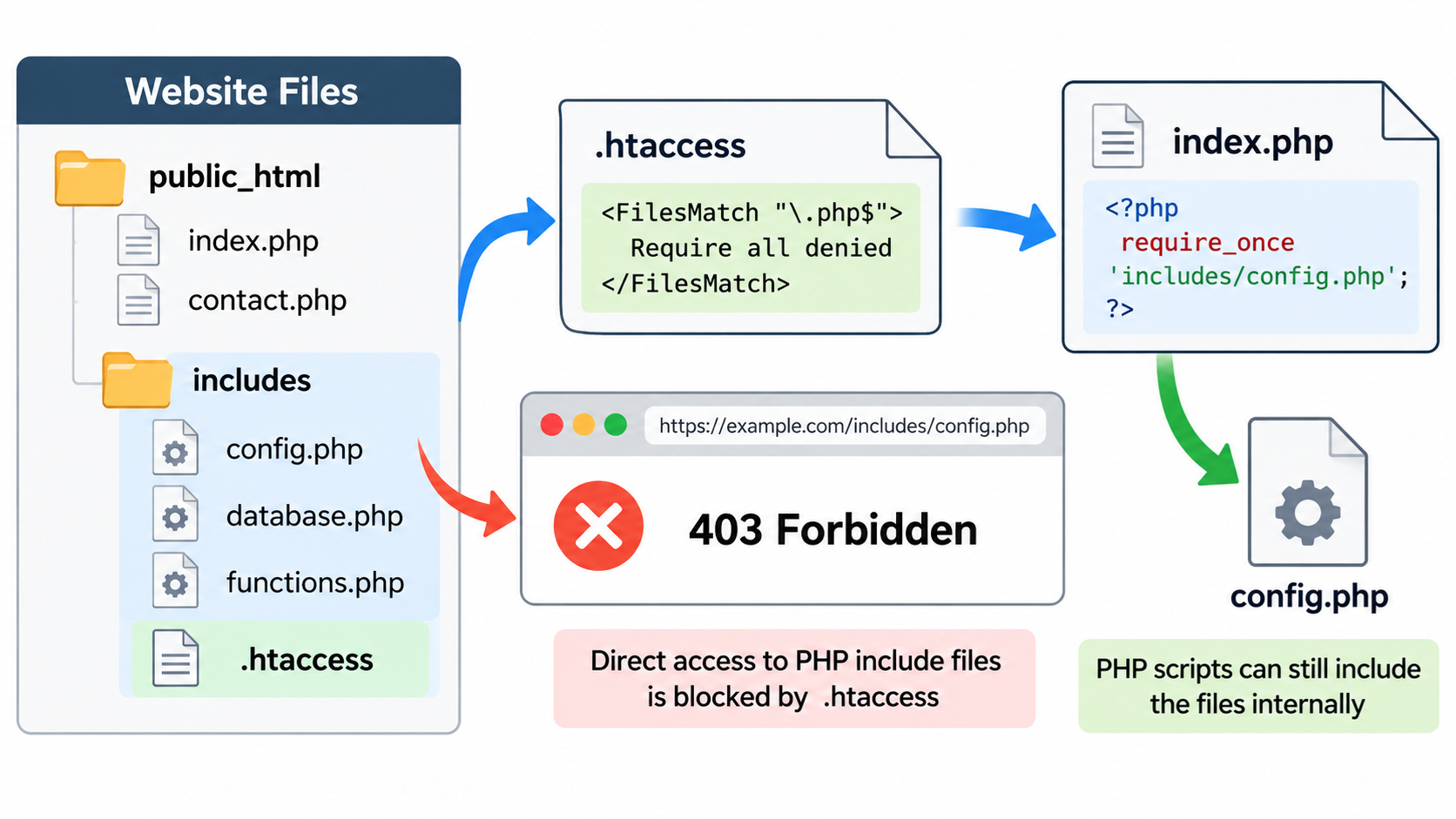
PHP include files are commonly used to organize website applications, store reusable functions, manage database connections, and separate application logic from public web pages. However, these files are not always intended to be accessed directly by visitors through a web browser.
If your PHP include files are stored inside a publicly accessible website directory, someone may attempt to open them by entering their URLs directly.
Fortunately, Apache provides access control directives that can help prevent direct HTTP access to these files. By configuring an .htaccess file correctly, you can restrict access to a private PHP includes directory while allowing your application to continue using the files internally.
In this tutorial, we will explain what PHP include files are, why they should be protected, and how to use .htaccess to prevent unauthorized web access.
What Are PHP Include Files?
PHP include files contain code that can be reused by other PHP scripts.
Instead of writing the same functions or configuration settings repeatedly, developers can place the shared code in separate files and load them when needed.
For example, a PHP website might contain the following files:
public_html/
    index.php
    contact.php
    includes/
        config.php
        database.php
        functions.php
In this example, index.php and contact.php are public-facing PHP scripts, while the files inside the includes directory are intended to support the application.
A PHP script can load a shared file using the include or require statement.
For example:
require_once __DIR__ . '/includes/functions.php';This statement tells PHP to load the functions.php file from the includes directory.
The file does not need to be publicly accessible through a browser for this statement to work.
PHP can read the file directly from the server’s filesystem, subject to filesystem permissions and PHP configuration.
This distinction makes it possible to restrict HTTP access to include files without necessarily preventing the website from using them internally.
Why Should PHP Include Files Be Protected?
Some PHP include files contain database connection settings, application configuration, authentication functions, or other sensitive application logic.
Under normal circumstances, an appropriately configured PHP server executes PHP scripts rather than sending their source code to visitors.
However, security problems may arise if the PHP handler is incorrectly configured, sensitive files are stored with unsafe extensions, or application code unexpectedly exposes information.
Even when PHP is configured correctly, accessing an include file directly may trigger unintended execution, produce error messages, or expose application behavior.
For these reasons, PHP include files that are not intended to be public should be protected against direct HTTP access.
The safest approach is to store sensitive application files outside the website’s document root whenever possible.
When that is not practical, Apache access restrictions provide an additional layer of protection.
Method 1: Protect an Entire PHP Includes Directory
One of the simplest methods is to place an .htaccess file directly inside the includes directory.
Suppose your website has the following structure:
public_html/
    index.php
    includes/
        config.php
        database.php
        functions.php
First, log in to your hosting account using cPanel File Manager, SFTP, or SSH.
Navigate to the includes directory, then create a new file named .htaccess.
Open the file and add this Apache 2.4 directive:
Require all deniedSave the file.
This directive tells Apache to deny requests to resources within that directory, including its subdirectories, unless another applicable configuration overrides the restriction.
For example, visitors attempting to access the following URLs should receive an HTTP 403 Forbidden response:
https://example.com/includes/config.php
https://example.com/includes/database.php
https://example.com/includes/functions.php
The restriction applies to HTTP requests handled by Apache.
It does not normally prevent your application from loading these files internally through PHP include or require statements.
This method is particularly useful when the entire includes directory is intended for internal application use and contains no public files.
Be aware that Require all denied blocks HTTP access to all resources in the protected directory, not just PHP files.
If the directory contains CSS, JavaScript, images, or public application endpoints, those resources may also become inaccessible.
Method 2: Block Only PHP Files in the Includes Directory
Sometimes an includes directory contains other resources that should remain publicly accessible.
In that situation, you may want to block direct access to PHP files while leaving other file types unaffected.
Instead of placing Require all denied directly in the .htaccess file, use a FilesMatch directive.
Create or edit the .htaccess file inside your includes directory and add:
<FilesMatch "\.php$">
    Require all denied
</FilesMatch>
This configuration matches filenames ending in .php and denies direct HTTP access to them.
For example, a visitor requesting:
https://example.com/includes/database.phpshould receive a 403 Forbidden response.
However, non-PHP files in the same directory are not denied by this particular rule, although other Apache access controls may still apply.
The FilesMatch directive uses a regular expression to identify filenames.
The expression .php$ matches filenames that end with the extension .php.
This example is intended for ordinary lowercase .php filenames.
If your application uses other PHP-related extensions or naming conventions, the matching rule may need to be adjusted.
Importantly, the rule should be placed inside the includes directory rather than applied indiscriminately to the entire website.
Blocking every PHP file in the website’s document root would prevent normal PHP pages, including WordPress entry points, from working.
Method 3: Protect Individual PHP Include Files
If you only need to protect a few specific files, Apache provides another directive called Files.
For example, suppose your website has a configuration file named config.php that should not be accessed directly.
Add the following rule to an appropriate .htaccess file:
<Files "config.php">
    Require all denied
</Files>
This directive denies access to files named config.php within the directory scope of the .htaccess configuration.
If necessary, you can add similar rules for additional filenames.
For example:
<Files "database.php">
    Require all denied
</Files>
This method is useful when you cannot reorganize your website directories or when only a small number of files need protection.
However, a rule based on a filename can affect matching files in subdirectories as well. Make sure you understand the directory scope before applying it.
For applications containing many private PHP files, protecting a dedicated includes directory is generally easier to maintain than creating individual rules for every file.
Method 4: Move Sensitive PHP Files Outside public_html
An even stronger approach is to place private PHP files outside the website’s document root.
The document root is the directory from which a web server normally serves publicly requested website files.
In many shared hosting environments, the primary website’s document root is named public_html.
Consider this directory structure:
account/
    private_includes/
        config.php
        database.php
    public_html/
        index.php
In this example, the private_includes directory is outside public_html.
A visitor cannot normally request these private files directly through the website’s public URL because they are not located inside its document root.
However, your PHP application may still load them from the filesystem.
For example, if index.php is located inside public_html, it could use:
require_once __DIR__ . '/../private_includes/config.php';The exact path depends on your hosting environment and directory structure.
This approach avoids relying solely on .htaccess rules for protecting application files.
However, it requires the hosting environment to permit PHP to read the external directory.
PHP settings such as open_basedir restrictions, filesystem permissions, or application-specific security controls may limit which directories PHP can access.
You should also verify that the supposedly private directory is not exposed through another domain, subdomain, virtual host, or filesystem mapping.
For new applications, separating public entry points from private application code is generally preferable to placing everything inside the public document root.
How to Test Your .htaccess Protection
After adding an access restriction, verify that it works as expected.
First, open your website in a browser and confirm that its normal pages continue to function.
Next, attempt to access a protected include file directly by entering its URL.
For example:
https://example.com/includes/config.phpIf the Apache rule is working, the server should normally return a 403 Forbidden response.
You can also inspect the HTTP status code using curl:
curl -I https://example.com/includes/config.phpA protected file will typically produce a response beginning with:
HTTP/1.1 403 ForbiddenThe exact HTTP version and response headers may vary.
A 403 response indicates that access to the requested resource has been denied.
However, a failed request alone does not prove that the intended .htaccess rule is responsible.
The file might be protected by another configuration, application logic, or an upstream security service.
For more reliable testing, inspect Apache’s configuration or access logs where available.
You should also verify that PHP scripts that depend on the protected include files continue to work normally.
A successful test requires both conditions: direct HTTP access is blocked, and legitimate internal application functionality remains operational.
Common Problems When Protecting PHP Include Files
One common problem is receiving a 500 Internal Server Error after adding an access restriction.
This may happen if your hosting environment does not permit the required Apache directives in .htaccess files.
Apache 2.4 uses Require all denied for access control, but the server configuration must permit the relevant authorization directives, typically through AllowOverride AuthConfig, AllowOverride All, or an appropriate AllowOverrideList setting.
If the directives are not permitted, contact your hosting provider or configure access restrictions at the server level if you have administrative access.
Another common problem is accidentally blocking legitimate PHP application endpoints.
For example, some applications place files used for AJAX requests, payment callbacks, or other HTTP-based operations inside directories named includes.
If those files must receive external HTTP requests, blocking the entire directory may break the application.
Before applying a restriction, identify which files are internal libraries and which files are intended to be publicly reachable.
Another issue occurs when a website uses Nginx instead of Apache.
Nginx does not process Apache .htaccess files.
If your website uses Nginx, access restrictions must be configured through the appropriate Nginx server configuration.
Finally, a website using a reverse proxy or CDN may display a customized error page or status response.
Test the effective protection rather than relying on the visible error page alone.
What About WordPress Include Files?
WordPress uses numerous PHP files to provide application functionality, including files located within directories such as wp-includes.
However, WordPress has its own application architecture, access restrictions, and server configuration requirements.
You should not simply place Require all denied inside the WordPress wp-includes directory.
Doing so could interfere with WordPress functionality, including public resources or endpoints that need to remain accessible.
WordPress updates may also replace files or alter directories, so unmanaged custom restrictions inside WordPress core directories can create maintenance problems.
For WordPress websites, it is generally better to preserve the application’s supported directory structure, maintain current WordPress versions, and use well-tested security configuration rules.
If you are developing your own WordPress plugin or theme, avoid exposing sensitive PHP configuration files through public URLs.
Where appropriate, add file-level guards, use secure filesystem locations, and follow WordPress development security practices.
Do not assume that an .htaccess rule designed for a standalone PHP application is automatically safe for every WordPress installation.
Additional Security Recommendations
Protecting PHP include files is a useful security measure, but it should be part of a broader application security strategy.
Keep PHP, Apache, WordPress, and other application components updated.
Apply security patches promptly and avoid using unsupported software versions.
Use appropriate filesystem permissions so that application files cannot be modified by unauthorized users or processes.
Avoid storing passwords, API keys, and other sensitive information in publicly accessible locations.
Where possible, use secure configuration mechanisms or environment-specific secret management.
Disable unnecessary error display in production environments so that internal filesystem paths and debugging information are not exposed to visitors.
Use proper authentication and authorization for application functions that are intended to receive HTTP requests.
Remember that .htaccess restrictions control access through Apache.
They do not prevent all forms of unauthorized access, and they cannot protect files against an attacker who has already obtained sufficient filesystem or server privileges.
For sensitive application code, a secure directory structure and proper server permissions remain essential.
Conclusion
PHP include files are an important part of many web applications, but they should not be publicly accessible unless the application specifically requires it.
If your PHP includes directory contains only private application files, you can create an .htaccess file inside that directory and add:
Require all deniedFor more selective protection, use FilesMatch to block HTTP access to PHP files while leaving unrelated file types unaffected.
If your hosting environment permits it, an even better approach is to move sensitive include files outside the website’s public document root.
Always test the configuration after making changes to ensure that protected files cannot be requested directly and that your website continues to operate normally.