
A 500 Internal Server Error is one of the most frustrating problems a website owner can encounter. Instead of displaying your website, the browser shows a generic error message such as “500 Internal Server Error,” “HTTP Error 500,” or “The server encountered an internal error and was unable to complete your request.”
Unlike a 404 error, which usually indicates that a requested resource cannot be found, a 500 error means that the server encountered an unexpected condition that prevented it from completing the request.
The difficult part is that the error message rarely identifies the actual cause. A 500 error may result from a PHP failure, an incorrect Apache configuration, a problematic WordPress plugin, insufficient server resources, or several other issues.
Fortunately, many WordPress 500 errors can be resolved without reinstalling WordPress or restoring the entire website.
In this guide, we will explain what HTTP 500 means, identify its most common causes, and walk through practical troubleshooting methods using cPanel, File Manager, FTP, WordPress, Apache, PHP, and Linux server logs.
1. What Is a 500 Internal Server Error?
HTTP 500 Internal Server Error is an HTTP response status code indicating that the server encountered an unexpected condition that prevented it from fulfilling a request.
When you visit a website, your browser sends an HTTP request to the web server. The server processes that request and returns an HTTP response.
A successful request typically returns an HTTP 200 status code. If a page does not exist, the server may return HTTP 404. If the server encounters an internal problem that it cannot describe more specifically, it may return HTTP 500.
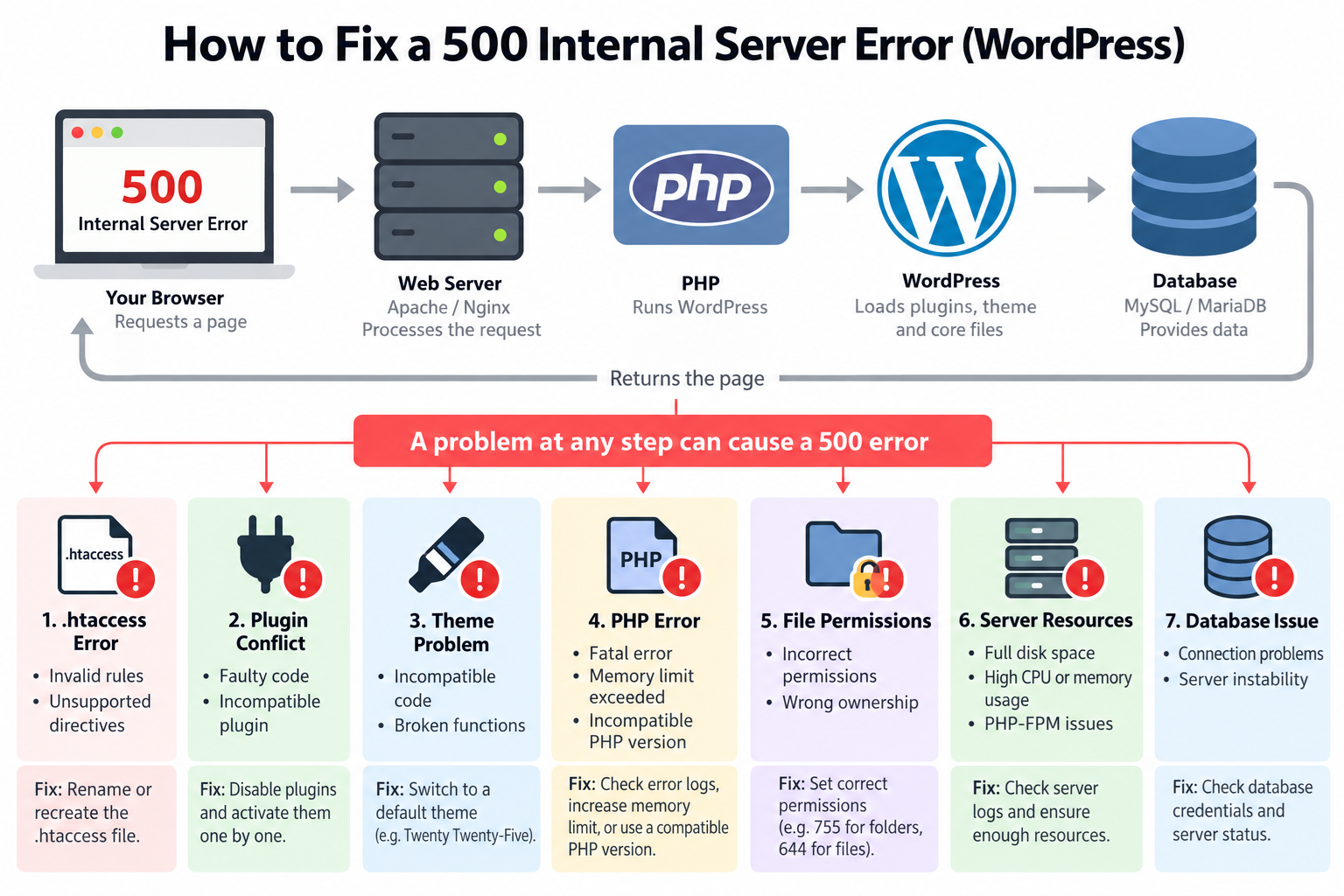
The basic process looks like this:
Browser → Web Server → PHP Application → Database → HTTP Response
For a WordPress website, the web server usually runs Apache or Nginx, while PHP executes the WordPress application. WordPress may also communicate with a MySQL or MariaDB database to retrieve website content.
If a serious problem occurs while processing the request, the server or application may return a 500 error instead of the expected page.
However, HTTP 500 is a general error code, not a diagnosis. It does not tell you whether the problem originated in Apache, Nginx, PHP, WordPress, a plugin, or another component.
The exact cause must be determined through systematic troubleshooting and, whenever possible, examination of server error logs.
2. Common Causes of a 500 Internal Server Error
Several technical problems can produce an HTTP 500 response.
Incorrect .htaccess configuration: On Apache servers, unsupported directives, syntax errors, or invalid rewrite rules in an .htaccess file can cause requests to fail.
WordPress plugin conflicts: A plugin may contain faulty PHP code, depend on unavailable functions, or conflict with another plugin.
WordPress theme errors: A theme with incompatible PHP code or broken functions can interrupt page generation.
PHP fatal errors: PHP may terminate execution because of syntax errors, uncaught exceptions, missing dependencies, or other serious programming failures.
PHP memory exhaustion: An application may exceed the memory allocated to the PHP process.
Incorrect file permissions: Improper file or directory permissions can prevent the server or PHP process from accessing required resources. The resulting status code depends on the server configuration.
Incompatible PHP version: Older plugins, themes, or custom code may fail after a PHP upgrade.
Corrupted or incomplete WordPress files: Interrupted updates, unsuccessful uploads, or missing application files can cause PHP execution failures.
Server resource problems: Full disks, exhausted process limits, or other infrastructure problems can interrupt request processing.
Server configuration errors: Incorrect Apache, Nginx, PHP-FPM, or application settings can produce server failures.
Although these problems may produce similar browser messages, they require different solutions.
3. Before Making Changes: Back Up Your Website
Before troubleshooting a production WordPress website, create a backup whenever possible.
A complete WordPress backup should contain the website files and the database.
The website files include WordPress core files, installed themes, plugins, uploads, and configuration files such as wp-config.php and .htaccess.
The database stores posts, pages, comments, user accounts, settings, and other application information.
If you use cPanel, open File Manager and download copies of any files you plan to modify. You can also export the WordPress database through phpMyAdmin if the database remains accessible.
If your hosting provider offers automatic backups or restore points, check whether a recent backup is available.
When troubleshooting, change only one component at a time and test the website after each change. This makes it easier to identify which action actually fixes the problem.
Avoid reinstalling WordPress, deleting plugins permanently, or overwriting configuration files as your first troubleshooting step.
4. Determine Whether the Error Affects the Entire Website
Before changing any files, identify where the error occurs.
Try opening your website homepage, a few existing posts, and the WordPress administration dashboard.
For example, test:
https://example.com/sample-page/
Replace example.com with your actual domain.
If every page returns HTTP 500, the problem may involve the web server, PHP environment, WordPress initialization, or a component loaded on every request.
If only one page fails, the problem may involve a particular plugin function, template, custom script, or database operation.
If the public website works but wp-admin fails, examine plugins, administrative functions, authentication-related components, and PHP errors triggered specifically by the dashboard.
If the error started immediately after a plugin update, theme change, PHP upgrade, or server migration, that recent change is an important troubleshooting clue.
Also determine whether the error is constant or intermittent. Intermittent failures may suggest resource exhaustion, concurrency problems, or server instability rather than a permanently incorrect configuration.
5. Check the Server Error Logs First
The most useful information about a 500 error is often found in the server logs.
While the browser usually displays only a generic error message, Apache, Nginx, PHP-FPM, or PHP itself may record more specific details.
For websites hosted through cPanel, open the Metrics section and look for the Errors interface, if it is available in your hosting environment.
Some hosting accounts also contain an error_log file in the website directory, although its existence and location depend on the hosting configuration.
Look for entries corresponding to the time the error occurred.
For example, a PHP error message might contain:
PHP Fatal error: Allowed memory size exhausted
Another might report:
PHP Fatal error: Uncaught Error: Call to undefined function
An Apache configuration error may identify an invalid directive in an .htaccess file.
These messages provide much stronger evidence than the HTTP 500 response alone.
For Linux VPS or dedicated server administrators, common log locations include /var/log/apache2/error.log on Debian-based Apache systems and /var/log/httpd/error_log on some Red Hat-based Apache systems.
To examine recent Apache errors on a Debian or Ubuntu server, you may use:
sudo tail -n 100 /var/log/apache2/error.log
For a typical Red Hat-based Apache installation, the corresponding command may be:
sudo tail -n 100 /var/log/httpd/error_log
If your server uses Nginx, a common log location is /var/log/nginx/error.log.
Keep in mind that hosting control panels, virtual hosts, containers, and customized installations may use different log paths.
A 500 error may also be recorded in PHP-FPM logs rather than the main web server error log.
Always correlate the error timestamp and affected request with the log entry. Not every warning or notice in a server log is responsible for the current failure.
6. Check the .htaccess File
For WordPress websites running on Apache, an incorrect .htaccess file is a common cause of HTTP 500 errors.
The .htaccess file allows directory-level configuration when the Apache server permits it. WordPress often uses this file to implement permalink rewriting.
An .htaccess file may also contain custom redirects, access restrictions, caching directives, security rules, and other configuration settings.
A single unsupported directive or syntax error can cause Apache to reject requests.
To check the file, log in to cPanel and open File Manager.
Navigate to the root directory of your WordPress installation, commonly public_html.
Because .htaccess begins with a dot, it may be hidden. In cPanel File Manager, enable the option to display hidden files if necessary.
Find the .htaccess file and download a backup copy.
Rename it temporarily from .htaccess to .htaccess_backup.
Now reload your website.
If the 500 error disappears, the original .htaccess file probably contains a directive or rule that caused the failure.
If your WordPress dashboard is accessible, navigate to Settings → Permalinks and click Save Changes.
WordPress will attempt to update its permalink rules. Depending on file permissions and hosting configuration, it may write a new .htaccess file or display instructions for updating the file manually.
Do not permanently discard the original .htaccess file without examining it. It may contain legitimate security rules, redirects, or custom settings unrelated to WordPress permalinks.
If renaming .htaccess does not resolve the error, restore the original filename and continue troubleshooting.
Important: Nginx does not process Apache .htaccess files. If your website runs on Nginx without Apache, changing .htaccess will not fix Nginx configuration errors.
7. Check for Invalid PHP Directives in .htaccess
Some WordPress websites encounter HTTP 500 errors after administrators add PHP configuration directives to .htaccess.
For example, older tutorials sometimes recommend adding this line to increase PHP memory:
php_value memory_limit 256M
This directive can work in certain Apache configurations where PHP runs as an Apache module and the directive is permitted.
However, many modern hosting environments use PHP-FPM or another CGI/FastCGI-based PHP configuration.
In these environments, Apache may reject the php_value directive in .htaccess and return an HTTP 500 error.
If the error appeared immediately after modifying PHP settings in .htaccess, remove or reverse the new directives and test the website again.
For hosting accounts using PHP-FPM, PHP settings are generally managed through the hosting control panel, a supported PHP configuration file, or the provider’s PHP management system.
On cPanel servers, MultiPHP INI Editor or another hosting-provided PHP settings interface may be available.
Do not assume that PHP settings can be changed through .htaccess on every server.
8. Disable WordPress Plugins to Identify Conflicts
WordPress plugins are another frequent source of HTTP 500 errors.
A plugin may generate a fatal PHP error after an update, conflict with another plugin, call an unavailable PHP function, or depend on an unsupported PHP version.
If you can access the WordPress dashboard, open Plugins → Installed Plugins.
Temporarily deactivate the plugins and test the website.
If the error disappears, reactivate plugins one at a time until the failure returns.
The plugin activated immediately before the error reappears is a strong candidate for further investigation.
If you cannot access wp-admin, plugins can be disabled through File Manager or FTP.
Open your WordPress installation directory and navigate to wp-content.
Find the plugins directory and rename it temporarily to plugins_disabled.
WordPress will be unable to load ordinary plugins from the renamed directory.
Reload your website.
If the website starts working, one or more plugins in that directory may be responsible.
Restore the directory name to plugins, then isolate the faulty plugin by temporarily renaming individual plugin directories and testing the website.
Renaming the plugins directory does not normally delete the plugin files or database data, but disabling plugins can interrupt important website functions.
For example, an online store may temporarily lose payment processing, shipping integrations, or order-related automation while certain plugins are inactive.
Also remember that WordPress must-use plugins and database drop-ins may continue operating even when the normal plugins directory is renamed.
If disabling regular plugins does not help, inspect any custom must-use plugins or specialized application components.
9. Check for WordPress Theme Problems
A WordPress theme can also cause PHP errors.
This is especially common when a theme contains custom PHP functions, has not been updated for a long time, or depends on a plugin that is no longer compatible.
If the 500 error started immediately after installing or updating a theme, investigate that theme first.
If you can access the WordPress dashboard, temporarily activate a supported default WordPress theme.
If the error disappears, examine the previous theme and its recent changes.
When the administration dashboard is inaccessible, experienced administrators may use WP-CLI or carefully managed filesystem and database changes to switch themes.
For example, WP-CLI can activate an installed theme using a command such as:
wp theme activate twentytwentyfive
This assumes WP-CLI is installed, the named theme is available, and WordPress can initialize sufficiently to perform the operation.
The command should be run from the WordPress installation directory, using the appropriate server account.
Do not rename or delete the active theme directory casually on a production website. Doing so does not guarantee that WordPress can automatically select a suitable replacement.
If you have a staging environment, test theme changes there before applying them to the live website.
10. Increase the PHP Memory Limit When Necessary
PHP memory exhaustion can cause WordPress to fail during request processing.
A typical error log entry may contain:
Allowed memory size of 134217728 bytes exhausted
This indicates that the PHP process attempted to use more memory than its configured limit allows.
The cause may be an unusually demanding plugin, a large image-processing task, inefficient application code, or an insufficient memory allocation.
One possible solution is to increase the PHP memory limit.
If your hosting provider supports MultiPHP INI Editor, open that interface in cPanel and locate the memory_limit setting.
For example, a server may use:
memory_limit = 256M
The appropriate value depends on the application workload and available hosting resources.
WordPress also supports a memory configuration constant in wp-config.php.
For example:
define('WP_MEMORY_LIMIT', '256M');
This setting requests a higher memory limit for WordPress, but it cannot always override restrictions imposed by PHP or the hosting provider.
Increasing the limit is not guaranteed to solve the problem. If a plugin contains a memory leak or repeatedly performs an expensive operation, additional memory may only delay the failure.
Examine the logs to determine which operation exhausts memory.
On shared hosting accounts, the provider may enforce limits that cannot be changed through WordPress configuration files.
11. Verify the PHP Version and Compatibility
An incompatible PHP version can cause HTTP 500 errors, especially after a server upgrade.
WordPress itself may support a modern PHP version while an older theme, plugin, or custom application does not.
PHP upgrades can remove deprecated functionality, introduce stricter error handling, or expose programming problems that were not apparent under older versions.
If a website begins returning HTTP 500 immediately after a PHP upgrade, investigate compatibility before making unrelated changes.
In cPanel, look for MultiPHP Manager or the hosting provider’s PHP version selector.
Check the PHP version assigned to the affected domain.
Review recent PHP errors and determine whether a plugin or theme is calling functions that are unavailable in the selected PHP version.
If necessary, temporarily return to a supported PHP version that is known to work with your application while you update the incompatible components.
Avoid switching to an outdated, unsupported PHP release as a permanent solution.
A better long-term approach is to keep WordPress, plugins, themes, and PHP on supported versions that have been tested together.
12. Check File and Directory Permissions
Incorrect filesystem permissions can also prevent a website from functioning normally.
WordPress files must be readable by the processes that require them, and certain directories must be writable for legitimate operations such as updates and uploads.
For many conventional Linux WordPress installations, typical permission settings are:
Directories: 755
Files: 644
However, these values are not universal requirements. The correct permissions depend on file ownership, the web server account, PHP execution method, and hosting configuration.
The wp-config.php file may use more restrictive permissions when the environment supports them.
Using cPanel File Manager, inspect the permissions of WordPress directories and important files.
Avoid setting files or directories to 777 as a general troubleshooting method.
Permissions of 777 allow broad write access and may create unnecessary security risks.
Also remember that file ownership matters. A file may have apparently reasonable permission bits but still be inaccessible to the PHP process because it belongs to the wrong user or group.
On a VPS or dedicated server, use standard Linux filesystem tools to examine permissions and ownership.
For example:
ls -la /var/www/html
The appropriate directory may differ depending on your virtual host configuration.
Do not run recursive permission or ownership changes across an entire server without first understanding the directory structure and application requirements.
A permissions problem may return HTTP 403, HTTP 500, or another response depending on where the failure occurs.
13. Enable WordPress Debug Logging
When the cause remains unclear, WordPress debugging can help identify PHP errors occurring inside the application.
WordPress provides debugging constants that can be configured in wp-config.php.
For temporary troubleshooting, open wp-config.php and configure the following settings:
define('WP_DEBUG', true);
define('WP_DEBUG_LOG', true);
define('WP_DEBUG_DISPLAY', false);
These settings enable WordPress debugging, request that errors be written to a log file, and prevent WordPress debug messages from appearing directly in generated page content.
Place the settings before the comment indicating the end of the editable wp-config.php configuration section.
If any of these constants already exist, modify the existing definitions rather than adding duplicates.
By default, WordPress debug logging commonly writes to:
wp-content/debug.log
After enabling logging, reproduce the error and examine the log file.
Look for fatal errors, uncaught exceptions, missing functions, or messages identifying specific plugin or theme files.
WordPress debugging cannot capture every server-level problem. If Apache rejects an .htaccess directive before WordPress runs, the WordPress debug log may contain no useful information.
On production websites, use debug logging cautiously. Log files may contain filesystem paths, database-related information, or other sensitive details.
For better security, configure logging to a protected location outside the public web directory when supported.
After troubleshooting, disable temporary debugging settings and remove or securely archive sensitive log files.
For more information, consult the official WordPress Debugging Documentation.
14. Check PHP Execution Time Limits
Some applications fail when PHP scripts take too long to execute.
This may occur during large imports, backups, complex database operations, poorly optimized plugin tasks, or resource-intensive administrative operations.
An error log might report:
Maximum execution time of 30 seconds exceeded
If execution time is the actual cause of the failure, review the operation that triggered it.
In some hosting environments, PHP’s max_execution_time setting can be adjusted through the control panel or supported PHP configuration files.
For example:
max_execution_time = 60
This example allows up to 60 seconds of PHP execution time under the applicable PHP configuration.
However, the web server, PHP-FPM, reverse proxy, and hosting platform may impose additional timeout limits.
Not every timeout produces HTTP 500. Depending on the component that fails, the result may instead be HTTP 502, 503, or 504.
Increasing execution time may be appropriate for legitimate long-running operations, but it should not be used to hide slow database queries, infinite loops, or broken application code.
15. Repair Corrupted or Incomplete WordPress Core Files
WordPress core files can occasionally become incomplete or damaged because of interrupted updates, failed transfers, storage problems, or unauthorized modifications.
If the error appeared during a WordPress update, inspect the logs and determine whether WordPress is missing required files.
If WP-CLI is available, administrators can verify the integrity of WordPress core files using:
wp core verify-checksums
This command compares applicable WordPress core files against official checksums.
If core files are missing or have unexpected modifications, investigate before replacing them. Some customized installations intentionally modify files, although editing WordPress core directly is generally discouraged.
When appropriate, download a clean WordPress package from the official WordPress website.
Back up the existing installation before replacing core files.
Do not overwrite wp-config.php or the wp-content directory during a manual core restoration, because they contain site-specific configuration and content.
If you are uncertain about the process, use the WordPress update mechanism or ask your hosting provider for assistance.
Core file replacement is not a substitute for fixing server-level configuration or plugin-related PHP errors.
16. Check Server Disk Space and Resource Limits
A server that runs out of disk space or other critical resources may become unable to process requests correctly.
For example, PHP may fail to create temporary files, database services may become unstable, or logging may stop functioning when the filesystem is full.
On a Linux VPS or dedicated server, check available disk space using:
df -h
This command displays disk usage and available space for mounted filesystems.
If disk space is exhausted, identify large files and directories before removing anything.
Common sources of unexpected disk growth include accumulated backups, application logs, temporary files, and database-related storage.
Do not manually delete database files or unfamiliar system files simply to recover free space.
You can also examine memory availability using:
free -h
A server experiencing severe memory pressure may terminate PHP workers or database processes, depending on its configuration and workload.
For websites using PHP-FPM, inspect the PHP-FPM service and worker limits if the error affects multiple concurrent requests.
Apache and Nginx may also encounter worker or upstream failures when process limits are reached.
These conditions require server-level investigation rather than changes to WordPress permalinks or themes.
17. Troubleshooting Apache, Nginx, and PHP-FPM
WordPress websites can run on different server architectures.
A typical shared hosting environment may use Apache with PHP-FPM, while a VPS may use Nginx as the main web server or as a reverse proxy in front of Apache.
These configurations process PHP requests differently, which affects troubleshooting.
For Apache administrators, inspect the Apache error log and test configuration syntax before restarting the service.
On many Linux systems, you can run:
sudo apachectl configtest
A successful result commonly indicates that Apache’s main configuration syntax is valid.
However, a successful configuration test does not prove that every directory-level .htaccess rule will work correctly during a request.
For Nginx, the corresponding configuration test is typically:
sudo nginx -t
If PHP-FPM is responsible for processing PHP requests, check its service status and logs.
The PHP-FPM service name depends on the operating system and installed PHP version.
On some systems, the service might be named php8.3-fpm, while other environments use a different naming convention.
Do not restart services until you have checked their status and configuration, especially on a production server hosting multiple websites.
A service restart may temporarily restore functionality, but the original problem can return if the underlying cause remains unresolved.
If Nginx cannot connect to PHP-FPM, the response is often HTTP 502 Bad Gateway rather than HTTP 500. Nevertheless, related PHP execution or application problems can produce different HTTP errors depending on the configuration.
18. What If Cloudflare Displays the 500 Error?
Some WordPress websites use Cloudflare as a reverse proxy and content delivery network.
When a website is behind Cloudflare, it is important to distinguish errors originating from the hosting server from errors generated by Cloudflare itself.
A 500 response may be passed through Cloudflare from the origin server. In that case, troubleshooting should focus on the web server, PHP application, and relevant origin logs.
If Cloudflare itself generates an error, the displayed page or response information may provide additional clues about the failing component.
To investigate an origin problem, first examine the origin server’s access and error logs.
Administrators may also test the origin directly using appropriate diagnostic tools while preserving the correct hostname and TLS configuration.
Temporarily changing Cloudflare proxy settings can sometimes help isolate a problem, but it should be done carefully because it may expose the origin IP address or bypass existing security and caching protections.
Do not assume that clearing the Cloudflare cache will repair a PHP fatal error, broken Apache configuration, or server resource problem.
Caching may influence which response a visitor receives, but it does not correct the underlying application failure.
19. How to Fix an Intermittent 500 Internal Server Error
An intermittent HTTP 500 error can be more difficult to diagnose than a permanent failure.
If your website works normally most of the time but occasionally returns HTTP 500, investigate conditions that change under load.
Possible causes include memory exhaustion, PHP worker limits, application concurrency problems, database failures, slow queries, or background tasks that place excessive demands on the server.
For example, a WordPress backup plugin may consume significant memory or disk I/O while creating an archive.
Similarly, poorly optimized plugin code may work under light traffic but fail when several visitors access the website simultaneously.
Review server error logs together with traffic patterns and resource monitoring information.
Pay particular attention to whether the failures occur during automated backups, WordPress cron events, scheduled imports, or periods of high traffic.
If the server has monitoring tools, examine CPU usage, memory consumption, disk I/O, and PHP-FPM worker activity.
Raising server resource limits may help when the application has legitimate capacity requirements, but inefficient code and recurring software errors should still be corrected.
20. When Should You Contact Your Hosting Provider?
Many 500 errors can be investigated through cPanel, but some require access to server configuration, PHP-FPM services, or system logs that shared hosting customers cannot access.
Contact your hosting provider when the error affects multiple websites, the server logs indicate configuration failures, PHP services are unavailable, or the problem continues after you have checked WordPress plugins, themes, and .htaccess.
When opening a support request, provide the affected domain name, the approximate time the error started, whether the error is constant or intermittent, and any recent website or hosting configuration changes.
If possible, include the exact failing URL and relevant error log messages.
Ask the provider to examine the corresponding server logs, PHP-FPM status, filesystem permissions, disk usage, and account resource restrictions.
Do not send passwords, private configuration files, or sensitive application logs through public support forums.
A clear technical description usually helps support engineers identify the underlying problem more efficiently.
21. How to Prevent 500 Internal Server Errors
Not every server failure can be avoided, but good website administration practices can significantly reduce unexpected downtime.
Maintain reliable backups. Schedule automatic backups of WordPress files and databases. Store backups separately from the production website and periodically test restoration procedures.
Keep software updated. Maintain supported versions of WordPress, PHP, plugins, and themes. Check compatibility before major upgrades.
Use a staging environment. Test significant plugin, theme, PHP, and server configuration changes before deploying them to the production website.
Monitor error logs. Repeated PHP warnings, resource exhaustion messages, or server configuration errors may indicate developing problems.
Avoid unnecessary plugins. Each additional plugin introduces code, dependencies, and maintenance requirements. Use plugins that provide real value and are actively maintained.
Review .htaccess changes. Back up the original file before editing redirects, security directives, caching rules, or access restrictions.
Use appropriate hosting resources. Ensure that your website has sufficient memory, CPU capacity, disk space, and PHP worker availability for its workload.
Maintain secure file permissions. Apply permissions and ownership appropriate to the hosting configuration without granting unnecessary write access.
Monitor website availability. External uptime monitoring can alert administrators when a website begins returning server errors.
Document configuration changes. Record significant server and application changes so that failures can be traced to recent modifications.
Preventing server errors is not simply a matter of increasing hosting resources. Reliable operation also depends on sound application code, careful configuration management, and regular maintenance.
22. Frequently Asked Questions
What does HTTP 500 Internal Server Error mean?
HTTP 500 means that the server encountered an unexpected condition that prevented it from fulfilling the request. The status code does not identify the exact problem, so server logs and application diagnostics are usually needed.
Is a 500 Internal Server Error caused by my browser?
Usually not. HTTP 500 is a server-side response. Refreshing the page or testing another browser may help determine whether the problem is temporary, but browser cache clearing cannot fix a broken PHP script or server configuration.
Can a WordPress plugin cause a 500 error?
Yes. Plugins can produce PHP fatal errors, compatibility conflicts, or resource exhaustion. Temporarily disabling plugins is a useful troubleshooting step when plugin-related problems are suspected.
Can an incorrect .htaccess file cause HTTP 500?
Yes. Apache may return HTTP 500 if an .htaccess file contains invalid directives or configuration commands that are not permitted in that directory. Nginx does not use .htaccess files.
Does increasing PHP memory always fix a 500 error?
No. Increasing memory only helps when memory exhaustion is the actual cause and the server permits the higher allocation. Other failures require different solutions.
Is HTTP 500 the same as HTTP 503?
No. HTTP 500 indicates a general internal server failure, while HTTP 503 Service Unavailable indicates that the server is currently unable to handle the request, commonly because of temporary overload or maintenance.
What is the difference between HTTP 500 and HTTP 502?
HTTP 500 indicates that a server encountered an unexpected condition while processing a request. HTTP 502 Bad Gateway indicates that a server acting as a gateway or proxy received an invalid response from an upstream server.
Will reinstalling WordPress fix a 500 error?
Not necessarily. If the cause is a PHP configuration problem, incompatible plugin, invalid .htaccess directive, or exhausted server resources, reinstalling WordPress may not resolve it and could introduce additional risks.
Can Cloudflare cause or display a 500 error?
Yes. Cloudflare can display a 500 response returned by the origin server, and some failures may originate within Cloudflare’s processing. Examining the response and origin server logs helps determine where the error was generated.
How long does it take to fix a 500 Internal Server Error?
The time required depends on the underlying cause. A recently introduced .htaccess error may be straightforward to correct, while intermittent PHP failures or server resource problems can require deeper investigation.
Conclusion
A 500 Internal Server Error is a general indication that something went wrong while the server was processing a website request. It is not a specific WordPress error, and it does not automatically mean that your website files or database have been permanently damaged.
The most effective troubleshooting approach is to identify the affected requests, examine server error logs, and investigate recent changes before making major modifications.
For WordPress websites, important areas to check include the .htaccess file, plugins, themes, PHP compatibility, memory limits, filesystem permissions, and WordPress core files.
For VPS and dedicated server environments, Apache, Nginx, PHP-FPM, disk usage, and system resource limits may also require investigation.
The most important principle is to find the underlying cause rather than simply hide the error message. Restarting services, increasing memory limits, or clearing caches may temporarily change the symptoms without correcting the actual problem.
We encourage website owners and administrators to understand the relationship between WordPress, PHP, web servers, and Linux hosting environments. With reliable backups, appropriate monitoring, and a systematic troubleshooting process, many website failures can be diagnosed and resolved without unnecessary disruption.