
Every dynamic website needs a place to store information.
WordPress websites, online stores, content management systems, and many web applications use databases to store content, user accounts, configuration settings, and other important data.
For website owners using MySQL or MariaDB, phpMyAdmin provides a convenient way to manage databases directly from a web browser.
Instead of typing every database command into a terminal, you can browse tables, edit records, execute SQL queries, and import or export databases through a graphical interface.
Most cPanel hosting environments provide phpMyAdmin, making it accessible even to website owners who have little experience with database administration.
However, databases contain some of the most valuable information on a website.
An incorrect SQL query or an accidental deletion can cause serious data loss.
Understanding the basic operations and taking appropriate precautions are essential.
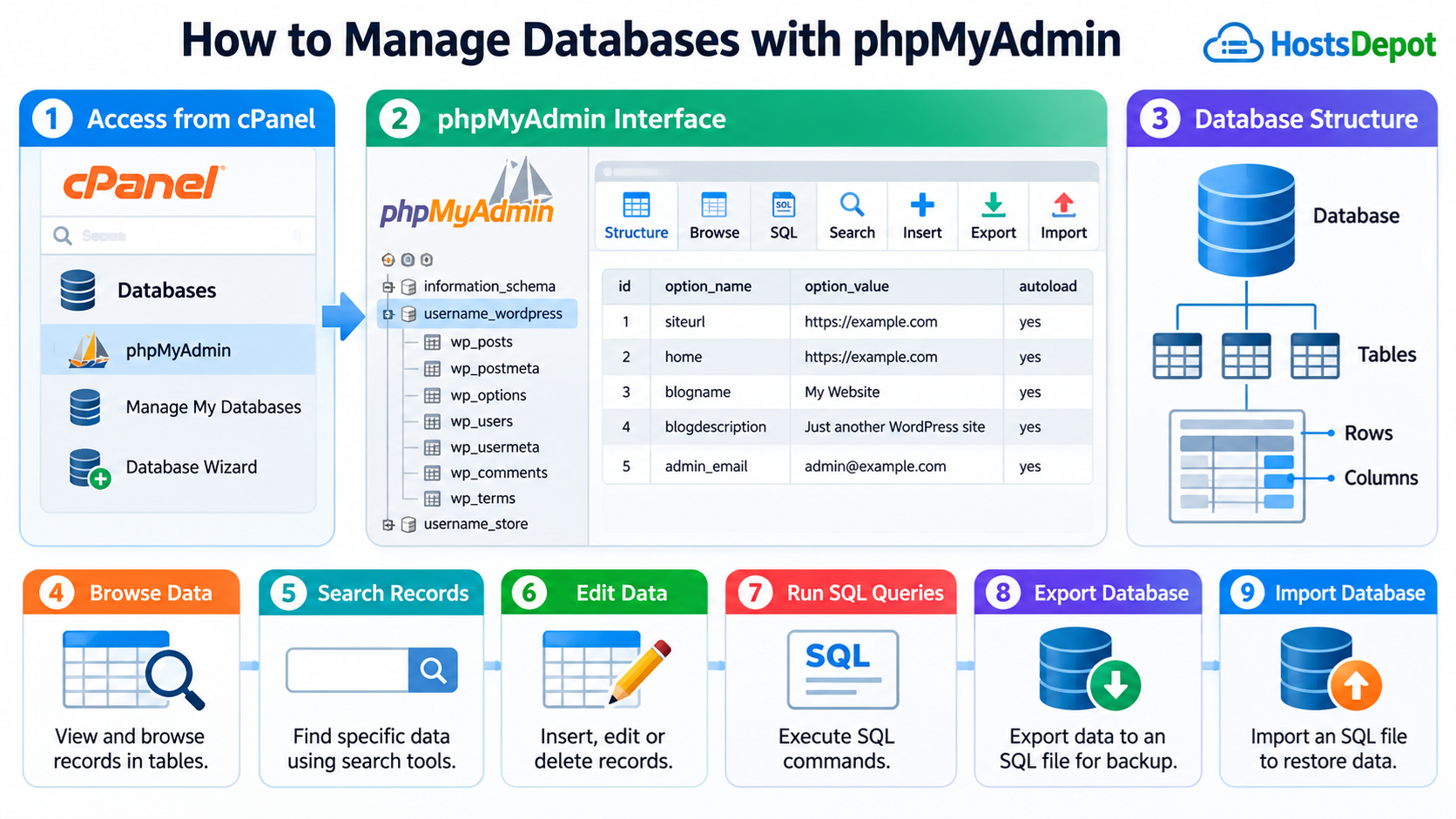
This guide explains how to access phpMyAdmin through cPanel, understand database structures, manage tables and records, perform backups, import databases, and troubleshoot common problems.
1. What Is phpMyAdmin?
phpMyAdmin is a free, open-source database administration application written in PHP. It provides a web-based interface for managing MySQL and MariaDB databases.
MySQL and MariaDB are relational database management systems commonly used by websites and web applications. They organize information into tables containing rows and columns.
Normally, database administrators can interact with these systems using SQL, which stands for Structured Query Language.
phpMyAdmin makes many common database operations accessible through menus, forms, and buttons, although SQL knowledge remains useful for advanced tasks.
With phpMyAdmin, you can:
- View databases and their tables.
- Browse, search, insert, edit, and delete records.
- Create and modify database tables.
- Run SQL queries.
- Import and export database information.
- Inspect table structures, indexes, and relationships.
- Perform certain table maintenance operations.
- Review database character sets and collations.
- Diagnose some database-related website problems.
phpMyAdmin is not itself a database server. It is a management interface that communicates with an underlying MySQL or MariaDB server.
If the database service stops running, phpMyAdmin cannot independently restore normal database functionality.
2. How to Access phpMyAdmin in cPanel
In most shared hosting environments, phpMyAdmin is integrated into the hosting control panel.
You normally do not need to install phpMyAdmin separately.
Step 1: Log In to cPanel
Open the cPanel login page provided by your web hosting company.
Enter your cPanel username and password.
After signing in, you will see the cPanel dashboard with various tools for managing files, email accounts, domains, databases, and website settings.
Step 2: Locate phpMyAdmin
Scroll to the Databases section or use the search feature in cPanel.
Click phpMyAdmin.
The interface should open in a new browser tab or window, depending on the hosting configuration.
In most cPanel environments, phpMyAdmin automatically authenticates using the credentials and database permissions associated with your hosting account.
Step 3: Select a Database
On the left side of phpMyAdmin, you will usually see a navigation panel listing the databases available to your account.
Click a database name to display its tables.
For example, a WordPress database might have a name similar to:
username_wordpress
The actual name depends on your hosting account and database configuration.
If your cPanel account hosts several websites, you may see multiple databases.
Before making any changes, make sure you have selected the correct database.
Important: If phpMyAdmin does not appear in cPanel, your hosting provider may have disabled the feature or restricted access. Contact your hosting provider rather than installing an unsecured public phpMyAdmin instance.
3. Understanding Databases, Tables, Rows, and Columns
Before managing database information, it is helpful to understand how relational databases organize data.
A database is a logical collection of related information. Inside the database are tables, and each table contains records.
A table can be compared to a spreadsheet, although relational databases provide additional capabilities such as data types, indexes, constraints, and relationships.
For example, a website might have a table called customers.
Each row represents a customer, while columns store attributes such as customer ID, name, email address, and registration date.
A simplified customer record might contain:
Customer ID: 101
Name: John Smith
Email: john@example.com
Registration Date: 2026-01-15
The customer ID might serve as the primary key, uniquely identifying each record.
Other tables may store orders, products, payments, or customer addresses.
A relational database can connect these tables through shared identifiers.
How WordPress Uses Database Tables
WordPress stores much of its information in a MySQL or MariaDB database.
A typical WordPress installation includes tables such as:
wp_posts — Stores posts, pages, and several other content types.
wp_postmeta — Stores additional metadata associated with content.
wp_users — Stores WordPress user account information.
wp_usermeta — Stores additional user information and capabilities.
wp_options — Stores website configuration settings.
wp_comments — Stores comments.
wp_terms — Stores taxonomy terms, such as categories and tags.
The actual table prefix may differ from wp_. A website could use a prefix such as site1_ or another configured value.
Plugins may also create additional tables for their own data.
Understanding these basic structures makes it easier to identify the information you need to inspect or maintain.
4. How to Create a Database in cPanel
Although phpMyAdmin can create databases in some installations, cPanel users should normally create databases through cPanel’s dedicated database management tools.
This is important because cPanel maintains its own database ownership and account mappings.
Creating databases directly in phpMyAdmin can bypass these mappings and interfere with backup, restoration, and account management.
Step 1: Open Manage My Databases
From the cPanel dashboard, locate the Databases section.
Open Manage My Databases.
Depending on your cPanel version, the interface may be labeled MySQL Databases.
Step 2: Create a Database
Find the Create New Database section.
Enter the desired database name and click Create Database.
If database prefixing is enabled, cPanel automatically adds the account prefix to the name.
For example, entering store might create a database named:
username_store
Step 3: Create a Database User
Return to the database management page and locate the section for creating a database user.
Enter a username and generate a strong password.
Use a unique password and store it securely.
Step 4: Assign the User to the Database
Add the newly created user to the database.
Choose the privileges required by the application.
Some website installation guides request all database-level privileges. However, database permissions should be limited to what the application actually needs.
Avoid granting unnecessary global privileges.
Step 5: Open the New Database in phpMyAdmin
Return to phpMyAdmin.
The new database should appear in the navigation panel.
You can now select it and begin creating tables or importing application data.
Remember: Use cPanel for creating databases and database users, and use phpMyAdmin for managing information inside those databases.
5. How to Browse Database Tables
Browsing tables is one of the most common operations in phpMyAdmin.
It allows you to inspect stored information without changing it.
Step 1: Select a Database
Click the database name in the left navigation panel.
phpMyAdmin will display the tables inside that database.
You may also see information about each table, including its storage engine, collation, and approximate size.
Step 2: Select a Table
Click the table you want to inspect.
For example, selecting wp_options allows you to examine WordPress configuration records.
Step 3: Click Browse
Click the Browse tab near the top of the page.
phpMyAdmin displays records stored in the selected table.
You can navigate between pages of records and adjust the displayed information.
Step 4: Inspect the Data
Each row represents a database record.
Columns identify individual fields.
Depending on your permissions and the table structure, phpMyAdmin may provide links for editing, copying, or deleting records.
Browsing is generally safer than editing, but be careful not to activate modification controls accidentally.
6. How to Search for Information in a Database
Large database tables may contain thousands or millions of records.
Instead of browsing every row, phpMyAdmin provides search tools to find specific information.
Step 1: Open a Table
Select the database and table you want to search.
Step 2: Click Search
Click the Search tab.
The interface allows you to search one or more columns using different comparison operators.
For example, you might search the email column for a specific customer address.
Step 3: Enter Search Conditions
Enter the information you want to locate.
For exact matches, use the appropriate equality operator.
For partial text searches, SQL’s LIKE operator may be available.
Step 4: Review the Results
Run the search and inspect the returned records.
Searching does not normally modify information, making it a useful starting point when diagnosing database problems.
For WordPress troubleshooting, you might search wp_options for a particular option_name or inspect records associated with a plugin.
Avoid manually changing complex application data unless you understand how that application uses it.
7. How to Insert, Edit, and Delete Records
phpMyAdmin allows authorized users to modify database records through its graphical interface.
These operations should be performed carefully, especially on production websites.
Insert a New Record
Open the desired table and click the Insert tab.
You will see input fields corresponding to the table’s columns.
Enter the required values and submit the form.
For columns configured with AUTO_INCREMENT, the database can generate the next identifier automatically.
Do not manually enter an identifier unless the database design requires it.
Edit an Existing Record
Open the table and select Browse.
Locate the record you want to modify.
Click Edit and change the appropriate field values.
Review the changes before submitting them.
For example, you might correct a descriptive field in a custom application database.
However, modifying WordPress settings directly may bypass validation and application-specific logic.
Whenever possible, use the application’s own administration interface for ordinary content and configuration changes.
Delete a Record
Locate the record and select Delete.
Confirm the operation only after verifying that you have selected the correct row.
Deleting a record may affect related information in other tables.
Depending on the database structure, foreign key constraints may prevent deletion or trigger additional changes.
Warning: Database deletions may not be recoverable without a backup. Never experiment with DELETE operations on a production database.
8. How to Run SQL Queries in phpMyAdmin
SQL provides a more powerful way to retrieve and manipulate database information.
phpMyAdmin includes an SQL tab where authorized users can execute SQL statements.
Even if you normally prefer graphical tools, understanding a few basic SQL commands is useful.
SELECT: Retrieve Data
The SELECT statement retrieves information from a table.
For example:
SELECT * FROM customers;
This query retrieves all columns and rows from a table named customers.
On a large table, retrieving everything may consume unnecessary server resources.
A more practical query is:
SELECT * FROM customers LIMIT 10;
This retrieves up to ten records.
You can also select specific columns:
SELECT customer_id, email FROM customers LIMIT 10;
This is useful when you only need certain information.
WHERE: Filter Records
The WHERE clause allows you to specify conditions.
For example:
SELECT * FROM customers WHERE customer_id = 101;
This retrieves matching records with the specified customer ID.
UPDATE: Modify Existing Data
An UPDATE statement changes stored information.
For example:
UPDATE customers SET email = ‘new@example.com‘ WHERE customer_id = 101;
This changes the email address of the matching customer.
Be extremely careful with UPDATE statements.
If the WHERE clause is omitted, the query may modify every row in the table.
Before performing a significant update, run a SELECT query with the same WHERE condition to verify which records will be affected.
DELETE: Remove Records
A DELETE statement removes matching records.
For example:
DELETE FROM customers WHERE customer_id = 101;
Again, the WHERE clause is essential when you intend to remove only selected records.
Without a WHERE clause, DELETE may remove every row in the table.
INSERT: Add Data
An INSERT statement creates a new record.
For example:
INSERT INTO customers (name, email) VALUES (‘John Smith’, ‘john@example.com‘);
The exact columns and values must match the table’s schema and constraints.
These SQL examples assume a sample customers table. They are intended to demonstrate SQL syntax, not commands to run against an existing WordPress database.
For beginners, read-only SELECT queries are the safest place to start.
9. How to Export a Database with phpMyAdmin
Database exports are useful for backups, migrations, testing, and transferring information between servers.
phpMyAdmin can export a database into a file containing its structure and data.
SQL is the most common export format for database backup and restoration.
Step 1: Select the Database
Open phpMyAdmin and click the database you want to export.
Make sure you select the database itself rather than an individual table if you intend to export the entire database.
Step 2: Click Export
Click the Export tab.
You will usually see two export methods: Quick and Custom.
Step 3: Choose an Export Method
Quick provides a simple export using default settings.
Custom allows you to choose individual tables, output options, and other export settings.
For a small database and a straightforward backup, Quick may be sufficient.
For more control, choose Custom.
Step 4: Select SQL Format
Choose SQL as the export format.
An SQL export can include statements to recreate tables and insert their data into another database.
Step 5: Download the Export
Click Export or Go, depending on the phpMyAdmin version.
Save the downloaded file in a secure location.
A typical backup filename might look like:
wordpress_backup_2026-10-15.sql
Do not store sensitive database exports inside a publicly accessible website directory.
A database backup may contain account information, password hashes, email addresses, personal records, or other confidential data.
For large or highly active databases, phpMyAdmin exports may be limited by timeouts or consistency issues. Use hosting-level backups or a database-aware backup tool when reliable point-in-time consistency is required.
10. How to Import a Database with phpMyAdmin
Importing a database allows you to restore exported data or move a website from one server to another.
This operation is commonly performed during WordPress migrations.
Step 1: Create the Destination Database
Before importing a database in cPanel, create the destination database through Manage My Databases or Database Wizard.
Create and assign an appropriate database user.
If you are restoring an existing application, determine whether the target database should be empty or whether its current contents need to be preserved.
Step 2: Open phpMyAdmin
Launch phpMyAdmin from cPanel.
Select the destination database from the left navigation panel.
Step 3: Click Import
Click the Import tab.
Locate the File to import section.
Step 4: Choose the Backup File
Click Choose File and select your SQL backup.
Depending on the server configuration, phpMyAdmin may support compressed SQL files such as .sql.gz.
Make sure the file comes from a trusted source and belongs to the database you intend to restore.
Step 5: Start the Import
Review the available import settings and click Import or Go.
phpMyAdmin will process the SQL statements in the uploaded file.
After completion, check whether the expected tables and records appear.
Step 6: Verify the Website
If the imported database belongs to WordPress or another application, verify that the website can connect to it.
Check the application configuration and database credentials.
For WordPress, the wp-config.php file contains settings such as DB_NAME, DB_USER, DB_PASSWORD, and DB_HOST.
These values must match the destination environment.
Important: Importing a SQL file can create, replace, modify, or delete database objects depending on the statements inside the file. Always inspect the backup source and protect existing data before importing.
11. How to Manage WordPress Databases with phpMyAdmin
WordPress uses its database for website content, user information, settings, and plugin data.
phpMyAdmin is particularly useful when the WordPress dashboard is unavailable or when you need to investigate a database problem.
Find the WordPress Database Name
Open cPanel File Manager.
Navigate to the WordPress installation directory.
Locate wp-config.php.
Find the DB_NAME setting.
For example:
define( ‘DB_NAME’, ‘username_wordpress’ );
This identifies the database WordPress expects to use.
Do not modify wp-config.php unless you have a specific reason and a backup.
Examine WordPress Configuration Records
Open the WordPress database in phpMyAdmin.
Locate the options table, typically wp_options.
The actual name may use a different prefix.
This table stores many website settings, including siteurl and home values in typical WordPress installations.
These values can be useful when investigating problems after a website migration.
However, settings may also be controlled by constants in wp-config.php or by application-specific configuration.
Check Website Content
The wp_posts table stores posts, pages, and other types of content.
You can inspect records to determine whether the database contains the expected information.
For example, if a website migration completes but several pages appear missing, checking the underlying records can help determine whether the problem involves the imported database or the application.
Understand WordPress Data Relationships
WordPress often stores related information across multiple tables.
A post may have metadata in wp_postmeta, taxonomy relationships in other tables, and plugin-specific information elsewhere.
Editing one row without understanding those relationships can lead to inconsistencies.
Avoid manually deleting WordPress records as a routine cleanup method.
Also remember that WordPress can store PHP-serialized data in database fields. Ordinary SQL text replacement can corrupt serialized values when the lengths of stored strings change.
For website migrations involving URL changes, use WordPress-aware tools that correctly handle serialized data rather than blindly replacing every occurrence through SQL.
12. How to View and Modify Table Structures
phpMyAdmin can also manage the structure of database tables.
A table’s structure defines its columns, data types, default values, indexes, and other properties.
Open the Structure Tab
Select a database and click a table.
Then click Structure.
phpMyAdmin displays the column definitions.
You may see data types such as INT, VARCHAR, TEXT, DATETIME, and DECIMAL.
INT stores integer values.
VARCHAR stores variable-length text up to a defined limit.
TEXT stores longer text content.
DATETIME stores date and time values.
DECIMAL stores exact fixed-point numeric values, making it useful for many financial fields.
Add or Modify Columns
Depending on your permissions, phpMyAdmin allows you to add, change, or remove columns.
These changes alter the database schema.
Schema changes may affect application queries, stored data, indexes, and relationships.
For production websites, especially WordPress and e-commerce systems, database schema modifications should normally be handled by the application or through tested migration procedures.
Do not remove columns simply because their purpose is unclear.
13. How to Optimize and Maintain Database Tables
Over time, database tables may accumulate deleted-row space, fragmentation, or other storage overhead.
phpMyAdmin provides maintenance operations for supported storage engines.
Check Table Status
Select a database and review the available table information.
Depending on the database server and storage engine, phpMyAdmin may offer operations such as checking, analyzing, repairing, or optimizing tables.
Optimize Tables
The Optimize table operation may reclaim storage or reorganize table data, depending on the storage engine.
For InnoDB tables, optimization may rebuild the table rather than simply rearranging a few records.
This can require additional disk space, processing time, and locking or other resource coordination.
Optimization is not a universal solution for slow websites and should not be performed indiscriminately.
Repair Tables
Some storage engines support table repair operations.
For example, REPAIR TABLE is commonly associated with MyISAM tables.
It is not a general repair method for damaged InnoDB tables.
If you suspect database corruption, inspect the database server logs and follow a recovery procedure appropriate for the storage engine.
For serious corruption or server-level failures, contact your hosting provider.
WordPress Database Maintenance
For WordPress, performance problems are often caused by slow queries, excessive autoloaded options, inefficient plugins, or inadequate server resources rather than a simple need to optimize every table.
Identify the actual bottleneck before performing maintenance.
Always create a backup before operations that rebuild or modify database structures.
14. Common phpMyAdmin Errors and How to Fix Them
Several common issues may occur when using phpMyAdmin.
Access Denied
An Access Denied message usually indicates an authentication or permission problem.
Check whether the database user has the necessary privileges.
In cPanel, use Manage My Databases to review database user assignments.
If the issue concerns access to phpMyAdmin itself, the hosting provider may need to investigate the authentication integration.
Import File Too Large
Large SQL files may exceed PHP upload limits, execution limits, or other server restrictions.
Depending on your hosting environment, phpMyAdmin may display the maximum permitted upload size.
If your import exceeds that limit, use an appropriate alternative such as a hosting restoration feature or a command-line MySQL client.
On a managed hosting account, ask the hosting provider about the supported large-database import procedure.
Import Timeout
Large imports may exceed execution time limits or encounter server resource restrictions.
Increasing PHP limits does not always solve the problem because web server, database server, and hosting restrictions may also apply.
For large imports, command-line tools or provider-managed restoration methods are often more reliable.
Unknown Database
An Unknown database error may indicate that the requested database does not exist or that the application configuration references an incorrect name.
Check the database name in cPanel and compare it with the application’s configuration.
Table Already Exists
This error may appear when importing SQL statements that attempt to create a table already present in the destination database.
Do not immediately delete existing tables.
First determine whether you are performing a complete restoration, merging data, or importing into the wrong database.
Database Connection Error in WordPress
WordPress may display an Error Establishing a Database Connection message when it cannot connect to its configured database.
Possible causes include incorrect credentials, missing privileges, a stopped database server, or problems with the database host.
Check the wp-config.php settings, database existence, user assignment, and server status.
phpMyAdmin can help inspect the database when available, but it cannot resolve every database server failure.
15. Database Security Best Practices
Because databases often contain sensitive information, protecting access to phpMyAdmin is extremely important.
Use Strong Account Authentication
Protect your cPanel account with a strong, unique password.
Enable multi-factor authentication when supported.
Anyone who gains sufficient control panel access may be able to inspect, export, or modify your website’s database.
Restrict Administrative Access
Use phpMyAdmin only through a trusted, authenticated hosting control panel or a properly secured administrative interface.
Do not expose a standalone phpMyAdmin installation publicly without appropriate access controls.
If you operate your own server, keep phpMyAdmin updated and restrict access through suitable network and authentication controls.
Limit Database Permissions
Applications should use database accounts with privileges appropriate to their requirements.
Avoid unnecessary global database permissions.
Use separate accounts when different applications require different access.
Protect Database Backups
SQL exports may contain confidential information.
Store backups securely, use encryption where appropriate, and restrict access to authorized administrators.
Do not place database backup files in publicly accessible web directories.
Avoid Executing Unknown SQL
Never run SQL commands copied from an untrusted source without understanding what they do.
SQL statements can modify data, remove tables, create accounts, or alter database permissions when executed with sufficient privileges.
Keep Software Updated
Keep WordPress, plugins, themes, PHP, MySQL or MariaDB, and administrative tools updated according to your hosting provider’s supported versions.
Database security requires more than protecting phpMyAdmin alone.
16. When Should You Use phpMyAdmin Instead of SQL Command-Line Tools?
phpMyAdmin is particularly useful for occasional database administration, small imports and exports, inspecting records, and basic troubleshooting.
Its graphical interface makes it convenient for beginners and for hosting customers who do not have SSH access.
However, command-line tools are often better for large databases, automation, long-running operations, and complex administrative tasks.
For example, a database administrator may use the MySQL command-line client to run queries or import a large SQL dump without browser upload limitations.
Automated backup tools are also generally better suited for routine production backups than manually downloading SQL files through phpMyAdmin.
For WordPress-specific database management, WP-CLI can provide additional advantages because it understands many WordPress operations and can handle tasks such as cache management and serialized-data-safe search and replacement.
The right tool depends on the task, database size, hosting environment, and technical requirements.
phpMyAdmin remains an excellent starting point for learning how relational databases work.
17. Frequently Asked Questions
Is phpMyAdmin the same as MySQL?
No. MySQL is a database management system that stores and processes data. phpMyAdmin is a web-based application used to administer MySQL and MariaDB databases.
Is phpMyAdmin included with cPanel?
It is commonly available in cPanel hosting environments, although individual hosting providers may enable, disable, or restrict access to the feature.
Can I use phpMyAdmin to back up my WordPress website?
You can export the WordPress database through phpMyAdmin, but this does not create a complete website backup. A full WordPress backup also needs files such as plugins, themes, uploaded media, and relevant configuration files.
Can I manage multiple WordPress databases with phpMyAdmin?
Yes, if your hosting account has access to those databases. Each WordPress installation may have its own database, although different installations can also use separate table prefixes within a shared database.
Can I reset a WordPress password through phpMyAdmin?
Database-level recovery methods exist, but they should be used carefully and only for accounts you are authorized to administer. WordPress’s built-in password recovery or WP-CLI is generally preferable because these methods follow WordPress’s supported password-handling behavior.
Can phpMyAdmin improve website performance?
phpMyAdmin can help you inspect tables and perform certain maintenance operations, but it does not automatically optimize a website. Performance improvements usually require identifying slow queries, inefficient application code, caching issues, or server resource limitations.
Can I restore a deleted database without a backup?
Usually not through phpMyAdmin alone. Recovery may be possible if your hosting provider has backups, database snapshots, or suitable recovery logs. Without recoverable backup or recovery data, permanently deleted information may be lost.
Is it safe to edit the WordPress database directly?
Direct database editing can be safe when performed by someone who understands the data structure and application behavior. However, it can also bypass WordPress validation, hooks, and consistency checks. For most routine changes, use the WordPress administration dashboard or supported management tools.
Conclusion
phpMyAdmin provides a practical and accessible way to manage MySQL and MariaDB databases without relying entirely on command-line tools.
Through a web-based interface, website owners can inspect database tables, search records, execute SQL queries, import and export databases, and investigate common database problems.
For cPanel users, the recommended approach is to create databases and manage database users through cPanel’s dedicated database tools, then use phpMyAdmin to work with the contents of those databases.
If you manage a WordPress website, learning the basics of phpMyAdmin can be especially valuable when troubleshooting database connection errors, restoring backups, or migrating a website to a new server.
However, database administration requires caution. Always confirm which database you are working with, maintain reliable backups, and understand the consequences before modifying or deleting records.
With careful management and regular backups, phpMyAdmin can become a useful part of your website administration toolkit.