
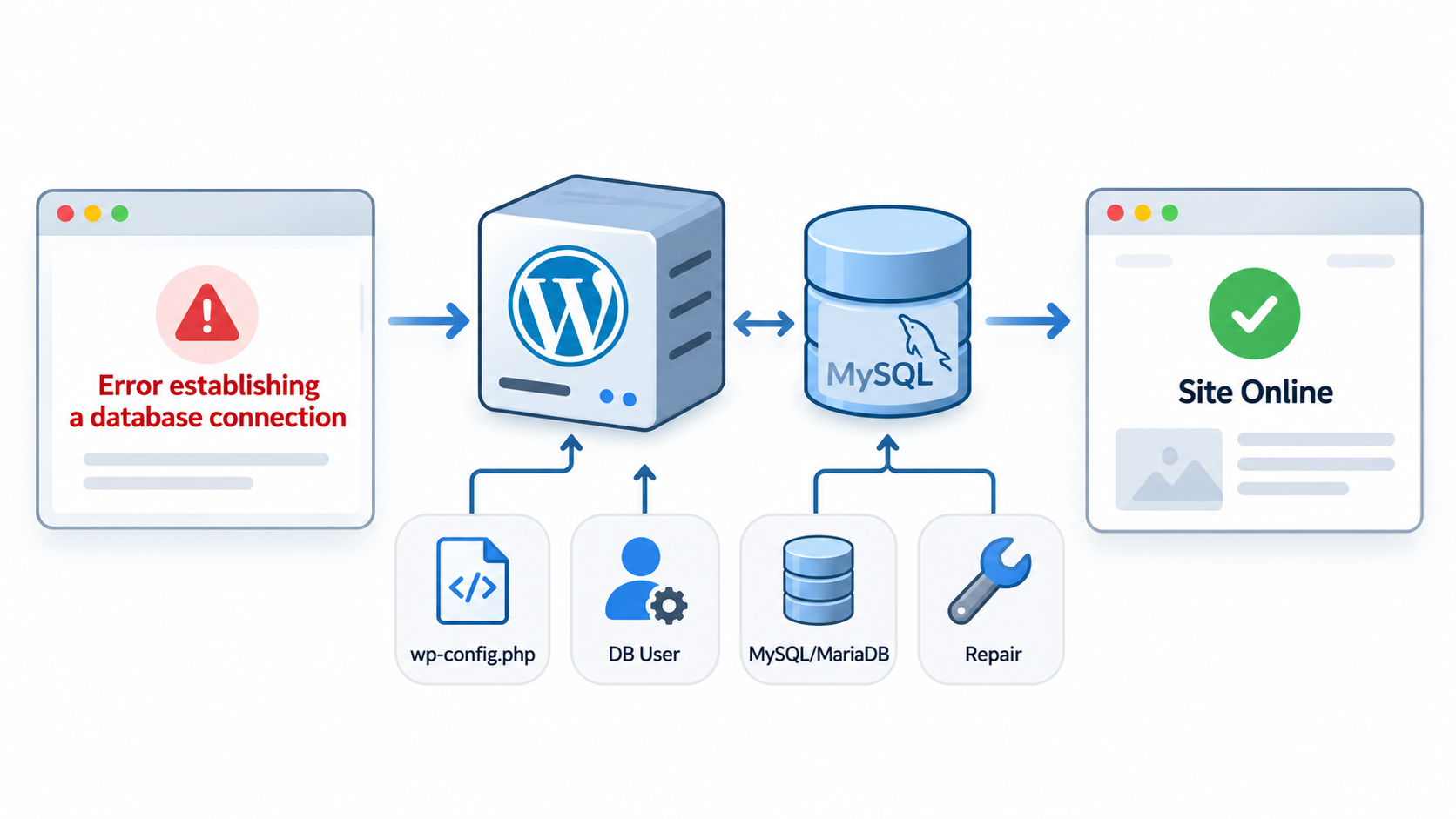
WordPress is one of the most widely used content management systems, but even a properly maintained website can occasionally encounter technical problems. One of the most frustrating errors is the message “Error establishing a database connection.”
When this error appears, your website may become completely inaccessible. Visitors cannot view your pages, and you may also be unable to access the WordPress administration dashboard.
Fortunately, this error does not necessarily mean that your website has been deleted or that your database has been permanently damaged. In many cases, the problem can be resolved by correcting database settings, restoring database connectivity, or fixing a temporary server issue.
We will explain what causes the WordPress database connection error and how to troubleshoot it using cPanel, phpMyAdmin, WordPress configuration files, and basic Linux server administration tools.
1. What Does “Error Establishing a Database Connection” Mean?
WordPress uses a database to store most of the information required to operate your website, including posts, pages, comments, user accounts, website settings, and plugin configurations.
The database is usually managed by MySQL or MariaDB, while WordPress itself runs primarily through PHP.
Whenever a visitor opens a WordPress page, the application retrieves information from the database and uses that information to generate the requested content.
The basic process looks like this:
Visitor → Web Server → WordPress PHP → MySQL/MariaDB Database → Web Page
If WordPress cannot establish a connection to its database, this process fails. Instead of displaying the requested page, WordPress may show the database connection error.
The problem can occur even when the web server is running normally. For example, Apache or Nginx might successfully receive the visitor’s request while the database server is unavailable.
This distinction is important because restarting the web server or reinstalling WordPress will not necessarily solve a database connection problem.
2. Common Causes of WordPress Database Connection Errors
There are several possible reasons why WordPress cannot communicate with its database.
Incorrect database credentials: WordPress uses a database name, username, password, and hostname to connect to MySQL or MariaDB. If any of these values are incorrect, the connection may fail.
Database server unavailable: The MySQL or MariaDB service may have stopped, crashed, or become temporarily unavailable because of maintenance or a server problem.
Database user permissions: The configured database user may no longer have permission to access the WordPress database.
Server resource exhaustion: Insufficient memory, disk space, or available database connections can prevent MySQL or MariaDB from processing new requests.
Database corruption: Damaged database tables can cause database-related errors and may require repair, although table corruption does not always produce the exact connection error.
Website migration problems: Moving WordPress to another server can change the database name, username, password, hostname, or connection port.
Security incidents: Unauthorized changes to website configuration files, database accounts, or server settings can also interrupt connectivity.
Understanding these possibilities helps you troubleshoot the problem systematically rather than making unnecessary changes to your WordPress installation.
3. Before Troubleshooting: Back Up Your Website
Before modifying configuration files, resetting database passwords, or attempting database repairs, make a backup of your website whenever possible.
A complete WordPress backup should contain both the website files and the database.
The website files include WordPress core files, plugins, themes, uploaded images, and the wp-config.php configuration file. The database contains posts, pages, comments, user information, and website settings.
If your hosting account provides cPanel, open File Manager and locate your WordPress installation directory. For a primary domain, this is often public_html, although addon domains and custom installations may use other directories.
Download a copy of wp-config.php before editing it. If phpMyAdmin is accessible, export the WordPress database as an SQL backup.
If your hosting provider offers automated backups, check whether a recent restore point is available.
Avoid deleting database tables, reinstalling WordPress, or creating a new empty database as an initial troubleshooting step. Those actions can create additional problems and may result in data loss.
4. Check the WordPress Database Configuration File
The first technical step is to verify the database connection information stored in wp-config.php.
This file is located in the root directory of your WordPress installation. It contains important configuration settings, including the credentials WordPress uses to connect to its database.
To locate the file through cPanel, log in to your hosting control panel, open File Manager, and navigate to the directory where WordPress is installed.
Find wp-config.php and select the Edit option. Use a plain-text editor rather than a word processor.
Look for the following database settings:
define('DB_NAME', 'your_database_name');
define('DB_USER', 'your_database_username');
define('DB_PASSWORD', 'your_database_password');
define('DB_HOST', 'localhost');
These four values must correspond to the database configuration on your hosting server.
DB_NAME specifies the database containing your WordPress tables.
DB_USER identifies the database account WordPress uses to connect.
DB_PASSWORD is the password associated with that database user.
DB_HOST identifies the database server and, when required, its connection port or socket.
For many shared hosting environments, DB_HOST is set to localhost. However, some hosting providers use a separate database server or a specific hostname.
Do not assume localhost is correct for every hosting environment.
For example, a hosting provider might specify mysql.example.com as the database hostname. In that situation, you must use the hostname supplied by the provider.
If the database server uses a nonstandard port, the DB_HOST value may also include the port number.
Compare all four settings carefully with the information supplied by your hosting provider.
If the error appeared immediately after migrating WordPress, pay particular attention to these settings. Database credentials often change when moving between hosting accounts.
5. Verify the Database Name and User in cPanel
After checking wp-config.php, confirm that the database and its associated user actually exist.
Log in to cPanel and open MySQL Databases or Manage My Databases, depending on the version and interface provided by your hosting company.
Locate the list of existing databases and verify that the database name matches the DB_NAME setting in wp-config.php.
Remember that cPanel commonly adds an account prefix to database names.
For example, if your cPanel username is myaccount and you create a database named wordpress, the actual database name might be myaccount_wordpress.
The complete database name, including the prefix, must be used in WordPress.
Next, locate the database users section and verify that the username specified in DB_USER exists.
Check that the user is assigned to the correct database.
If the user is missing from the database, use the appropriate cPanel interface to add the existing user to the database and assign the permissions required by WordPress.
On a typical dedicated WordPress database, the database user needs permission to read and modify WordPress tables, including operations used during updates and plugin installation. cPanel commonly provides an ALL PRIVILEGES option for this purpose.
Grant access only to the appropriate WordPress database rather than unnecessarily extending privileges to unrelated databases.
After confirming the database name, username, and permissions, test the website again.
6. Check or Reset the Database Password
An incorrect database password is another common cause of connection failures.
This sometimes happens after a server migration, database security update, or manual password change.
If you suspect that the database password is incorrect, you can reset it through the database user management section in cPanel.
Locate the WordPress database user and select the password management option.
Generate a strong password and save the change.
Next, return to wp-config.php and update the DB_PASSWORD setting with the new password.
For example:
define('DB_PASSWORD', 'YourNewStrongPassword');
Replace the example value with your actual database password.
Make sure that the password matches exactly. Passwords are case-sensitive, and even a single incorrect character can prevent WordPress from connecting.
Save wp-config.php and reload your website.
Keep in mind that resetting the database password without updating wp-config.php will cause WordPress to lose access to the database.
If several applications share the same database account, changing the password may also affect those applications. A separate database user for each website is generally a better approach.
7. Check Whether the MySQL or MariaDB Server Is Running
If the database credentials are correct, the next step is to determine whether the database server is available.
A WordPress website depends on its database server to retrieve content. If MySQL or MariaDB stops responding, WordPress may display the database connection error even when the configuration file is correct.
For shared hosting users, the simplest approach is to check the hosting provider’s service status or contact technical support.
You can also try opening phpMyAdmin from cPanel. If phpMyAdmin is unable to connect to the database service, this may indicate a broader database server problem, although phpMyAdmin itself can also encounter configuration or authentication issues.
For VPS or dedicated server administrators with appropriate SSH and sudo access, database service status can be checked directly.
On Linux servers using systemd, the command for a MySQL service is commonly:
sudo systemctl status mysql
On a server running MariaDB, use:
sudo systemctl status mariadb
Some Linux distributions and hosting control panels use different service names, such as mysqld.
If the service is stopped, investigate the reason before attempting to restart it.
After confirming that restarting is appropriate, the service can be restarted using a command such as:
sudo systemctl restart mariadb
For MySQL, use the correct service name for your installation.
A restart may restore database connectivity after a temporary failure. However, if the service repeatedly stops or fails to start, examine the database server’s error logs rather than repeatedly restarting it.
On managed shared hosting, database service administration is usually handled by the hosting provider. Customers generally should not expect to have permission to restart MySQL themselves.
8. Check Server Disk Space, Memory, and Database Connections
Database connectivity problems are not always caused by incorrect configuration.
A database service may become unstable or unavailable when the hosting server runs out of critical resources.
For example, if the server’s filesystem becomes full, MySQL or MariaDB may be unable to write temporary files, transaction logs, or other required data.
On a Linux VPS or dedicated server, check disk usage with:
df -h
This command displays filesystem capacity and available space.
If the database filesystem is full, identify the cause before deleting files. Common sources of excessive disk consumption include application logs, database logs, outdated backups, and temporary files.
Do not manually delete database data files to free disk space.
You can also check available memory using:
free -h
If the server consistently runs out of available memory, the operating system may terminate processes or the database service may fail to allocate resources.
For connection-related issues, examine database logs for messages such as “Too many connections,” “Access denied,” or “Can’t connect to local server.”
A “Too many connections” error indicates that the database server has reached its configured connection limit.
This may happen during traffic spikes, poorly optimized database queries, unusual application activity, or when a server has insufficient resources for its workload.
Increasing the connection limit is not always the correct solution. First identify why connections are accumulating and whether the server has enough memory to support additional concurrent database sessions.
For shared hosting environments, ask the provider to check database availability, resource restrictions, and server logs.
9. Test the Database Connection Independently
If the database service is running but WordPress still cannot connect, testing the database connection outside WordPress can help isolate the problem.
This step is especially useful for administrators managing Linux VPS or dedicated servers.
If the MySQL command-line client is installed and you have shell access, you can attempt to log in using the database account configured in WordPress.
For a local database connection, a typical command is:
mysql -u your_database_username -p -h localhost your_database_name
Replace the example username and database name with your actual values.
The client will prompt for the password.
For a remote database server, use the hostname and, if necessary, the port provided by your hosting company.
If the login succeeds, the database server is reachable and the supplied credentials are accepted through that connection method.
If the login fails, the error message may help identify the problem.
“Access denied” commonly indicates incorrect credentials or insufficient database account privileges.
“Unknown database” indicates that the specified database cannot be found.
“Can’t connect to MySQL server” suggests a connectivity, hostname, port, socket, or database service problem.
One important detail is that localhost and 127.0.0.1 do not always behave identically. On many Linux MySQL client installations, localhost uses a Unix socket, while 127.0.0.1 uses a TCP/IP connection.
Therefore, changing DB_HOST from localhost to 127.0.0.1 should not be treated as a universal fix.
Test the connection method supported by your hosting environment and use the correct database hostname.
If you are managing a remote database server, also verify that the firewall, network configuration, database listener, and database user’s permitted host settings allow the required connection.
Do not expose MySQL publicly simply to troubleshoot a WordPress connection problem.
10. Check the WordPress Database Using phpMyAdmin
If the connection credentials are valid and the database service is available, inspect the WordPress database through phpMyAdmin.
Log in to cPanel and open phpMyAdmin.
Select the database used by your WordPress installation.
You should normally see WordPress tables such as wp_posts, wp_options, wp_users, wp_comments, and other tables belonging to WordPress core, plugins, or themes.
The wp_ prefix is only the default. Your website may use a different table prefix.
The table prefix is configured in wp-config.php through the $table_prefix variable.
If the database appears empty after migration, confirm that the correct database was imported.
An incorrect table prefix usually causes WordPress to behave as if its existing tables are missing rather than producing a basic database authentication error.
If phpMyAdmin reports damaged tables, additional repair steps may be necessary.
However, do not run database repair operations blindly. The correct procedure depends on the database storage engine, the type of damage, and whether you have a reliable backup.
Modern WordPress installations commonly use InnoDB tables, which cannot be repaired in the same way as traditional MyISAM tables.
If the database contains valuable production data and the underlying storage is damaged, restoring from a verified backup or consulting your hosting provider may be safer than attempting repeated repair operations.
11. Use the WordPress Database Repair Tool
WordPress includes a database repair feature that may help with certain types of database table problems.
This feature is intended for situations where database tables require checking or repair. It is not a general solution for incorrect passwords, unavailable database servers, or network connection failures.
Before using the repair tool, create a database backup whenever possible.
Open wp-config.php and add the following line before the comment that marks the end of the editable configuration section:
define('WP_ALLOW_REPAIR', true);
Save the file.
Then open the following address in your browser:
https://yourdomain.com/wp-admin/maint/repair.php
Replace yourdomain.com with your actual website domain.
WordPress may display options to repair the database or repair and optimize the database.
Select the appropriate repair operation and review the results.
The repair process may not succeed for every database engine or type of corruption.
Important security warning: The WordPress database repair page does not require a logged-in user while this feature is enabled. Anyone who knows the address may be able to initiate the repair operation.
After completing the repair attempt, immediately remove the WP_ALLOW_REPAIR line from wp-config.php.
Do not leave this feature enabled permanently.
If the problem continues, investigate the database error messages or restore a known-good database backup rather than repeatedly running repairs.
12. Fix Database Connection Errors After Moving WordPress
Database connection errors frequently occur after migrating a WordPress website from one hosting company or server to another.
A successful migration requires transferring both the WordPress files and the database, then updating the configuration to match the destination environment.
For example, the original hosting account may have used a database named oldaccount_wordpress, while the new hosting account uses newaccount_wordpress.
The original database username and password may also be different.
After moving WordPress, verify that the database has been imported successfully and that the new database user has the required permissions.
Update DB_NAME, DB_USER, DB_PASSWORD, and DB_HOST in wp-config.php to match the destination server.
Also verify that the database hostname and port are correct, especially when migrating from shared hosting to a VPS or managed database service.
If you restored only the WordPress files without importing the database, the website will not have access to its original content.
Do not begin a new WordPress installation over a migrated site simply because the existing database cannot be reached.
First determine whether the database import is missing, the configuration is incorrect, or the database server is unavailable.
Once database connectivity has been restored, you can separately address domain settings, site URLs, SSL configuration, and other migration-related issues.
13. Check WordPress Plugins, Security Changes, and Server Logs
Plugins and themes are not usually the first place to investigate a straightforward database connection error.
However, some plugins, custom PHP code, and advanced WordPress installations use external database connections, database drop-ins, or additional configuration settings.
For example, a website using a custom database drop-in in wp-content/db.php may have connection behavior that differs from a standard WordPress installation.
Review recent configuration changes if the error appeared immediately after installing database-related software or modifying server settings.
Security incidents can also cause database connection failures. If wp-config.php has been modified without authorization or database accounts have been unexpectedly changed, investigate the possibility of unauthorized access.
On a Linux server, database error logs may provide details about authentication failures, unavailable database sockets, connection limits, and service startup problems.
The exact log location depends on the Linux distribution, database server, hosting control panel, and logging configuration.
For services managed by systemd, administrators can inspect recent service logs using a command such as:
sudo journalctl -u mariadb -n 100 --no-pager
Use the corresponding service name if your server runs MySQL instead of MariaDB.
Check the timestamps to determine whether the database errors correspond to the period when the website became inaccessible.
Avoid publishing database logs, configuration files, or debugging output containing sensitive information.
14. What If the Error Appears Only Occasionally?
An intermittent database connection error deserves particular attention.
If the website works normally most of the time but occasionally displays the error, the database credentials are less likely to be the primary cause.
Instead, investigate conditions that vary over time.
Possible causes include temporary database overload, excessive concurrent connections, resource limits, slow database queries, database service restarts, or temporary network interruptions between the web server and database server.
A busy WordPress website with many plugins may generate significant database activity, especially if some queries are inefficient.
WooCommerce websites and other dynamic applications may be particularly sensitive to database availability because many page requests and background operations depend on database transactions.
Object caching with Redis or another supported caching system may reduce repeated database queries, but it does not eliminate WordPress’s dependency on a functioning database.
Full-page caching can sometimes continue serving previously cached public pages during a database outage. However, administrative pages, uncached requests, and dynamic functions may still fail.
Caching should be viewed as a performance and resilience improvement, not as a replacement for fixing database connectivity.
For recurring failures, examine database metrics, query performance, PHP worker activity, and connection limits over time.
A hosting provider may also be able to correlate database interruptions with resource usage or server maintenance events.
15. When Should You Contact Your Hosting Provider?
Some database connection problems can be resolved directly through cPanel, but others require access to the underlying hosting infrastructure.
Contact your hosting provider if the database service is unavailable, phpMyAdmin cannot connect, server resource limits are being reached, or the problem continues after you have verified the configuration.
When contacting support, provide your domain name, the approximate time the error started, whether it is constant or intermittent, and any recent changes such as migrations, password updates, or plugin installations.
Ask the hosting provider to verify that the MySQL or MariaDB service is running, the configured database is available, the database user has appropriate permissions, and the server is not rejecting connections because of resource exhaustion.
If the problem occurs intermittently, request a review of database logs and connection limits during the affected period.
Never send your database password in an ordinary support email or public forum message.
If support needs sensitive credentials, use the provider’s approved secure method for exchanging that information.
16. How to Prevent Database Connection Errors in the Future
Although not every database failure can be prevented, several maintenance practices can reduce the risk of unexpected WordPress outages.
Maintain regular backups. Keep automated backups of both website files and databases. Store at least some backups separately from the production server and periodically verify that they can be restored.
Keep WordPress updated. Maintain supported versions of WordPress, PHP, MySQL or MariaDB, themes, and plugins. Test significant changes on a staging website when possible.
Monitor database availability. Monitoring can help identify recurring service failures, disk space shortages, and abnormal resource usage before they become major outages.
Use secure database credentials. Assign each WordPress installation an appropriate database user and strong password. Avoid unnecessary access to other databases.
Choose appropriate hosting resources. A busy website may require more memory, faster storage, or higher database capacity than a basic shared hosting plan can provide.
Optimize database activity. Remove unnecessary plugins, investigate slow queries, and implement suitable caching to reduce avoidable database requests.
Document website migrations. Record the correct database hostname, database name, user assignment, and connection requirements whenever moving WordPress between servers. Store credentials securely rather than in ordinary documents.
Review server logs. Recurring database warnings, connection failures, and unexpected service restarts should be investigated before they become persistent problems.
A reliable WordPress website depends on more than its web server. Database health, secure configuration, available server resources, and effective backup procedures are equally important.
17. Frequently Asked Questions
Does “Error Establishing a Database Connection” mean my website has been deleted?
No. This error means WordPress cannot establish the required database connection. Your website files and database contents may still be intact. Verify the database service and configuration before considering restoration or reinstallation.
Can a WordPress plugin cause a database connection error?
Yes, in some cases. Plugins that modify database behavior, use custom database connections, or generate excessive database activity may contribute to connection problems. However, incorrect credentials and database server issues should generally be investigated first.
Can I fix the problem without accessing the WordPress dashboard?
Yes. Most troubleshooting steps are performed through cPanel, File Manager, phpMyAdmin, SSH, or the hosting provider’s management interface. Access to wp-admin is not required to verify wp-config.php.
Will reinstalling WordPress fix the database connection error?
Usually not. If the underlying problem is an incorrect database password, unavailable database server, or missing database permissions, reinstalling WordPress will not address the cause. Reinstallation may also put existing data at risk if performed incorrectly.
Does clearing the WordPress cache fix this error?
Not usually. Clearing a cache does not correct database credentials or restart an unavailable database server. Caching may affect which pages visitors can see, but the underlying database connection still needs to be repaired.
Is localhost always the correct WordPress database hostname?
No. Many shared hosting environments use localhost, but some use remote database servers, custom hostnames, ports, or Unix sockets. Always follow the database connection information supplied by your hosting provider.
Can I use WP-CLI to check my WordPress database?
Yes. If WP-CLI is installed and you have appropriate shell access, wp db check can perform a database check using the WordPress configuration. The command wp db repair is also available for supported repair operations, but repairs should be attempted only after evaluating the problem and obtaining a backup.
How long does it take to fix this error?
The time required depends on the cause. Correcting a database password may be straightforward, while recovering a damaged database or diagnosing a recurring server failure can require more extensive investigation.
Conclusion
The WordPress “Error Establishing a Database Connection” message can make a website appear completely broken, but it does not automatically indicate permanent data loss.
In many situations, the issue is caused by incorrect database credentials, an unavailable MySQL or MariaDB server, missing database permissions, or a temporary hosting infrastructure problem.
The most effective troubleshooting approach is to begin with wp-config.php, verify the database and user settings in cPanel, confirm that the database server is accessible, and examine server logs when the problem persists.
Database repair should be reserved for situations where there is evidence of table damage, rather than being used as the first solution for every connection error.
With proper backups, secure database configuration, regular maintenance, and reliable hosting infrastructure, you can reduce the likelihood of these problems and recover more safely when they occur.
We believe that understanding the technology behind your website is an important part of maintaining a reliable online presence. Whether you manage a personal WordPress blog, an online business, or multiple websites, learning how WordPress communicates with its database will help you identify problems and make better hosting decisions.