
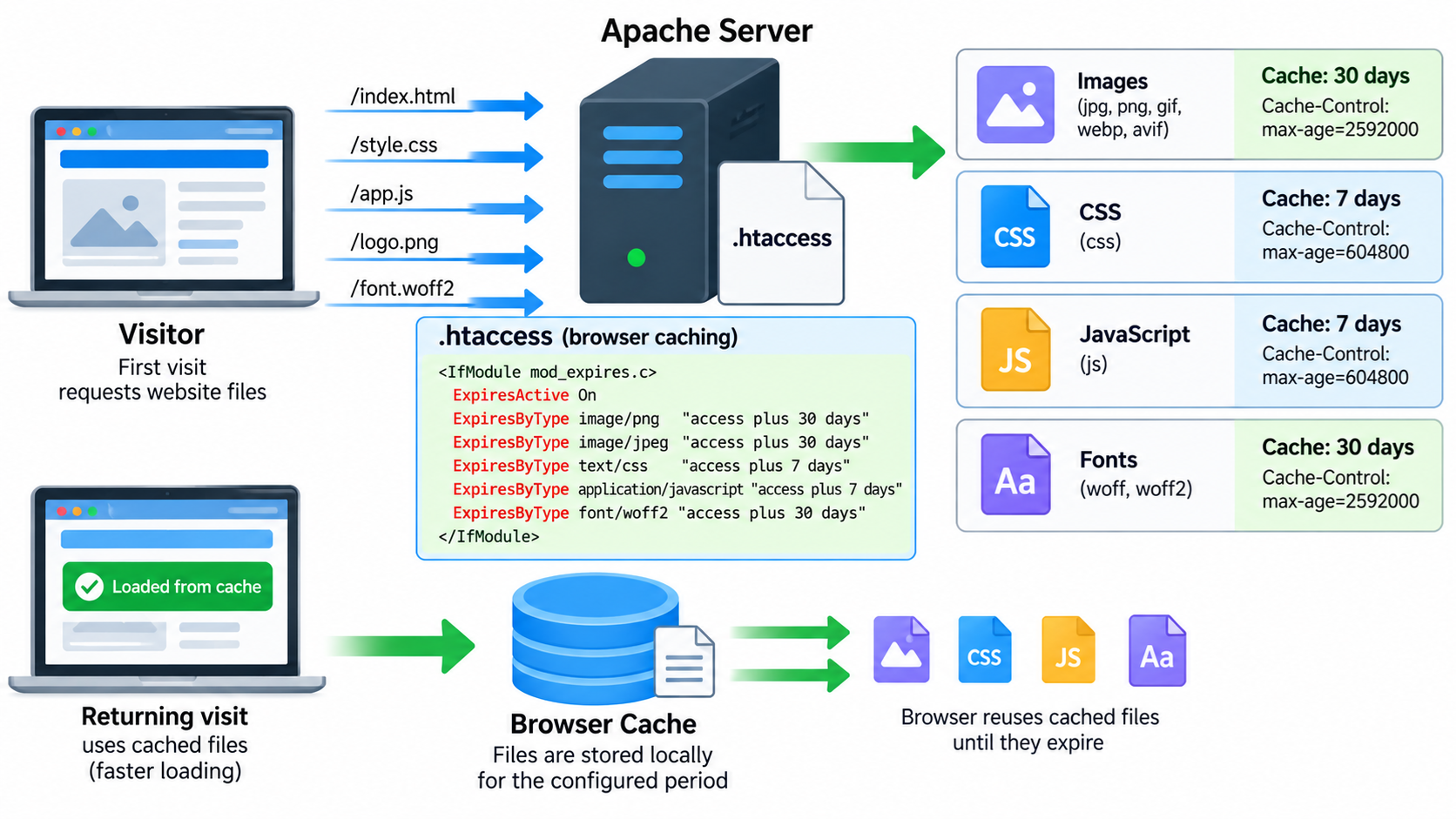
Website speed is an important factor in providing a good user experience.
When visitors open a website, their browsers may need to download HTML documents, CSS stylesheets, JavaScript files, images, fonts, and other resources from the web server.
If the browser downloads the same resources every time a visitor opens a page, unnecessary network traffic can increase page loading times and consume additional bandwidth.
Caching helps solve this problem by allowing browsers and other caching systems to reuse previously downloaded resources when appropriate.
If your website runs on Apache, you can implement a basic browser caching scheme using an .htaccess file.
Apache provides several modules and HTTP response headers that allow administrators to control how long different resources may be cached.
In this tutorial, we will explain how web caching works, how to configure browser caching using mod_expires and mod_headers, how to create different caching policies for different file types, and how to test your caching configuration.
We will also discuss common caching problems and explain why dynamic pages, login sessions, and sensitive information require special attention.
What Is Website Caching?
Website caching is the process of temporarily storing copies of website resources so that they can be reused without downloading or generating the same content again.
For example, imagine a visitor opens a webpage containing a company logo, a stylesheet, and several JavaScript files.
During the first visit, the browser downloads these resources from the website.
If the browser is allowed to cache them, it may store copies locally.
When the visitor opens another page using the same resources, the browser may reuse its cached copies instead of downloading everything again.
This can reduce network traffic and improve page loading speed.
However, caching does not always mean that the browser will reuse a resource without contacting the server.
Some caching policies allow a stored response to be reused while it remains fresh.
Other policies require the browser to validate the stored response before using it.
Understanding this distinction is important when designing a caching scheme.
Different Types of Website Caching
There are several types of caching used in modern websites.
Browser caching stores copies of website resources on the visitor’s device.
It is commonly controlled using HTTP response headers such as Cache-Control, Expires, ETag, and Last-Modified.
Server-side caching stores generated responses, database query results, or other application data on the server.
For example, a WordPress caching plugin may save generated HTML pages so that PHP does not need to rebuild them for every visitor.
Reverse proxy caching stores responses in an intermediate server positioned between website visitors and the origin web server.
Content Delivery Networks, or CDNs, may cache website resources at geographically distributed servers.
When supported and correctly configured, visitors can receive cached resources from a nearby CDN location.
These caching methods serve different purposes and may operate together.
An .htaccess file is particularly useful for controlling Apache HTTP response headers that influence browser caching and some shared caches.
However, adding browser caching directives to .htaccess does not automatically create a full-page server-side cache or configure a CDN.
Why Should You Implement Browser Caching?
Browser caching can improve website performance by reducing repeated downloads of unchanged resources.
Images, stylesheets, JavaScript files, and web fonts are common candidates because these resources may be reused across many pages.
For example, suppose a website has a logo that appears on every page.
Without effective caching, the browser may repeatedly request the logo from the server.
With appropriate caching, the browser can reuse its local copy for a specified period.
This may reduce unnecessary network requests and improve the experience for returning visitors.
Caching can also reduce bandwidth consumption and decrease the number of requests handled by the origin server.
However, caching must be configured carefully.
If files are cached for too long without a reliable update mechanism, visitors may continue seeing outdated stylesheets, JavaScript files, or images after the website has been updated.
Therefore, an effective caching scheme balances performance with content freshness.
Step 1: Locate Your .htaccess File
To configure browser caching with Apache, first locate your website’s .htaccess file.
Log in to your web hosting account using cPanel File Manager, SFTP, or SSH.
Navigate to your website’s document root. For many cPanel hosting accounts, the primary website directory is named public_html.
Look for the file named .htaccess.
Because its filename begins with a dot, it may be hidden by default. Enable the option to display hidden files if necessary.
If the file already exists, download a backup before making changes.
WordPress and other content management systems commonly use .htaccess for redirects, permalink rules, and other configuration settings. Do not remove existing rules.
If the file does not exist, you can create a new plain-text file named .htaccess, provided your hosting provider supports Apache per-directory configuration.
The examples in this tutorial use Apache HTTP Server 2.4.
Step 2: Understand Apache Caching Modules
Apache provides two particularly useful modules for controlling browser caching through .htaccess.
The first is mod_expires.
This module generates Expires headers and Cache-Control max-age directives according to the resource type and the configured expiration interval.
For example, you can tell browsers that image resources should remain fresh for one month while CSS files should remain fresh for one week.
The second module is mod_headers.
This module allows you to modify HTTP response headers directly.
It can be used to add caching directives such as public, private, no-cache, no-store, and immutable.
These two modules can work together, but their settings must be coordinated to avoid duplicate or contradictory Cache-Control directives.
You also need to confirm that the hosting provider has enabled the required modules and permitted their use in .htaccess.
On a VPS or dedicated server, an administrator can check the loaded Apache modules using a command such as:
apachectl -MDepending on the Linux distribution, the equivalent command may be:
apache2ctl -MLook for modules named expires_module and headers_module.
If you use shared hosting and do not have administrative access, ask your hosting provider whether these modules are available.
Step 3: Enable Browser Caching with mod_expires
One of the simplest ways to implement browser caching is to use Apache’s ExpiresActive and ExpiresByType directives.
Open your .htaccess file and add the following configuration:
<IfModule mod_expires.c>
    ExpiresActive On
    ExpiresByType image/jpeg "access plus 1 month"
    ExpiresByType image/png "access plus 1 month"
    ExpiresByType image/gif "access plus 1 month"
    ExpiresByType image/webp "access plus 1 month"
    ExpiresByType text/css "access plus 1 week"
    ExpiresByType application/javascript "access plus 1 week"
</IfModule>
Save the file.
The IfModule directive checks whether the specified Apache module is available.
The ExpiresActive On directive enables expiration header generation.
Each ExpiresByType directive defines how long a particular resource type should remain fresh.
For example, the following line:
ExpiresByType image/png "access plus 1 month"tells Apache to generate caching information for PNG images using an expiration interval of one month after access.
Apache normally generates both an Expires header and a Cache-Control max-age directive for matching responses.
The actual value of max-age is expressed in seconds.
For example, a one-week freshness interval corresponds to 604800 seconds.
The resource’s Content-Type must match the specified MIME type for the appropriate ExpiresByType rule to apply.
If your server delivers JavaScript using text/javascript rather than application/javascript, you should configure that MIME type as well.
The example intervals are starting points, not universal recommendations. Choose cache durations based on how frequently your resources change.
Step 4: Configure Different Cache Durations for Different Resources
Not all website files should have the same caching policy.
Some resources rarely change, while others may change frequently.
For example, company logos and background images may remain unchanged for months.
CSS and JavaScript files may change whenever a website is redesigned, a plugin is updated, or a new feature is deployed.
HTML documents can change much more frequently, especially on websites that publish news, product listings, or other regularly updated content.
A practical caching scheme might use the following intervals:
Images: one month.
CSS files: one week.
JavaScript files: one week.
Web fonts: one month.
HTML pages: require revalidation or use a carefully chosen short freshness period for public content.
These durations are examples. A website that uses versioned filenames can often cache static resources much longer than a website that repeatedly overwrites files at the same URLs.
For a broader static-resource configuration, you can use:
<IfModule mod_expires.c>
    ExpiresActive On
    ExpiresByType image/jpeg "access plus 1 month"
    ExpiresByType image/png "access plus 1 month"
    ExpiresByType image/gif "access plus 1 month"
    ExpiresByType image/webp "access plus 1 month"
    ExpiresByType image/svg+xml "access plus 1 month"
    ExpiresByType image/avif "access plus 1 month"
    ExpiresByType text/css "access plus 1 week"
    ExpiresByType text/javascript "access plus 1 week"
    ExpiresByType application/javascript "access plus 1 week"
    ExpiresByType font/woff "access plus 1 month"
    ExpiresByType font/woff2 "access plus 1 month"
</IfModule>
This provides separate expiration intervals for common images, stylesheets, scripts, and web fonts.
If your website uses additional file types, you may add appropriate rules.
Avoid setting a broad default expiration period until you understand which content types will be affected.
For example, a default one-year cache lifetime could be inappropriate for frequently changing HTML pages or application responses.
Step 5: Understand the Cache-Control Header
The Cache-Control HTTP response header tells browsers and other caches how a response may be stored, validated, and reused.
For example:
Cache-Control: public, max-age=604800The public directive indicates that the response may be stored in shared caches, subject to the other applicable caching rules.
The max-age directive defines the freshness lifetime in seconds.
In this example, 604800 seconds equals seven days.
Another example is:
Cache-Control: private, no-cacheThe private directive tells shared caches not to store the response.
The no-cache directive means that a stored response must be successfully validated with the origin server before it can be reused.
Despite its name, no-cache does not necessarily prohibit storing the response.
If you need to tell compliant caches not to store a response at all, use:
Cache-Control: no-storeThese distinctions are particularly important for authenticated pages, personalized content, and sensitive application responses.
Caching directives influence the behavior of standards-compliant caches, but they do not replace authentication, authorization, or other application security controls.
Step 6: Configure Cache-Control Headers Using mod_headers
Apache’s mod_headers module allows you to define HTTP response headers directly.
For example, the following configuration applies a one-week Cache-Control policy to CSS and JavaScript files:
<IfModule mod_headers.c>
    <FilesMatch "\.(css|js)$">
        Header set Cache-Control "public, max-age=604800"
    </FilesMatch>
</IfModule>
This rule matches filenames ending in .css or .js and sets the specified Cache-Control header.
A separate rule can be used for images:
<IfModule mod_headers.c>
    <FilesMatch "\.(jpg|jpeg|png|gif|webp)$">
        Header set Cache-Control "public, max-age=2592000"
    </FilesMatch>
</IfModule>
In this example, 2592000 seconds represents 30 days.
However, there is an important consideration when using mod_headers together with mod_expires.
The mod_expires module can already generate Cache-Control max-age directives.
If you separately set Cache-Control using mod_headers, you may override generated values or create conflicting header behavior, depending on the configuration and response processing.
For a simple website, it is often best to use mod_expires for standard static-file expiration rules and reserve mod_headers for additional directives or special requirements.
Do not blindly combine multiple caching configurations copied from different tutorials.
Always inspect the resulting HTTP response headers to verify the effective policy.
Step 7: Configure a Long Cache Lifetime for Versioned Static Files
One of the most effective caching strategies for static resources is to use versioned or fingerprinted filenames.
For example, instead of always publishing a stylesheet named:
style.cssyour deployment system might generate filenames such as:
style.a1b2c3.cssWhen the stylesheet changes, the filename changes as well.
This allows the previous version to remain cached while the new HTML page references the updated stylesheet.
With reliable fingerprinted filenames, you can safely use longer cache lifetimes for those resources.
For example:
Cache-Control: public, max-age=31536000, immutableThe max-age value of 31536000 represents 365 days.
The immutable directive indicates that the response is not expected to change during its freshness lifetime.
This can reduce unnecessary revalidation requests for resources whose URLs change whenever their contents change.
However, immutable should generally be reserved for resources that are genuinely versioned and never modified at the same URL.
Do not apply a one-year immutable policy indiscriminately to ordinary WordPress stylesheets, JavaScript files, or images that might be replaced without changing their filenames.
A long cache lifetime without reliable URL versioning can cause visitors to continue using outdated resources.
Step 8: How to Handle HTML Caching
HTML caching requires more care than caching images or stylesheets.
Unlike static assets, HTML pages may contain frequently updated information, login status, user-specific content, or application data.
For a simple public HTML website, a short caching lifetime may be reasonable.
However, for dynamic websites, an unconditional caching rule applied to every HTML response can cause unexpected problems.
For example, a shopping cart page may contain customer-specific information.
An account dashboard may display private user data.
An administrative page may include sensitive information that must not be stored in a shared cache.
These responses should be controlled by the application or an appropriate server-level caching policy.
For ordinary public HTML files that need revalidation, you can use a directory-specific rule such as:
<IfModule mod_headers.c>
    <FilesMatch "\.html?$">
        Header set Cache-Control "no-cache"
    </FilesMatch>
</IfModule>
This example matches files ending in .htm or .html.
It does not automatically cover dynamic HTML generated through PHP, WordPress, or another application.
Also, the directive no-cache permits storage but requires successful validation before reuse.
For sensitive content that must not be stored, an application-level no-store policy is more appropriate.
Do not assume that filename-based .htaccess rules can reliably classify every dynamic application response.
Step 9: Use ETag and Last-Modified for Cache Validation
Caching is not limited to reusing resources during a freshness period.
Browsers can also validate previously stored resources to determine whether they have changed.
Two common HTTP headers used for validation are ETag and Last-Modified.
An ETag is an identifier associated with a particular representation of a resource.
For example, a response may contain:
ETag: "example123"When the browser wants to validate its cached copy, it may send an If-None-Match request header containing the ETag value.
If the resource has not changed, the server may return:
HTTP/1.1 304 Not ModifiedThis response tells the browser that its cached representation can be reused.
The Last-Modified header provides another mechanism for checking whether a resource has changed.
For example:
Last-Modified: Wed, 07 Oct 2026 12:00:00 GMTThe browser may later send an If-Modified-Since header to validate the resource.
Both mechanisms can reduce the amount of response data transferred when the cached resource remains unchanged.
Apache commonly provides suitable validators for static files, depending on the server configuration.
For most websites, it is better to preserve working validators than to disable them without a clear technical reason.
Step 10: How to Test Your Website Caching Configuration
After modifying your .htaccess file, verify that Apache sends the expected HTTP response headers.
Open a terminal and run:
curl -I https://example.com/style.cssReplace the example URL with the actual URL of a CSS file on your website.
If your caching rule is active, the response might contain:
Cache-Control: max-age=604800

Expires: Sat, 17 Oct 2026 12:00:00 GMT
The exact Expires value depends on when the response is generated and which expiration policy is applied.
You can also inspect an image:
curl -I https://example.com/images/logo.pngCheck whether the Cache-Control and Expires headers match your intended image caching policy.
Modern browsers also provide useful tools for testing caching behavior.
For example, in Firefox or Chrome, open Developer Tools and select the Network panel.
Load your website and inspect the requests for images, stylesheets, and JavaScript files.
Select an individual request and review its response headers.
Repeat the page load to see whether the browser reuses cached resources or performs validation requests.
Be aware that Developer Tools may include an option to disable browser caching while the tools are open.
Make sure that option is not interfering with your test.
Also, a curl request does not automatically reproduce the behavior of a browser cache.
It is useful for inspecting headers, while browser Developer Tools are better suited to observing actual browser caching.
Step 11: How to Check Whether Browser Caching Is Working
A correctly configured browser cache can produce different request behaviors depending on the resource’s freshness state.
If a stored response is still fresh, the browser may reuse it without contacting the server.
If the cached response is stale, the browser may send a conditional request to validate it.
When the server determines that the resource has not changed, it may return a 304 Not Modified response.
If the resource has changed, the server normally returns an updated representation with an appropriate successful response.
A 304 response is not necessarily a caching problem.
It often indicates that HTTP cache validation is working as designed.
Similarly, seeing a 200 OK response does not automatically mean caching is disabled. It may represent the initial download or a changed resource.
To evaluate caching correctly, inspect both the response headers and the sequence of browser requests.
Step 12: Caching Considerations for WordPress
WordPress websites frequently use dynamic PHP scripts to generate HTML pages.
Images, CSS files, JavaScript files, and web fonts can often benefit from browser caching.
However, WordPress pages may also contain personalized information, administrative interfaces, login sessions, and shopping cart data.
For this reason, caching policies must distinguish between public static resources and dynamic application responses.
A simple .htaccess configuration can help manage caching for static resources, but it does not replace a properly configured WordPress page cache.
WordPress caching plugins may generate static HTML files, use object caching, manage cache invalidation, or integrate with a CDN.
These mechanisms work differently from the Expires headers configured in .htaccess.
If you already use a WordPress caching plugin, review its settings before adding custom caching directives.
Some plugins automatically generate Apache caching rules or modify response headers.
Adding another set of rules may create duplicate or conflicting caching policies.
Also, avoid placing custom configuration inside a section of .htaccess that WordPress or another plugin automatically manages, because those rules may be overwritten.
For a WordPress website, begin with static resources, test carefully, and let the application or its caching system handle sensitive and personalized pages.
Step 13: Caching with Cloudflare or Another CDN
If your website uses Cloudflare or another Content Delivery Network, there may be multiple caching layers between the visitor and your origin server.
A browser may cache static resources locally.
A CDN may also store copies of those resources at its edge servers.
Meanwhile, the origin server may have its own application or page caching system.
These layers can operate independently.
For example, a browser caching lifetime of one week does not necessarily mean that a CDN will store the same resource for one week.
CDNs may use their own rules, default policies, or selected origin response headers to determine caching behavior.
Some CDNs support directives such as s-maxage, which can specify a freshness lifetime for shared caches.
However, the exact behavior depends on the CDN provider and configuration.
When using Cloudflare, review Browser Cache TTL, Edge Cache TTL, and any applicable Cache Rules before making changes.
Also, remember that purging a CDN cache does not necessarily remove fresh copies already stored in visitors’ browsers.
If a browser has been instructed to treat a resource as fresh for a long period, it may continue using that resource until the freshness lifetime expires.
Versioned filenames provide a more reliable update mechanism for heavily cached static assets.
Common Problems When Implementing Browser Caching
One common problem is that website updates do not appear immediately.
For example, a visitor may continue using an older stylesheet after the website owner modifies the CSS file.
This can happen when the stylesheet has a long cache lifetime and its URL remains unchanged.
To avoid this problem, use versioned resource URLs or shorter cache durations for resources that change frequently.
Another common problem is configuring different Cache-Control rules for the same resource.
For example, mod_expires may generate one max-age value while another configuration attempts to assign a different value.
This can make the effective policy difficult to understand.
Review the final HTTP response headers and avoid unnecessary duplication.
A third problem is applying caching rules to sensitive dynamic pages.
Caching private or personalized responses incorrectly can create privacy and security risks, especially when shared caches are involved.
Applications should explicitly control caching for sensitive responses rather than relying on broad static-file rules.
Another issue occurs when Apache modules are unavailable or .htaccess overrides are restricted.
If a directive is unsupported or not permitted, Apache may return a 500 Internal Server Error.
The IfModule directive can prevent configuration errors caused by a missing module, but it does not guarantee that the requested caching functionality is available.
Always test after making changes.
Finally, remember that Nginx does not process Apache .htaccess files.
If your website uses Nginx, caching behavior must be configured using Nginx directives, application settings, or another appropriate caching layer.
A Practical .htaccess Caching Configuration
For a simple website that serves ordinary static resources through Apache, the following configuration provides a reasonable starting point.
It assigns a 30-day freshness lifetime to common image and font types and a seven-day lifetime to CSS and JavaScript files.
It deliberately avoids applying a broad caching policy to HTML, PHP, and other dynamic responses.
# Browser caching for static resources

<IfModule mod_expires.c>
    ExpiresActive On

    # Images - 30 days
    ExpiresByType image/jpeg "access plus 30 days"
    ExpiresByType image/png "access plus 30 days"
    ExpiresByType image/gif "access plus 30 days"
    ExpiresByType image/webp "access plus 30 days"
    ExpiresByType image/avif "access plus 30 days"
    ExpiresByType image/svg+xml "access plus 30 days"

    # CSS and JavaScript - 7 days
    ExpiresByType text/css "access plus 7 days"
    ExpiresByType text/javascript "access plus 7 days"
    ExpiresByType application/javascript "access plus 7 days"

    # Web fonts - 30 days
    ExpiresByType font/woff "access plus 30 days"
    ExpiresByType font/woff2 "access plus 30 days"
</IfModule>
You can place this configuration in the root .htaccess file of an Apache website, provided the hosting environment supports mod_expires and the necessary override permissions.
Because mod_expires generates Cache-Control max-age and Expires information automatically, a separate mod_headers block is not required for this basic configuration.
These settings are intended for public static resources that can safely be reused during the specified periods.
They should not be applied without review to sensitive responses, authenticated resources, or dynamic application content.
For a WordPress website, confirm that a caching plugin or hosting platform is not already generating overlapping rules.
Also, make sure CSS and JavaScript updates can be delivered using appropriate cache-busting or versioning mechanisms.
Best Practices for Website Caching
An effective caching strategy begins by identifying which resources are safe to cache and how frequently they change.
Use longer freshness periods for stable static resources that have reliable versioned filenames.
Use shorter freshness periods when resource URLs remain unchanged after updates.
Avoid applying one universal cache lifetime to every file on the website.
Do not cache sensitive or personalized responses in shared caches unless the application has been specifically designed to handle that behavior securely.
Use cache validation mechanisms such as ETag and Last-Modified when appropriate.
Keep your Apache caching configuration simple and avoid adding overlapping Cache-Control rules unnecessarily.
If you use a CDN, coordinate origin server caching with the CDN’s edge caching policy.
After changing caching rules, verify the actual HTTP response headers using curl or browser Developer Tools.
Finally, document your caching settings so that future website updates and troubleshooting are easier to manage.
Conclusion
Caching is an important technique for improving website performance and reducing unnecessary network traffic.
Apache provides convenient tools for implementing browser caching through an .htaccess file.
The mod_expires module allows you to define expiration intervals for different MIME types, while mod_headers provides additional control over HTTP response headers.
For example, you can configure images to remain fresh for 30 days and CSS or JavaScript files for seven days.
However, an effective caching scheme must balance performance with content freshness and security.
Static images, stylesheets, scripts, and fonts are often suitable for browser caching, while dynamic and personalized pages require more careful policies.
Remember that browser caching, server-side caching, and CDN caching are different mechanisms.
Configuring Cache-Control and Expires headers through .htaccess does not automatically enable all of them.