
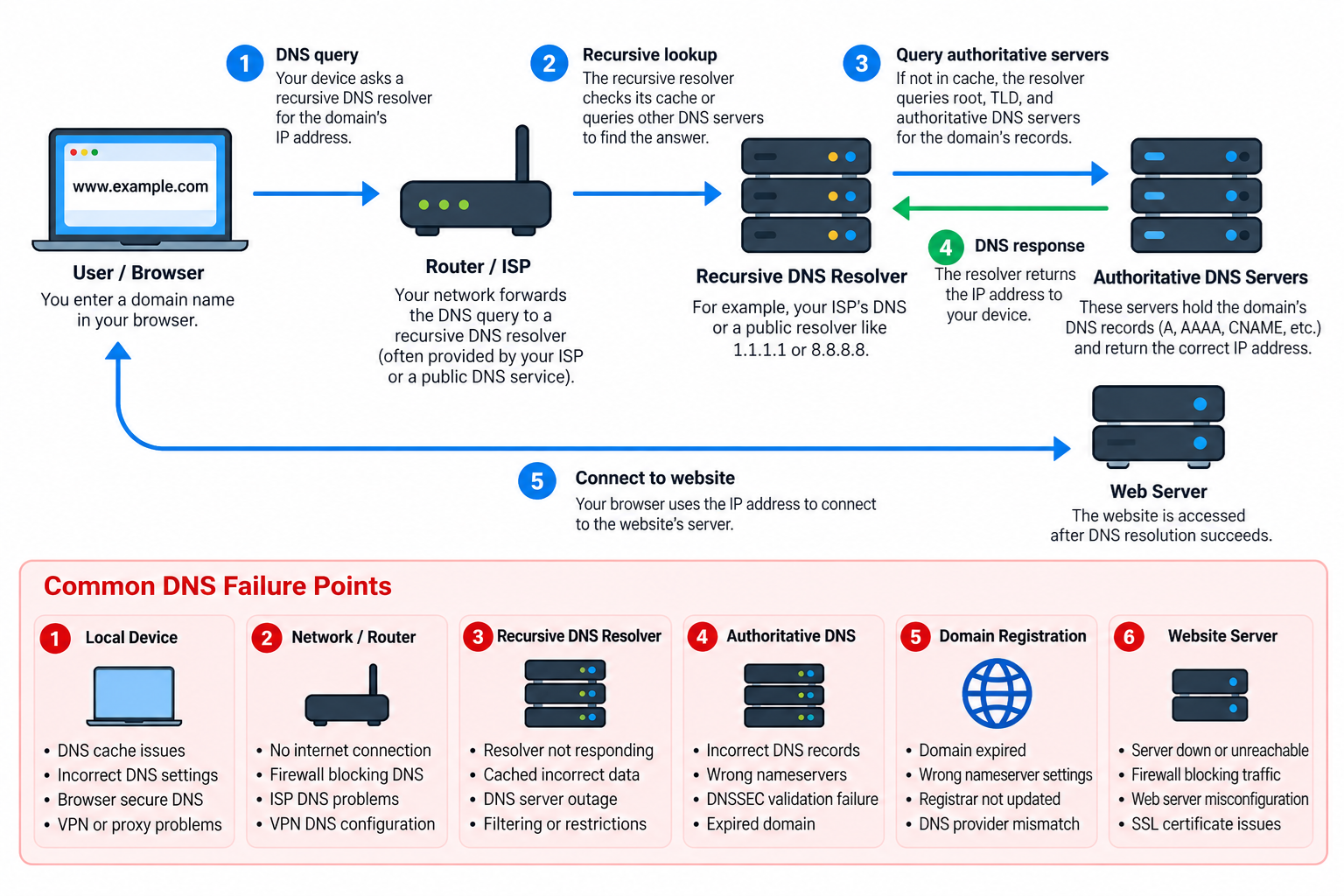
DNS resolution failures are among the most common problems encountered by website owners, system administrators, and internet users. When DNS stops working correctly, a website may become inaccessible even though its web server is running normally. Visitors may see error messages such as “DNS_PROBE_FINISHED_NXDOMAIN,” “Server Not Found,” or “DNS Server Not Responding.”
These errors can occur for many reasons, including incorrect DNS records, misconfigured nameservers, expired domains, DNS caching problems, DNSSEC validation failures, or network connectivity issues.
Understanding how to troubleshoot DNS resolution failures can help you identify the actual cause, restore website accessibility, and avoid making unnecessary changes to your hosting environment.
1. What Is DNS Resolution?
The Domain Name System (DNS) translates human-readable domain names into IP addresses that computers use to communicate over the internet.
For example, when a visitor enters www.example.com into a browser, the computer needs to determine the IP address associated with that hostname before establishing a connection to the website.
A typical DNS lookup involves several components:
- The browser or operating system checks locally available DNS information.
- The computer contacts a configured recursive DNS resolver if a suitable answer is not already available.
- The recursive resolver checks its cache or queries other DNS servers to locate the requested information.
- Authoritative DNS servers provide the DNS records associated with the domain.
- The resolver returns the result, allowing the browser to attempt a connection to the destination server.
If any part of this process fails, the browser may be unable to locate the website.
However, DNS resolution and website connectivity are different processes. A successful DNS lookup does not guarantee that the web server is working correctly, and a website connection failure does not necessarily mean that DNS is responsible.
2. Common DNS Resolution Error Messages
Different DNS errors provide useful clues about where a problem may exist.
DNS_PROBE_FINISHED_NXDOMAIN
This error indicates that the DNS lookup resulted in NXDOMAIN, meaning that the requested domain name does not exist according to the DNS response.
Possible causes include a misspelled domain, an incorrect DNS configuration, a missing hostname, or an outdated negative DNS cache entry.
DNS_PROBE_FINISHED_BAD_CONFIG
This browser error commonly indicates a problem with DNS configuration or the resolver environment. Incorrect DNS server settings, local network problems, or malfunctioning DNS services may contribute to the failure.
DNS Server Not Responding
This message suggests that the configured DNS resolver is not responding successfully. Possible causes include network connectivity problems, DNS server outages, firewall restrictions, or incorrect resolver addresses.
SERVFAIL
SERVFAIL indicates that a DNS server could not successfully process the request. It may result from problems with authoritative DNS servers, broken delegations, DNSSEC validation failures, or other resolver-related issues.
DNS Request Timed Out
A timeout occurs when the DNS client does not receive a response within the expected period. This can happen because of packet loss, firewall restrictions, unreachable DNS servers, or overloaded DNS infrastructure.
Identifying the exact error is often the first step toward finding a solution.
3. Check Whether the Problem Is Local or Widespread
Before changing DNS records, determine whether the problem affects only your computer or multiple users.
Try opening the affected website from another computer or smartphone. You can also switch from your Wi-Fi connection to a mobile data connection to test whether the problem is specific to your local network.
If the website works from another network but fails from your computer, the issue may involve your local DNS cache, operating system, router, ISP, VPN, or configured DNS resolver.
If the website fails from multiple independent networks, investigate the domain registration, authoritative nameservers, DNS records, and DNSSEC configuration.
You can also use online DNS lookup services to compare responses from different locations. However, remember that these services may use different resolvers and cached data.
Testing from multiple networks helps narrow down the problem before modifying any DNS configuration.
4. Check Your Network Connection
DNS troubleshooting should begin with basic network connectivity.
On Windows, open Command Prompt and run:
ipconfig /all
This command displays the computer’s network configuration, including its IP address, default gateway, and configured DNS servers.
Verify that the computer has a valid network configuration and that the DNS server addresses are what you expect.
Next, try:
ping 1.1.1.1
If the network permits ICMP traffic and the command succeeds, the computer can reach that public IP address without relying on DNS resolution.
Then try:
ping example.com
If the hostname cannot be resolved while connectivity to public IP addresses works, DNS becomes a likely area for investigation.
However, ping is not a definitive DNS diagnostic tool. Some servers block ICMP requests, and ping failures can occur even when DNS and website connectivity are functioning normally.
For Linux users, the equivalent connectivity tests can be performed with the ping command, while network configuration can be inspected using tools such as ip addr and ip route.
5. Test DNS Resolution with nslookup
The nslookup command is one of the most useful tools for diagnosing DNS problems. It is available on Windows and on many Linux systems, although some Linux distributions may require installing DNS utilities.
Open Command Prompt or a terminal and enter:
nslookup example.com
The command normally displays the DNS server used for the lookup and the IP address information returned for the requested domain.
If the lookup fails, compare the result with a public DNS resolver.
For example:
nslookup example.com 8.8.8.8
This queries Google’s public DNS resolver directly.
You can also test Cloudflare’s public DNS resolver:
nslookup example.com 1.1.1.1
If your default resolver fails but the public resolvers return valid records, the problem may be associated with your configured DNS service or its cache.
If all resolvers fail, investigate the domain’s authoritative DNS configuration, registration status, and DNSSEC settings. Keep in mind that DNS responses may differ temporarily because of caching or resolver-specific policies.
You can also examine specific DNS record types.
To check the mail exchanger records:
nslookup -type=MX example.com
To examine nameserver records:
nslookup -type=NS example.com
To inspect IPv6 address records:
nslookup -type=AAAA example.com
These commands help determine whether the expected DNS information is available.
6. Use dig for Advanced DNS Troubleshooting
Linux administrators frequently use the dig command to inspect DNS responses in greater detail.
The command is also available on other platforms when the appropriate DNS utilities are installed.
A basic lookup is:
dig example.com
The output includes the DNS response status, returned records, TTL values, and information about the responding server.
For a shorter response:
dig example.com +short
To query a particular resolver:
dig @1.1.1.1 example.com
To inspect nameserver records:
dig example.com NS
To examine mail exchanger records:
dig example.com MX
Another useful diagnostic command is:
dig +trace example.com
This traces the DNS delegation path from root nameservers through the appropriate top-level domain infrastructure toward authoritative nameservers.
It can help reveal broken delegation or nameserver configuration problems.
However, the trace does not necessarily reproduce every step performed by your normal recursive resolver, and some networks restrict the direct DNS queries required for tracing.
When troubleshooting a DNS failure, compare the results returned by different resolvers and, where practical, query the authoritative DNS servers directly.
7. Verify Domain Registration and Nameservers
Incorrect nameserver settings are a common cause of DNS failures, especially after transferring a domain or changing DNS providers.
A domain registrar manages the domain registration and its delegation settings, while authoritative DNS servers publish the records used to resolve the domain.
These services may be operated by different companies.
Log in to your domain registrar and verify that the domain is active and has not expired.
Next, examine the nameservers assigned to the domain.
For example, a domain using a managed DNS provider may have two nameservers assigned by that provider. The exact nameserver hostnames must match the values supplied for the domain.
If your registrar points to one DNS provider while you are editing records at another provider, your changes may have no effect on public DNS resolution.
You can inspect the delegation using:
dig example.com NS
For additional verification, inspect the parent-zone delegation or use:
dig +trace example.com
Remember that nameserver records returned from the parent zone are not necessarily identical to the NS records returned from inside the domain’s authoritative zone. Unexpected differences should be investigated rather than automatically treated as harmless.
For example, if a domain uses Cloudflare DNS, verify that the registrar points to the exact Cloudflare nameservers assigned to that domain.
Incorrect nameserver delegation can make a website inaccessible even when the web hosting server itself is fully operational.
8. Verify DNS Records
Once you have confirmed that the nameservers are correct, examine the DNS records hosted by the authoritative DNS provider.
The most important records for website connectivity typically include A, AAAA, and CNAME records.
A Record
An A record maps a hostname to an IPv4 address.
For example, example.com might point to 192.0.2.10 in a documentation or testing configuration. This address is reserved for examples and should not be used as a real public hosting destination.
For a live website, the A record should point to the correct public IPv4 address or provider-specified destination.
AAAA Record
An AAAA record maps a hostname to an IPv6 address.
If an incorrect IPv6 address is configured, some users may experience connectivity problems even when the IPv4 address is correct.
CNAME Record
A CNAME record defines an alias from one hostname to another.
For example, www.example.com may point to example.com, depending on how the DNS provider and website are configured.
If the CNAME points to an incorrect or nonexistent destination, the hostname may fail to resolve as expected.
MX Record
MX records identify mail servers responsible for receiving email for a domain.
A website DNS problem does not necessarily affect email delivery, but changing nameservers or replacing a DNS zone can accidentally remove important MX records.
TXT Record
TXT records are commonly used for domain verification and email authentication technologies such as SPF, DKIM, and DMARC.
Although these records generally do not control website IP address resolution, they should be preserved when making DNS configuration changes.
Whenever you change DNS providers, verify all necessary records rather than checking only the website’s A record.
9. Clear the Local DNS Cache
Operating systems cache DNS information to reduce lookup delays and unnecessary network requests.
Caching improves performance, but stale information can sometimes cause a computer to continue using an old DNS result.
This is especially common after changing a website’s IP address or correcting a previously missing DNS record.
On Windows, open Command Prompt and run:
ipconfig /flushdns
This clears the Windows DNS client resolver cache.
You can inspect the cache with:
ipconfig /displaydns
On a Linux system using systemd-resolved, you can run:
sudo resolvectl flush-caches
Linux DNS caching behavior varies by distribution and configuration. Systems using other caching services may require a different procedure, and some systems do not maintain a separate local DNS cache.
If a browser continues showing an old result, restart the browser or examine its own DNS and secure DNS settings.
Remember that clearing the local DNS cache does not clear cached records held by your ISP or other recursive DNS resolvers.
It also does not repair incorrect records published by authoritative DNS servers.
10. Understand DNS Propagation and TTL
DNS changes are often described as requiring time to propagate across the internet.
In practice, most DNS record changes become available from authoritative servers shortly after being published. The delay usually comes from recursive resolvers and clients continuing to use cached information.
Each DNS record can have a Time to Live, or TTL, which controls how long DNS resolvers are permitted to cache the record.
For example, a TTL of 3600 seconds allows a resolver to cache a record for one hour.
If a visitor’s resolver cached an old IP address immediately before a DNS change, it may continue returning that address until the cached entry expires.
Similarly, negative DNS responses can be cached. If a hostname previously did not exist, a resolver may temporarily continue returning a negative result even after the missing record has been created.
Reducing a TTL before a planned migration can help shorten the caching period, but lowering it after old values have already been cached will not immediately invalidate those existing entries.
Nameserver changes may also take additional time because of delegation caching and registrar update processes.
Rather than repeatedly changing DNS settings, compare the authoritative responses with those returned by recursive resolvers.
If authoritative servers return the correct record but some recursive resolvers still return an older value, caching may explain the difference.
11. Check for DNSSEC Configuration Problems
DNS Security Extensions, commonly known as DNSSEC, add cryptographic authentication to DNS responses.
DNSSEC helps validating resolvers verify that DNS information is authentic and has not been improperly modified.
However, an incorrect DNSSEC configuration can also cause DNS resolution failures.
This issue sometimes occurs when a domain owner changes authoritative DNS providers but leaves outdated DS records at the registrar.
A validating recursive resolver may then reject responses because the cryptographic chain of trust is no longer valid.
A common symptom is a SERVFAIL response.
To investigate, run:
dig @1.1.1.1 example.com
Then compare the result with:
dig @1.1.1.1 example.com +cd
The +cd option requests that the resolver disable DNSSEC validation for the query.
If a normal query returns SERVFAIL while the query using +cd returns a valid answer, DNSSEC validation becomes a strong possibility.
This comparison is a diagnostic clue rather than definitive proof of the exact failure.
Check the DS records published by the parent zone and confirm that they match the active DNSSEC configuration of your authoritative DNS provider.
When migrating DNS providers, follow the provider’s recommended DNSSEC transition procedure.
Do not remove or disable DNSSEC indiscriminately. Doing so changes the domain’s security protections and may be unnecessary if the actual failure lies elsewhere.
12. Check Router, Firewall, VPN, and ISP DNS Settings
DNS problems are not always caused by domain records.
Home routers, corporate firewalls, VPN software, and internet service providers can affect DNS queries.
Most conventional DNS queries use UDP port 53, although TCP port 53 is also required for reliable DNS operation and certain responses.
A firewall that blocks or incorrectly handles DNS traffic can cause timeouts or intermittent failures.
Some organizations restrict clients to approved DNS resolvers. Others use internal DNS zones that are accessible only through a corporate VPN.
If DNS works without a VPN but fails after the VPN connects, inspect the DNS servers and search domains assigned by the VPN.
For Windows, run:
ipconfig /all
For Linux systems using systemd-resolved, run:
resolvectl status
These commands help identify which DNS servers are configured for the relevant network interfaces.
Modern browsers and operating systems may also use encrypted DNS technologies, including DNS over HTTPS or DNS over TLS. As a result, a browser’s DNS behavior may differ from the response shown by a traditional command-line lookup.
If only one browser has the problem, examine its secure DNS settings, extensions, proxy configuration, and local cache.
Changing to a public DNS resolver can be useful as a diagnostic test on a personal network. However, on managed or corporate networks, changing DNS servers may break internal name resolution or violate network policy.
13. Troubleshoot Website DNS After a Hosting Migration
Website migrations are a frequent source of DNS configuration mistakes.
Suppose a website is moved from an old hosting server to a new server with a different IP address.
The website owner updates the hosting configuration, but visitors continue reaching the old server or receive DNS errors.
A systematic investigation should include the following steps.
First, confirm that the website is running on the new hosting server and responding correctly.
Second, identify which DNS provider currently manages the authoritative zone for the domain.
Third, check the A and AAAA records for the root domain and any required hostnames, including www.
Fourth, query the authoritative DNS servers directly to confirm that the updated records have been published.
Fifth, compare these responses with the results from public recursive resolvers.
Finally, inspect HTTP and HTTPS connectivity separately after DNS resolution succeeds.
For example, use:
curl -I https://example.com
This requests HTTP response headers and can help determine whether the website is responding.
If the DNS records are correct but the connection fails, investigate the destination server, firewall, web server configuration, SSL certificate, and hosting environment.
Do not assume that every failure after a website migration is caused by DNS propagation.
14. Troubleshoot DNS Issues in cPanel and WHM
Website owners using cPanel or WHM should verify both the DNS records and the location where those records are actually managed.
In cPanel, the Zone Editor allows users to inspect and modify DNS records when the hosting provider makes that functionality available.
However, editing a zone in cPanel does not guarantee that the public internet will use those records.
For example, if the domain uses Cloudflare authoritative nameservers, DNS changes normally need to be made in the relevant Cloudflare DNS configuration rather than in a separate local cPanel zone.
Similarly, if the domain uses a registrar’s DNS service, changes should be made through that service unless the provider has configured another supported management arrangement.
WHM administrators should also verify that the appropriate DNS services are running and that the authoritative DNS zones contain the correct records.
On Linux servers using BIND, administrators can inspect the service status with a command such as:
systemctl status named
The service name may differ depending on the operating system and installed DNS software.
If BIND is being used, configuration validation tools such as named-checkconf and named-checkzone can help identify syntax errors and invalid zone data.
Do not restart DNS services or modify authoritative zones without first confirming which server actually handles public DNS requests.
A correctly functioning DNS server will not solve a delegation problem if the domain’s registrar points to entirely different nameservers.
15. Common DNS Troubleshooting Mistakes
Several common mistakes can make DNS problems more difficult to diagnose.
Changing multiple DNS settings at once: If you simultaneously modify nameservers, A records, DNSSEC, and caching settings, it becomes difficult to determine which change solved or caused the problem.
Assuming that every failure is DNS-related: If the domain resolves to the correct IP address, investigate web server connectivity, TLS configuration, application errors, and firewall rules before continuing to modify DNS.
Editing records at the wrong provider: DNS records must be updated where the authoritative DNS service is managed. Changes to an unused DNS zone will not affect public resolution.
Ignoring IPv6 records: An outdated AAAA record may cause problems for clients attempting IPv6 connections even when the IPv4 configuration is correct.
Disabling DNSSEC without investigation: SERVFAIL can have several causes. Examine the DNSSEC chain of trust before changing security settings.
Ignoring DNS cache behavior: Different resolvers can return different results while older cached records remain valid. Always compare resolver responses with authoritative records.
Using ping as the only diagnostic tool: ICMP connectivity tests can help isolate network issues, but nslookup, dig, and appropriate application-level tests provide better evidence when troubleshooting DNS.
A structured process is more reliable than repeatedly changing settings and hoping that the problem disappears.
16. A Practical DNS Troubleshooting Checklist
When a website fails to resolve, follow this sequence:
- Confirm that the domain name is spelled correctly.
- Determine whether the failure affects one device, one network, or multiple independent networks.
- Verify that the computer has a valid IP configuration and functioning network connectivity.
- Run nslookup or dig to inspect the DNS response.
- Compare the default resolver with a public recursive resolver.
- Check whether the domain registration is active.
- Verify the nameserver delegation at the registrar.
- Inspect the authoritative DNS records, including A, AAAA, and CNAME records.
- Check for DNSSEC validation errors, especially after changing DNS providers.
- Examine TTL values and possible cached positive or negative responses.
- Verify local DNS settings, VPN configuration, firewalls, and browser-specific DNS behavior.
- Once DNS resolution succeeds, test connectivity to the actual web hosting server.
Following these steps in order can help identify the failing component without creating unnecessary configuration changes.
17. Frequently Asked Questions
Why does my website work on mobile data but not on Wi-Fi?
The two networks may use different recursive DNS resolvers, caches, or security policies. Your local router or ISP may also have connectivity or DNS configuration problems. Compare DNS lookup results from both networks before making changes.
How long does it take for DNS changes to become effective?
Authoritative DNS updates may become available quickly, but existing cached records can remain until their TTL expires. Nameserver delegation changes may require additional time. There is no universal propagation time that applies to every DNS change.
Will clearing my DNS cache fix the problem?
Clearing your local cache may help if the computer is using outdated information. It will not repair missing authoritative records, incorrect nameservers, or a DNSSEC configuration failure.
Can DNS work while my website is offline?
Yes. DNS can correctly resolve a domain to an IP address while the web server is stopped, misconfigured, or unreachable. DNS resolution is only one part of accessing a website.
What is the difference between NXDOMAIN and SERVFAIL?
NXDOMAIN indicates that the requested DNS name does not exist according to the response. SERVFAIL indicates that the DNS server was unable to complete the request successfully. The two conditions generally require different troubleshooting approaches.
Should I change my DNS to Google or Cloudflare?
Temporarily comparing results from public resolvers can help diagnose a problem. However, changing your computer’s resolver does not repair incorrect authoritative DNS records. Use DNS settings appropriate for your network, especially when internal corporate DNS services are required.
Conclusion
DNS resolution failures can originate from several different layers, including the local computer, network connection, recursive DNS resolver, domain registrar, authoritative DNS servers, or DNSSEC configuration.
The most effective troubleshooting method is to isolate each layer and test it independently.
Start by checking basic connectivity and identifying the DNS error. Use nslookup or dig to compare responses from different resolvers. Then verify the domain’s nameserver delegation, authoritative DNS records, and DNSSEC settings.
For website owners, it is especially important to understand that domain registration, DNS hosting, and web hosting are separate services. A problem with one service does not necessarily mean that the others have failed.
By following a systematic troubleshooting process, you can identify DNS resolution problems more accurately, reduce website downtime, and avoid unnecessary changes to a working server.