
WordPress plugins and themes make it easy to customize a website without writing code.
Plugins add features such as contact forms, SEO optimization, security, caching, and e-commerce, while themes control the website’s appearance and layout.
However, these components are developed independently, and they do not always work together perfectly.
A plugin update may cause a website to display a blank page, a theme change may break the layout, or two plugins may interfere with each other’s functionality.
Sometimes, a conflict can even prevent administrators from accessing the WordPress dashboard.
Fortunately, most WordPress plugin and theme conflicts can be diagnosed and resolved without reinstalling WordPress or rebuilding the website.
This guide explains how to identify conflicts, safely disable problematic components, recover a broken WordPress website, and prevent similar problems in the future.
1. What Is a WordPress Plugin or Theme Conflict?
A WordPress conflict occurs when a plugin or theme interferes with another component or with WordPress itself.
WordPress uses PHP to execute server-side code and JavaScript to provide interactive features in the browser. Plugins and themes extend WordPress through hooks, functions, scripts, stylesheets, and other resources.
When two components use incompatible code, depend on different versions of a library, or make conflicting changes to the same functionality, errors can occur.
Common causes include:
- Two plugins attempting to control the same functionality.
- A plugin using functions that are incompatible with the installed PHP version.
- An outdated theme that does not support a newer WordPress release.
- JavaScript errors that prevent menus, forms, or buttons from working.
- CSS rules from plugins overriding the theme’s layout.
- A plugin update introducing an unexpected programming error.
- Multiple caching or optimization tools modifying the same resources.
- Custom code in a theme interfering with plugin functionality.
A conflict does not necessarily mean that a plugin or theme is poorly developed. Software components may work correctly on their own but fail when combined with other components.
For example, two caching plugins may both attempt to optimize JavaScript files. Each plugin may work independently, but running both simultaneously can cause duplicated processing, broken scripts, or incorrect page output.
2. Common Signs of Plugin and Theme Conflicts
WordPress conflicts can produce many different symptoms. Some are immediately visible, while others affect only specific parts of a website.
White Screen of Death
The website displays a completely blank page instead of the expected content. This problem is commonly called the White Screen of Death (WSOD).
A fatal PHP error or exhausted memory limit may prevent WordPress from completing the request.
Critical Error Message
WordPress may display the following message:
“There has been a critical error on this website.”
This usually indicates that PHP encountered a fatal error. A plugin, theme, custom code, or incompatible server configuration may be responsible.
Broken Website Layout
A website may suddenly lose its formatting, display overlapping elements, or show incorrectly positioned menus and images.
These problems can result from conflicting CSS files, missing resources, or JavaScript errors.
WordPress Dashboard Problems
Administrators may experience errors when opening wp-admin, saving settings, editing posts, or installing plugins.
In some cases, the dashboard becomes completely inaccessible.
Forms or Interactive Features Stop Working
Contact forms may fail to submit, dropdown menus may stop responding, or shopping cart buttons may no longer function.
These issues often involve JavaScript conflicts, incompatible plugins, or security rules blocking requests.
Problems After an Update
If a website stops working immediately after updating a plugin, theme, or WordPress itself, the update provides an important troubleshooting clue.
However, the most recently updated component is not necessarily the only cause. The update may have exposed an existing incompatibility with another plugin or theme.
3. Back Up Your WordPress Website Before Troubleshooting
Before changing plugins, themes, or configuration files, create a complete website backup.
A WordPress backup should include both the website files and the database.
Website files include themes, plugins, uploaded images, and WordPress configuration files. The database contains posts, pages, settings, users, comments, and other important information.
If your hosting account provides cPanel, open cPanel and look for the available backup or backup restoration tools.
Some hosting services also provide automated daily backups or website snapshots.
For a complete backup, make sure you have:
- A copy of the WordPress database.
- The wp-content directory, including plugins, themes, and uploads.
- Important WordPress configuration files.
- Any custom files or server configuration changes.
Confirm that the backup can be restored before making significant changes.
For business websites, online stores, or websites with active visitors, it is preferable to troubleshoot on a staging copy rather than directly on the production website.
A staging environment allows you to test changes without interrupting normal visitors.
4. Identify the Problematic Plugin
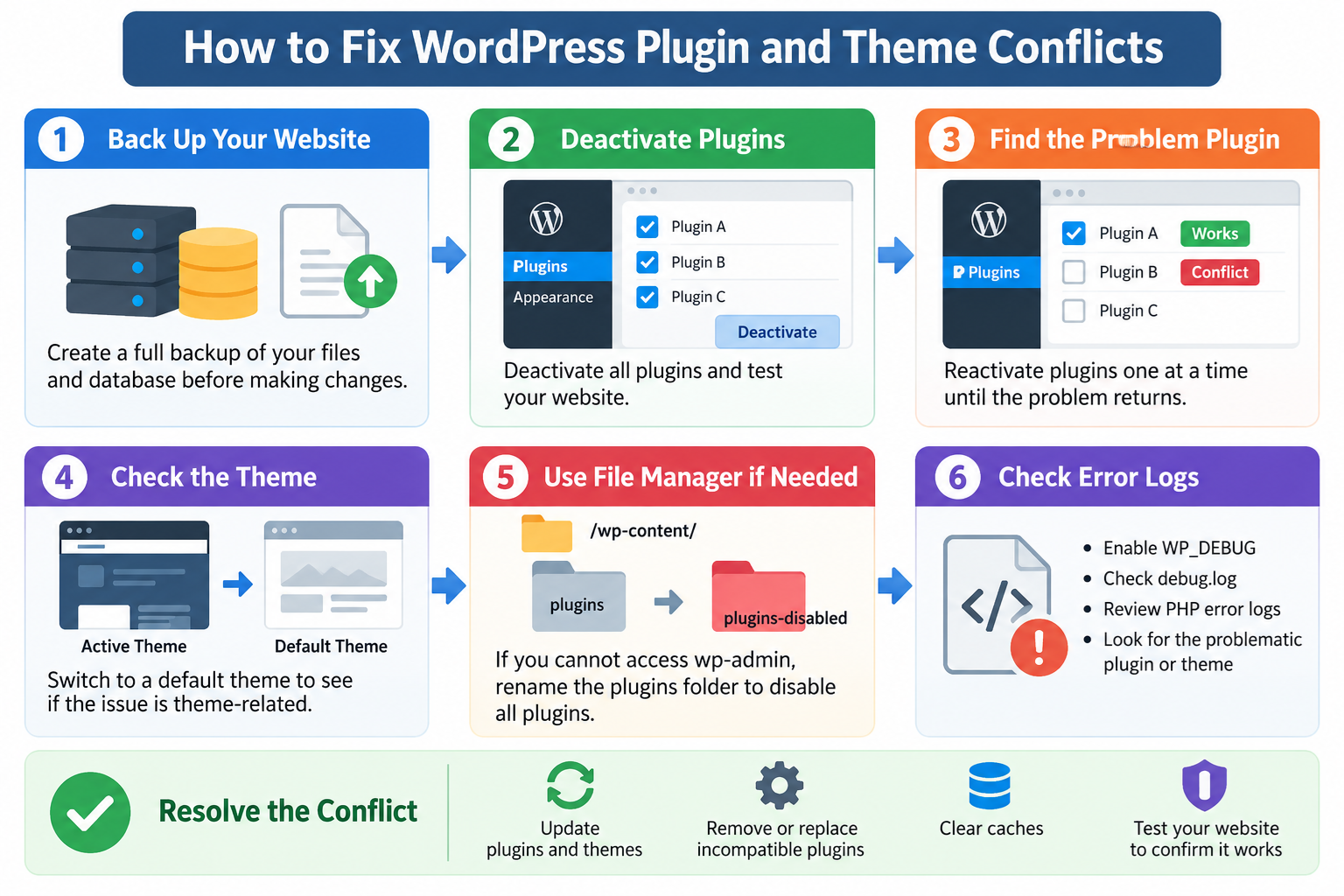
One of the most effective ways to identify a WordPress plugin conflict is to temporarily deactivate plugins and enable them individually.
If you can still access the WordPress dashboard, the process is relatively straightforward.
Step 1: Open the Installed Plugins Page
Log in to your WordPress administration dashboard.
Navigate to Plugins → Installed Plugins.
You will see a list of installed plugins and their activation status.
Before making changes, record which plugins are currently active. Screenshots can help you restore the original configuration.
Step 2: Deactivate Plugins
Select the active plugins using the checkboxes, choose Deactivate from the Bulk Actions menu, and click Apply.
This disables ordinary plugins without deleting their files.
Be aware that disabling some plugins may temporarily affect important website functions, including shopping carts, payment processing, membership access, security protection, or caching.
For production websites, use a staging environment whenever possible.
Step 3: Test the Website
Open the website in another browser tab and check whether the original problem still exists.
Test the specific page or function that was failing.
For example, if a contact form was not working, test the form rather than simply checking whether the homepage loads.
If the problem disappears after disabling plugins, a plugin or an interaction between plugins is likely involved.
If the problem continues, the theme, WordPress core, server configuration, or another component may be responsible.
Step 4: Reactivate Plugins One at a Time
Return to Plugins → Installed Plugins and activate one plugin.
After activating it, test the affected website functionality again.
Continue activating plugins individually until the problem returns.
Record which plugin activation causes the failure.
If the website breaks after activating a particular plugin, that plugin may be incompatible with the current WordPress environment or with another active plugin.
Step 5: Confirm the Conflict
Do not immediately assume that the last activated plugin is defective.
A genuine conflict between two plugins may occur only when both are active.
To confirm the cause, test the suspected plugin by itself, then activate the second suspected plugin and check whether the problem returns.
This process helps distinguish a defective plugin from an incompatibility between otherwise functional plugins.
Once you identify the conflicting components, check for available updates, review their compatibility requirements, or contact their developers.
5. Fix Plugin Conflicts Without Affecting Website Visitors
Disabling all plugins on a live website can temporarily interrupt important services.
Fortunately, WordPress provides a safer troubleshooting option through the Health Check & Troubleshooting plugin.
This tool can create a troubleshooting session in which plugins are temporarily disabled and a default theme is used only for the logged-in administrator.
Regular visitors continue seeing the normal website configuration.
Step 1: Install Health Check & Troubleshooting
Log in to your WordPress dashboard.
Navigate to Plugins → Add New Plugin.
Search for Health Check & Troubleshooting and install the plugin from the WordPress.org directory.
Activate it after installation.
Step 2: Enable Troubleshooting Mode
Navigate to Tools → Site Health and open the Troubleshooting section provided by the plugin.
Enable Troubleshooting Mode.
The troubleshooting session will use a default WordPress theme and deactivate ordinary plugins for your administrator session.
The public website continues using its normal active plugins and theme.
Step 3: Test Individual Components
Within Troubleshooting Mode, enable the plugin you want to investigate.
Check whether the original problem appears.
Continue enabling plugins individually and testing their functionality.
You can also switch between a default theme and your normal theme to investigate theme-related problems.
Step 4: Exit Troubleshooting Mode
After identifying the suspected conflict, exit Troubleshooting Mode.
Your regular administrator session will return to the site’s normal configuration.
Remember that Troubleshooting Mode is primarily a diagnostic tool. It does not automatically repair the conflicting software.
You must still update, replace, reconfigure, or otherwise resolve the problematic component.
Also, session-based troubleshooting cannot fully reproduce every production issue. Background processes, payment callbacks, scheduled tasks, and interactions involving other user sessions may require testing on a staging website.
6. How to Fix WordPress Theme Conflicts
Sometimes the problem is caused by the active WordPress theme rather than an installed plugin.
A theme may contain outdated PHP code, incompatible JavaScript, unsupported functions, or modifications that interfere with plugins.
The simplest way to investigate a theme conflict is to temporarily switch to a default WordPress theme.
Step 1: Open the Themes Page
Log in to your WordPress dashboard.
Navigate to Appearance → Themes.
You will see your installed themes, including the currently active theme.
Step 2: Activate a Default Theme
Choose an installed default WordPress theme, such as Twenty Twenty-Five, and click Activate.
If no default theme is installed, you can install one from the WordPress theme directory.
Switching themes can temporarily affect layouts, menus, widgets, and theme-specific functionality. Perform this test on a staging website when possible.
Step 3: Test the Website
Visit the affected pages and check whether the problem disappears.
If the website works correctly with the default theme, your original theme may be involved.
However, the problem might involve an interaction between the original theme and a plugin.
To investigate further, test the original theme with ordinary plugins disabled, preferably in a staging environment.
If the theme fails even without plugins, investigate the theme itself.
If the theme works alone but fails with a particular plugin, the problem is likely an incompatibility between the two components.
Step 4: Update or Replace the Theme
Check whether an updated version of the theme is available.
Also review the theme developer’s compatibility documentation.
If the theme has not been maintained for a long time, replacing it with a supported alternative may be safer than continuing to use outdated software.
Avoid directly modifying the original theme files because updates may overwrite your changes.
Use a child theme when custom theme modifications are necessary.
7. How to Disable Plugins When You Cannot Access wp-admin
A serious plugin conflict may prevent access to the WordPress dashboard.
In this situation, you can disable plugins directly through the website’s file system.
This method works with cPanel File Manager, FTP, or SFTP access.
Step 1: Access the Website Files
Log in to your hosting control panel and open File Manager.
For a typical cPanel WordPress installation, the website may be located in public_html.
If WordPress is installed in a subdirectory or an addon domain, its document root may be different.
Locate the WordPress installation directory containing wp-admin, wp-content, and wp-includes.
Step 2: Open the Plugins Directory
Navigate to:
public_html/wp-content/plugins
This directory contains the files and folders for ordinary WordPress plugins.
Each plugin normally has its own directory.
Step 3: Rename the Plugins Directory
Rename the plugins directory from:
plugins
to:
plugins-disabled
WordPress will no longer find ordinary plugins in their expected location, effectively disabling them.
This does not delete plugin files.
Step 4: Test the Website
Refresh the website and try accessing the WordPress dashboard again.
If the website works after renaming the directory, the problem likely involves a plugin.
Step 5: Restore the Directory Name
Rename plugins-disabled back to plugins.
Log in to WordPress and check the activation status of the plugins.
After a bulk deactivation, plugins may need to be reactivated individually.
If necessary, you can also rename a specific plugin’s folder to disable only that plugin.
For example, changing a folder named example-plugin to example-plugin-disabled can prevent WordPress from loading that plugin.
This approach is particularly useful when error logs identify a specific plugin.
Be aware that some functionality can continue loading through must-use plugins, drop-ins, or server-side integrations. Renaming the ordinary plugins directory does not necessarily disable all WordPress extensions.
8. How to Recover from a Theme Conflict Without Dashboard Access
If a theme causes a fatal error and the WordPress dashboard is inaccessible, you may be able to recover by renaming the active theme directory.
Step 1: Open the Themes Directory
Use cPanel File Manager or SFTP to navigate to:
public_html/wp-content/themes
Locate the directory belonging to the active theme.
Step 2: Rename the Active Theme Folder
For example, rename:
mytheme
to:
mytheme-disabled
WordPress can fall back to an installed default theme when the active theme is unavailable.
Make sure a compatible default WordPress theme is already installed before attempting this procedure.
Step 3: Test WordPress
Try opening the website and accessing wp-admin.
If the dashboard becomes accessible, activate a working theme from Appearance → Themes.
You can then investigate the original theme, update it, or replace it.
If the website still does not load, restore the original folder name and continue investigating other causes.
Do not delete the original theme folder unless you have a verified backup and no longer need its files or settings.
9. Use WordPress Recovery Mode
WordPress includes a built-in Recovery Mode designed to help administrators regain access when certain fatal PHP errors occur.
When WordPress detects a qualifying fatal error, it may send a notification to the administrator email address.
The email usually identifies the affected component and provides a special Recovery Mode link.
Step 1: Check Your Administrator Email
Look for an email indicating that your website is experiencing a technical issue.
Check the spam or junk folder if the message does not appear in your inbox.
Step 2: Open the Recovery Link
Use the special link in the email to access the website’s Recovery Mode.
Log in using your WordPress administrator credentials.
Step 3: Identify the Problem
WordPress may display information about the plugin or theme responsible for the fatal error.
The affected component may be paused for your Recovery Mode session.
Use the dashboard to deactivate the problematic plugin, switch themes, or correct the underlying issue.
Step 4: Exit Recovery Mode
After resolving the error, exit Recovery Mode and test the website normally.
Recovery Mode does not activate for every type of error, and email delivery is not always reliable.
If Recovery Mode is unavailable, use the file-based troubleshooting methods described earlier.
10. Check PHP Errors and WordPress Debug Logs
If disabling plugins and switching themes does not identify the problem, PHP error logs can provide more detailed information.
WordPress includes debugging settings that can help identify problematic code.
Enable WordPress Debug Logging
Open the wp-config.php file in the WordPress installation directory.
Before editing it, create a backup of the original file.
Locate the existing WordPress debugging configuration and set the appropriate constants to the following values:
define( ‘WP_DEBUG’, true );
define( ‘WP_DEBUG_LOG’, true );
define( ‘WP_DEBUG_DISPLAY’, false );
@ini_set( ‘display_errors’, 0 );
Do not create duplicate definitions if these constants are already present.
WP_DEBUG enables debugging, while WP_DEBUG_LOG instructs WordPress to record relevant PHP messages in a log file.
WP_DEBUG_DISPLAY prevents WordPress debugging messages from being intentionally printed on public pages.
For a typical installation, the debug log is written to:
wp-content/debug.log
Reproduce the problem, then inspect the log for relevant errors.
An error message may identify the file, function, and line number where the failure occurred.
For example, a fatal error referencing a file inside wp-content/plugins/example-plugin suggests that the plugin should be investigated.
However, the component shown in the error log is not always the original cause. Another plugin or theme may have triggered the failing code.
Also check the server’s PHP error log because some failures occur before WordPress can initialize its own logging system.
Important: A debug log may contain sensitive information, including file paths, configuration details, and application data. Restrict access to these logs and remove unnecessary diagnostic files after troubleshooting.
When debugging is complete, disable WP_DEBUG and WP_DEBUG_LOG unless you have a specific operational reason to keep them enabled.
11. Check WordPress, PHP, and Plugin Compatibility
Not all WordPress failures result from direct conflicts between plugins.
Sometimes the problem is caused by an incompatible software environment.
For example, an older plugin may rely on PHP functions or programming behavior that changed in a newer PHP release.
Likewise, a newer plugin may require a more recent PHP version than the server currently provides.
Check the following components:
WordPress version: Make sure WordPress is running a maintained version and review compatibility information before major updates.
PHP version: Confirm that the server uses a supported PHP version that meets the requirements of WordPress, the active theme, and important plugins.
Plugin versions: Install maintained plugin releases that support your WordPress environment.
Theme version: Check whether the theme developer provides updates compatible with your WordPress and PHP versions.
Server configuration: Confirm that the required PHP extensions, memory limits, and other server settings are available.
In cPanel environments, PHP version settings may be available through MultiPHP Manager or another hosting-provided PHP management interface.
Before changing PHP versions on a production website, test the change in a staging environment.
A PHP upgrade can improve security and compatibility, but it may also expose problems in older custom code or unsupported plugins.
12. Investigate JavaScript and CSS Conflicts
Some conflicts do not produce PHP errors.
Instead, they affect the appearance or interactive behavior of a website.
For example, a dropdown menu may stop responding, a contact form may fail to display validation messages, or a page builder may become unresponsive.
These problems may involve JavaScript or CSS.
Check the Browser Console
Open the affected page in Google Chrome or Firefox.
Press F12 to open the browser’s Developer Tools.
Select the Console tab.
Reload the page and look for errors.
JavaScript errors may indicate missing functions, incompatible scripts, blocked resources, or incorrect loading sequences.
The Network tab can also help identify JavaScript or CSS files that failed to load.
Disable Optimization Features Temporarily
If you use caching or performance optimization plugins, temporarily disable features such as JavaScript combination, JavaScript deferral, delayed script execution, or CSS optimization.
Test the website after each change.
Some themes and plugins depend on scripts running in a specific order. Aggressive optimization settings may change that order and cause problems.
Once the conflict is identified, configure exclusions for the affected files rather than permanently disabling every optimization feature.
Clear Website Caches
After modifying plugins or themes, clear the appropriate caches.
These may include the WordPress page cache, hosting cache, object cache, CDN cache, and browser cache.
If your website uses Cloudflare, purge the relevant cached resources when necessary.
Do not assume that every visible problem is caused by caching. If the error continues after caches are cleared, investigate the underlying code or configuration.
13. Fix Conflicts After Updating Plugins or Themes
Updates are important for WordPress security, functionality, and compatibility. However, they can occasionally introduce unexpected changes.
If a conflict appears immediately after an update, begin by reviewing what changed.
Check whether WordPress, PHP, the active theme, or several plugins were updated around the same time.
Review the release notes of the suspected plugin or theme.
A new release may require a newer PHP version, change an API, or remove functionality used by another component.
If an updated plugin is responsible, check whether the developer has released a corrective update.
You may also temporarily restore a known-working version from a verified backup or a trusted source.
Avoid downloading old plugin or theme packages from unofficial websites, as they may contain malicious or modified code.
A rollback should generally be treated as a temporary recovery measure rather than a permanent solution.
Older versions may contain security vulnerabilities, and restoring an older version can also introduce database or configuration incompatibilities.
For critical websites, use a staging environment to test updates before deploying them to production.
14. Common Plugin Conflicts and How to Resolve Them
Certain categories of WordPress plugins are more likely to overlap in functionality.
Multiple Caching Plugins
Installing several page caching or optimization plugins may result in duplicated processing, conflicting rewrite rules, or inconsistent cached content.
Use one primary caching strategy and configure the hosting cache and CDN appropriately.
Security Plugins and Firewalls
Security plugins may block REST API requests, AJAX calls, login attempts, or administrative actions.
If a feature stops working after enabling a security rule, review the firewall logs and identify the blocked request.
Avoid disabling all security protections permanently. Adjust the affected rule only after confirming that the blocked activity is legitimate.
Page Builders and Themes
Page builders may depend on particular JavaScript libraries, templates, or theme features.
A theme update can sometimes alter the layout or behavior expected by the page builder.
Update compatible components together and test important page templates.
Contact Form Plugins
Forms may stop working because of JavaScript errors, spam protection settings, REST API failures, or server-side email configuration problems.
Check browser errors and application logs before concluding that the form plugin itself is defective.
WooCommerce and E-Commerce Extensions
Online stores frequently rely on payment gateways, shipping calculators, inventory systems, and checkout extensions.
Conflicts can interrupt transactions or prevent customers from completing purchases.
Test checkout and payment workflows in a staging environment using appropriate sandbox payment credentials.
Avoid performing disruptive troubleshooting on a live store during active business hours.
15. What to Do If the Problem Continues
If the website still fails after disabling ordinary plugins and switching to a default theme, investigate other parts of the WordPress environment.
Check whether custom code has been added to wp-config.php, functions.php, or a custom plugin.
Inspect the .htaccess file if your website runs on Apache and the problem involves redirects, access rules, or server errors.
A malformed .htaccess directive can cause a 500 Internal Server Error, although this is not necessarily a plugin or theme conflict.
Also review PHP memory limits, server error logs, file permissions, database connectivity, and security restrictions.
If WordPress uses must-use plugins or drop-ins, investigate whether those components affect the problem.
You can also temporarily test without a CDN or performance optimization layer, using a controlled procedure that does not unnecessarily expose the production server.
If the issue began after a server migration or PHP configuration change, compare the old and new environments.
When contacting your hosting provider or plugin developer, provide useful diagnostic details, including:
- The exact error message.
- The affected website page or function.
- When the problem started.
- Recent WordPress, plugin, theme, or PHP updates.
- Relevant PHP error log entries.
- The troubleshooting steps already performed.
Do not share administrator passwords, secret keys, database credentials, or unfiltered logs containing sensitive information.
Clear technical information helps support teams identify the issue more efficiently.
16. How to Prevent Future WordPress Conflicts
Although plugin and theme conflicts cannot always be prevented, good maintenance practices can substantially reduce their likelihood.
Keep software updated. Use maintained versions of WordPress, PHP, themes, and plugins. Review major updates before deploying them to important production websites.
Avoid unnecessary plugins. Every additional plugin introduces code, dependencies, and maintenance requirements. Remove unused plugins rather than keeping them installed indefinitely.
Choose actively maintained software. Review update history, compatibility information, developer support, and user feedback before installing new plugins or themes.
Maintain reliable backups. Keep automated backups and verify that restoration procedures work. Store important backups separately from the production website.
Use a staging environment. Test new plugins, major updates, theme changes, and PHP upgrades before applying them to a live website.
Avoid overlapping functionality. Do not install multiple plugins to perform the same task unless their interaction is understood and deliberately configured.
Monitor website errors. Review PHP logs, WordPress Site Health information, and relevant monitoring alerts to detect problems before they become serious.
Document important changes. Keep a simple record of plugin installations, updates, theme modifications, and server configuration changes.
Test important functionality. After making changes, check login pages, navigation menus, forms, checkout processes, and other business-critical features.
Consistent maintenance is usually easier and less expensive than recovering a website after a major failure.
17. Frequently Asked Questions
Can a WordPress plugin conflict crash my entire website?
Yes. A plugin that triggers a fatal PHP error can prevent WordPress from rendering pages or loading the administration dashboard. WordPress Recovery Mode or file-based plugin deactivation can often help restore access.
Will deactivating a plugin delete its settings?
Usually, deactivating a plugin does not delete its settings or database records. However, behavior varies between plugins. Some features will stop working immediately, and plugin-specific cleanup or uninstall actions may remove stored data.
Can two plugins conflict even if both are updated?
Yes. Two plugins can be individually up to date and still be incompatible with each other because they use conflicting functions, scripts, configuration rules, or assumptions about shared resources.
Should I delete a plugin that causes a conflict?
Not immediately. First identify the exact cause and check whether a configuration change or software update resolves the problem. If the plugin remains incompatible or is no longer maintained, consider replacing it with a supported alternative.
Can a WordPress theme cause a critical error?
Yes. Themes contain PHP code and may depend on plugins or specific WordPress features. Outdated or incompatible theme code can trigger fatal errors or break parts of a website.
Can clearing the cache fix a plugin conflict?
Clearing the cache can resolve problems involving outdated JavaScript, CSS, or cached page content. However, it does not repair an underlying PHP error or software incompatibility.
What is the safest way to troubleshoot a live WordPress website?
Use a staging environment whenever possible. For certain plugin and theme problems, Health Check & Troubleshooting also provides a session-based diagnostic mode that allows an administrator to test components without changing the normal configuration seen by visitors.
Conclusion
WordPress plugin and theme conflicts are common, but most can be resolved through systematic troubleshooting.
The most effective approach is to identify recent changes, back up the website, isolate plugins and themes, examine relevant error logs, and confirm the cause before applying a permanent fix.
If the WordPress dashboard remains accessible, plugins can be deactivated and tested individually. If the dashboard becomes unavailable, cPanel File Manager or SFTP can often be used to disable problematic components manually.
WordPress Recovery Mode and the Health Check & Troubleshooting plugin provide additional tools for diagnosing serious errors.
Above all, regular backups, compatible software versions, careful updates, and staging tests can help prevent small plugin conflicts from becoming major website outages.
A reliable WordPress website is not necessarily the one with the most plugins. It is the one whose components are compatible, maintained, monitored, and properly configured.