
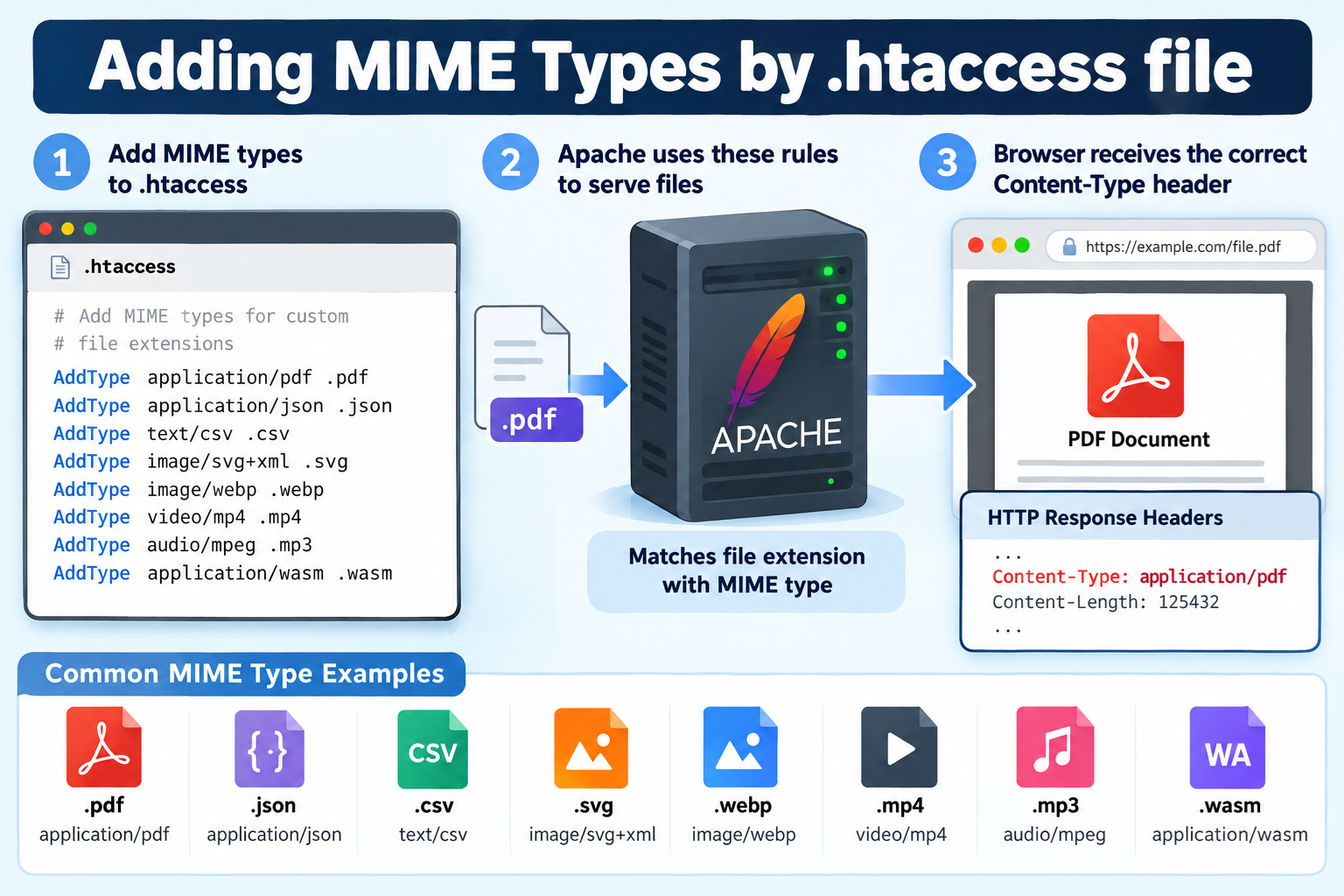
When a visitor opens a file on your website, the web server needs to tell the browser what kind of content it is delivering.
Is it an HTML page, a PDF document, an image, a video, or a downloadable file?
This information is communicated through a MIME type, also known as a media type.
Most web servers recognize common file types automatically.
However, if your website uses a custom file extension or a format that your hosting server does not recognize correctly, you may need to configure its MIME type manually.
If your website runs on the Apache HTTP Server, you can often accomplish this by adding a few lines to the .htaccess file, without modifying the main server configuration.
In this tutorial, we will explain what MIME types are, how Apache uses them, how to add or modify MIME types through .htaccess, and how to troubleshoot common configuration problems.
What Is a MIME Type?
MIME stands for Multipurpose Internet Mail Extensions.
Although MIME was originally developed for email, MIME media types are now widely used throughout the web to identify different kinds of content.
When Apache delivers a file to a browser, it normally includes a Content-Type header in the HTTP response.
This header identifies the type of data being returned.
For example, when a browser requests an HTML page, the server may respond with:
Content-Type: text/html
When a visitor requests a PDF document, the server may return:
Content-Type: application/pdf
These values help browsers and other applications decide how to process the received content.
A MIME type normally contains two components separated by a forward slash. The first identifies the general category, while the second identifies the specific format.
For example, image/png identifies a PNG image, text/css identifies a CSS stylesheet, and application/json identifies JSON data.
Correct MIME types are important because browsers may refuse to use certain resources if the server identifies them incorrectly.
This is particularly important for JavaScript modules, CSS stylesheets, and other web resources subject to strict MIME type checking.
What Is the .htaccess File?
The .htaccess file is a directory-level configuration file used by the Apache HTTP Server.
It allows website administrators to control certain server behaviors without editing Apache’s primary configuration files.
Depending on the hosting environment, .htaccess can be used for URL redirects, access restrictions, directory settings, caching configuration, and MIME type associations.
The file is commonly located in the website’s document root, such as public_html on many shared hosting accounts.
For example, a typical website directory might contain:
public_html/
.htaccess
index.php
style.css
images/
downloads/
The configuration rules in a .htaccess file generally apply to its directory and applicable subdirectories, subject to Apache’s configuration rules.
Important: Apache must permit the relevant .htaccess directives through its AllowOverride or AllowOverrideList configuration. The AddType directive requires the FileInfo override category unless it is explicitly allowed through AllowOverrideList. Some hosting providers restrict these settings.
Also, .htaccess is an Apache feature. Websites running only on Nginx do not use .htaccess files for server configuration.
How to Add a MIME Type Using .htaccess
Apache provides the AddType directive through its mod_mime module. This directive associates one or more file extensions with a specific MIME type.
The basic syntax is:
AddType MIME-type .extension
Here, MIME-type specifies the media type that Apache should send, while .extension identifies the filename extension.
For example, to associate the .pdf extension with the PDF media type, add this line to your .htaccess file:
AddType application/pdf .pdf
This tells Apache to identify matching PDF files with the application/pdf media type.
Another example is configuring the SVG image format:
AddType image/svg+xml .svg
If Apache serves an SVG file matching this configuration, it can return the appropriate image/svg+xml Content-Type header.
Many hosting servers already include these associations by default.
You should add custom MIME mappings only when necessary, rather than duplicating every existing server setting.
Step 1: Locate Your .htaccess File
Before modifying MIME types, you need to find the .htaccess file associated with your website.
If you use a hosting control panel such as cPanel, open File Manager and navigate to your website’s document root.
On many shared hosting accounts, this directory is called public_html.
Because .htaccess begins with a period, it may be hidden by default. Enable the option to display hidden files if you cannot find it.
You can also access the website directory through an SFTP client or SSH connection if your hosting provider supports these methods.
If the file already exists, download a backup before making changes.
If it does not exist, you can create a new plain-text file named exactly .htaccess, provided your hosting environment supports it.
Make sure the filename does not accidentally become .htaccess.txt.
Step 2: Add Your MIME Type Configuration
Open the .htaccess file using a plain-text editor and add the desired AddType directive.
For example, suppose your website serves several common document and data formats.
You could use the following configuration:
AddType application/pdf .pdf
AddType application/json .json
AddType text/csv .csv
AddType image/svg+xml .svg
Each directive associates a filename extension with a media type.
You do not need to include all these directives if Apache already recognizes the formats correctly.
They are examples of how the configuration works.
Apache also allows multiple filename extensions to share the same MIME type.
For example:
AddType image/jpeg .jpg .jpeg .jpe
This associates all three extensions with image/jpeg.
The leading period is optional in Apache’s AddType syntax, although including it makes the configuration easier to read.
Save the file after making your changes.
Step 3: Add MIME Types for Custom File Extensions
One useful reason to modify MIME types is to support custom file extensions.
Imagine that your website offers downloadable files ending in .webmind.
These files contain a proprietary data format used by an application.
You could configure Apache to deliver them as generic binary files:
AddType application/octet-stream .webmind
The application/octet-stream media type identifies generic binary data.
It is commonly used when the content does not have a more specific established media type.
Alternatively, if your custom files contain ordinary UTF-8 text and are intended to be treated as text, you might use:
AddType text/plain .webmind
The correct choice depends on the actual content and the way receiving applications are expected to handle it.
For application-specific formats, a registered media type or an appropriate custom media type may be preferable.
Remember that changing the MIME type does not convert a file into another format. It only changes the way the server identifies the content.
For example, assigning image/png to a text file does not turn that file into a valid PNG image.
Step 4: Configure MIME Types for Modern Web Files
Modern websites frequently use formats such as SVG, WebP, AVIF, WebAssembly, and JSON.
Recent Apache installations generally recognize many of these formats, but older systems or customized configurations may require additional mappings.
Here are several examples.
WebP images
AddType image/webp .webp
WebP is an image format designed to provide efficient compression for web graphics and photographs.
AVIF images
AddType image/avif .avif
AVIF is a modern image format that can provide efficient image compression.
SVG images
AddType image/svg+xml .svg
SVG is a vector graphics format based on XML. It is widely used for icons, illustrations, diagrams, and scalable web graphics.
JSON files
AddType application/json .json
JSON, or JavaScript Object Notation, is commonly used to exchange structured data between applications, web servers, and APIs.
WebAssembly files
AddType application/wasm .wasm
WebAssembly is a binary instruction format used to run compiled code in supported environments, including web browsers.
Configuring the correct application/wasm media type is particularly useful when deploying WebAssembly applications.
These mappings should be used only when necessary and when the file contents actually match the declared formats.
Step 5: Configure MIME Types for Audio and Video
Apache can also associate audio and video extensions with their corresponding MIME types.
For example:
AddType video/mp4 .mp4
AddType video/webm .webm
AddType audio/mpeg .mp3
AddType audio/ogg .ogg
These directives tell clients what media format the server is delivering.
However, specifying the correct MIME type does not guarantee that a browser can play the file.
Playback also depends on the actual codecs, container format, and capabilities of the browser or media player.
For example, an MP4 file may contain different video or audio codecs.
Even with the correct video/mp4 MIME type, an unsupported codec can prevent playback.
MIME configuration helps identify the file format, but it does not perform media conversion.
Step 6: Change an Existing MIME Type
Sometimes a server already associates an extension with a MIME type, but the association is incorrect for your particular application.
The AddType directive can override an existing MIME type association for the specified extension in the applicable Apache configuration context.
Suppose your application stores a custom text-based format using the extension .reportdata.
You could configure it as:
AddType text/plain .reportdata
If the extension was previously associated with another MIME type, the new mapping can replace that association within the relevant directory configuration.
Be careful when overriding common extensions such as .html, .js, .css, or .php. Incorrect configurations can interfere with website functionality.
In particular, MIME types and server-side execution handlers are not the same thing.
You should not change PHP-related file associations without understanding how your hosting environment processes PHP.
Step 7: Verify That Your MIME Type Works
After updating .htaccess, you should confirm that Apache is returning the intended Content-Type header.
One simple method is to open the file in a browser and inspect the HTTP response headers using the browser’s developer tools.
For example, in Firefox or Chrome, open Developer Tools, select the Network tab, reload the file, and examine the response headers.
If you configured a PDF file correctly, you would generally expect to see:
Content-Type: application/pdf
Another method is to use curl from a terminal.
For example:
curl -I https://example.com/files/document.pdf
Replace the example URL with the actual address of your file.
The output should contain a Content-Type header that matches the expected media type.
If the server or application does not handle HEAD requests in the same way as GET requests, inspect a normal GET response instead.
For example:
curl -s -D - -o /dev/null https://example.com/files/document.pdf
This displays the response headers while discarding the downloaded response body.
If your website uses a CDN, reverse proxy, or caching service, make sure you are checking the response actually delivered to visitors. Cached responses may still contain an older Content-Type value.
Using AddType and AddCharset Together
MIME types describe the general format of content, while a character set identifies how text characters are encoded.
For text-based resources, character encoding can be important because an incorrect encoding may cause characters to display improperly.
Apache provides the AddCharset directive to associate character encodings with filename extensions.
For example:
AddType text/plain .logtext
AddCharset UTF-8 .logtext
In this example, files ending in .logtext are identified as plain text with UTF-8 character encoding.
For text files with this configuration, an HTTP response may include:
Content-Type: text/plain; charset=UTF-8
However, declaring UTF-8 does not actually convert the content into UTF-8. The underlying file must already use the declared encoding.
Also, AddCharset is not necessary for every type of file.
Binary formats such as PNG images and PDF documents should not be treated as ordinary character-encoded text.
MIME Types vs. File Downloads
One common misunderstanding is that adding application/octet-stream automatically forces every browser to download a file.
Although this media type identifies generic binary data and can influence browser behavior, it does not provide a universal guarantee that the browser will display a download dialog.
If you want browsers to treat a file as an attachment, the HTTP Content-Disposition header is often the more appropriate mechanism.
For example:
Content-Disposition: attachment
This header indicates that the response should be handled as an attachment rather than displayed inline.
The Content-Type and Content-Disposition headers serve different purposes.
Content-Type identifies the media format, while Content-Disposition provides information about how the content should be presented or handled.
For reliable download behavior, configure the appropriate response headers rather than depending solely on a MIME type.
Common Problems When Adding MIME Types
Although AddType is straightforward, several configuration issues can prevent it from working properly.
1. The Website Returns a 500 Internal Server Error
A syntax mistake or a directive that is not permitted in .htaccess can cause Apache to reject the configuration and return a server error.
Check that your AddType directive uses the correct order: media type first, followed by one or more file extensions.
For example, the correct format is:
AddType application/pdf .pdf
If your website stops working after editing .htaccess, restore the backup and review the Apache error log.
A hosting provider may also restrict certain directives through its Apache configuration.
2. The MIME Type Does Not Change
If the expected Content-Type header does not appear, confirm that the file is being served from a directory where your .htaccess rules apply.
Also check whether the request is handled by Apache directly or by an application, proxy, CDN, or another web server.
For example, a PHP application may generate its own Content-Type header.
An AddType rule for a filename extension does not necessarily override a header explicitly generated by an application.
Caching can also delay the appearance of updated response headers.
3. The Browser Downloads a File Instead of Displaying It
This behavior can occur when the server uses a generic binary media type or when the browser does not support the file format.
Verify that the declared MIME type accurately reflects the file content.
Also inspect any Content-Disposition header, because an attachment disposition can encourage download behavior even when the MIME type is otherwise correct.
4. JavaScript or CSS Files Are Rejected
Modern browsers enforce strict MIME type rules in important situations.
For example, a stylesheet returned with text/html instead of text/css may be blocked. JavaScript modules also require an appropriate JavaScript MIME type.
A common cause is not an incorrect MIME mapping but a missing file or application error page.
The requested .js or .css URL may return an HTML error response rather than the actual resource.
Before changing MIME configuration, check the HTTP status code, response headers, and response body.
5. Changes Work for Some Files but Not Others
Apache configuration can vary across directories and virtual hosts.
A .htaccess file in one directory may not control resources served from another directory or domain.
Additionally, applications or server-level handlers may produce responses independently of the expected static-file mapping.
Examine where the requested file is stored and how the web server processes the request.
Security Considerations When Configuring MIME Types
MIME types are not just a technical detail. Incorrect media types can create security risks when browsers or applications interpret content differently from what the server intended.
For example, serving untrusted user-uploaded HTML or SVG content as active browser-renderable content can expose visitors to malicious scripts under certain conditions.
For user-uploaded files, the MIME type should be only one part of your security strategy.
Validate uploads on the server, restrict dangerous file types, store untrusted files appropriately, and use suitable response headers and access controls.
Do not rely on filename extensions alone to determine whether uploaded content is safe.
Attackers can rename files without changing their actual contents.
Similarly, using AddType does not create or remove executable permissions.
Server-side script execution is controlled by handlers and other server configuration mechanisms.
The safest approach is to use accurate MIME types, configure execution handlers separately, and avoid making unnecessary changes to default server mappings.
Do You Need to Restart Apache After Editing .htaccess?
Normally, no.
One advantage of .htaccess is that Apache reads the applicable directory configuration when processing requests, so permitted changes generally become effective without restarting the server.
This is especially useful on shared hosting, where customers usually do not have permission to restart Apache.
However, browser caches, reverse proxies, and content delivery networks may continue serving cached responses.
If you do not immediately see the expected results, check the actual HTTP response headers and clear relevant caches when necessary.
For websites where you control the main Apache configuration, placing stable rules in the server or virtual host configuration is generally more efficient than relying on .htaccess files.
Such main-configuration changes may require an Apache reload or restart.
Best Practices for Managing MIME Types
When maintaining a website, it is better to add only the MIME type associations you actually need.
Apache typically includes an extensive set of standard mappings, so most ordinary file extensions require no additional configuration.
Before changing a MIME type, check the current HTTP Content-Type header. If it is already correct, there is usually no reason to add another directive.
Keep a backup of your .htaccess file, document custom extensions, and test the website after making configuration changes.
If several extensions represent the same media format, you can group them into a single AddType directive to simplify maintenance.
Avoid changing standard extensions without a clear reason, particularly extensions associated with executable scripts or application-specific processing.
For authoritative media type registrations, consult the IANA Media Types Registry.
For Apache’s complete configuration syntax and supported directives, refer to the Apache mod_mime documentation.
Frequently Asked Questions
Can I add multiple MIME types to one .htaccess file?
Yes. You can include multiple AddType directives in the same .htaccess file. Each directive maps one media type to one or more filename extensions.
Can I assign multiple extensions to one MIME type?
Yes. For example:
AddType image/jpeg .jpg .jpeg .jpe
This maps all three extensions to image/jpeg.
Does AddType work with WordPress?
Yes, provided your WordPress website runs on Apache and your hosting configuration permits the directive.
However, WordPress may also use application-level rules to determine which files users can upload. Adding a MIME mapping to .htaccess does not automatically allow a new file type in the WordPress Media Library.
WordPress upload permissions and Apache response MIME mappings are separate concerns.
Can I add MIME types through cPanel?
Many cPanel hosting environments provide a MIME Types feature that lets you associate extensions with media types without manually editing .htaccess.
Availability depends on the hosting provider and control panel configuration.
Does this work on Nginx?
No. Nginx does not interpret .htaccess files.
If your website uses Nginx, MIME type configuration must be managed through Nginx configuration or another supported hosting management interface.
Can I remove a MIME type association?
Apache provides the RemoveType directive to remove an existing media type association for specified extensions within the applicable directory configuration.
For example:
RemoveType .custom
This removes the MIME type mapping for the specified extension in that context. It does not delete files or prevent access to them.
Use this directive carefully because removing a mapping can cause a file to be served without the expected Content-Type header or to receive a type from another applicable configuration mechanism.
Conclusion
Adding MIME types through the .htaccess file is a simple way to control how Apache identifies files delivered from your website.
By using the AddType directive, you can associate custom extensions with appropriate media types, correct certain file-format identification problems, and support specialized web resources.
The most important points are to choose the correct MIME type, avoid unnecessary changes to existing mappings, and verify the actual HTTP response after editing your configuration.
With a basic understanding of MIME types and Apache’s .htaccess system, you can manage file content types more confidently while keeping your website configuration organized, compatible, and secure.