
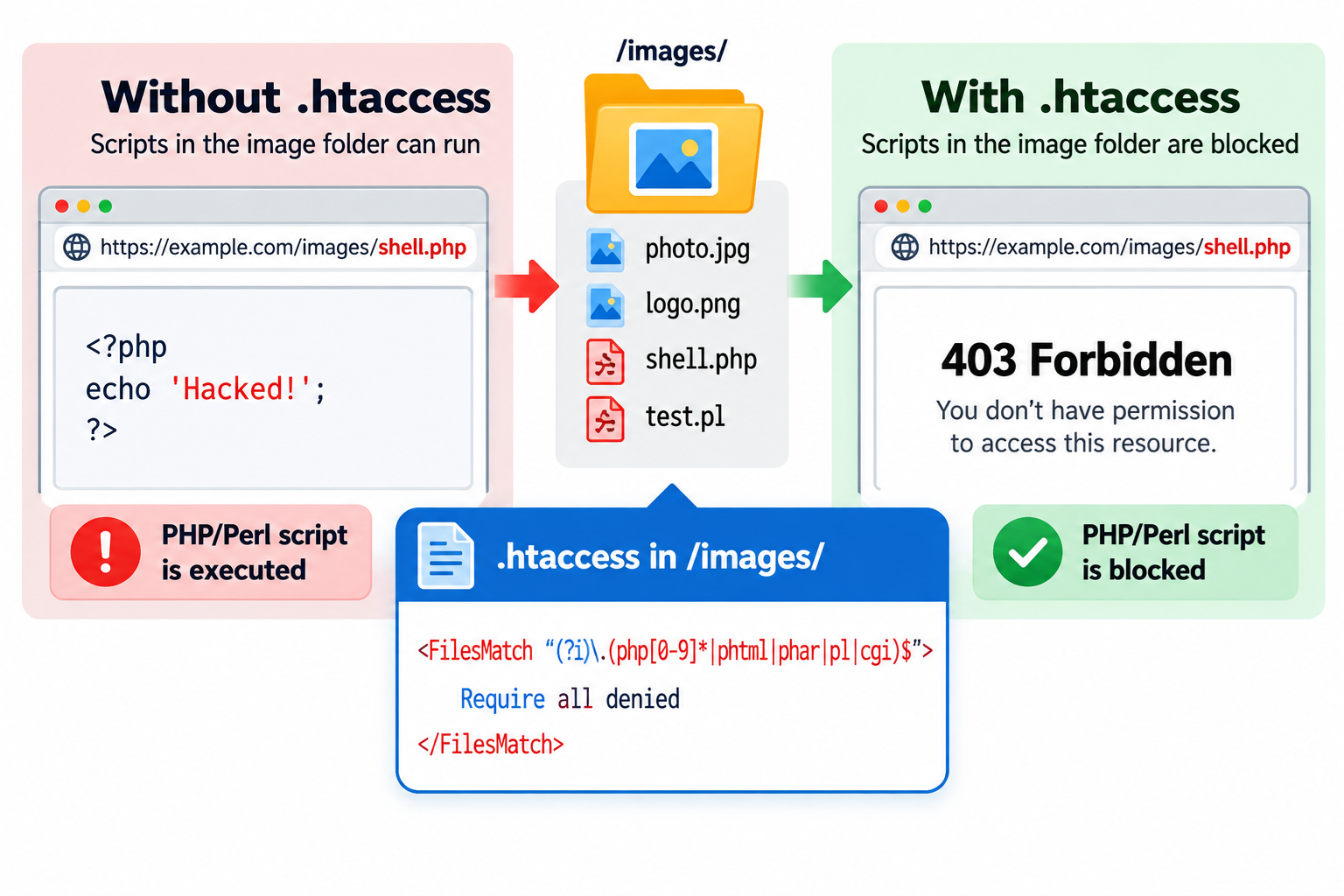
Your website’s image folder should be used to store images, not execute programs.
However, if your web server is incorrectly configured, attackers may be able to upload malicious PHP, Perl, or other executable scripts into an image directory and attempt to run them through a web browser.
This is particularly dangerous for websites that allow users to upload files, such as WordPress websites, online stores, forums, and content management systems.
Fortunately, if your website runs on the Apache HTTP Server, you can add security rules to the .htaccess file to restrict access to executable scripts in your image folders.
We will explain why executable files inside image directories are dangerous, how to block PHP and Perl scripts using .htaccess, how to disable CGI execution, and how to test your configuration without accidentally exposing sensitive files.
We will also discuss important differences between traditional PHP configurations and modern PHP-FPM hosting environments.
Why Should You Prevent Scripts from Running in Image Folders?
Most websites contain one or more directories used to store images.
For example, a typical website might have the following directory structure:
public_html/
index.php
images/
logo.png
banner.jpg
products/
uploads/
The images directory should normally contain files such as JPEG, PNG, GIF, WebP, and AVIF images.
A visitor requesting an image should receive the image content, not trigger the execution of an arbitrary program.
However, imagine that an attacker discovers a vulnerability in your website’s file upload functionality.
Instead of uploading an ordinary image, the attacker attempts to upload a file named:
malicious.php
If the upload succeeds and your server allows PHP execution in that directory, the attacker may be able to access the uploaded script through a URL such as:
https://example.com/images/malicious.php
Depending on the script’s contents and the server’s configuration, this could allow unauthorized actions on the server.
Potential consequences include unauthorized access to website files, modification of website content, theft of application data, or installation of additional malicious software.
The problem is not limited to PHP. Similar risks can arise when executable Perl, Python, CGI, or shell scripts are accepted and executed in directories intended for static files.
An image directory should not be an executable application directory.
Restricting script execution is therefore an important part of website security.
What Is the .htaccess File?
The .htaccess file is a directory-level configuration file used by the Apache HTTP Server.
It allows administrators to apply selected server configuration rules without directly modifying Apache’s main configuration files.
Depending on the hosting environment, .htaccess can be used for URL redirects, access restrictions, custom error pages, MIME type configuration, and certain execution-related settings.
For example, you may already have a .htaccess file in your website’s public_html directory.
You can also place a separate .htaccess file inside an images directory to apply configuration rules to that directory and applicable subdirectories.
However, Apache only processes these settings when its main configuration permits the relevant overrides.
Important: Nginx does not interpret Apache .htaccess files.
If your website uses Nginx or a managed hosting platform that processes uploads outside Apache, these rules may not apply.
Understanding the Difference Between File Access and Script Execution
Before adding security rules, it is important to understand that blocking access to a file and disabling script execution are related but different operations.
Suppose your image directory contains:
photo.jpg
banner.png
test.php
A web server can be configured to return the contents of photo.jpg and banner.png while denying HTTP requests for test.php.
This is an access-control approach.
Alternatively, the server might be configured to disable the PHP interpreter for that directory.
This is an execution-control approach.
Both approaches can contribute to security, but they are not interchangeable.
For example, disabling PHP execution without restricting access might cause a PHP source file to be served as ordinary text on some configurations.
That could expose sensitive source code to visitors.
For this reason, denying HTTP access to script files is usually a better starting point for a public image directory than merely turning off a scripting engine.
The strongest design combines appropriate access restrictions, carefully controlled execution handlers, secure upload validation, and filesystem protections.
Step 1: Locate Your Image Folder
First, identify the directory where your website stores uploaded images.
For a simple HTML or PHP website, this directory might be:
public_html/images/
Other websites may use directories such as:
public_html/uploads/
public_html/assets/images/
public_html/media/
For WordPress websites, uploaded media files are normally stored inside:
wp-content/uploads/
WordPress often organizes these files into year and month subdirectories.
For example:
wp-content/uploads/2026/10/
This means a security rule placed inside wp-content/uploads can normally apply to its subdirectories as well, provided Apache’s configuration permits it.
Before proceeding, make sure you have identified the correct directory.
Do not place restrictive image-folder rules in the website’s main document root unless you specifically intend them to apply across your entire website.
Step 2: Create an .htaccess File Inside the Image Folder
If your website uses Apache and supports directory-level .htaccess configuration, open your hosting control panel or SFTP client.
Navigate to your images directory.
For example:
public_html/images/
Create a new plain-text file named:
.htaccess
If the file already exists, download a backup before modifying it.
The directory might now contain:
public_html/
images/
.htaccess
logo.png
banner.jpg
product.jpg
Be sure the file is named exactly .htaccess, not .htaccess.txt.
Because the filename starts with a period, it may be hidden in some file managers.
In cPanel, you may need to enable the option to show hidden files.
You can now add the security rules that prevent visitors from accessing executable script files.
Step 3: Block PHP and Perl Scripts Using .htaccess
For Apache 2.4, one straightforward method is to use the FilesMatch directive together with Require all denied.
Add the following configuration to the .htaccess file inside your image directory:
<FilesMatch "(?i)\.(php[0-9]*|phtml|phar|pl|cgi)$">
Require all denied
</FilesMatch>
This rule denies HTTP access to matching filenames in the applicable directory.
The FilesMatch directive selects files using a regular expression.
The expression matches common PHP-related extensions, including .php, .php5, .php8, .phtml, and .phar, along with Perl and CGI-related extensions such as .pl and .cgi.
The (?i) portion makes the match case-insensitive, so filenames using uppercase letters are also covered.
The Require all denied directive tells Apache to deny access to the selected files.
For example, a visitor requesting:
https://example.com/images/test.php
should receive an HTTP 403 Forbidden response when the rule applies correctly.
The same applies to:
https://example.com/images/program.pl
However, ordinary images such as photo.jpg and banner.png should remain accessible.
This is an effective first layer of protection because it blocks HTTP access to the matched script files, regardless of whether the server would otherwise execute them.
Important: This rule blocks the extensions listed in the expression. It does not guarantee protection against every possible executable filename, custom handler mapping, or server-level application route.
Step 4: Disable CGI Execution in the Image Directory
Apache provides an additional setting that controls whether traditional CGI programs can execute in a directory.
The relevant directive is:
Options -ExecCGI
This removes the ExecCGI directory option in configurations where Apache permits the setting.
ExecCGI controls execution through traditional Apache CGI mechanisms.
For example, if a directory is configured to execute .cgi files through the CGI handler, disabling ExecCGI can prevent those programs from running through that mechanism.
You can add the directive to your image directory’s .htaccess file:
Options -ExecCGI
However, this setting has an important limitation.
Options -ExecCGI does not universally disable PHP execution.
Modern hosting environments frequently run PHP through PHP-FPM, FastCGI, or other application handlers.
These mechanisms do not necessarily depend on Apache’s ExecCGI directory option.
Therefore, Options -ExecCGI should be considered an additional protection against traditional CGI execution, not a complete solution for blocking all server-side scripts.
The directive also requires permission from the main Apache configuration.
If your hosting provider does not allow it, Apache may return an error.
Step 5: Combine Access Restrictions and CGI Protection
If your hosting environment permits both FilesMatch access rules and the Options directive, you can combine them.
For example:
Options -ExecCGI
<FilesMatch "(?i)\.(php[0-9]*|phtml|phar|pl|cgi|py|sh)$">
Require all denied
</FilesMatch>
This example performs two different security functions.
The first line disables the traditional CGI execution option in the applicable directory.
The FilesMatch section blocks HTTP access to filenames ending in several commonly used script extensions, including PHP, Perl, CGI, Python, and shell script extensions.
Ordinary image files are not matched by these rules.
For example, a public request for image.jpg should still work, while a request for test.php should be denied.
This is a reasonable baseline for a conventional Apache image directory when the directives are permitted and the server uses expected handler mappings.
However, it is not a universal security guarantee.
Some hosting configurations may route script requests to separate application services before Apache applies the expected directory-level restrictions.
Other environments may use custom script extensions or unusual handler mappings.
For sensitive upload directories, execution restrictions should ideally be enforced in the main web server and application configuration rather than relying solely on a writable directory’s .htaccess file.
Step 6: Understand the PHP Engine Off Directive
Older Apache and PHP tutorials frequently recommend the following directive:
php_flag engine off
This setting can disable PHP parsing for the applicable directory when PHP runs through the Apache module, commonly known as mod_php.
For example, some traditional Apache configurations support:
php_flag engine off
However, modern hosting environments frequently use PHP-FPM rather than mod_php.
In those environments, php_flag may not be recognized by Apache.
Adding an unsupported php_flag directive can cause a 500 Internal Server Error.
Even when the directive works, disabling PHP parsing does not necessarily prevent the PHP source file from being downloaded or displayed.
That is why php_flag engine off should not be treated as a complete file-upload security solution.
For modern Apache hosting, denying access to script filenames and configuring PHP execution restrictions at the appropriate server or PHP-FPM layer are more reliable strategies.
Before using any PHP-specific directive, determine how PHP is actually configured on your server.
Step 7: Understand Why RemoveHandler Is Not Always Enough
Another traditional approach involves removing script-handler associations.
For example:
RemoveHandler .php .pl .cgi
Apache’s RemoveHandler directive removes certain extension-to-handler associations established through AddHandler.
However, PHP may be configured through SetHandler, ProxyPassMatch, PHP-FPM, or other server-level mechanisms.
Consequently, RemoveHandler does not guarantee that PHP execution will be disabled.
There is also a potential source disclosure problem.
If an executable file is no longer processed by its intended handler but remains publicly accessible, Apache may serve its contents instead of executing it.
That could expose program source code or application configuration details.
For a directory that should contain only images, it is generally preferable to deny access to unexpected executable file types rather than depend solely on removing handlers.
Step 8: Use an Allowlist for a Dedicated Image Folder
Blocking known script extensions is useful, but attackers may use filenames or extensions that your blacklist does not anticipate.
A stronger approach for a directory intended exclusively for ordinary image files is to permit only approved image extensions.
For example, if your directory should contain only JPEG, PNG, GIF, WebP, and AVIF files, you could use the following Apache 2.4 configuration:
<FilesMatch "(?i)^(?!.*\.(?:jpe?g|png|gif|webp|avif)$).+">
Require all denied
</FilesMatch>
This FilesMatch expression selects filenames that do not end in one of the approved image extensions.
Apache then denies HTTP access to those files.
For example, these names match the permitted extensions and are not denied by this rule:
photo.jpg
banner.png
animation.gif
product.webp
image.avif
Meanwhile, HTTP requests for filenames such as the following are denied:
malicious.php
program.pl
script.cgi
backup.zip
config.txt
This type of allowlist can reduce exposure because you do not need to predict every possible executable extension.
However, it has limitations.
First, extensions alone do not prove that a file is a valid or harmless image.
Second, if the server is misconfigured to execute files based on multiple extensions or custom handlers, a name such as script.php.jpg may still be dangerous.
Third, this rule can block legitimate resources stored in the same directory, including text files, JSON files, CSS files, and some image-related metadata.
Fourth, some applications create special files or require additional media extensions that are not included in the example.
Use an extension allowlist only when you know exactly which file types the directory must serve, and enforce compatible upload validation and non-executable server configuration.
An allowlist is an additional security control, not a replacement for secure file handling.
Step 9: Prevent Directory Listing
Another useful directory-level security setting is:
Options -Indexes
This disables Apache’s automatic directory listing feature when the relevant option is permitted.
Suppose visitors open:
https://example.com/images/
If directory indexing is enabled and no directory index page exists, Apache may display a list of files inside that directory.
Disabling indexing helps prevent casual browsing of the directory’s contents.
You can combine this option with the CGI restriction:
Options -Indexes -ExecCGI
This disables directory indexing and traditional CGI execution where the hosting configuration permits those Options changes.
However, disabling directory listing does not prevent visitors from accessing an image directly when they know its URL.
For example, this URL may still work:
https://example.com/images/logo.png
The purpose of -Indexes is to disable automatic listings, not make public image files private.
For truly private files, additional authentication and authorization controls are required.
Step 10: Test the Security Rules
After saving the .htaccess file, you should confirm that the rules work as intended.
First, open an ordinary image in your browser.
For example:
https://example.com/images/logo.png
The image should load normally.
Next, test a harmless placeholder file ending in .php.
Create a plain-text test file named test.php containing only an explanatory comment or harmless text. Do not place executable test code in the file.
Then request:
https://example.com/images/test.php
If the FilesMatch access rule applies correctly, Apache should deny the request.
A typical result is:
403 Forbidden
You can also examine the HTTP response headers using curl:
curl -I https://example.com/images/test.php
A denied request would normally return an HTTP 403 status.
Some hosting environments customize error responses, so the exact message may differ.
You should also check that files such as logo.png and photo.jpg remain accessible.
When testing is complete, remove the placeholder test file.
If the request unexpectedly returns source content or executes through a handler, stop exposing that test endpoint and review the actual server configuration.
Do not assume the directory is protected merely because the .htaccess file was successfully uploaded.
How to Protect WordPress Uploads
WordPress normally stores uploaded media inside the wp-content/uploads directory.
This directory may contain images, documents, audio, video, and other media files depending on the site’s configuration.
Because WordPress websites often allow administrators, editors, or other authorized users to upload content, the uploads directory is an important security boundary.
On a conventional Apache-based WordPress installation, you can place a .htaccess file inside:
wp-content/uploads/
For a basic restriction against common script extensions, use:
<FilesMatch "(?i)\.(php[0-9]*|phtml|phar|pl|cgi|py|sh)$">
Require all denied
</FilesMatch>
This configuration attempts to deny HTTP requests for matching script files inside the uploads directory and applicable subdirectories.
It should not interfere with normal JPEG, PNG, GIF, WebP, AVIF, or other media files that do not match the expression.
For WordPress, a script-extension blocklist is often easier to deploy than an image-only allowlist because the uploads directory may legitimately contain PDFs and other document formats.
However, some managed WordPress platforms may already restrict executable files in uploads at the web server or platform level.
Others may use Nginx, a CDN, object storage, or a separate media server.
In those environments, local .htaccess rules may have no effect.
Before applying new restrictions, check how uploaded media is actually served.
Also remember that these rules do not replace WordPress security updates, upload permission management, plugin maintenance, or server-side upload validation.
Why File Upload Validation Is Still Necessary
Blocking script access through .htaccess helps reduce risk, but it does not prevent a malicious file from being uploaded in the first place.
A secure upload system should validate files before storing them.
For example, an application should check whether the uploaded file extension belongs to an approved set.
It should also examine the actual file format rather than trusting the Content-Type supplied by the user’s browser.
A browser can claim that a file is image/jpeg even when the uploaded bytes are not a valid JPEG image.
Likewise, a filename such as photo.jpg does not guarantee that the file contains harmless image data.
A stronger upload process may decode and re-encode supported images using a trusted, maintained image-processing library.
Uploaded files should receive server-generated filenames rather than relying entirely on user-supplied names.
This reduces the risk of unexpected characters, path manipulation, and filename collisions.
Applications should also enforce file size limits, restrict upload permissions, and avoid placing uploaded data where it can be interpreted as executable code.
For high-security applications, OWASP recommends separating uploaded files from the web application’s executable environment whenever possible.
Understanding Double File Extensions
Attackers may try to bypass simple extension checks by using filenames containing multiple extensions.
For example:
photo.php.jpg
image.jpg.php
banner.phtml
A validation system that checks only whether a filename contains .jpg somewhere in the name may incorrectly accept a file such as image.jpg.php.
Some Apache handler configurations can also interpret multiple filename extensions in ways that surprise administrators.
For example, a handler associated with .php may interact with a filename containing both .php and .jpg, depending on how the server is configured.
This is one reason why filename filtering alone is insufficient.
A secure setup should ensure that upload directories are not mapped to executable handlers, regardless of misleading filenames.
The application should also validate the complete final extension and the actual file content.
Avoid relying on a blacklist of known suspicious names as the sole protection mechanism.
What About .htaccess Files Uploaded by Attackers?
There is another important security issue that website administrators sometimes overlook.
If an attacker can upload an arbitrary file named .htaccess into a directory where Apache permits configuration overrides, the attacker may be able to change how that directory processes certain files.
For example, a malicious .htaccess file could attempt to associate an otherwise ordinary extension with an executable handler if the required directives are permitted.
This means a directory-level .htaccess security policy is less trustworthy if untrusted users can overwrite or replace that policy.
For stronger protection, server administrators should enforce upload-directory restrictions in the main Apache configuration and prevent untrusted configuration overrides.
The Apache AllowOverride None setting can disable .htaccess overrides for a directory when applied in the main server configuration.
However, AllowOverride itself cannot simply be controlled from the same untrusted .htaccess file.
On shared hosting, you may need assistance from your hosting provider to enforce these protections.
The general principle is simple: an attacker who can control executable server configuration may be able to bypass weaker file-extension restrictions.
Recommended File Permissions for Image Folders
Filesystem permissions provide another layer of protection.
On many Linux hosting environments, directories commonly use permission mode 755, while ordinary public image files may use 644.
For example:
chmod 755 images
This allows the directory owner to manage its contents while providing the access normally required for public file serving.
For an ordinary image file:
chmod 644 images/logo.png
This allows the owner to read and modify the file while permitting other authorized system users to read it.
The exact permissions depend on the hosting environment, filesystem ownership, and server execution model.
These values should not be treated as universal requirements.
Avoid using permission mode 777 for image directories because it can allow unintended write access.
Also, removing a Unix executable permission bit from a PHP file does not universally prevent PHP execution.
Many PHP configurations execute scripts through an interpreter that reads the file, without requiring the file itself to have executable permission.
Filesystem permissions are therefore useful, but they do not replace Apache access restrictions or application-level upload security.
Common Problems When Adding .htaccess Security Rules
1. The Website Returns a 500 Internal Server Error
A 500 error may occur when Apache rejects a directive or encounters invalid configuration syntax.
For example, your hosting provider may not permit Options -ExecCGI in .htaccess.
Another possibility is that the server does not support the access-control syntax being used.
The Require all denied directive belongs to Apache 2.4 authorization configuration.
Older Apache 2.2 systems used different access-control directives, but Apache 2.2 is obsolete and should not be used for a modern production website.
If the error begins immediately after editing .htaccess, restore your backup and inspect the Apache error log.
2. PHP Files Still Execute
If a PHP test file still executes, your request may not be subject to the expected FilesMatch restriction.
Possible explanations include incorrect .htaccess placement, disabled override processing, a reverse proxy, or an application handler that processes the request outside the expected directory context.
PHP-FPM configurations may also require execution restrictions at the server or proxy layer.
Do not simply add more unverified directives.
Determine how the request reaches PHP and enforce the restriction at the component responsible for execution.
3. Images Stop Loading
If ordinary images stop loading after you add security rules, the configuration may be too restrictive.
For example, an extension allowlist may omit file formats used by your application.
Check whether the affected files use JPG, PNG, WebP, SVG, AVIF, GIF, or other formats.
Also review the response status code and the Apache error log.
If the problem began after installing an image-only allowlist, verify that the requested filename actually matches one of the permitted extensions.
4. The .htaccess File Has No Effect
Some hosting providers disable directory-level configuration overrides.
Others use Nginx or another server to deliver image files directly.
If the file is not processed by Apache, adding .htaccess directives will not change the response.
Contact your hosting provider or review the server configuration to determine where access rules should be applied.
5. The Browser Downloads a PHP File
If a PHP file is downloaded instead of executed, the execution handler may be missing or disabled.
However, this is not an acceptable security result when the file contains sensitive source code.
A script file inside a public image directory should generally be inaccessible, not downloadable as plain text.
Use an appropriate denial rule and correct the server configuration before exposing the directory publicly.
6. A Security Plugin Reports Suspicious Files
If your WordPress security plugin identifies unexpected PHP files inside wp-content/uploads, do not assume that adding an .htaccess rule removes the threat.
The files may already be malicious.
Investigate how they arrived, inspect the website for additional compromise, and check for unauthorized accounts or modified application files.
Remove confirmed malicious files using a controlled recovery process and restore clean copies where appropriate.
If a compromise is suspected, rotate affected credentials and review the server and application logs.
An access restriction is a preventive or containment measure, not a complete malware cleanup procedure.
.htaccess Protection vs. Server-Level Protection
Directory-level .htaccess rules are convenient, especially on shared hosting where customers cannot edit Apache’s main configuration.
However, server-level protection is generally preferable when you have administrative access.
For example, an Apache administrator can apply directory restrictions inside the virtual host configuration.
This provides more direct control over which directories can execute scripts and whether .htaccess overrides are permitted.
A server administrator can also configure PHP-FPM so that requests for uploaded files are never passed to the PHP interpreter.
For websites that use Nginx in front of Apache, both servers may need compatible restrictions.
The application should also ensure that uploaded files are stored in a non-executable location.
Security is strongest when multiple independent layers enforce the same intended boundary.
Is It Better to Store Uploaded Images Outside the Web Root?
For applications handling untrusted files, storing uploads outside the public web root can provide stronger isolation.
For example, instead of storing uploaded content directly under:
public_html/uploads/
an application may store it in a separate directory that is not directly accessible through ordinary website URLs.
The application can then validate and serve approved files through a controlled download or media delivery mechanism.
This approach reduces the risk of accidentally exposing executable or sensitive files through direct web requests.
For public images, a dedicated static media service or object storage system may also be suitable.
However, this architecture requires application support and appropriate configuration.
Many WordPress installations are designed to serve uploaded images directly from wp-content/uploads, so moving that directory outside the web root may require additional infrastructure or plugins.
For ordinary shared hosting websites, carefully configured Apache restrictions can still provide useful protection.
The important goal is to prevent uploaded content from becoming executable code.
Best Practices for Securing Your Image Directory
A secure image directory should follow several principles.
First, use a dedicated directory for uploaded images rather than mixing uploads with application source code.
Second, restrict or deny HTTP access to executable script files.
Third, disable traditional CGI execution where applicable and prevent PHP or other application handlers from executing uploaded content.
Fourth, validate uploaded files using an allowlist of acceptable formats and verify the actual file contents.
Fifth, assign safe filenames and apply appropriate filesystem permissions.
Sixth, prevent untrusted users from changing .htaccess or other server configuration files.
Seventh, keep Apache, PHP, WordPress, themes, plugins, and image-processing libraries updated.
Finally, regularly review upload directories for unexpected files and test your security configuration after significant hosting changes.
Do not depend on a single .htaccess directive to protect the entire website.
Frequently Asked Questions
Can I prevent PHP scripts from running in the images directory?
Yes. On a compatible Apache server, you can deny HTTP access to PHP filenames using FilesMatch and Require all denied.
For complete protection, the server should also be configured so that files in the upload directory are never processed by PHP handlers.
Does Options -ExecCGI disable PHP?
Not necessarily.
Options -ExecCGI controls traditional CGI execution. PHP may run through mod_php, PHP-FPM, FastCGI, or another handler that is not controlled by this option.
Can I use php_flag engine off?
Only in compatible PHP Apache-module configurations.
It is not universally supported by PHP-FPM hosting and can cause a server error when used in an incompatible environment.
Also, disabling PHP parsing is not a substitute for denying access to PHP source files.
Does Require all denied delete malicious files?
No. It denies HTTP access to matching resources when Apache applies the rule.
It does not delete files, scan for malware, or repair compromised applications.
Will these rules prevent images from loading?
A properly scoped script-extension restriction should not affect ordinary images.
However, an image-only allowlist can block legitimate resources if their extensions are not included.
Always test representative files after making changes.
Can I use these rules for WordPress?
Yes, on a compatible Apache-based WordPress installation.
A commonly used location is wp-content/uploads/.htaccess.
However, managed hosting, Nginx, CDNs, and alternative media storage systems may require different configuration.
What happens if someone uploads a file named image.jpg.php?
A rule matching a final .php extension should deny direct HTTP access to that filename when applied correctly.
However, filename tricks involving multiple extensions and custom handlers are another reason to enforce non-executable upload directories at the server level.
Should I disable directory listing as well?
Yes, disabling directory listing is generally sensible for public upload folders that do not need automatic directory indexes.
On Apache, Options -Indexes is commonly used when the directive is permitted.
However, this does not make individual public files private.
Can I use the same configuration on Nginx?
No. Nginx does not read .htaccess files.
Equivalent restrictions must be implemented through Nginx configuration or another supported server-management mechanism.
Is an .htaccess file enough to secure uploaded files?
No. It can be a valuable additional control, but secure upload handling also requires validation, safe storage, access controls, appropriate execution-handler configuration, and regular maintenance.
Conclusion
Preventing PHP, Perl, and other executable scripts from running inside your image folder is an important website security measure.
An image directory should deliver approved image content, not execute arbitrary programs uploaded through a website vulnerability.
For Apache 2.4, a practical starting point is to deny HTTP access to common script extensions using:
<FilesMatch "(?i)\.(php[0-9]*|phtml|phar|pl|cgi|py|sh)$">
Require all denied
</FilesMatch>
When the server permits it, you can also disable traditional CGI execution using:
Options -ExecCGI
However, this second directive does not universally disable PHP or other application handlers.
For stronger security, configure upload directories as non-executable at the web server or application layer, validate actual file content, restrict filesystem permissions, and prevent untrusted users from modifying server configuration.
If your website uses WordPress, consider applying appropriate restrictions to wp-content/uploads while preserving normal access to legitimate media files.
Always test that images remain accessible and script requests are denied.
A few carefully chosen Apache rules can reduce the attack surface of your website, but protecting uploaded files requires several layers of security working together.