
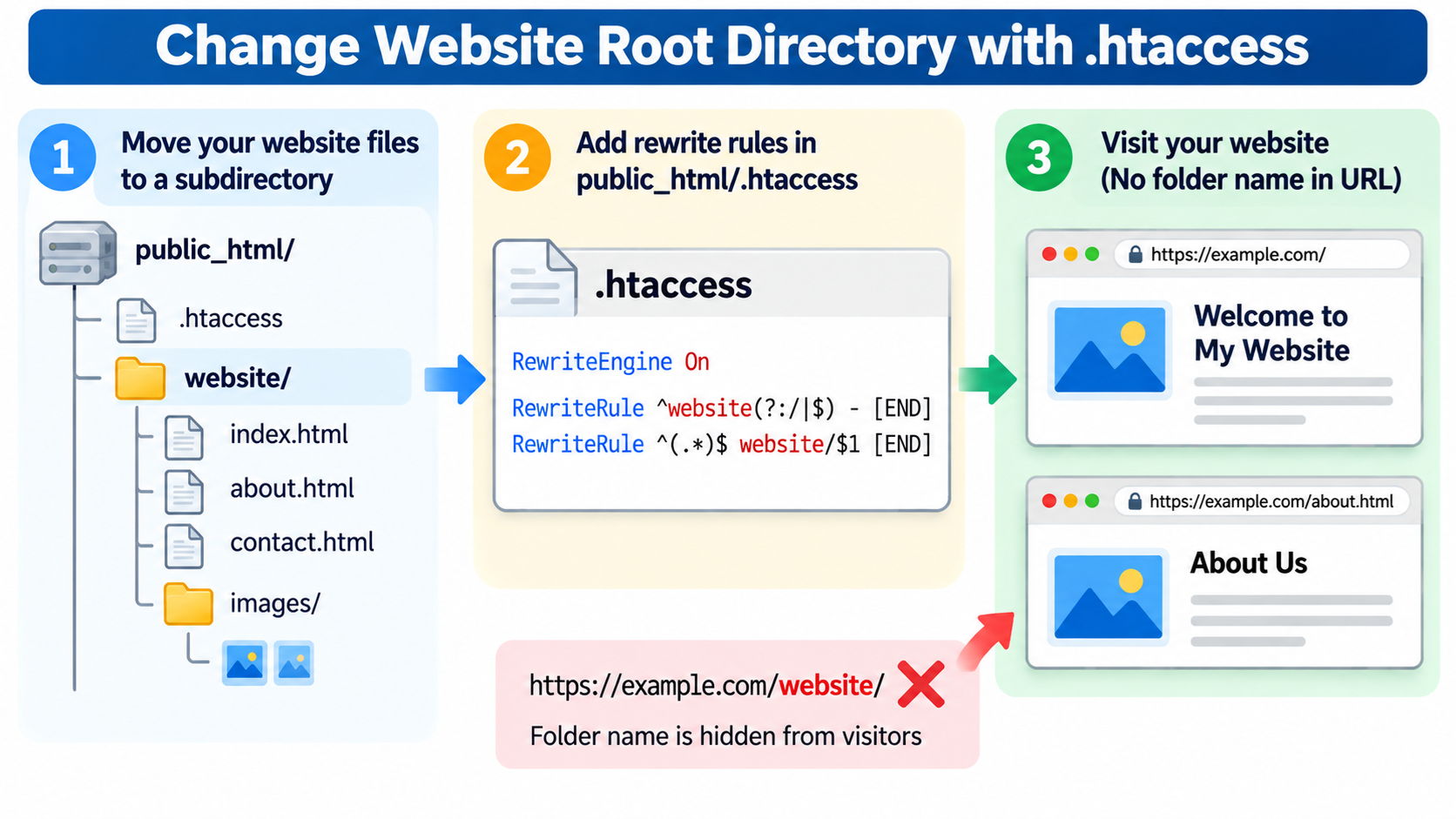
When you set up a website, your hosting provider normally assigns a default directory where your website files are stored.
On many shared hosting servers, this directory is called public_html.
However, there may be situations where you want your website to load files from a different folder without changing the domain name visitors enter into their browsers.
For example, you might want to store your website in a folder named website, public, newsite, or application instead of placing every file directly inside public_html.
If your website runs on the Apache HTTP Server, you can use the .htaccess file to rewrite incoming requests to a subdirectory.
This can make a subdirectory behave like the public entry point of your website while keeping its folder name out of the browser’s address bar.
However, there is an important technical distinction: the .htaccess file cannot actually change Apache’s DocumentRoot directive.
It can only redirect or internally rewrite requests to a different location that Apache is permitted to serve.
We will explain what a website root directory is, how Apache determines where website files are stored, how to make a subfolder behave like your website root using .htaccess, and how to avoid common problems involving WordPress, redirects, broken images, and rewrite loops.
What Is a Website Root Directory?
The website root directory, commonly called the document root, is the directory from which a web server normally serves files for a particular website.
For example, many shared hosting accounts use a directory structure similar to this:
public_html/
index.html
about.html
contact.html
images/
css/
When a visitor opens your website at https://example.com/, Apache typically looks for an appropriate directory index file inside the configured document root.
If the website uses index.html as its default document, Apache can return that file.
When a visitor requests https://example.com/about.html, Apache normally looks for about.html relative to the configured document root.
The exact behavior depends on Apache’s configuration, including DirectoryIndex, URL rewriting, aliases, and application handlers.
The important point is that the document root provides the starting location for resolving ordinary website file requests.
On a self-managed Linux server, an administrator might configure a document root such as /var/www/example.com/public.
On shared hosting, the document root is usually assigned through the hosting control panel or server configuration.
What Is the Difference Between DocumentRoot and .htaccess?
Apache provides a configuration directive named DocumentRoot.
For example, a server administrator might use:
DocumentRoot "/var/www/example.com/public"
This tells Apache where the website’s document root is located.
However, the DocumentRoot directive can only be configured in the appropriate server or virtual host configuration context. It cannot be placed inside .htaccess.
If you try to add a DocumentRoot directive directly to .htaccess, Apache will reject the configuration.
This may cause your website to display a 500 Internal Server Error.
Instead, .htaccess can use Apache’s mod_rewrite module to map incoming URL requests to files located inside a different directory.
For example, your website might physically store its pages inside:
public_html/website/
While visitors continue using URLs such as:
https://example.com/about.html
Apache can internally rewrite the request to:
/website/about.html
The browser still displays the original URL, but Apache serves the file from the website subdirectory.
This is an internal rewrite, not an actual DocumentRoot change.
Why Would You Want to Use a Different Website Directory?
There are several reasons why website administrators want to use a custom website directory.
One common reason is organization.
Instead of placing every website file directly in public_html, you may prefer to store the application in a dedicated subdirectory.
Another reason is application structure.
Some PHP frameworks separate publicly accessible files from application code, configuration files, and dependencies.
For example, a framework might use a public directory containing index.php, stylesheets, JavaScript files, and images.
The remaining application files should not necessarily be accessible through ordinary website URLs.
You may also want to prepare a redesigned website in a separate directory before making it the primary website.
Some administrators maintain multiple application versions in separate folders to simplify development and deployment.
WordPress website owners may also want to place WordPress files inside a subdirectory while keeping the main domain address unchanged.
However, different applications have different requirements.
Not every website can safely be moved into another directory by adding a generic .htaccess rule.
For websites containing sensitive application files, configuring the actual document root is often the more secure and reliable solution.
Step 1: Understand Your Existing Directory Structure
Before modifying .htaccess, identify your website’s current document root.
On many cPanel hosting accounts, it is:
public_html/
Suppose your current website contains:
public_html/
index.html
about.html
contact.html
images/
You want to move the website into a directory named website.
The new directory structure would look like this:
public_html/
.htaccess
website/
index.html
about.html
contact.html
images/
In this example, public_html remains Apache’s actual document root.
The website subdirectory contains your website files.
The .htaccess file in public_html will contain the rules used to map incoming website requests to that subdirectory.
For this tutorial, we will use website as the folder name.
You can substitute your own directory name, such as newsite or public, provided the directory exists and your hosting environment permits the configuration.
Step 2: Create the New Website Directory
Log in to your hosting control panel or connect to your hosting account using SFTP or SSH.
Navigate to your website’s current document root.
Create a new directory named:
website
The physical directory should now be:
public_html/website/
Next, copy your static website files into this folder.
For example:
public_html/website/index.html
public_html/website/about.html
public_html/website/contact.html
If your website includes images, stylesheets, or JavaScript files, move or copy those assets while preserving their directory structure.
For a simple static website, this process is usually straightforward.
For WordPress, Laravel, or another dynamic application, do not move files until you understand the application’s configuration and deployment requirements.
The application may depend on filesystem paths, environment variables, database settings, or framework-specific routing rules.
Before making changes to a live website, create a backup and test the new directory independently whenever possible.
Step 3: Locate the .htaccess File
The next step is to locate the .htaccess file inside the existing document root.
For example:
public_html/.htaccess
If you use cPanel File Manager, enable the option to display hidden files.
Because .htaccess begins with a period, it may not appear in the default file listing.
If the file does not exist, you can create a new plain-text file named exactly .htaccess.
If the file already exists, download a backup before editing it.
This is especially important for websites using WordPress or other content management systems because the existing file may contain rewrite rules required for application routing.
Never delete existing rules without understanding their purpose.
The new rewrite rules should be coordinated with any redirects, authentication settings, application routing, and security rules already present.
Step 4: Rewrite Website Requests to a Subdirectory
For a simple Apache-hosted website where all public files are stored inside the website subdirectory, you can use the following configuration in public_html/.htaccess.
RewriteEngine On
RewriteRule ^website(?:/|$) - [END]
RewriteRule ^(.*)$ website/$1 [END]
This example uses Apache 2.4 and the mod_rewrite module.
The first RewriteRule prevents requests that already begin with website/ from being rewritten again.
The second rule maps other incoming paths into the website subdirectory.
For example, the request:
https://example.com/about.html
is internally mapped to:
/website/about.html
The visitor continues to see:
https://example.com/about.html
The website directory name does not appear in the browser’s address bar as a result of this rewrite.
Likewise, a request for the homepage:
https://example.com/
is internally mapped to:
/website/
Apache can then look for an appropriate directory index file inside that directory.
The END flag stops further mod_rewrite processing for the rewritten request in Apache 2.4.
This helps prevent further per-directory rewrite processing from repeatedly changing the URL.
Important: This is a basic example for a straightforward website. It assumes the original root does not contain other public applications or routes that must remain accessible, and that the target subdirectory can serve the requested files correctly.
The .htaccess configuration still requires mod_rewrite to be enabled and the necessary directory overrides to be permitted.
Step 5: Understand How the Rewrite Rules Work
The configuration contains three main directives.
The first is:
RewriteEngine On
This enables Apache’s rewrite engine in the applicable configuration context.
The second is:
RewriteRule ^website(?:/|$) - [END]
The expression matches requests whose directory-relative path is website or begins with website/.
The dash means Apache should not substitute another path for a matching request.
The END flag stops further mod_rewrite processing.
This prevents URLs already targeting the website subdirectory from being rewritten into a duplicated path.
Without an appropriate exclusion, badly designed rules might repeatedly transform a request and cause a rewrite loop.
The third directive is:
RewriteRule ^(.*)$ website/$1 [END]
The expression captures the requested path.
The destination adds website/ before that path.
For example, about.html becomes website/about.html.
The rule does not contain R=301 or R=302, so it performs an internal rewrite rather than intentionally sending the browser to another URL.
This distinction is important because the user-facing address remains unchanged.
Step 6: Test Your Website After Changing the Directory Mapping
After saving the .htaccess file, open your website in a browser.
Start with the homepage:
https://example.com/
Apache should serve the appropriate page from the website subdirectory.
Next, test an individual page:
https://example.com/about.html
If the configuration works, Apache should locate the corresponding file inside:
public_html/website/about.html
You should also test an image or stylesheet.
For example:
https://example.com/images/logo.png
This should resolve to the image inside:
public_html/website/images/logo.png
The existing URL path is preserved from the visitor’s perspective.
If the homepage works but other pages return 404 errors, inspect your rewrite rules, the physical file locations, and any application-specific routing requirements.
You can also use curl to inspect server responses.
For example:
curl -I https://example.com/about.html
A successful page will commonly return an HTTP 200 status code.
Unlike an external redirect, an internal rewrite does not normally produce a 301 or 302 response merely because the mapped file is stored in another directory.
Step 7: Redirect the Homepage to a Subdirectory Instead
Sometimes you do not need to hide the subdirectory name.
Instead, you simply want visitors opening the main domain to be redirected to another folder.
For example, you may want:
https://example.com/
to become:
https://example.com/website/
This can be accomplished using a simpler redirect rule:
RewriteEngine On
RewriteRule ^$ /website/ [R=302,L]
When a visitor opens the homepage, Apache sends a redirect response to the browser.
The browser then requests the new URL and displays the subdirectory name in the address bar.
During testing, the 302 status code indicates a temporary redirect.
If the redirection is intended to be permanent, you can change R=302 to R=301 after verifying that the configuration works.
Remember that this rule redirects only the root URL.
For example, it does not automatically redirect /about.html to /website/about.html.
If you need every page to move to a corresponding URL under the new directory, additional redirect rules may be required.
Internal Rewrite vs. External Redirect
An internal rewrite and an external redirect are not the same operation.
With an internal rewrite, Apache changes how it locates the requested resource while the browser continues displaying the original URL.
For example:
Requested URL: https://example.com/about.html
Internally served file: public_html/website/about.html
With an external redirect, Apache tells the browser to request a different URL.
For example:
Original URL: https://example.com/
Redirect destination: https://example.com/website/
The browser’s address bar changes to the destination URL.
Use internal rewriting when you want the subdirectory to remain hidden from the public URL structure.
Use external redirection when you intentionally want visitors to navigate to a different URL.
For permanent website URL changes, appropriate redirects can also help search engines and visitors discover the new locations.
Step 8: Avoid Redirect and Rewrite Loops
One of the most common problems with directory rewriting is an infinite rewrite loop.
For example, an incorrect rule may repeatedly add the same directory name to a URL.
A request for:
/about.html
might first become:
/website/about.html
Then, if the rewrite rules process the new path again without an appropriate exclusion, another rewrite may attempt to produce:
/website/website/about.html
Further processing can eventually cause Apache to return an internal server error.
The previous example uses an exclusion for the website directory and the END flag to prevent further rewriting through mod_rewrite.
However, other server directives or application-level redirects may still interact with the rewritten request.
For example, a framework may redirect requests based on its configured base URL.
A directory index module may also add trailing slashes when needed.
Always test the homepage, nested directories, static assets, and dynamic routes after introducing rewrite rules.
If you encounter a redirect loop, examine both Apache rules and application-generated redirects.
Step 9: Prevent Direct Access to the Subdirectory URL
An internal rewrite does not automatically hide the physical subdirectory from visitors.
For example, even if your homepage works at:
https://example.com/
A visitor may still be able to open:
https://example.com/website/
This is an important limitation of the subdirectory-rewriting approach.
The URL structure may expose both the public path and the underlying subdirectory path.
If you want one canonical public address, you may need additional redirect rules that distinguish browser requests for /website/ from Apache’s internal rewrites.
However, these rules require careful handling because a simplistic redirect can create a loop.
In particular, Apache’s THE_REQUEST variable can sometimes help distinguish an original HTTP request from an internally rewritten path.
For example, a browser-facing redirect rule can be designed to redirect explicitly requested /website/ URLs back to the preferred public path.
Such canonicalization should be tested carefully with files, directories, query strings, and application routes.
For security-sensitive applications, the better approach is to configure the actual document root so that the internal application directory is not unintentionally exposed through another public URL.
Hiding a directory name in the browser is not a security control.
Sensitive files must be protected through appropriate server configuration and access permissions.
Step 10: Handle Images, CSS, and JavaScript Correctly
After moving a website into a subdirectory, you may discover that the homepage loads but images or stylesheets are missing.
For example, a webpage may reference:
/images/logo.png
With a properly configured internal rewrite, Apache can map that URL to:
/website/images/logo.png
However, problems can occur if the page uses URLs containing the physical subdirectory name.
For example:
/website/css/style.css
That URL may expose the physical directory structure or behave differently from the intended canonical URL scheme.
Relative paths can also behave unexpectedly when the browser’s current URL contains nested directories.
For example, a relative reference to images/logo.png from a page at /products/details/ may resolve differently from the same reference on the homepage.
Use consistent asset URLs and verify that your application’s base URL settings match the public address structure.
For a simple static website, root-relative paths such as /images/logo.png can work well when the internal directory mapping handles them correctly.
For frameworks and content management systems, follow the application’s recommended URL and asset configuration practices.