
What Is a Brute Force Attack? How Password Guessing Works

Click to WordPress Web Hositng from $7.47 per month
Introduction
A login page can look professional while offering insufficient protection against repeated password guesses. When passwords are predictable and the application allows too many attempts, an account may be at risk.
Brute force and related password-guessing attacks attempt to gain access through repeated authentication attempts. Understanding this process helps website owners recognize weaknesses and improve account protection.
This article explains the failed-login baseline, login requests, password lists, response comparison, and manual verification through simplified examples. It also introduces Burp Suite, a tool used to inspect and repeat web requests.
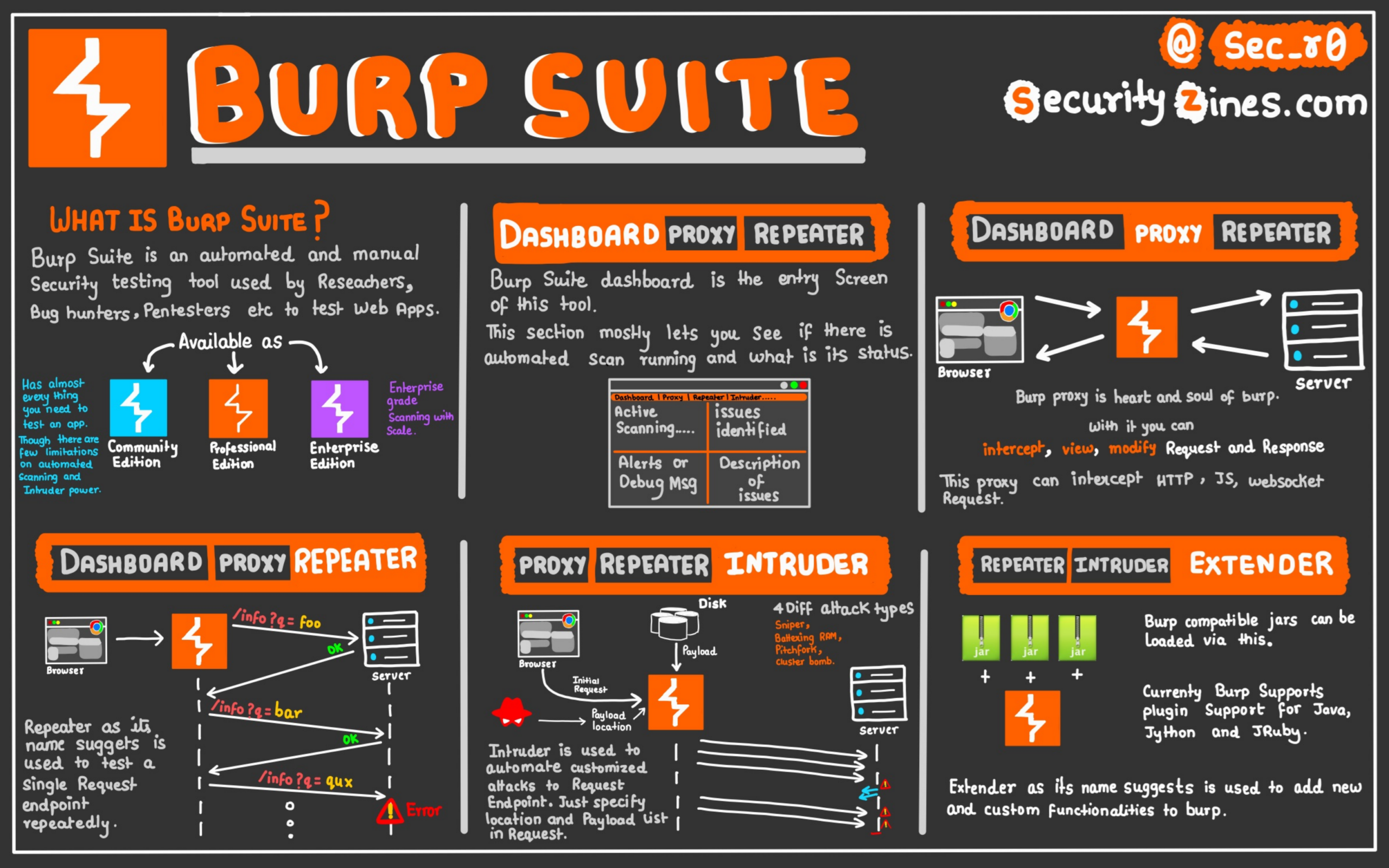
Brute force is an attack technique; Burp Suite is a testing tool.
The examples below are educational illustrations, not results from a live attack against HostsDepot. Perform practical testing only in a local training environment or on a system you have explicit permission to test.
Chapter 1: Understanding Brute Force Attacks
Strictly speaking, a brute force attack tries every possible combination until it finds the correct password or exhausts the possibilities.
Imagine a tiny password containing only two binary digits. Each digit can be either zero or one. The four possible combinations are:
00 — Zero zero
01 — Zero one
10 — One zero
11 — One one
Adding another binary digit doubles the number of combinations. Three binary digits produce eight combinations, while four produce sixteen. Real passwords can use a much wider range of characters, so the number of possible combinations can grow rapidly.
A dictionary attack takes a more selective approach. It tests a prepared list of candidate passwords rather than every possible combination. If the correct password is included and the application allows the necessary attempts, the test may find a match. If the correct password is absent, that particular list will not find it.
Password spraying tries a small number of common passwords across many accounts. Credential stuffing tests username and password pairs exposed in another breach, taking advantage of password reuse.
The demonstration in this article is a dictionary test against one demonstration account. It illustrates repeated password guessing without attempting every possible password. This distinction matters when interpreting the result.
Chapter 2: Observe a Failed Login
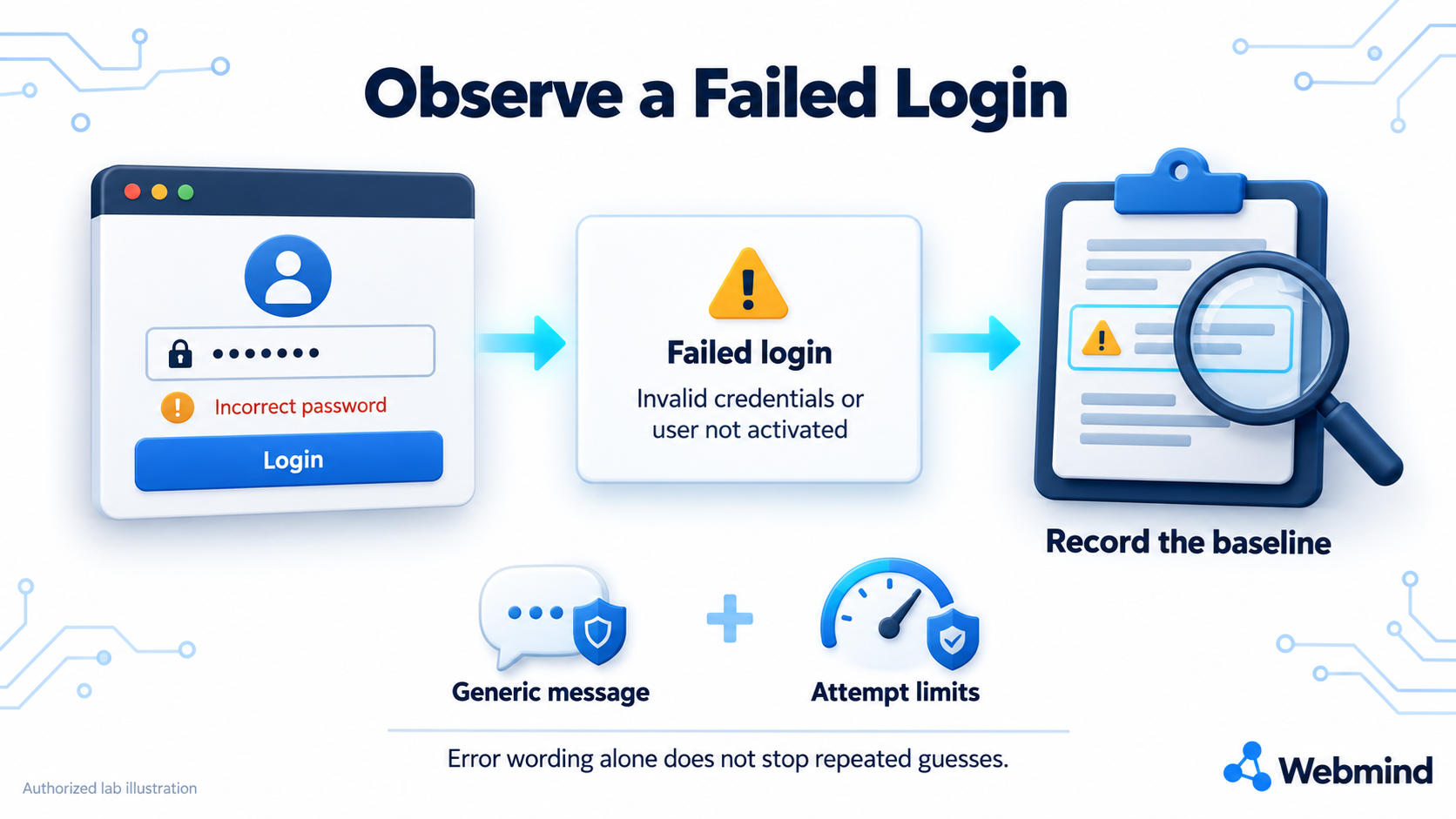
Before comparing login attempts, establish what an ordinary failure looks like. In an authorized lab, a tester can submit a deliberately incorrect password and record the application’s response.
An example failed-login message is:
Invalid credentials or user not activated
This message represents an unsuccessful login in the example. It becomes a baseline: a reference response against which later responses can be compared.
The baseline can also include the application’s normal behavior. It might remain on the login page, redirect to another page, or request additional verification. Understanding that behavior helps distinguish an ordinary failure from a response that deserves closer inspection.
A generic message can avoid revealing whether a username exists. However, the wording alone does not stop repeated guesses. The application also needs controls that restrict excessive attempts.
Different applications may display different messages. The important step is to understand the normal failed-login response of the authorized demonstration application before interpreting an unusual response.
Chapter 3: Capture the Login Request
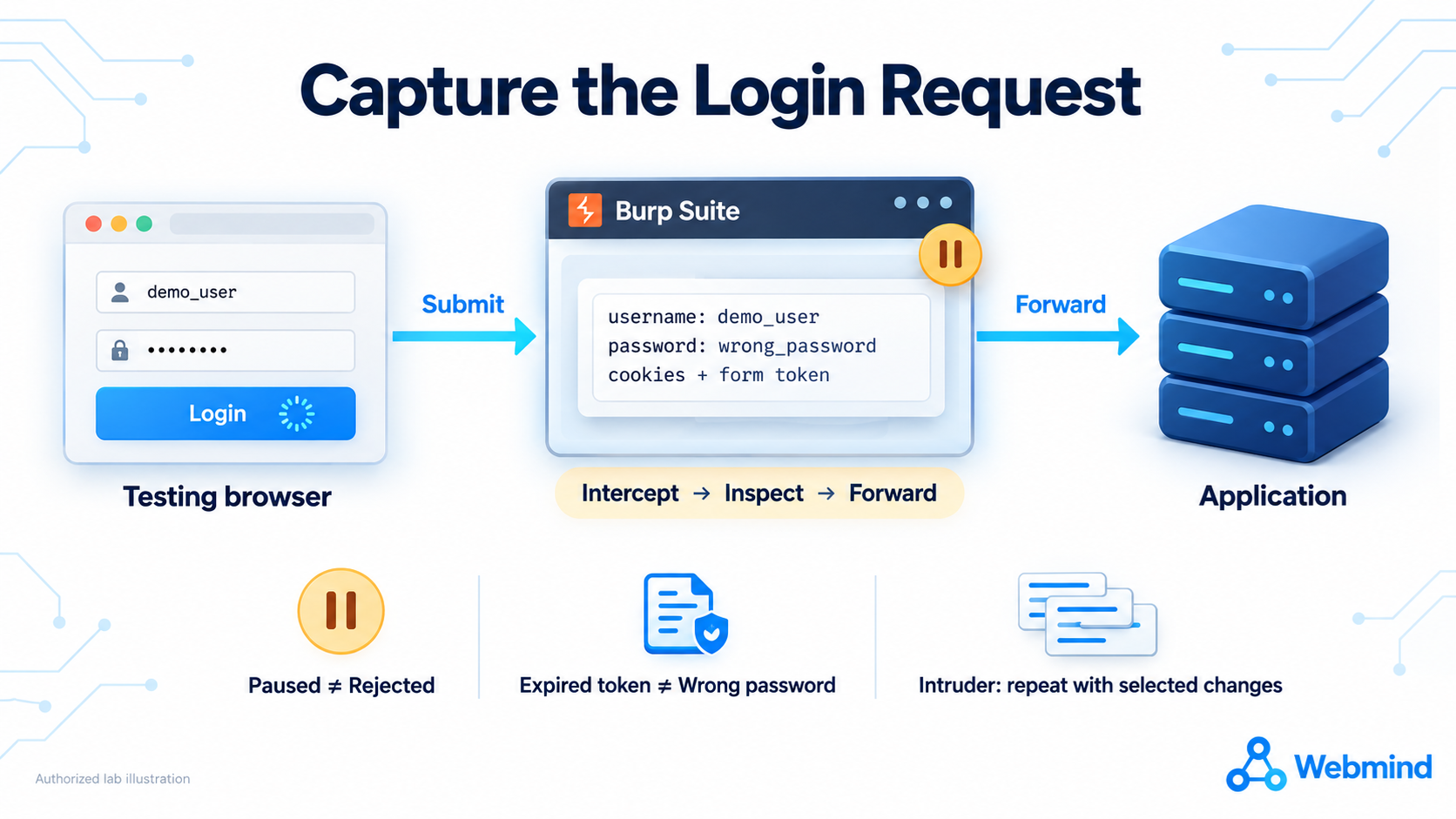
When a user submits a login form, the browser sends a request to the application. A simplified form submission might contain:
username=demo_user&password=wrong_password&submit=LoginThe username field identifies the demonstration account. The password field contains the submitted guess. The submit field is a form value included in this simplified example; actual applications may structure their requests differently.
Burp Suite can sit between a testing browser and the application. Its proxy allows a tester to inspect requests and, when interception is enabled for a request, pause it before it reaches the server.
This explains why a browser may continue loading during interception. The request may be waiting to be forwarded rather than being rejected by the website.
Real login requests can also contain cookies and form tokens. Cookies may identify a browser session, while form tokens help the application validate a submission. These values can be necessary for the request to be processed correctly.
If a token expires or the session becomes invalid, the application may reject the request before checking the password. That response does not establish whether the submitted password was correct.
In an authorized lab workflow, the captured request can be sent to Burp’s Intruder tool. Intruder can repeat a request while changing selected values. Each valid repeated submission becomes another login attempt.
Chapter 4: Prepare the Password Guesses
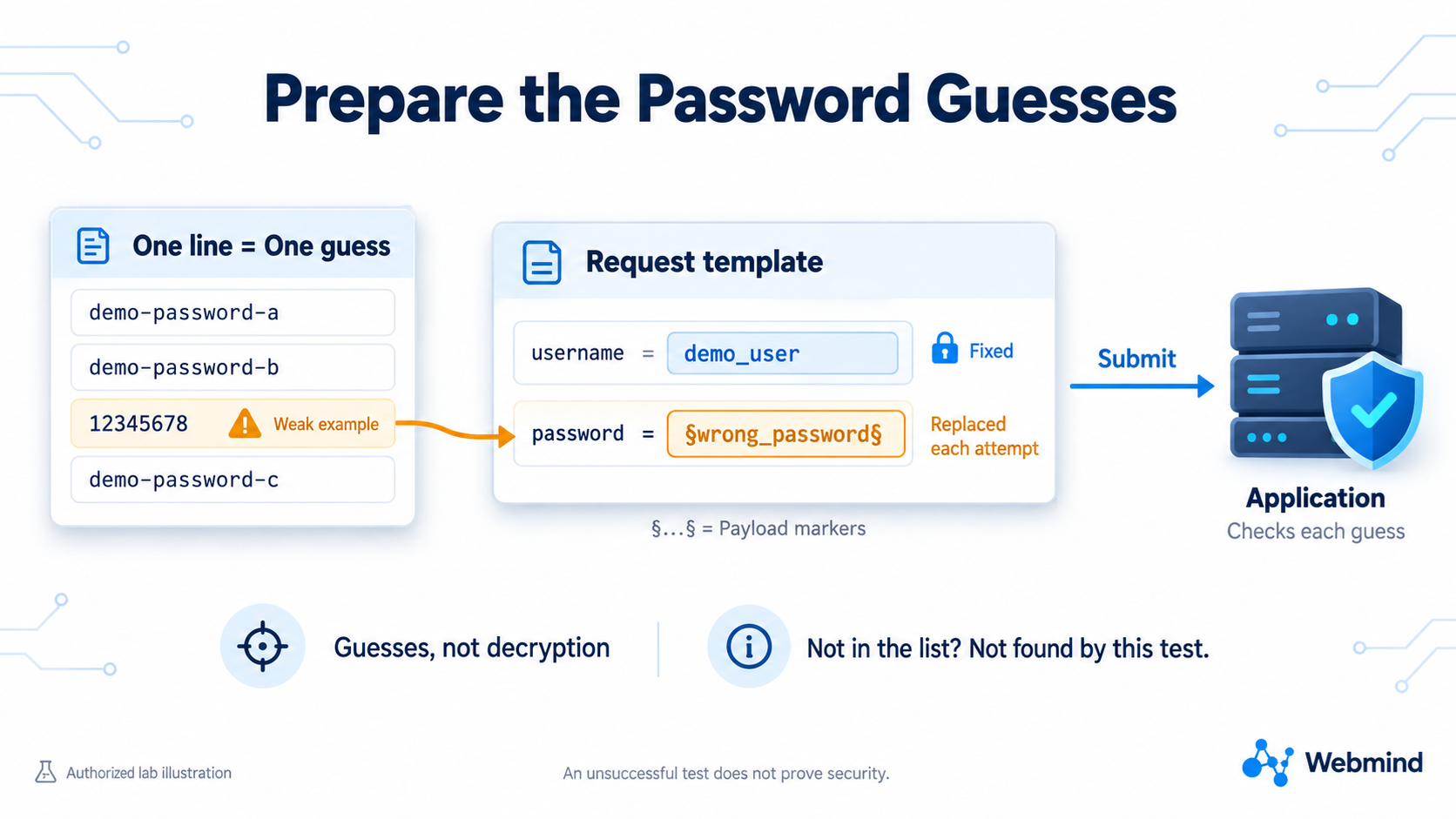
For a dictionary test against one demonstration account, the username remains fixed while the password changes.
A simplified Burp request template might look like this:
username=demo_user&password=§wrong_password§&submit=LoginThe username remains demo_user. The password value is the part selected for replacement.
The section symbols around wrong_password are payload markers. A payload is the candidate value inserted into the selected position. These markers identify where Burp would place each candidate password. They are tool annotations, not characters that belong in the submitted password.
A short demonstration password list could contain:
demo-password-a
demo-password-b
12345678
demo-password-c
Each line represents one guess. The predictable number sequence, 12345678, is deliberately weak. It is a teaching example, not a recommended password.
The list limits what the test can discover. If the correct password is absent, the list will not find it. An unsuccessful dictionary test therefore does not prove that an account is secure.
The tool does not decrypt the password. It submits guesses, and the application checks them through its normal authentication process. Session validity, form tokens, and restrictions on repeated attempts can affect whether a submission reaches password validation.
Chapter 5: Run the Test and Examine the Results
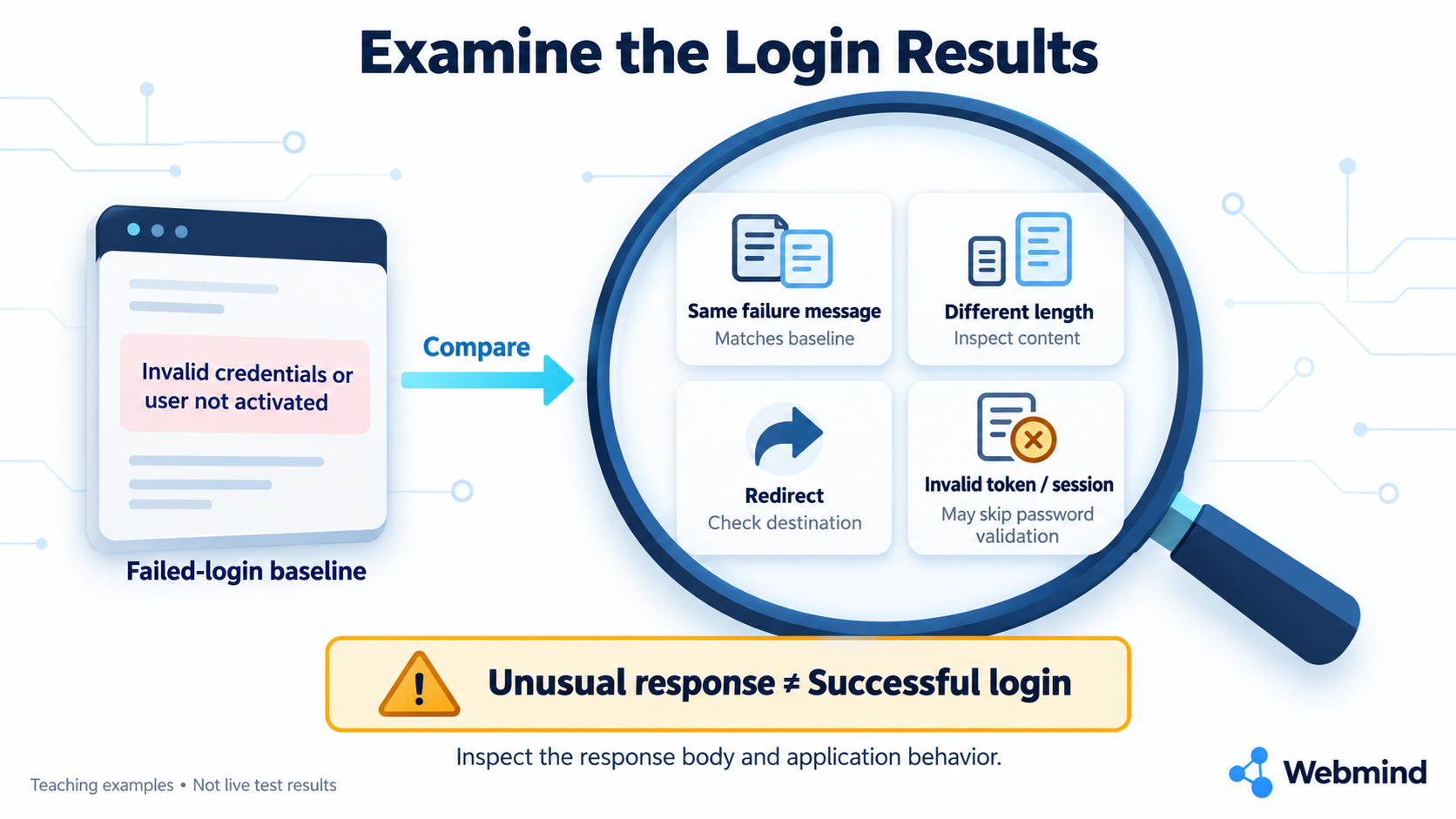
In an authorized lab, a tester can compare responses with the failed-login baseline.
One useful signal is whether a response contains the familiar failure message:
Invalid credentials or user not activated
A response containing this message appears consistent with the baseline. A response without it may deserve closer inspection, but the missing message alone does not establish that the password was accepted.
Other signals include response length, HTTP status information, and redirects. A missing failure message, a different response length, or a redirect can identify a response worth investigating. None of these signals proves successful authentication by itself.
The following examples illustrate how responses might be interpreted. These are teaching examples, not results from a live test.
- Contains the familiar failure message: Appears consistent with the failed-login baseline.
- Has a different response length: Inspect the content to determine what changed.
- Redirects to another page: Check the destination and the application’s behavior.
- Reports an invalid token or an expired session: The request may have been rejected before password validation.
An unusual response is a clue, not proof of successful authentication.
A different length could come from an error page or changing content. A redirect might lead to a dashboard, return to the login page, or request another verification step.
Even an HTTP response indicating successful request processing can contain a failed-login message. For example, an HTTP 200 OK response may deliver a page explaining that authentication failed.
Inspect the response body—the content returned by the application—and observe the application’s behavior. Expired sessions, invalid tokens, and restrictions on repeated attempts must also be considered before drawing a conclusion.
Chapter 6: Confirm the Result
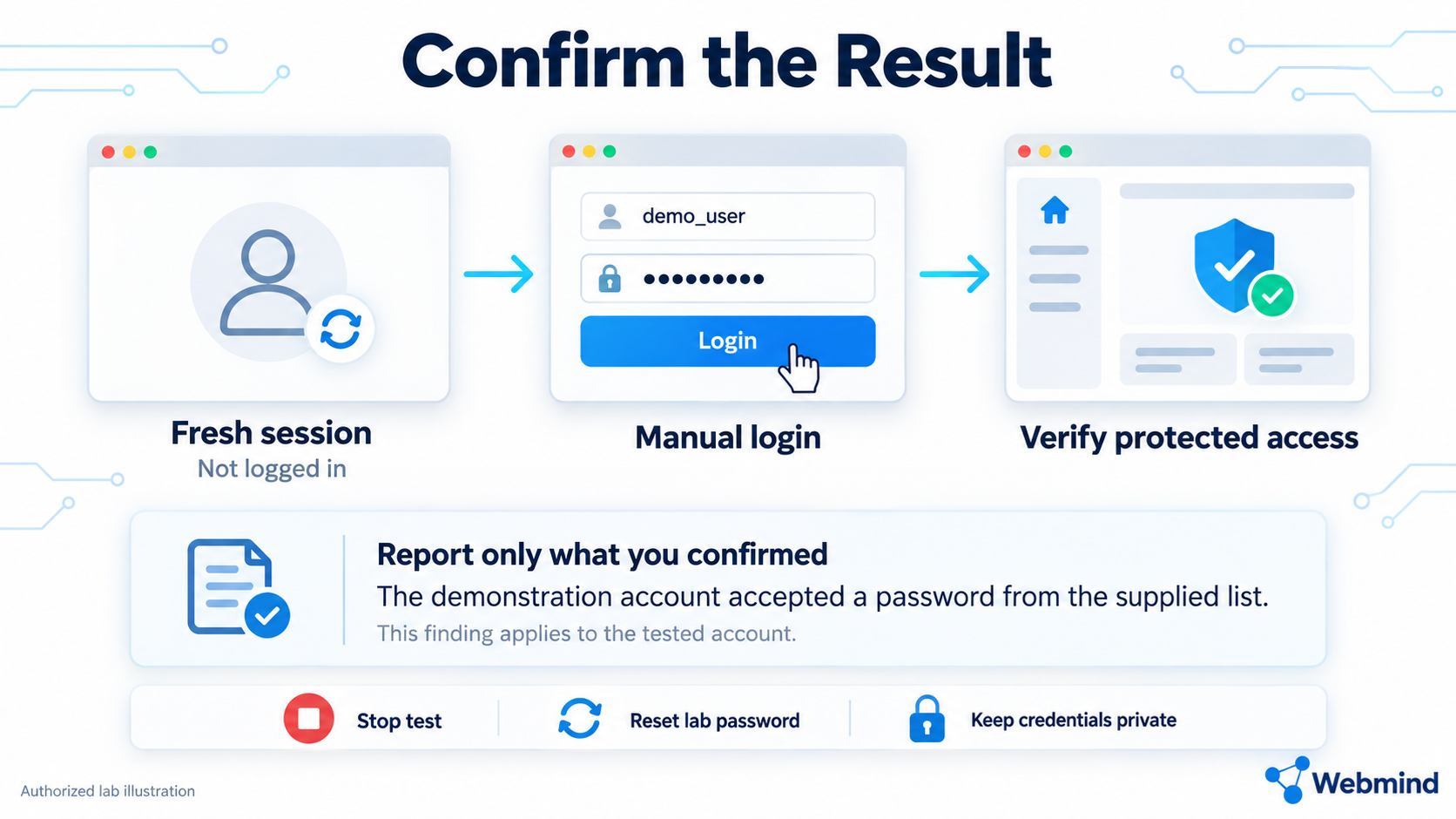
If a response suggests that a password was accepted, the next step in an authorized lab is manual verification.
Use a fresh, unauthenticated browser session. This means a session that is not already signed in to the demonstration account. Enter the demonstration username and candidate password through the normal login page.
Then check whether the application grants access to a page that requires authentication. If another verification step is required, reaching that step does not mean full access has been granted.
A fresh session matters because an existing login could make it appear that the candidate password worked when the browser was already authenticated.
If the finding is confirmed, report it precisely:
The demonstration account accepted a password from the supplied list.
This does not prove that every account is vulnerable or that arbitrary passwords can be discovered quickly. It describes the result for the tested account under the conditions of the exercise.
After the exercise, stop the test and reset the lab password. Never publish real passwords, session cookies, or sensitive tokens in screenshots or comments.
Chapter 7: Protect Your Website Against Password Guessing
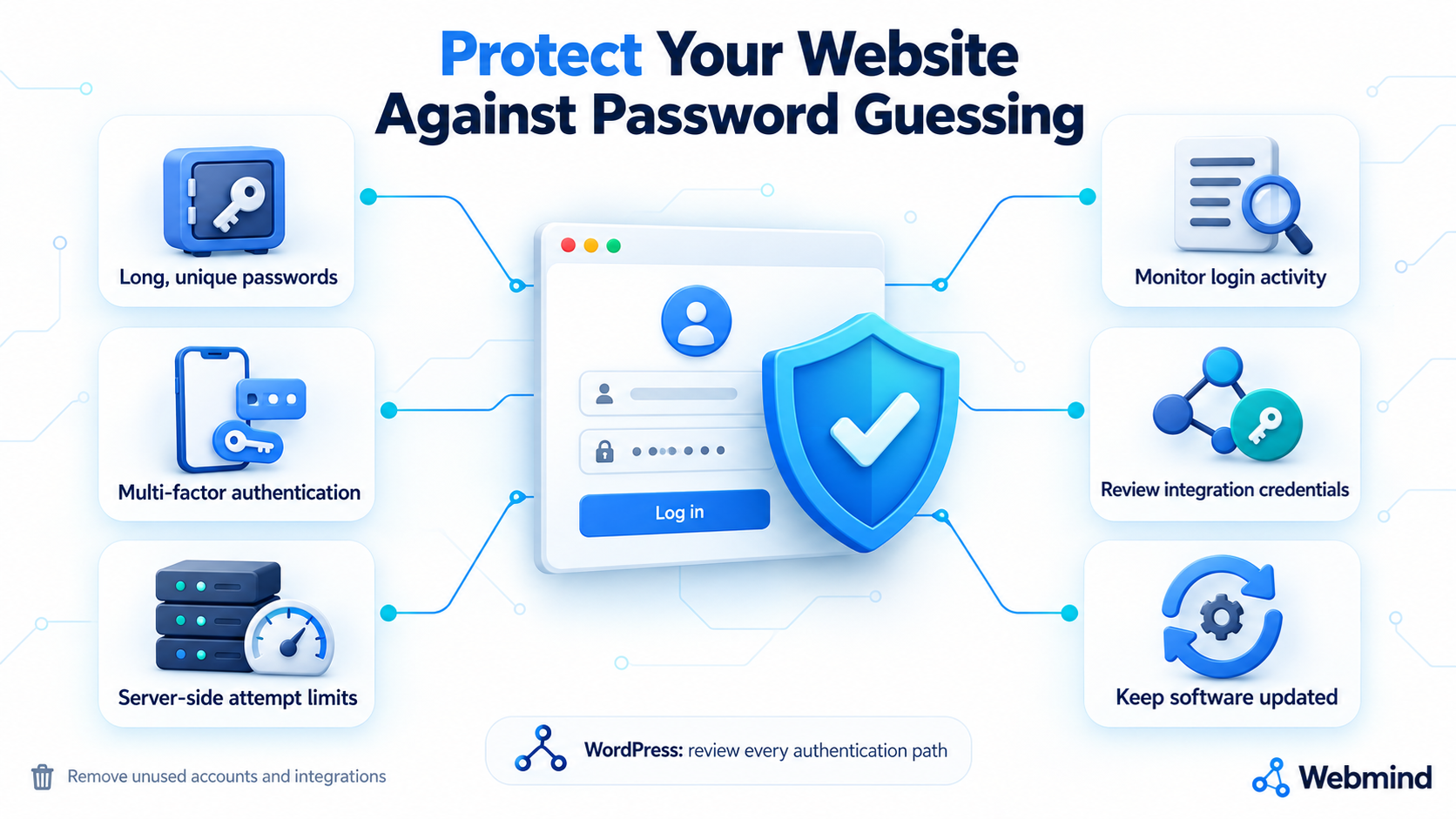
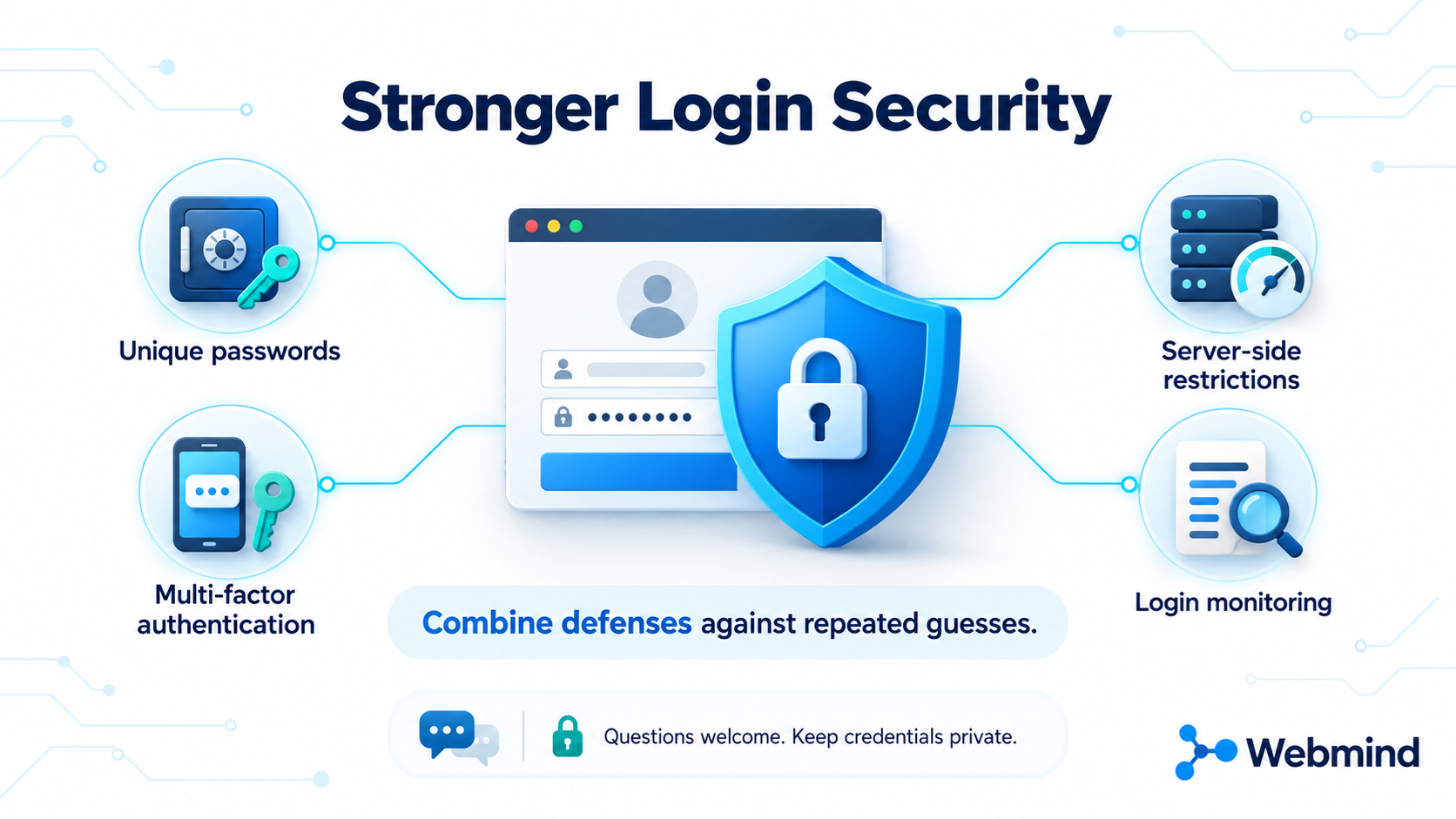
Password guessing becomes more dangerous when passwords are predictable, reused, or supported by insufficient login controls. Website owners should combine several protections.
- Use long, unique passwords. A password manager makes them easier to generate and store. Using a different password for each service also reduces the risk of credential stuffing when another service suffers a breach.
- Enable multi-factor authentication. This adds another requirement beyond the password and is especially important for administrator accounts.
- Restrict repeated login attempts on the server. A disabled button or browser-side delay cannot reliably enforce these restrictions because requests can be submitted without using that interface. The server must enforce limits on authentication attempts.
- Monitor authentication activity. Repeated failures and unexpected successful logins can provide useful signals for investigation. Protect authentication logs and avoid recording passwords or sensitive tokens.
Understand What Each Protection Does
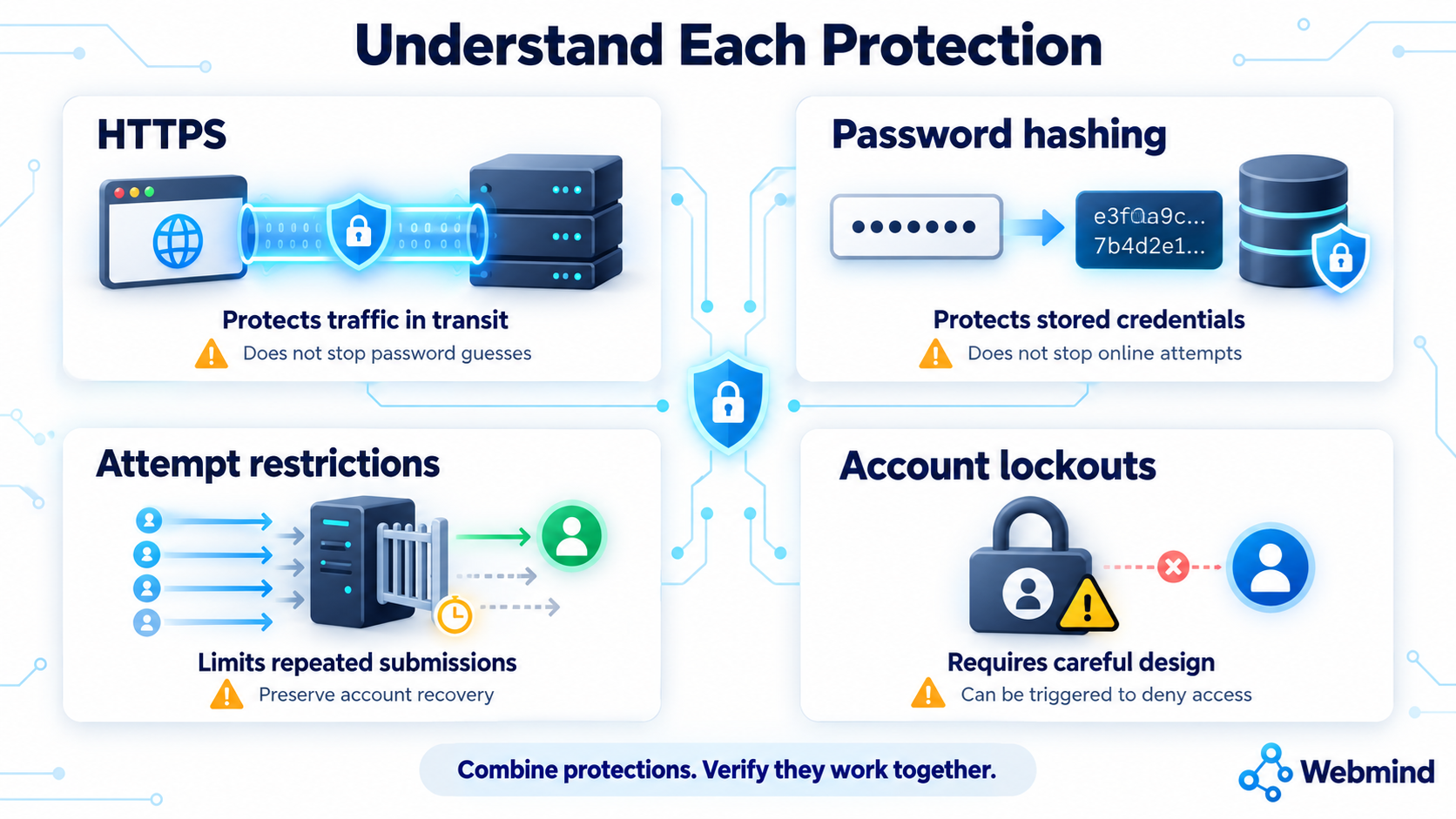
HTTPS protects traffic in transit between the browser and the server. It does not stop someone from submitting password guesses through a working login form.
Password hashing protects stored credentials. It allows an application to verify passwords without storing them as readable text. It does not prevent online guessing attempts. Secure password storage and login-attempt restrictions address different risks.
Review WordPress authentication paths and integration credentials. Protection on the normal login page may not cover authentication methods used by connected services. Review the paths your installation actually uses rather than assuming one login protection covers everything.
Design account lockouts carefully. Someone could deliberately trigger a lockout to prevent a legitimate user from signing in. Restrictions should reduce abuse while providing a secure way for legitimate users to recover access.
Maintain the website. Keep its software and components updated. Remove accounts and integrations that are no longer needed, and review the credentials and permissions of those that remain.
Effective security combines these measures and checks that they work together. No single setting replaces the others.
Conclusion
Brute force and related password-guessing attacks rely on repeated authentication attempts. Their success depends on password strength, the guesses selected, and the application’s defenses.
This article explained the failed-login baseline, login requests, password lists, response comparison, and manual verification through educational examples. An unusual response requires investigation, and a confirmed finding should be described within the limits of what was actually tested.
The practical lesson is to combine strong, unique passwords with additional authentication, server-side restrictions, and monitoring.
Questions are welcome in the comments. Share the behavior you observed or the concept you want explained, but keep passwords and other sensitive information private.