
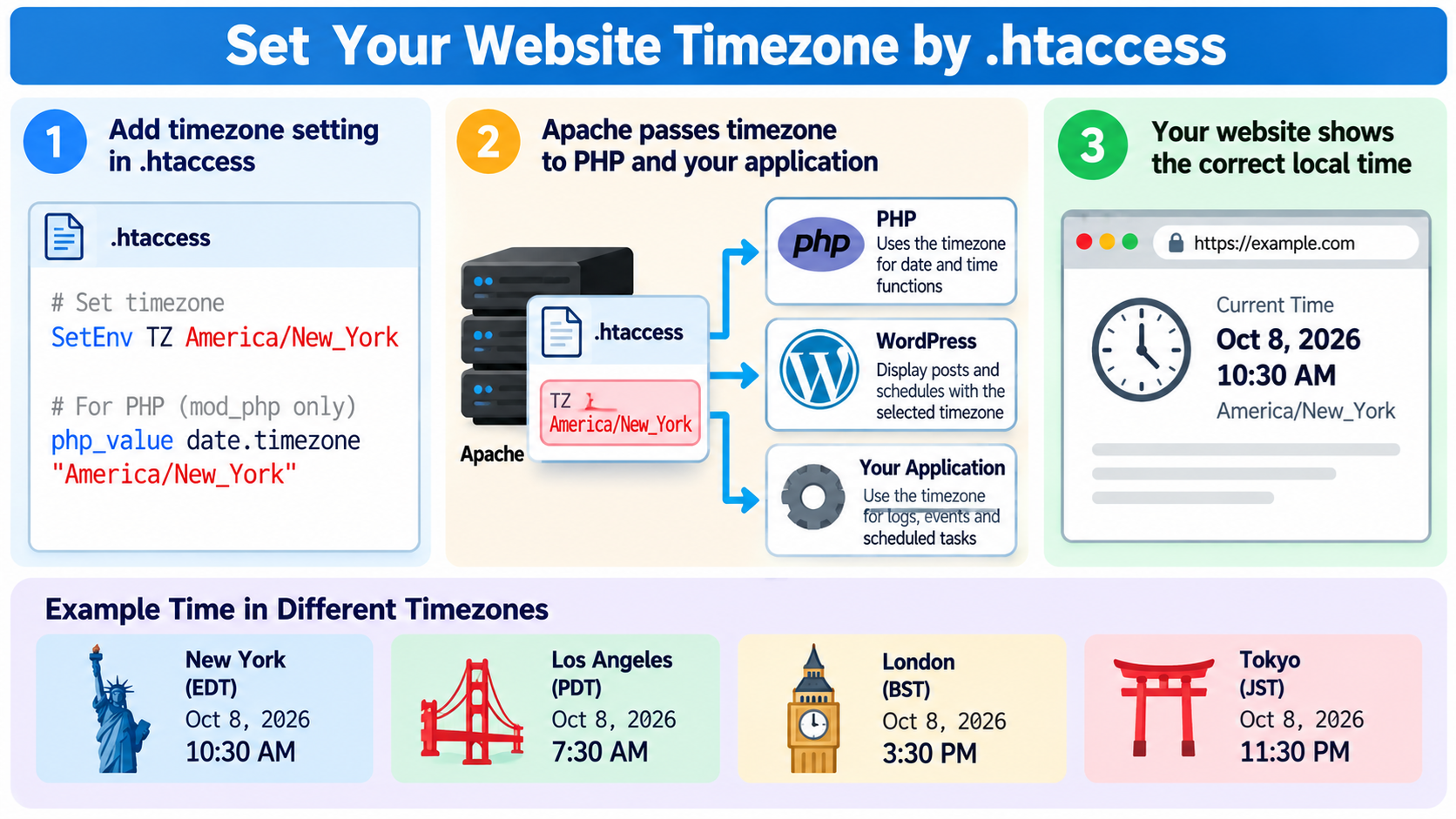
Have you ever noticed that the date and time displayed on your website do not match your local time?
Perhaps your PHP application shows the wrong time, your website logs use a different timezone, or scheduled tasks appear to run several hours earlier or later than expected.
This is a common issue, especially when your website is hosted on a server located in a different country or time zone.
For example, your website visitors may be located in New York, while your hosting server operates in a data center configured to use Coordinated Universal Time, or UTC.
Fortunately, some Apache hosting environments allow you to configure timezone-related settings through the .htaccess file.
However, there is an important distinction: changing an environment variable through .htaccess does not necessarily change the timezone used by PHP, WordPress, Apache logs, or the operating system.
We will explain how website timezones work, how to configure timezone information using .htaccess, how to set the PHP timezone, and why different hosting environments require different methods.
We will also cover WordPress timezone settings, daylight saving time, troubleshooting, and best practices for keeping website dates and times accurate.
What Is a Website Timezone?
A timezone defines how local date and time are calculated relative to a common time reference.
Computer systems frequently use UTC, which stands for Coordinated Universal Time, as a reference for storing and exchanging timestamps.
For example, if the UTC time is 20:00, the local time in New York could be 16:00 during daylight saving time or 15:00 during standard time.
The difference depends on the date because New York observes seasonal clock changes.
Other locations, such as Tokyo, use a fixed UTC offset throughout the year.
For example, Japan Standard Time is UTC+09:00.
When a website displays a date or time, software typically converts a timestamp into the timezone selected for the application or user.
The displayed value may depend on several settings, including the operating system timezone, PHP timezone, application configuration, and visitor preferences.
These settings do not always use the same timezone.
For example, a website may display local time in New York while its database stores timestamps in UTC.
This is normal and often desirable.
Why Does Your Website Display the Wrong Time?
A website can display an unexpected time for several reasons.
One common reason is that the server uses UTC while the application expects local time.
Another is that PHP has its own timezone setting that differs from the server’s operating system configuration.
A third possibility is that your content management system, such as WordPress, has a separate timezone setting.
For example, a hosting server may use UTC, PHP may be configured for UTC, and WordPress may be configured for America/Los_Angeles.
In this situation, WordPress can display dates according to its own settings even though the underlying server operates on UTC.
Problems can also occur when developers use fixed UTC offsets instead of timezone identifiers that automatically account for daylight saving time.
Incorrect timezone settings may affect scheduled posts, event calendars, application notifications, timestamp formatting, and other time-sensitive functionality.
However, it is important not to assume that every scheduling problem is caused by a timezone mismatch.
Some scheduled tasks depend on cron services, background workers, or application-specific scheduling mechanisms.
What Is the .htaccess File?
The .htaccess file is a directory-level configuration file supported by the Apache HTTP Server.
It allows website administrators to configure selected server behaviors without editing Apache’s main configuration files.
Depending on the hosting environment, .htaccess can control URL rewriting, redirects, access restrictions, caching, MIME types, and certain environment variables.
On many shared hosting accounts, the file is located in the website’s document root.
For example:
public_html/
.htaccess
index.php
about.html
images/
The file may already contain rules created by WordPress, a hosting control panel, or another application.
Before modifying it, download a backup.
Apache must also permit the relevant directives through its AllowOverride or AllowOverrideList configuration.
Important: Not every timezone setting can be changed using .htaccess. In particular, modern PHP-FPM hosting commonly requires PHP-specific configuration rather than Apache directives.
Step 1: Identify Your Website’s Current Timezone
Before changing anything, determine which part of your website is using the wrong timezone.
If your PHP application displays incorrect timestamps, investigate PHP’s timezone settings.
If WordPress posts appear at incorrect times, check the timezone configured inside the WordPress dashboard.
If Apache access logs display unexpected timestamps, investigate the server’s logging configuration.
These are different problems and may require different solutions.
For a PHP website, you can inspect the currently configured PHP timezone using:
date_default_timezone_get()
For example, create a temporary PHP file containing:
<?php
echo date_default_timezone_get();
?>
When executed, this displays the timezone PHP currently uses for its date and time functions.
It might return:
UTC
Or:
America/New_York
You can also display the current PHP local time using:
<?php
echo date('Y-m-d H:i:s T');
?>
Use these examples only in a controlled testing environment.
Remove temporary diagnostic files when you have finished testing, particularly if they expose server configuration information.
Step 2: Locate Your .htaccess File
If you use cPanel, open File Manager and navigate to your website’s document root.
On many shared hosting accounts, this directory is named public_html.
Look for:
.htaccess
Because the filename begins with a period, it may be hidden by default.
Enable the option to display hidden files if necessary.
You can also access the file through SFTP or SSH if your hosting provider supports these methods.
If the file already exists, download a backup before editing it.
If it does not exist, create a new plain-text file named exactly .htaccess.
Make sure the filename does not accidentally become .htaccess.txt.
Once you have located the file, you can examine which timezone configuration method is supported by your hosting environment.
Step 3: Set the TZ Environment Variable Using .htaccess
Apache provides a directive called SetEnv through its mod_env module.
This directive allows you to define environment variables that can be passed to supported modules, CGI programs, and Server Side Includes processing.
One environment variable commonly associated with timezone selection on Unix-like systems is TZ.
For example, you can add the following line to your .htaccess file:
SetEnv TZ America/New_York
This sets an Apache environment variable named TZ with the value America/New_York.
Other examples include:
SetEnv TZ America/Los_Angeles
SetEnv TZ America/Chicago
SetEnv TZ Europe/London
SetEnv TZ Asia/Tokyo
SetEnv TZ Australia/Sydney
For a website whose relevant CGI application needs Vancouver time, you might use:
SetEnv TZ America/Vancouver
These names are examples of timezone identifiers used by many operating systems and applications.
However, SetEnv TZ does not universally change the timezone used by PHP or your entire website.
It is a way to supply environment information to compatible components.
Whether that information changes how dates and times are interpreted depends on the application, interpreter, and operating environment.
Step 4: Understand What SetEnv TZ Actually Does
Consider the directive:
SetEnv TZ America/New_York
The SetEnv directive belongs to Apache’s mod_env module.
It defines an environment variable named TZ.
Apache can pass this variable to traditional CGI programs and make it available to certain server modules and SSI processing environments.
Some programs use TZ to determine how they interpret local time.
However, other programs ignore TZ or use their own timezone configuration.
For example, PHP’s date and time functions normally use PHP’s configured default timezone.
Therefore, defining TZ in .htaccess does not guarantee that date() will begin displaying New York time.
Similarly, WordPress has its own timezone setting.
Apache access logs may use timezone information determined by the server’s logging and operating-system configuration.
The most important lesson is that a timezone environment variable and an application timezone setting are not necessarily the same thing.
You should always test the behavior of the specific application you want to configure.
Step 5: Set PHP Timezone Using .htaccess with mod_php
If your website runs PHP through Apache’s PHP module, commonly called mod_php, you may be able to configure PHP’s default timezone directly through .htaccess.
The relevant PHP configuration directive is date.timezone.
For example:
php_value date.timezone "America/New_York"
This tells compatible mod_php configurations to use America/New_York as the PHP default timezone.
Other examples include:
php_value date.timezone "America/Los_Angeles"
php_value date.timezone "Europe/London"
php_value date.timezone "Asia/Tokyo"
php_value date.timezone "America/Vancouver"
After saving the configuration, PHP’s date and time functions may use the selected timezone unless the application overrides it.
For example, a PHP application calling date() can format its output using the configured timezone.
However, this method only works when PHP is integrated with Apache in a way that supports php_value directives.
Do not use php_value in .htaccess unless you have confirmed that your hosting environment supports it.
Many modern Apache hosting environments use PHP-FPM instead of mod_php.
In those environments, adding php_value to .htaccess can cause a 500 Internal Server Error.
Step 6: What If Your Website Uses PHP-FPM?
PHP-FPM stands for PHP FastCGI Process Manager.
It is widely used by modern web hosting platforms to manage PHP worker processes.
When PHP runs through PHP-FPM, Apache does not normally control PHP configuration through php_value directives in .htaccess.
This means the following directive may not work:
php_value date.timezone "America/New_York"
Instead, PHP-FPM hosting generally uses PHP configuration files, hosting control panel settings, or PHP-FPM pool configuration.
One supported method in many CGI/FastCGI PHP environments is a per-directory configuration file named .user.ini.
For example, you may create:
public_html/.user.ini
And add:
date.timezone = "America/New_York"
This configures the default PHP timezone for applicable PHP scripts when .user.ini processing is supported.
The exact behavior depends on PHP’s configuration and the hosting provider.
PHP also caches .user.ini configuration for a specified period, so changes may not become effective immediately.
The default user_ini.cache_ttl setting is commonly 300 seconds.
Your hosting provider may also provide a MultiPHP INI Editor or another PHP settings interface.
If available, the hosting control panel may be the easiest way to configure the PHP timezone.
Step 7: Set the PHP Timezone Using php.ini
If your hosting environment permits PHP configuration changes, you can set the timezone using php.ini.
The relevant configuration directive is:
date.timezone = "America/New_York"
This tells PHP to use the specified timezone as its default.
Other valid examples include:
date.timezone = "UTC"
date.timezone = "Europe/London"
date.timezone = "Asia/Tokyo"
date.timezone = "America/Vancouver"
This approach is generally preferable to relying on an Apache environment variable when the objective is to change PHP’s default timezone.
However, the location and scope of php.ini depend on how PHP is installed.
Some shared hosting providers do not permit customers to edit the main PHP configuration.
Others support account-level or directory-specific settings.
After making changes, confirm the result using date_default_timezone_get().
Step 8: Set the Timezone Directly in PHP
Another reliable method is to configure the timezone inside the PHP application itself.
PHP provides a function named:
date_default_timezone_set()
For example:
<?php
date_default_timezone_set('America/New_York');
echo date('Y-m-d H:i:s T');
?>
This explicitly sets the default timezone for date and time functions in the current PHP execution context.
The function is useful when your application needs a timezone different from the server’s global default.
For example, a scheduling application serving customers in New York may want to format certain dates using America/New_York even if the server uses UTC.
However, application-level timezone handling should be designed consistently.
Avoid repeatedly changing global timezone settings throughout unrelated parts of a large application.
For many modern applications, it is better to represent times using UTC or timezone-aware date objects and convert them for display when necessary.
Step 9: How to Set the Timezone in WordPress
WordPress has its own timezone configuration.
If your objective is to change the timezone used for WordPress posts, scheduling, and date display, you normally should not use .htaccess at all.
Instead, log in to your WordPress administration dashboard.
Navigate to:
Settings → General → Timezone
Select the city corresponding to your desired timezone.
For example, if your website is managed according to Vancouver time, select Vancouver.
If your website operates according to New York time, select New York.
Save the changes.
WordPress uses its timezone setting for several application-level operations, including date formatting and scheduled publishing.
Using a city-based timezone is usually preferable to selecting a fixed UTC offset because the city-based timezone can account for daylight saving transitions.
For example, America/Vancouver follows the applicable Pacific timezone rules.
WordPress’s timezone configuration is separate from the operating system timezone and the PHP default timezone.
Changing PHP’s date.timezone setting does not necessarily change the timezone used by WordPress.
If WordPress is your only concern, start with its built-in settings before modifying server configuration files.
Step 10: Understanding UTC and Local Time
UTC provides a common reference for recording timestamps across different systems.
For example, imagine that your server stores a timestamp representing 20:00 UTC.
A visitor in New York may see that moment displayed as 16:00 during daylight saving time.
A visitor in Vancouver may see 13:00 during daylight saving time.
A visitor in Tokyo may see 05:00 on the following calendar day.
These values represent the same moment in time.
The differences arise because each location uses a different timezone.
This is why many applications store timestamps in UTC and convert them when displaying information to users.
Using UTC for storage can simplify comparisons across locations.
However, local civil times are still important for scheduling events, appointments, and publishing content.
For example, an event scheduled for 9:00 AM every Monday in Vancouver should normally be represented using the appropriate timezone identifier, not a permanently fixed UTC offset.
Step 11: Why You Should Use Timezone Identifiers Instead of Fixed Offsets
A timezone identifier describes a geographical timezone and its applicable rules.
Examples include:
America/New_York
America/Vancouver
Europe/London
Asia/Tokyo
These identifiers are based on the IANA Time Zone Database, which is widely used by operating systems and software applications.
In contrast, a fixed offset such as UTC-08:00 does not automatically represent seasonal changes.
For example, Vancouver has historically observed standard time and daylight saving time, producing different UTC offsets during the year.
If you use a fixed offset when the locality observes seasonal changes, displayed event times may be incorrect during part of the year.
Timezone identifiers allow software with an up-to-date timezone database to apply the relevant rules for the selected location and date.
This is particularly important for websites with appointment scheduling, booking systems, publishing schedules, or international users.
Step 12: Does Changing .htaccess Affect Apache Access Logs?
One common misconception is that adding a TZ environment variable to .htaccess automatically changes the timezone used in Apache access logs.
For example:
SetEnv TZ America/New_York
does not guarantee that Apache’s access log timestamps will use New York time.
Apache logs are generated by the server’s logging subsystem.
Their timestamp formatting and timezone behavior depend on the Apache configuration and the operating environment.
The CustomLog and LogFormat directives are used to control access logging at the appropriate server configuration level.
If you manage a VPS or dedicated server, you can review those settings directly.
If you use shared hosting, your hosting provider usually controls the logging configuration.
For centralized logging and incident analysis, UTC timestamps are often preferable because they reduce confusion when events are collected from servers in different regions.
You can then convert timestamps into local time when displaying or analyzing them.
Step 13: Does Changing the Timezone Affect Cron Jobs?
Not necessarily.
Linux cron jobs are scheduled by the cron service or another task scheduler according to its own configuration.
Changing a website’s .htaccess file does not automatically change the timezone used by system cron.
Likewise, changing PHP’s date.timezone setting does not necessarily change when a system cron job starts.
For example, a cron entry scheduled for a particular hour may use the timezone configured for the cron daemon or supported scheduling environment.
WordPress also has its own scheduling mechanism, commonly known as WP-Cron.
WP-Cron is not identical to the operating system’s cron service.
WordPress scheduled events use application timing information, and execution also depends on the site’s scheduling mechanism and whether tasks are triggered successfully.
If scheduled tasks run at unexpected times, investigate the scheduler itself rather than assuming that .htaccess controls it.
For reliable scheduled operations, identify the timezone and timing rules used by the specific scheduling system.
Step 14: Test Your Timezone Configuration
After changing a timezone setting, verify the result rather than assuming the configuration worked.
For PHP, you can create a temporary diagnostic file containing:
<?php
echo 'Timezone: ' . date_default_timezone_get();
echo '<p>Local time: ' . date('Y-m-d H:i:s T') . '</p>';
echo '<p>UTC time: ' . gmdate('Y-m-d H:i:s') . ' UTC</p>';
?>
The first line displays the default PHP timezone.
The second displays a formatted date using PHP’s configured timezone.
The third displays the corresponding UTC time.
If you expected America/New_York but the timezone still reports UTC, your configuration may not have taken effect.
Check whether PHP is running through mod_php, PHP-FPM, or another execution mechanism.
If you modified .user.ini, allow for its configuration cache or follow the hosting provider’s recommended procedure for applying changes.
If you changed WordPress’s timezone, test it through WordPress settings and actual WordPress date displays rather than relying solely on a standalone PHP diagnostic script.
After testing, delete the diagnostic file.
Step 15: Common Timezone Configuration Problems
1. The Website Returns a 500 Internal Server Error
This commonly happens when an unsupported PHP directive is added to .htaccess.
For example, the following may fail under PHP-FPM:
php_value date.timezone "America/New_York"
If your website stops working after adding the directive, restore the original .htaccess configuration.
Check your Apache error log and determine whether your server supports mod_php configuration directives.
2. SetEnv TZ Does Not Change PHP Time
This is a common and expected limitation.
Apache’s SetEnv directive sets an environment variable, but PHP’s timezone functions normally rely on PHP-specific configuration.
Use date.timezone in a supported PHP configuration file or date_default_timezone_set() in your application.
3. The PHP Timezone Is Correct but WordPress Time Is Wrong
WordPress maintains its own timezone setting.
Navigate to Settings → General and verify the selected timezone.
Do not assume that changing the PHP default timezone will update WordPress’s application timezone.
4. The Time Is Off by One Hour
A one-hour difference may indicate a daylight saving time issue.
Check whether you are using a fixed UTC offset instead of a location-based timezone identifier.
Also verify that the operating system and application’s timezone data are reasonably up to date.
5. The Time Is Correct on the Website but Wrong in Server Logs
Website output and Apache logging may use different timezone settings.
Review the server’s logging configuration or consult the hosting provider.
Changing .htaccess does not guarantee that logging timestamps will change.
6. Scheduled Posts Publish at Unexpected Times
For WordPress, verify the timezone in Settings → General.
Also check whether scheduled tasks are executing reliably.
A scheduling problem may involve WP-Cron or another task runner rather than the timezone itself.
7. The Timezone Setting Changes but Some Pages Still Show Old Times
Caching may be involved.
A full-page cache, CDN, or application cache may continue serving previously generated content.
Check whether the affected page is cached and refresh the relevant cache if necessary.
Also confirm that all parts of the application use consistent timezone conversion logic.
Step 16: Security and Performance Considerations
Timezone configuration is not normally a major security risk, but incorrect time handling can create operational problems.
For example, authentication systems may rely on timestamps for session expiration and token validity.
Logs from different services need consistent timestamps to support incident investigation.
Scheduled tasks can behave unexpectedly if their timing assumptions are incorrect.
A secure application should use accurate system clocks and reliable time synchronization.
On Linux servers, time synchronization is commonly managed using services such as chrony or systemd-timesyncd, depending on the operating system.
However, changing a timezone does not change the actual current moment or correct an inaccurate system clock.
It changes how timestamps are interpreted or displayed.
If the server’s clock is wrong, the underlying clock synchronization problem must be resolved separately.
Step 17: Best Practices for Website Timezone Management
For most websites, use UTC for backend timestamps when appropriate and convert them into the desired local timezone for display.
Use recognized timezone identifiers rather than hard-coded offsets for locations with seasonal time changes.
For PHP applications, configure date.timezone through a supported PHP mechanism.
For WordPress, use the built-in timezone setting under Settings → General.
Avoid adding php_value directives to .htaccess unless your environment actually supports mod_php.
If you use Apache’s SetEnv TZ directive, verify that the intended application or CGI program reads and respects the environment variable.
For scheduling systems, identify the timezone used by the scheduler rather than relying on unrelated website settings.
Finally, test your date and time displays after changing hosting providers, PHP versions, application frameworks, or server configurations.
Frequently Asked Questions
Can I set my website timezone using .htaccess?
In some Apache hosting environments, yes.
You can set the TZ environment variable using SetEnv, and compatible mod_php environments may support the php_value date.timezone directive.
However, the correct method depends on which application or runtime uses the timezone.
What does SetEnv TZ do?
It defines an Apache environment variable named TZ.
Compatible programs may use that variable to interpret local time, but it does not universally change PHP, WordPress, Apache logs, or the operating system timezone.
Can I use php_value date.timezone in .htaccess?
Only when the hosting environment supports PHP configuration through Apache, typically with mod_php.
It generally does not work with PHP-FPM and may produce a 500 Internal Server Error.
How do I change the PHP timezone on PHP-FPM hosting?
Use a supported PHP configuration mechanism such as php.ini, .user.ini, hosting control panel settings, or the relevant PHP-FPM configuration.
The exact method depends on your hosting provider.
What timezone should I use for WordPress?
Choose the timezone that matches your website’s publishing or operational requirements.
For example, select the appropriate city in WordPress Settings → General → Timezone.
City-based selections are usually preferable to fixed offsets.
Does changing the timezone affect existing database timestamps?
Changing the display timezone does not automatically rewrite stored timestamps.
However, applications may interpret or display those values differently after the change.
Review your application’s timestamp storage conventions before changing its timezone behavior.
Does .htaccess change the Linux server timezone?
No.
The operating system timezone is configured separately through system-level settings.
Does changing the timezone automatically fix cron jobs?
No.
Cron and other scheduling systems may use separate timezone and execution settings.
Check the scheduler’s configuration.
Do I need to restart Apache after changing .htaccess?
Normally, permitted .htaccess changes are applied without restarting Apache.
However, modifications to PHP-FPM or other server-level configuration may require a service reload or another hosting-specific procedure.
Does Nginx support .htaccess timezone settings?
No.
Nginx does not interpret Apache .htaccess files.
Use an appropriate PHP, application, or server configuration method instead.
Conclusion
Setting the correct timezone is important for websites that display dates, manage scheduled content, or process time-sensitive information.
Apache provides the SetEnv directive, which can be used to supply timezone-related environment information to compatible applications.
For example:
SetEnv TZ America/New_York
However, this does not guarantee that every website component will use the selected timezone.
For PHP applications running through compatible mod_php configurations, you may be able to use:
php_value date.timezone "America/New_York"
For PHP-FPM hosting, a supported .user.ini configuration might contain:
date.timezone = "America/New_York"
And for WordPress websites, the recommended method is normally to change the timezone directly under Settings → General → Timezone.
The most important point is to identify which component actually controls the date and time you want to change.
Apache environment variables, PHP configuration, WordPress settings, operating system clocks, and scheduled tasks are separate components that may use different timezone rules.
By selecting the appropriate timezone identifier and applying the configuration at the correct level, you can maintain consistent dates, accurate scheduling, and more predictable website behavior.