
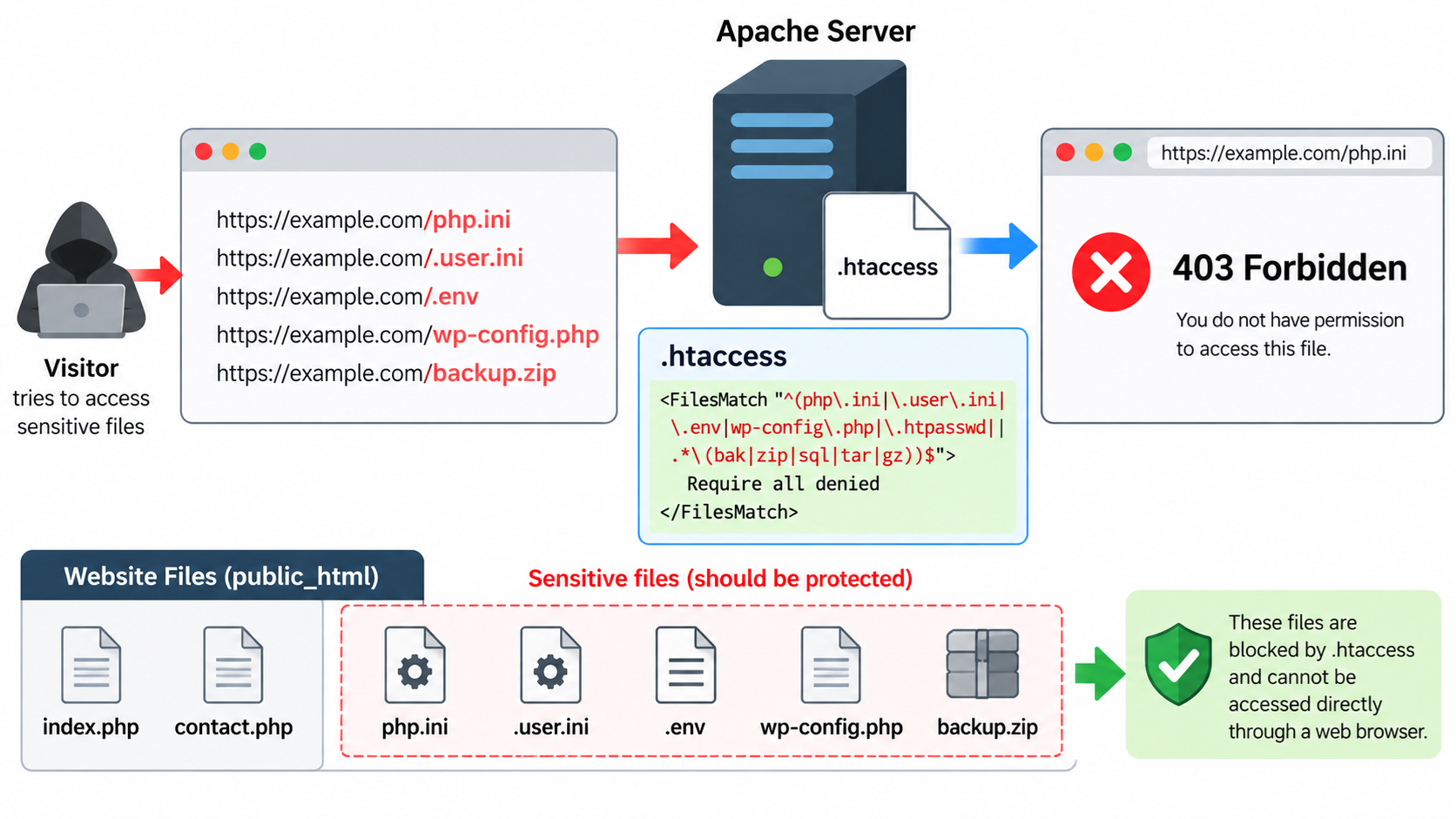
Every website contains files that should never be accessible to the public.
Some files control PHP settings, others contain database credentials, application configuration, backup information, or debugging data.
If these files are accidentally exposed, attackers may obtain valuable information about your website and hosting environment.
One example is the php.ini file, which is commonly used to configure PHP behavior.
Other potentially sensitive files include .user.ini, .env, database configuration files, backup archives, and application log files.
Fortunately, Apache provides a simple way to restrict HTTP access to these files using an .htaccess file.
We will explain how to protect php.ini and other sensitive files, how to test your configuration, and what additional precautions you should take to keep your website secure.
What Is a php.ini File?
The php.ini file is a configuration file used by PHP to control various aspects of the PHP runtime environment.
Depending on the hosting configuration, PHP settings may determine the maximum file upload size, memory limits, error reporting behavior, execution time limits, session handling, and other runtime features.
For example, a php.ini file might contain settings similar to the following:
memory_limit = 256M
upload_max_filesize = 64M
max_execution_time = 60
display_errors = Off
These are example values rather than recommended settings for every website.
The actual location of php.ini depends on how PHP is installed and managed.
On some servers, the primary configuration file is located outside the website’s public document root.
On shared hosting systems, users may also encounter local PHP configuration files.
Another important file is .user.ini, which PHP can use for per-directory configuration when supported by the active PHP runtime.
Although these configuration files may not contain passwords, they can reveal technical details about the hosting environment.
Such information should not be exposed unnecessarily.
Also, some configuration files may contain sensitive values or refer to private filesystem locations.
For these reasons, PHP configuration files should be kept outside publicly accessible directories whenever practical.
Why Should Sensitive Files Be Protected?
When someone visits a website, the web server maps the requested URL to an application endpoint or a resource it can serve.
For example, a request for https://example.com/images/logo.png may return an image stored inside the website’s document root.

However, if a sensitive configuration file or backup archive is stored in the same publicly accessible directory, someone may attempt to retrieve it directly.
For example:
https://example.com/php.ini
https://example.com/.user.ini
https://example.com/.env
https://example.com/backup.zip
Whether these requests succeed depends on the web server configuration and other security controls.
Attackers frequently use automated tools to search websites for exposed configuration files, backup archives, development files, and other sensitive resources.
Some files, particularly .env files, may contain database passwords, API credentials, or other application secrets.
Backup archives can be even more dangerous because they may contain complete copies of application code, configuration files, and database exports.
Preventing direct HTTP access to these resources is therefore an important part of website security.
Step 1: Locate Your .htaccess File
If your website is hosted on Apache, you can often use an .htaccess file to configure access restrictions.
Log in to your hosting account using cPanel File Manager, SFTP, or SSH.
Navigate to your website’s document root. For many cPanel installations, this directory is named public_html.
Look for an existing file named .htaccess.
Because filenames beginning with a dot are often hidden, you may need to enable the option to display hidden files.
If the file already exists, create a backup before modifying it.
WordPress and other web applications often use .htaccess to manage URL rewriting, redirects, or other server behavior.
Be careful not to remove or damage existing application rules.
If you need to create the file, make sure its name is exactly .htaccess, including the leading dot.
The following examples use Apache 2.4 authorization syntax. They require the hosting provider to permit the relevant directives in .htaccess files.
Step 2: Block Direct Access to php.ini
The simplest way to protect a specific file is to use Apache’s Files directive.
Open your .htaccess file and add the following configuration:
<Files "php.ini">
    Require all denied
</Files>
Save the file.
This rule instructs Apache to deny HTTP access to files named php.ini within the applicable directory scope.
If someone attempts to request:
https://example.com/php.iniApache should normally return an HTTP 403 Forbidden response instead of serving the file.
The Require all denied directive is part of Apache 2.4’s authorization system.
It denies access to the matching resource regardless of the visitor’s IP address.
The Files directive identifies the filename to which the restriction applies.
This configuration does not delete php.ini or change its PHP settings. It only restricts HTTP access through Apache.
Also, it does not prevent PHP itself from reading configuration files when its runtime configuration and filesystem permissions allow that access.
Step 3: Protect php.ini and .user.ini Together
Some hosting environments use .user.ini files to configure PHP settings on a per-directory basis.
Unlike the main php.ini file, a .user.ini file may be placed within a website directory, depending on the PHP installation and hosting setup.
To protect both files, use Apache’s FilesMatch directive.
Add the following configuration to your .htaccess file:
<FilesMatch "^(php\.ini|\.user\.ini)$">
    Require all denied
</FilesMatch>
This rule denies direct HTTP requests for files named php.ini or .user.ini.
FilesMatch differs from Files because it uses a regular expression to match filenames.
In this example, the expression checks for either of the two specified filenames.
The backslash before each dot ensures that the dot is interpreted literally rather than as a regular-expression wildcard.
The beginning and ending anchors ensure that only the intended filenames are matched.
Once the rule is active, requests for these files should normally return a 403 Forbidden response.
You do not need to retain the separate php.ini rule from Step 2 if you use this combined rule instead.
Step 4: Protect Other Sensitive Configuration Files
Besides PHP configuration files, websites may contain several other files that should not be publicly accessible.
Common examples include .env files used to store application environment settings, .htpasswd files used for authentication, .gitignore files associated with development projects, and configuration files such as database.ini.
A broader Apache rule can protect a selected group of filenames.
For example:
<FilesMatch "^(php\.ini|\.user\.ini|\.env|\.env\..*|\.htpasswd|database\.ini)$">
    Require all denied
</FilesMatch>
This rule protects the named files and common .env filename variations, including .env.production and .env.local.
The rule applies to matching filenames within the relevant directory scope.
You should customize the protected filenames according to the files used by your application.
Avoid adding a large collection of arbitrary extensions without considering whether legitimate website resources might be affected.
For example, XML, JSON, TXT, and YAML files may be sensitive in some applications, but they may also be intentionally published as ordinary website resources.
Blocking every file with these extensions could interfere with normal website functionality.
It is better to identify actual private files and protect them deliberately.
Step 5: Protect Hidden Files
On Linux and Unix-like systems, filenames beginning with a dot are commonly called hidden files.
Examples include .env, .gitignore, .htpasswd, and .user.ini.
Some of these files contain sensitive application information or reveal details about development and deployment practices.
Apache’s official security guidance recommends restricting access to hidden files while allowing specific exceptions where necessary.
For example, the following directive can deny access to filenames beginning with a dot, except those beginning with .well-known:
<FilesMatch "^\.(?!well-known)">
    Require all denied
</FilesMatch>
This rule protects many hidden files from direct HTTP access.
The exception is important because some websites use a .well-known directory for standards-based resources, including certain domain verification mechanisms.
However, the exception does not mean that every file inside .well-known is automatically safe or must be publicly accessible.
You should also understand that FilesMatch evaluates filenames rather than protecting entire directory trees solely by their names.
For example, blocking a file named .git does not automatically guarantee that every resource inside a .git directory is inaccessible.
Sensitive directories should be protected separately or, preferably, kept outside the public document root.
Similarly, a rule protecting hidden filenames does not automatically protect ordinary filenames such as php.ini or backup.zip.
For broader protection, use appropriate rules for both hidden files and explicitly named sensitive files.
Step 6: Protect Backup Files
Website administrators sometimes create backup files before updating WordPress, changing PHP code, or modifying configuration files.
Common backup filenames may include:
config.php.bak
database.sql
website-backup.zip
old-site.tar.gz
These files can contain highly sensitive information.
For example, a database backup may contain user account information, password hashes, website content, and application settings.
A backup of PHP source code may contain database connection details or other sensitive configuration values.
As an additional precaution, Apache can restrict access to common backup filename extensions.
For example:
<FilesMatch "\.(bak|backup|old|orig|sql|tar|tgz|gz|zip|7z)$">
    Require all denied
</FilesMatch>
This rule blocks direct HTTP access to files ending with the specified extensions.
However, it also blocks legitimate downloads using those extensions.
If your website provides ZIP archives or other downloadable files, this rule may interfere with normal operations.
For that reason, do not apply the rule indiscriminately to websites that offer public downloads.
A better solution is to store backup files outside public_html or another publicly accessible document root.
Also, regular-expression rules based on filename extensions cannot detect every possible backup filename.
Renaming a sensitive archive does not make it secure, and storing backups in a publicly accessible directory remains risky even when some extensions are blocked.
Step 7: Protect an Entire Private Directory
If you maintain a directory containing only private configuration files or backups, you can block access to the entire directory.
Suppose your website contains:
public_html/
    index.php
    private/
        database.ini
        credentials.txt
        backup.sql
Create an .htaccess file inside the private directory and add:
Require all deniedThis directive denies HTTP access to resources within that directory, subject to the effective Apache configuration.
For example, requests such as:
https://example.com/private/database.ini
https://example.com/private/backup.sql
should normally return a 403 Forbidden response.
PHP scripts may still be able to access these files internally through filesystem operations, provided they have the necessary permissions.
This approach is generally easier to maintain than protecting many individual filenames.
However, it is still preferable to store truly private files outside the website’s document root when possible.
Step 8: Test Your Configuration
After adding the required .htaccess directives, test your website.
First, open the website’s homepage and several important pages to make sure they continue to work.
Next, attempt to request a protected file through a browser.
For example:
https://example.com/php.iniIf the access rule is active and the request reaches Apache, the expected response is normally:
403 ForbiddenYou can also use curl to inspect the HTTP status code.
For example:
curl -I https://example.com/php.iniThe response may begin with:
HTTP/1.1 403 ForbiddenThe actual HTTP version and additional response headers may vary.
If you receive a 404 Not Found response, the requested file may not exist, or another server or application configuration may be handling the request.
A 404 response alone does not prove that a sensitive file would be protected if it existed.
To verify your access restrictions safely, consider creating a harmless temporary test file that matches the intended filename pattern.
Do not place real credentials or sensitive information inside it.
Confirm that direct HTTP access is denied, then remove the temporary test file.
If your website uses Cloudflare, another CDN, or a reverse proxy, the externally visible response may be affected by that intermediary.
For an accurate assessment, verify the effective protection at the origin server as well as the public website.
What If You Receive a 500 Internal Server Error?
An HTTP 500 Internal Server Error may occur if Apache does not permit one of the directives used in your .htaccess file.
For example, the hosting provider may restrict which configuration directives are available through per-directory override files.
Apache controls these permissions using server-level settings such as AllowOverride and AllowOverrideList.
The Require directive belongs to the AuthConfig override class, while FilesMatch also has its own configuration requirements.
If the appropriate override permissions are not enabled, Apache may reject the configuration.
If your website stops working immediately after adding a rule, restore the original .htaccess file and inspect the Apache error log if you have access.
Do not keep adding new directives until the original configuration error has been identified.
If you use shared hosting, contact your hosting provider if you cannot determine whether the required directives are permitted.
If you manage your own VPS or dedicated server, you may prefer to place security restrictions directly in the Apache virtual host or directory configuration.
Apache’s own documentation generally favors main server configuration over .htaccess when the administrator controls the server.
Apache 2.4 vs. Older Apache Versions
Older Apache 2.2 configurations commonly used directives such as:
Order allow,deny
Deny from all
These directives belong to the older Apache access control system.
Modern Apache 2.4 configurations should generally use:
Require all deniedThe Apache 2.4 authorization model is clearer and provides more consistent access control behavior.
Although compatibility modules may support older syntax, new configurations should use the modern directives whenever possible.
Avoid mixing old and new access control rules without understanding how Apache evaluates them.
Important Notes for WordPress Websites
WordPress websites also contain configuration files that deserve protection.
The most important example is wp-config.php, which contains critical WordPress configuration settings and may include database credentials and authentication secrets.
WordPress installations should prevent this file from being served as downloadable content.
On Apache, an additional protection rule may look like this:
<Files "wp-config.php">
    Require all denied
</Files>
However, WordPress hosting environments may already provide suitable protection, and administrators should verify existing security settings before adding redundant rules.
If possible, sensitive configuration files should be located outside the public document root.
WordPress also depends on several public files with names or extensions that might appear in overly broad security rules.
For example, WordPress uses public resources such as robots.txt, XML-related endpoints, JavaScript files, and other application assets.
Do not block entire file extensions without understanding how your WordPress installation uses them.
Always back up the .htaccess file and test WordPress functionality after modifying Apache access restrictions.
Can .htaccess Completely Protect Sensitive Files?
An .htaccess file is useful, but it should not be your only security measure.
Its restrictions apply to requests handled by Apache according to the server’s effective configuration.
If your website uses Nginx instead of Apache, Nginx does not process Apache .htaccess files.
Likewise, if a hosting environment uses multiple web servers, reverse proxies, or special routing configurations, the effective protection must be tested.
An .htaccess restriction also does not prevent an attacker who has obtained sufficient filesystem access from reading the protected files directly.
Nor does it automatically prevent a vulnerable application from exposing file contents through another endpoint.
For stronger protection, combine Apache access restrictions with secure filesystem permissions, regular software updates, careful handling of credentials, and appropriate application security controls.
Most importantly, keep sensitive configuration files and backups outside publicly accessible directories whenever possible.
Conclusion
Protecting PHP configuration files and other sensitive website resources is an important part of maintaining a secure Apache hosting environment.
The php.ini and .user.ini files should not be unnecessarily accessible to website visitors.
Other files, including .env, database backups, authentication files, and private application configurations, may expose even more sensitive information.
For a simple Apache 2.4 rule protecting php.ini and .user.ini, use:
<FilesMatch "^(php\.ini|\.user\.ini)$">
    Require all denied
</FilesMatch>
You can extend the protection to additional filenames when necessary, but avoid blocking public resources that your website actually needs.
For private application directories, using Require all denied inside a dedicated .htaccess file can provide straightforward HTTP access control.
Whenever possible, place sensitive configuration files and backups outside the website’s document root. This is generally safer than relying exclusively on filename-based restrictions.
Remember that hiding or blocking sensitive files is only one part of website security. Proper permissions, software updates, secure application design, and reliable backups are equally important.
For additional information, refer to the official Apache HTTP Server documentation:
https://httpd.apache.org/docs/2.4/misc/security_tips.html
https://httpd.apache.org/docs/2.4/mod/core.html
https://httpd.apache.org/docs/2.4/mod/mod_authz_core.html
At HostsDepot, we provide practical tutorials covering Apache, PHP, Linux hosting, WordPress, and website security. Understanding how to protect sensitive files is a valuable skill for every website owner and server administrator.