
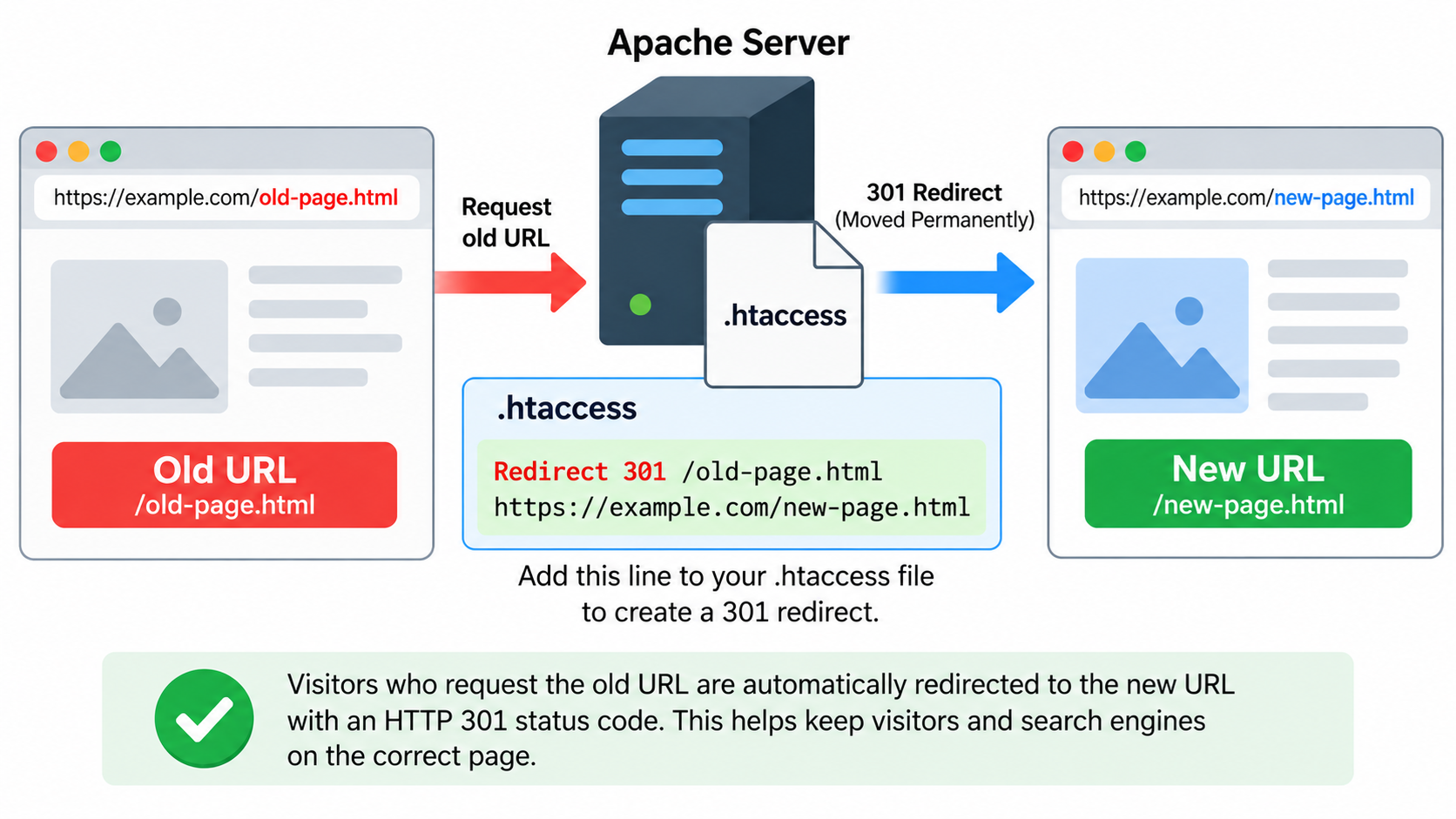
When you change a website’s domain name, move a page to a new URL, or reorganize your website’s directory structure, visitors may continue using the old addresses.
Search engines may also have indexed those URLs, and other websites may still link to them.
Without proper redirects, visitors could encounter 404 Not Found errors, and search engines might have difficulty discovering the new locations of your content.
A 301 redirect provides a simple solution. It tells browsers and search engines that a webpage or resource has moved permanently to another URL.
If your website runs on Apache, you can create 301 redirects using an .htaccess file without modifying your website’s HTML or PHP source code.
In this tutorial, we will explain what a 301 redirect is, how it works, how to create different types of redirects using .htaccess, and how to test your configuration.
What Is a 301 Redirect?
A 301 redirect is an HTTP response that tells a browser or search engine that a requested resource has permanently moved to a different URL.
The number 301 is an HTTP status code. Its official meaning is Moved Permanently.
For example, suppose you originally published a webpage at:
https://example.com/old-page.html
Later, you move the content to:
https://example.com/new-page.html
Instead of displaying an error when someone visits the old address, Apache can send a 301 response directing the browser to the new address.
The browser then makes a new request to the destination URL.
The visitor usually sees the new page automatically without needing to click another link.
Search engines can also use permanent redirects as a signal that the new URL should replace the old URL in their indexes.
However, a 301 redirect does not guarantee that search engines will immediately update their indexes or transfer every ranking signal exactly as expected.
Why Should You Use a 301 Redirect?
A 301 redirect is useful whenever a URL has permanently changed.
One common situation is changing your website’s domain name.
If you move from olddomain.com to newdomain.com, you want visitors using old links to reach the corresponding pages on the new website.
Another situation is changing the URL structure of your website.
For example, you might replace an old address such as /articles/linux-basics.html with a cleaner URL such as /linux-basics/.
301 redirects are also useful when consolidating duplicate URLs, migrating a website from HTTP to HTTPS, or selecting one preferred hostname.
For example, you may want visitors who enter www.example.com to reach example.com automatically.
Proper redirects help preserve access through existing bookmarks and external links.
They also allow search engines to discover the intended replacement pages.
A good redirect strategy improves website usability and reduces unnecessary 404 errors.
Step 1: Locate Your .htaccess File
The .htaccess file allows Apache to apply certain configuration settings to a website directory and its subdirectories.
If your hosting provider supports Apache .htaccess overrides, you can use the file to configure redirects.
First, log in to your web hosting account through cPanel, SFTP, or SSH.
If you use cPanel, open File Manager and locate your website’s document root.
For many primary-domain installations, this directory is called public_html.
Look for a file named .htaccess.
Because the filename begins with a dot, it may be hidden. Enable the option to display hidden files if necessary.
If the file already exists, download a backup before making changes.
WordPress and other content management systems frequently use .htaccess for URL rewriting.
Be careful not to remove existing application rules.
If the file does not exist, create a new plain-text file named .htaccess.
The examples below use Apache HTTP Server 2.4.
Your hosting provider must permit the relevant directives through its server configuration.
Method 1: Redirect One Page to Another Using Redirect 301
The simplest way to create a permanent redirect is to use Apache’s Redirect directive.
Suppose you want to redirect:
https://example.com/old-page.html
to:
https://example.com/new-page.html
Add the following line to your .htaccess file:
Redirect 301 /old-page.html https://example.com/new-page.html
Save the file.
Now, when someone requests /old-page.html, Apache sends a permanent redirect response directing the browser to /new-page.html.
The first URL path identifies the old location. The second URL identifies the destination.
The number 301 specifies that the redirect is permanent.
You can create additional redirects by adding more lines.
For example:
Redirect 301 /old-contact.html https://example.com/contact.html
Redirect 301 /old-services.html https://example.com/services.html
Redirect 301 /old-about.html https://example.com/about.html
Each directive redirects requests from an old URL to its new destination.
This method is suitable for a small number of straightforward redirects.
However, Apache’s Redirect directive performs path-prefix matching rather than matching only one exact URL.
It can also append additional path information to the destination.
If you need to match an exact URL path or perform more complicated transformations, use mod_rewrite or another appropriate Apache directive.
Method 2: Redirect an Entire Directory
Suppose your website previously stored articles inside a directory named /old-blog/, but you have moved them into /blog/.
For example:
https://example.com/old-blog/article1.html
should become:
https://example.com/blog/article1.html
You can redirect the entire directory with one rule:
Redirect 301 /old-blog/ https://example.com/blog/
Apache preserves the additional path information following the matched directory prefix.
As a result, a request for:
https://example.com/old-blog/article2.html
will be redirected to:
https://example.com/blog/article2.html
This can be useful when reorganizing a website while preserving the filenames and directory structure.
However, the destination files must actually exist, or the visitor may still encounter an error.
If your new directory structure differs significantly from the old one, individual redirects or more advanced rewrite rules may be necessary.
Method 3: Redirect an Entire Website to a New Domain
When you move a website to a new domain, you may want every request for the old website to redirect to its corresponding location on the new website.
For example:
https://olddomain.com/about.html
should redirect to:
https://newdomain.com/about.html
On the old domain’s Apache website configuration, you can use:
Redirect 301 / https://newdomain.com/
This directive redirects paths from the old domain to the new domain while preserving additional URL path information.
For example, a request for /products/item.html is redirected to the corresponding path on the new domain.
This technique is convenient when the new website preserves the old URL structure.
However, there is an important limitation.
The rule must apply only to the old website or old domain’s configuration.
If both domains share the same document root and .htaccess file, an unconditional redirect may also affect the new domain and create a redirect loop.
In shared hosting environments, verify which domain and directory the .htaccess file controls before using a site-wide rule.
Also, make sure the new website contains the expected destination pages.
If the new website has a completely different URL structure, map important old pages to their appropriate new locations instead of redirecting everything indiscriminately.
Method 4: Redirect HTTP to HTTPS
HTTPS protects communication between a browser and a website using TLS encryption.
If your website has a valid SSL/TLS certificate and supports HTTPS, you may want to redirect visitors from HTTP to HTTPS.
Apache’s mod_rewrite module provides a flexible way to configure this redirect.
Add the following directives to your .htaccess file:
RewriteEngine On
RewriteCond %{HTTPS} !=on
RewriteRule ^ https://example.com%{REQUEST_URI} [R=301,L,NE]
Replace example.com with your actual domain name.
The RewriteEngine On directive enables Apache’s rewrite processing.
The RewriteCond directive checks whether the request is not already using HTTPS, according to Apache’s HTTPS variable.
The RewriteRule directive then redirects the request to the HTTPS version of the URL.
The R=301 flag tells Apache to issue a permanent redirect. The L flag stops processing additional rewrite rules in the current rewrite pass, and NE prevents certain characters in the redirect target from being escaped again.
For example:
will be redirected to:
https://example.com/about.html
This example also uses example.com as the canonical hostname. If your website uses www.example.com instead, adjust the destination accordingly.
If you want to preserve the original hostname, a different rewrite configuration may be appropriate.
Important: If Apache operates behind a reverse proxy, load balancer, or CDN, the HTTPS variable may not accurately represent the visitor’s original connection.
For example, some proxy configurations terminate HTTPS before forwarding the request to Apache over HTTP.
In that situation, a rule based only on %{HTTPS} can create an infinite redirect loop.
When using Cloudflare or another reverse proxy, configure HTTPS redirects using the appropriate trusted proxy information or the provider’s redirect features.
Do not blindly copy HTTPS redirect rules into a complex proxy environment without testing them.
Method 5: Redirect www to Non-www
A website may be accessible through both www.example.com and example.com.
Although both hostnames can display the same content, it is generally preferable to choose one canonical hostname and use it consistently.
For example, if you prefer the non-www version, add the following configuration:
RewriteEngine On
RewriteCond %{HTTP_HOST} ^www.example.com$ [NC]
RewriteRule ^ https://example.com%{REQUEST_URI} [R=301,L,NE]
This configuration redirects requests from www.example.com to example.com.
The RewriteCond directive checks whether the requested hostname matches www.example.com.
The NC flag makes the condition case-insensitive.
The RewriteRule redirects matching requests to the preferred hostname.
For example:
https://www.example.com/contact.html
becomes:
https://example.com/contact.html
Replace example.com with your own domain.
This example assumes the preferred destination is available through HTTPS and has a valid certificate.
The rule only handles the specified www hostname. It does not automatically normalize every alternative hostname that might point to the same website.
Method 6: Redirect Non-www to www
If you prefer visitors to use the www version of your domain, reverse the configuration.
For example:
RewriteEngine On
RewriteCond %{HTTP_HOST} ^example.com$ [NC]
RewriteRule ^ https://www.example.com%{REQUEST_URI} [R=301,L,NE]
Now requests for:
https://example.com/about.html
will be redirected to:
https://www.example.com/about.html
The choice between www and non-www is generally a matter of website architecture and preference.
Neither hostname format automatically guarantees better search rankings.
The important thing is to choose a preferred version, make sure it works correctly, and use it consistently in internal links, canonical URLs, and sitemaps.
Method 7: Redirect an Exact URL Using RewriteRule
Sometimes you need to redirect one exact URL path rather than an entire path prefix.
For example, suppose you want to redirect only:
https://example.com/old-page.html
to:
https://example.com/new-page.html
You can use:
RewriteEngine On
RewriteRule ^old-page.html$ /new-page.html [R=301,L]
The regular expression ^old-page.html$ matches exactly the specified path within the website’s root .htaccess context.
The caret indicates the beginning of the path, while the dollar sign indicates the end.
The backslash before the dot makes the dot a literal character.
The replacement /new-page.html identifies the new destination.
The R=301 flag generates the permanent redirect response.
Unlike a simple Redirect directive, this RewriteRule does not automatically redirect every URL beginning with /old-page.html.
This makes it useful when you need more precise URL matching.
Keep in mind that RewriteRule patterns work differently in .htaccess files than in the main Apache server configuration.
In a root .htaccess file, the pattern normally does not begin with a slash.
Method 8: Redirect an Old File Extension
Suppose your website previously used .html files but has moved to .php files while preserving the same base filenames.
For example:
https://example.com/products.html
should redirect to:
https://example.com/products.php
You can use:
RewriteEngine On
RewriteRule ^(.+).html$ /$1.php [R=301,L]
This rule matches URL paths ending in .html and redirects them to corresponding .php paths.
The expression (.+) captures the portion of the URL before the .html extension.
The $1 reference inserts the captured portion into the destination URL.
However, this rule should only be used if all matching .html pages have appropriate .php destinations.
Otherwise, visitors could be redirected to nonexistent pages.
For websites with only a few changed filenames, individual redirects are often safer and easier to maintain.
Also, a change in file extension does not necessarily require a redirect.
If users and search engines already access stable URLs, preserving those URLs may be preferable.
Method 9: Redirect an Old Website Page to a Different Domain
A 301 redirect can also send visitors to a completely different website.
For example, suppose a specific article has moved from:
https://example.com/tutorial.html
to:
https://newsite.com/tutorial.html
You can add:
Redirect 301 /tutorial.html https://newsite.com/tutorial.html
Apache will return a 301 response identifying the new destination.
This method is useful when moving individual articles, separating different parts of a website, or consolidating content across domains.
However, redirects should point to genuinely relevant replacement content.
Redirecting an old article to an unrelated page may confuse visitors and may not provide the search engine benefits you expect.
Whenever possible, redirect each old URL to the closest equivalent page on the new website.
How to Check Whether a 301 Redirect Works
After adding redirect rules, test them carefully.
First, open the old URL in your browser.
If the redirect is working, the browser should navigate automatically to the new URL.
However, browsers may cache permanent redirects. This means the browser’s behavior alone may not accurately reflect the current server configuration.
A more reliable test is to inspect the HTTP response using curl.
For example:
curl -I https://example.com/old-page.html
A successful redirect may produce a response similar to:
HTTP/1.1 301 Moved Permanently
Location: https://example.com/new-page.html
The 301 status indicates a permanent redirect.
The Location header identifies the destination URL.
The exact HTTP version, header capitalization, and additional headers may vary.
You can also use curl to follow the complete redirect chain:
curl -IL https://example.com/old-page.html
This helps identify multiple redirects and unexpected intermediate destinations.
Remember that the -I option sends a HEAD request.
If your application treats HEAD requests differently from GET requests, you may also need to test an ordinary browser-style request.
301 Redirect vs. 302 Redirect
Apache supports several HTTP redirect status codes, but two of the most commonly encountered are 301 and 302.
A 301 redirect indicates that a resource has moved permanently.
A 302 redirect indicates that a resource has moved temporarily.
Use a 301 redirect when a page or website has permanently changed locations and the new URL should replace the old one.
Use a 302 redirect when the move is temporary and you expect the original URL to become active again.
For example, if you permanently replace an old product page with a new product page, a 301 redirect is usually appropriate.
If you temporarily redirect visitors during maintenance or a short-term campaign, a temporary redirect may be more suitable.
There are also HTTP status codes 307 and 308. These preserve the original HTTP request method more explicitly than the traditional 302 and 301 behavior.
This distinction matters particularly for requests using POST rather than GET.
Do not use permanent redirects carelessly for application endpoints that process form submissions or other requests where HTTP methods and request bodies matter.
For ordinary website pages accessed using GET, 301 redirects remain a common and useful choice.
Common Problems with .htaccess Redirects
One common problem is a redirect loop.
A redirect loop occurs when one rule sends a request to another URL that eventually redirects back to the original address.
For example, if one configuration redirects example.com to www.example.com while another redirects www.example.com back to example.com, visitors may encounter a browser error indicating too many redirects.
Another common issue is creating unnecessary redirect chains.
For example:
Old URL → Intermediate URL → Another URL → Final URL
Although browsers can follow several redirects, long chains introduce unnecessary requests and may slow down page loading.
Whenever possible, redirect the original URL directly to the final destination.
Incorrect rule order can also cause problems.
Apache’s Redirect directives are processed in order within the same configuration context, and the first matching Redirect directive takes precedence.
If you have both a general directory redirect and a more specific page redirect, place the more specific directive first.
For example:
Redirect 301 /old-blog/special.html https://example.com/special.html
Redirect 301 /old-blog/ https://example.com/blog/
This ensures that the special page is handled before the broader directory redirect.
Another issue occurs when a website already uses mod_rewrite for WordPress or another content management system.
Adding conflicting or poorly ordered rewrite rules can interfere with the application’s normal routing behavior.
Finally, a 500 Internal Server Error may occur when a required Apache module is unavailable, a directive contains invalid syntax, or the hosting environment does not permit the necessary .htaccess overrides.
If your website stops working after adding a rule, restore the previous .htaccess file and check the Apache error log.
How to Use 301 Redirects with WordPress
WordPress commonly uses Apache rewrite rules to support its permalink structure.
A typical WordPress .htaccess file may contain a section beginning with:
BEGIN WordPress
and ending with:
END WordPress
This section is normally managed by WordPress.
If you manually add custom mod_rewrite redirects, place them before the WordPress-managed rewrite section in the root .htaccess file.
For example:
RewriteEngine On
RewriteRule ^old-article/?$ /new-article/ [R=301,L]
BEGIN WordPress
The existing WordPress-generated rules would follow this line in the actual file.
This example is only an illustration of placement, not a complete replacement for the WordPress configuration.
Do not delete or overwrite the existing WordPress rewrite directives.
Also, avoid manually inserting custom rules inside the WordPress-managed section because WordPress may regenerate that section when permalink settings change.
After making changes, test the old URL, the new URL, and several unrelated WordPress pages.
Some WordPress plugins, themes, or hosting platforms also manage redirects independently.
If multiple systems are redirecting the same URLs, you may encounter conflicts or unnecessary redirect chains.
For websites using a CDN, remember that redirects configured at the CDN may be processed before requests reach WordPress or Apache.
Do 301 Redirects Help SEO?
Permanent redirects are an important part of website migration and technical SEO.
Search engines use redirects to understand that content has moved from one URL to another.
When implemented correctly, a 301 redirect can help search engines discover the replacement URL and consolidate signals associated with the old and new pages.
However, redirects are not a shortcut to higher search rankings.
The destination should provide relevant content, and the new page should be accessible to search engines.
Avoid redirecting large numbers of unrelated pages to the homepage merely because those pages no longer exist.
If there is no relevant replacement for a removed page, returning an appropriate 404 Not Found or 410 Gone response may be more useful than creating a misleading redirect.
When migrating an entire website, update internal navigation links, canonical URL references, and XML sitemaps to point directly to the new addresses.
Keep old-domain redirects active for as long as they remain necessary to serve visitors and external links.
Do not assume that search engines or visitors will stop using old URLs immediately after a migration.
Best Practices for Managing 301 Redirects
Before changing a website’s URL structure, prepare a list of old URLs and their intended destinations.
Whenever possible, redirect each old page to the most relevant new page rather than sending all requests to the homepage.
Avoid creating multiple redirect steps when a direct redirect is possible.
Use HTTPS destinations when the target website supports secure connections.
Keep your redirect rules organized and document why important redirects were created.
Test rules before applying them to a production website, especially when redirecting an entire domain or directory.
If you use WordPress, preserve the application’s existing rewrite rules and verify that your custom configuration does not conflict with plugins or hosting-level redirects.
If you use Cloudflare, Nginx, or another reverse proxy, remember that some redirects may be better configured at the proxy layer rather than inside Apache.
Finally, keep a backup of your working .htaccess file so that you can quickly restore the previous configuration if a redirect causes problems.
Conclusion
A 301 redirect is one of the most useful tools for managing website URL changes.
Whether you are moving a single webpage, reorganizing a directory, changing your domain name, or migrating from HTTP to HTTPS, permanent redirects help visitors and search engines locate your content at its new address.
For a simple page redirect in Apache, add the following line to your .htaccess file:
Redirect 301 /old-page.html https://example.com/new-page.html
For more advanced redirection requirements, Apache’s mod_rewrite module provides additional flexibility through RewriteCond and RewriteRule directives.
Remember that redirects should be configured carefully. Incorrect rules can create loops, unnecessary redirect chains, broken links, or unexpected application behavior.
Always back up your .htaccess file, test the resulting HTTP status codes, and verify that visitors arrive at the intended destination.