
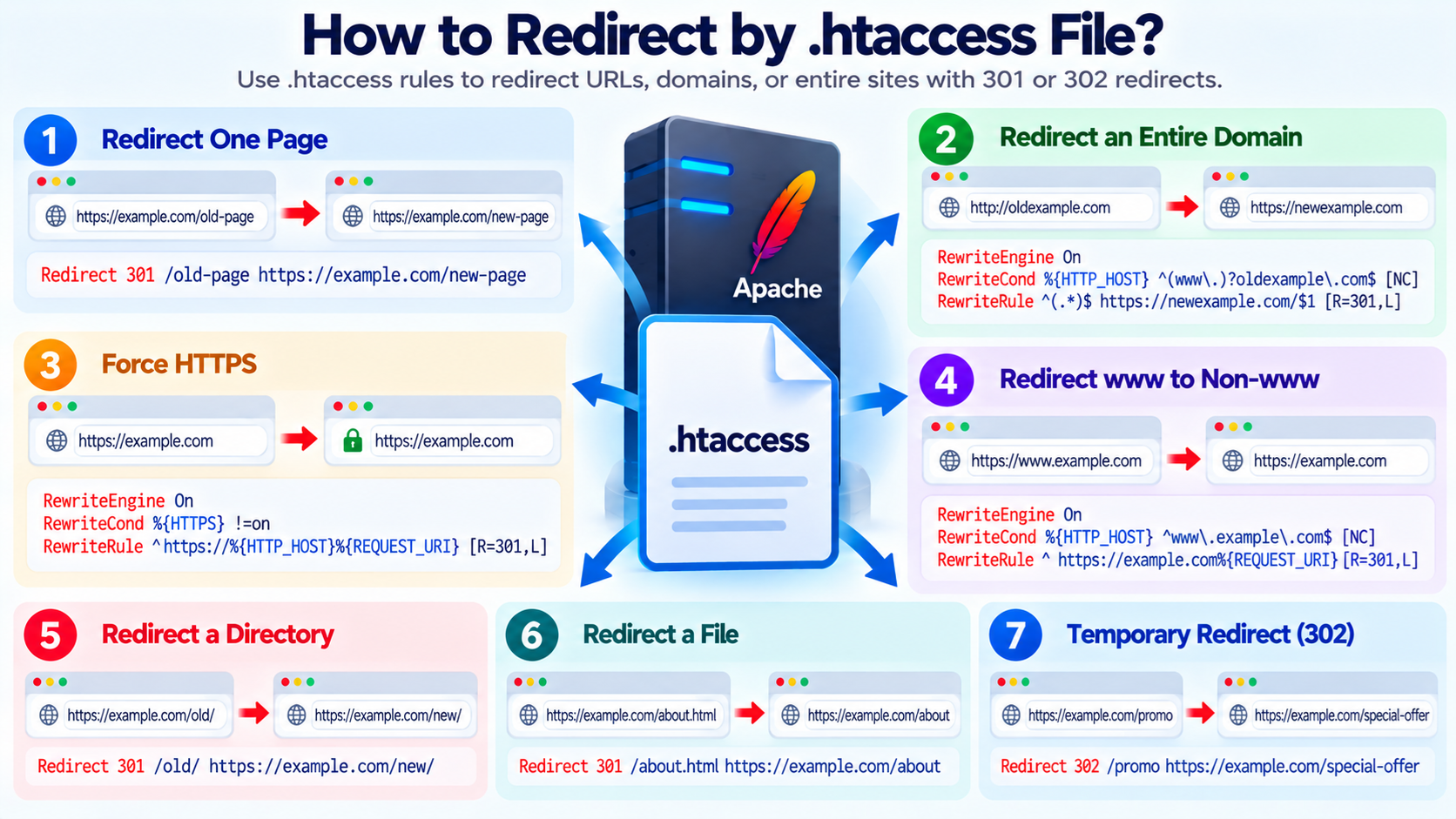
A redirect sends visitors and search engines from one URL to another URL.
For example, you may want to redirect:
to:
Or you may want to redirect:
example.com/old-page
to:
example.com/new-page
On Apache web servers, one common way to create redirects is by editing the .htaccess file.
The .htaccess file can control redirects, URL rewriting, access rules, custom error pages, and other website behavior.
Because a mistake in .htaccess can affect the entire website, always make a backup before editing it.
What Is an .htaccess File?
.htaccess is a configuration file used by Apache HTTP Server.
The name begins with a period:
.htaccess
It is commonly located inside the website’s document root.
On many cPanel hosting accounts, that directory is:
public_html
For example:
/home/username/public_html/.htaccess
If you use an additional domain, the .htaccess file may be inside that domain’s own document root.
Why Use .htaccess for Redirects?
Redirects are useful in many situations.
You may need to:
Force HTTPS
Redirect www to non-www
Redirect non-www to www
Move an old page to a new page
Change a domain name
Redirect an entire website
Redirect a folder
Redirect one file
Fix old URLs after a website migration
Send visitors to a new location
Preserve traffic from old backlinks
When Apache receives a request, .htaccess rules can tell it to send the visitor somewhere else.
What Is a 301 Redirect?
A 301 redirect means:
Moved Permanently
It tells browsers and search engines that the original URL has permanently moved to a new location.
For example:
example.com/old-page
can permanently redirect to:
example.com/new-page
A 301 redirect is normally the correct choice when a page or website has permanently moved.
What Is a 302 Redirect?
A 302 redirect means that the redirect is temporary.
It is useful when you plan to bring the original page back later.
For example, you might temporarily redirect:
example.com/promotion
to:
example.com/special-offer
If the change is permanent, use 301.
If the change is temporary, use 302 or another appropriate temporary redirect.
Back Up .htaccess Before Editing
Before changing .htaccess, download a copy or rename the existing file temporarily.
For example:
.htaccess-backup
This is important because a broken rule may cause:
500 Internal Server Error
Redirect loops
Broken WordPress pages
Incorrect URL behavior
Website downtime
If something goes wrong, you can quickly restore the backup.
How to Find .htaccess in cPanel
Log in to cPanel.
Open:
File Manager
Then open:
public_html
If you do not see .htaccess, enable hidden files.
Look for an option such as:
Show Hidden Files
or:
Show Dotfiles
Because .htaccess begins with a period, it is treated as a hidden file on Linux systems.
Simple Redirect Using Redirect
Apache’s mod_alias module provides a simple Redirect directive.
For example:
Redirect 301 /old-page https://example.com/new-page
This permanently redirects:
example.com/old-page
to:
example.com/new-page
This method is simple and works well for straightforward redirects.
Redirect One Old Page to a New Page
Suppose the old page is:
https://example.com/old-service
and the new page is:
https://example.com/new-service
You can use:
Redirect 301 /old-service https://example.com/new-service
After saving .htaccess, visitors to the old URL should be sent to the new URL.
Redirect an Old HTML File
Suppose you used to have:
https://example.com/about.html
but now the page is:
You can use:
Redirect 301 /about.html https://example.com/about
This is useful when moving from an old static HTML website to a modern CMS.
Redirect an Entire Old Directory
Suppose you want to redirect:
example.com/old/
to:
example.com/new/
A simple rule may be:
Redirect 301 /old/ https://example.com/new/
Be careful because this can affect multiple URLs under the old path.
Always test the resulting destinations.
Redirect One Domain to Another Domain
Suppose you are moving:
oldexample.com
to:
newexample.com
You can use Apache rewrite rules.
For example:
RewriteEngine On
RewriteCond %{HTTP_HOST} ^(www.)?oldexample.com$ [NC]
RewriteRule ^(.*)$ https://newexample.com/$1 [R=301,L]
This preserves the path.
For example:
oldexample.com/about
redirects to:
newexample.com/about
This is usually better than sending every old URL to the new homepage.
Why Preserve the URL Path?
Suppose the old website has:
oldexample.com/contact
and:
oldexample.com/products/widget
A good domain migration should normally redirect them to corresponding pages:
newexample.com/contact
newexample.com/products/widget
This improves user experience and helps preserve the value of existing links.
Redirecting every old URL to:
newexample.com
is usually less useful.
Force HTTPS
One of the most common .htaccess redirects is forcing HTTP traffic to HTTPS.
A typical rule is:
RewriteEngine On
RewriteCond %{HTTPS} !=on
RewriteRule ^ https://%{HTTP_HOST}%{REQUEST_URI} [R=301,L]
This redirects:
to:
and preserves the requested path.
For example:
becomes:
Do Not Force HTTPS Before SSL Works
Before adding an HTTPS redirect, make sure the website already has a valid SSL/TLS certificate.
If the certificate is missing or invalid, forcing HTTPS may make the website inaccessible or cause browser security warnings.
Always test:
before forcing all traffic to HTTPS.
Redirect www to Non-www
Suppose you want:
to redirect to:
example.com
You can use:
RewriteEngine On
RewriteCond %{HTTP_HOST} ^www.example.com$ [NC]
RewriteRule ^ https://example.com%{REQUEST_URI} [R=301,L]
This keeps the requested page.
For example:
becomes:
example.com/contact
Redirect Non-www to www
If you prefer:
instead of:
example.com
you can use:
RewriteEngine On
RewriteCond %{HTTP_HOST} ^example.com$ [NC]
RewriteRule ^ https://www.example.com%{REQUEST_URI} [R=301,L]
Again, this preserves the requested path.
Choose One Preferred Domain Format
It is usually best to choose one canonical format.
For example:
or:
Then redirect the other version to the preferred one.
This avoids having multiple versions of the same website available under different hostnames.
Force HTTPS and Non-www Together
Suppose you want every request to become:
You may use:
RewriteEngine On
RewriteCond %{HTTPS} !=on [OR]
RewriteCond %{HTTP_HOST} ^www.example.com$ [NC]
RewriteRule ^ https://example.com%{REQUEST_URI} [R=301,L]
This redirects both:
and:
and:
to:
Force HTTPS and www Together
If your preferred format is:
you can use:
RewriteEngine On
RewriteCond %{HTTPS} !=on [OR]
RewriteCond %{HTTP_HOST} !^www.example.com$ [NC]
RewriteRule ^ https://www.example.com%{REQUEST_URI} [R=301,L]
Test carefully to make sure the rule does not create a redirect loop.
What Is RewriteEngine?
RewriteEngine On enables Apache’s URL rewriting system.
It is provided by the Apache mod_rewrite module.
Many advanced redirect rules use mod_rewrite.
WordPress also commonly uses this module for pretty permalinks.
What Is RewriteCond?
RewriteCond means rewrite condition.
It tells Apache that the following rewrite rule should only run when certain conditions are true.
For example:
RewriteCond %{HTTPS} !=on
means:
Apply the next rule only when HTTPS is not currently being used.
What Is RewriteRule?
RewriteRule tells Apache what to do with the requested URL.
For example:
RewriteRule ^ https://example.com%{REQUEST_URI} [R=301,L]
means that requests matching the rule should be redirected to the specified destination.
What Does R=301 Mean?
The flag:
R=301
means:
Return a 301 permanent redirect.
You may also see:
R=302
for temporary redirects.
What Does L Mean?
The flag:
L
means:
Last rule.
It tells Apache to stop processing the current rewrite rules after that rule matches.
This helps prevent additional rules from modifying the request unexpectedly.
What Does NC Mean?
The flag:
NC
means:
No Case
It makes the condition case-insensitive.
For example:
and:
can be treated the same for matching purposes.
Redirect a Specific Page With mod_rewrite
You can also redirect one specific page using mod_rewrite.
For example:
RewriteEngine On
RewriteRule ^old-page/?$ /new-page [R=301,L]
This redirects:
example.com/old-page
to:
example.com/new-page
Redirect One File Extension to Another URL
Suppose:
oldpage.html
should become:
newpage.php
You can use:
RewriteRule ^oldpage.html$ /newpage.php [R=301,L]
The backslash before the period means the dot should be treated literally.
Redirect a Folder While Preserving the Rest of the Path
Suppose:
example.com/old/products/widget
should become:
example.com/new/products/widget
You can use:
RewriteRule ^old/(.*)$ /new/$1 [R=301,L]
The $1 represents the portion captured by (.*).
So:
old/products/widget
becomes:
new/products/widget
What Is a Capture Group?
In a rewrite rule:
(.*)
captures part of the URL.
You can reuse that captured text with:
$1
For example:
RewriteRule ^old/(.*)$ /new/$1 [R=301,L]
A request for:
/old/article
becomes:
/new/article
This is useful when migrating entire sections of a site.
Redirect a File Only If It Exists
Rewrite conditions can test files and directories.
For example:
RewriteCond %{REQUEST_FILENAME} -f
means:
Continue only if the requested path is a real file.
Similarly:
RewriteCond %{REQUEST_FILENAME} -d
means:
Continue only if the path is a real directory.
These tests are often used in rewrite logic.
Redirect Only If a Page Does Not Exist
In some advanced configurations, you may want a rewrite only when a real file or directory does not exist.
A common pattern is:
RewriteCond %{REQUEST_FILENAME} !-f
RewriteCond %{REQUEST_FILENAME} !-d
The exclamation mark means:
Not
So these conditions mean:
The requested path is not a real file and not a real directory.
WordPress uses similar logic for permalink routing.
WordPress .htaccess Rules
A typical WordPress .htaccess file may contain rules similar to:
RewriteEngine On
RewriteRule .* – [E=HTTP_AUTHORIZATION:%{HTTP}]
RewriteBase /
RewriteRule ^index.php$ – [L]
RewriteCond %{REQUEST_FILENAME} !-f
RewriteCond %{REQUEST_FILENAME} !-d
RewriteRule . /index.php [L]
Your exact WordPress configuration may differ.
Do not insert redirects randomly inside the WordPress block.
Where Should Redirect Rules Go in WordPress .htaccess?
Custom redirects are often placed before the main WordPress rewrite rules.
For example:
RewriteEngine On
RewriteRule ^old-page/?$ /new-page [R=301,L]
WordPress rules begin below
This allows Apache to process your redirect before WordPress handles the request.
Avoid editing between automatically managed WordPress marker lines unless you understand how WordPress may rewrite that section.
WordPress May Regenerate .htaccess
WordPress can regenerate its rewrite rules when you save:
Settings → Permalinks
Some plugins may also modify .htaccess.
For this reason, custom rules should be placed carefully so they are not overwritten.
Redirect a Deleted Page to a Relevant Replacement
Suppose you delete:
example.com/old-hosting-plan
and replace it with:
example.com/web-hosting
Use:
Redirect 301 /old-hosting-plan https://example.com/web-hosting
This helps visitors who still use old bookmarks or backlinks.
Do Not Redirect Every 404 to the Homepage
Some website owners configure every missing page to redirect to the homepage.
This is usually not a good idea.
If someone requests:
example.com/nonexistent-page
and is unexpectedly sent to the homepage, the redirect may confuse both users and search engines.
A genuine missing page should normally return a proper:
404 Not Found
unless there is a relevant replacement.
Use Relevant Redirect Destinations
If an old page about WordPress hosting is removed, redirect it to another WordPress hosting page.
Do not redirect it to an unrelated page just to avoid a 404.
A good redirect should answer the visitor’s original intent.
Redirect Chains
A redirect chain happens when one URL redirects to another, which redirects again.
For example:
Page A → Page B → Page C
This works, but it is less efficient.
Whenever possible, redirect:
Page A → Page C
directly.
This reduces unnecessary requests and makes the configuration easier to maintain.
Avoid Redirect Loops
A redirect loop happens when URLs continuously redirect to each other.
For example:
example.com → www.example.com
and:
www.example.com → example.com
The browser keeps following redirects until it eventually reports:
Too Many Redirects
This is one of the most common mistakes in .htaccess redirect configuration.
Why Redirect Loops Happen
Redirect loops often happen when:
HTTPS rules conflict with CDN settings.
www rules conflict with other hosting settings.
WordPress URL settings disagree with .htaccess.
A control panel already performs the same redirect.
A CDN redirects one way while Apache redirects the other.
Before creating a redirect, check whether another system already performs it.
Cloudflare and Redirects
If you use Cloudflare, some redirects can be configured at Cloudflare instead of .htaccess.
Cloudflare can process redirects before the request reaches the hosting server.
This can be more efficient.
However, do not create the same redirect in multiple places without understanding how they interact.
For example, avoid having:
Cloudflare redirect HTTP to HTTPS
and:
Apache perform conflicting HTTPS logic
if the configuration causes a loop.
cPanel Redirect Tool
If you use cPanel, you may also find:
Domains → Redirects
This provides a graphical interface for creating simple redirects.
Depending on the hosting setup, cPanel may write those rules into .htaccess automatically.
For simple redirects, the cPanel tool can be easier than manual editing.
Manual .htaccess Gives More Control
The cPanel redirect tool is convenient, but manually editing .htaccess gives more flexibility.
You can create:
Conditional redirects
Pattern-based redirects
Domain migrations
Folder migrations
HTTPS rules
www rules
Complex URL changes
Use manual rules only when you understand their effect.
Redirect HTTP to HTTPS Behind a Proxy or CDN
If your site uses a reverse proxy or CDN, Apache may think the incoming connection is HTTP even when the visitor used HTTPS.
In that situation, a simple:
RewriteCond %{HTTPS} !=on
rule may cause a redirect loop.
Your hosting provider or CDN may use headers such as:
X-Forwarded-Proto
The exact rule depends on the environment.
Do not copy proxy-related redirect rules without confirming how your hosting setup handles HTTPS.
Check With Your Hosting Provider
If your website uses:
Cloudflare
Nginx in front of Apache
LiteSpeed
A load balancer
A reverse proxy
Managed WordPress hosting
the correct redirect configuration may differ.
Ask your hosting provider if you are unsure.
Nginx Does Not Use .htaccess
.htaccess is an Apache feature.
Nginx does not read .htaccess files.
If your server uses Nginx directly, redirects must be configured in:
Nginx configuration
Hosting control panel
Application configuration
CDN
Reverse proxy
Some hosting providers use Nginx in front of Apache, in which case .htaccess may still affect Apache-handled requests.
LiteSpeed and .htaccess
LiteSpeed Web Server supports many Apache-compatible .htaccess directives.
This is one reason LiteSpeed is commonly used with cPanel and WordPress hosting.
Most common redirect rules work similarly.
However, always test because server configurations can differ.
Redirect an Entire Website to One Page
Sometimes you may temporarily want every request to go to one page.
For example:
RewriteEngine On
RewriteRule ^.*$ /maintenance.html [R=302,L]
However, this can easily cause loops if maintenance.html itself also matches the rule.
A safer configuration requires an exclusion.
For example:
RewriteCond %{REQUEST_URI} !^/maintenance.html$
RewriteRule ^.*$ /maintenance.html [R=302,L]
Use temporary redirects for temporary maintenance situations.
Redirect Based on Query Strings
Advanced redirects can examine query strings.
For example, an old website might use:
example.com/page.php?id=10
and you may want to redirect it to:
example.com/products/widget
This requires conditions based on:
QUERY_STRING
For example:
RewriteCond %{QUERY_STRING} ^id=10$
RewriteRule ^page.php$ /products/widget? [R=301,L]
Query-string rules can be more complicated, so test carefully.
Remove a Query String During Redirect
The question mark at the end of some older Apache redirect examples was historically used to remove an existing query string.
Modern Apache also supports the QSD flag.
For example:
RewriteRule ^old-page$ /new-page [R=301,L,QSD]
QSD means:
Query String Discard
This tells Apache not to carry the old query string to the new destination.
Preserve Query Strings
By default, depending on the rule, query strings may be preserved.
For example:
/old-page?source=email
may become:
/new-page?source=email
If tracking parameters are important, test whether your redirect preserves them correctly.
Redirect Only a Specific Hostname
If multiple domains use the same document root, make sure your redirect targets only the intended domain.
For example:
RewriteCond %{HTTP_HOST} ^oldexample.com$ [NC]
RewriteRule ^ https://newexample.com%{REQUEST_URI} [R=301,L]
Without the host condition, the rule might affect additional domains that share the same .htaccess.
Redirect a Subdomain
Suppose:
blog.example.com
should redirect to:
example.com/blog
You can use:
RewriteEngine On
RewriteCond %{HTTP_HOST} ^blog.example.com$ [NC]
RewriteRule ^(.*)$ https://example.com/blog/$1 [R=301,L]
A request for:
blog.example.com/article
would become:
example.com/blog/article
Redirect an Old Domain and Preserve HTTPS
When moving a domain, it is important that the old domain still has a valid SSL certificate if people visit it over HTTPS.
For example:
must successfully establish HTTPS before the server can send the redirect.
If the certificate for the old domain has expired, visitors may see a certificate warning before the redirect happens.
Keep SSL active on the old domain during a migration.
Redirects and DNS Are Different
A redirect and DNS change are not the same thing.
DNS tells the browser which server to contact.
A redirect happens after the browser reaches a web server.
For example:
DNS:
oldexample.com → server IP
Then Apache:
oldexample.com → newexample.com
If the old domain does not point to a working server, Apache cannot perform the redirect.
Redirects and SEO
Redirects are important during website changes because search engines may already know your old URLs.
A permanent redirect can help search engines understand that the content moved.
This is especially important when:
Changing domain names
Changing permalink structure
Renaming pages
Removing file extensions
Migrating CMS platforms
Restructuring a website
Use direct and relevant redirects.
Keep Redirects for Old Backlinks
Suppose another website links to:
example.com/old-guide
and you change the URL to:
example.com/new-guide
If the old URL returns 404, visitors following the backlink lose access.
A 301 redirect helps keep that traffic useful.
For important migrated URLs, redirects may need to remain in place for a long time.
Do Not Remove Redirects Too Soon
There is usually little benefit in quickly removing useful migration redirects.
People may still have:
Old bookmarks
Old emails
Old social posts
Old backlinks
Cached URLs
Old search results
Keeping the redirect prevents those references from breaking.
Test Redirects After Saving .htaccess
After making changes, test the affected URLs.
Check:
Old URL
New URL
HTTP version
HTTPS version
www version
Non-www version
Important internal pages
WordPress admin
Test multiple combinations to make sure you did not create a loop.
Use Browser Developer Tools
Modern browsers can show redirect responses.
Open Developer Tools and inspect the Network tab.
You may see:
301 Moved Permanently
302 Found
307 Temporary Redirect
308 Permanent Redirect
Then you can see the destination URL.
This helps troubleshoot redirect chains.
Use curl to Test Redirects
If you are comfortable with the command line, you can use:
curl -I https://example.com/old-page
The response may show:
HTTP/2 301
Location: https://example.com/new-page
This confirms the redirect without loading the full page.
What Is 307 Temporary Redirect?
307 is another temporary redirect status.
It differs from older 302 behavior in how HTTP methods are preserved.
For ordinary website page redirects, many administrators still commonly use 301 for permanent moves and 302 for temporary moves.
Applications and APIs may use 307 or 308 when method preservation matters.
What Is 308 Permanent Redirect?
308 is a permanent redirect status that preserves the HTTP method.
It is useful in some modern applications and APIs.
For ordinary website URL migrations, 301 remains widely used.
Redirect vs. Rewrite
A redirect tells the browser to request a different URL.
The browser sees the new URL.
A rewrite can internally map one URL to another resource without changing the address shown in the browser.
For example:
/products/widget
could internally load:
/product.php?id=10
while the browser continues displaying:
/products/widget
This is rewriting, not an external redirect.
Internal Rewrite Example
A rewrite might look like:
RewriteRule ^products/([0-9]+)$ product.php?id=$1 [L,QSA]
The browser stays on the friendly URL.
Apache internally serves the PHP script.
WordPress and many web applications use internal rewrites extensively.
External Redirect Example
A redirect includes an R flag:
RewriteRule ^old$ /new [R=301,L]
The browser receives a redirect response and changes the address bar to the new URL.
This distinction is important.
Troubleshooting 500 Internal Server Error
If your website shows:
500 Internal Server Error
immediately after editing .htaccess, restore your backup.
Possible causes include:
Invalid syntax
Unsupported directives
Missing Apache modules
Incorrect regular expressions
Broken flags
Copying rules designed for a different server
Restore the known-good file first, then troubleshoot the rule.
Troubleshooting Too Many Redirects
If you see:
ERR_TOO_MANY_REDIRECTS
or:
Too Many Redirects
look for conflicting redirect rules.
Common causes include:
HTTP → HTTPS and HTTPS → HTTP
www → non-www and non-www → www
Cloudflare SSL mode conflicts
WordPress site URL mismatch
Duplicate redirect rules
Hosting control panel redirects
Remove duplicate or conflicting rules.
WordPress Address Settings Matter
In WordPress, check:
Settings → General
Look at:
WordPress Address (URL)
Site Address (URL)
If .htaccess forces:
but WordPress is configured to use:
the two settings can fight each other and create redirect problems.
Keep them consistent.
Clear Caches After Redirect Changes
Redirect responses can be cached.
After changing redirect rules, you may need to clear:
Browser cache
WordPress cache
Server cache
CDN cache
Reverse proxy cache
Browsers can cache 301 redirects aggressively, which can make troubleshooting confusing.
Testing in a private browsing window can help.
Be Careful With 301 Redirects During Testing
Because browsers and search engines can cache 301 redirects, use temporary redirects while testing if you are not sure the rule is final.
For example:
R=302
Once the redirect works correctly, change it to:
R=301
for a permanent migration.
This can make troubleshooting easier.
Keep .htaccess Organized
As your website grows, your .htaccess file may contain many rules.
Add comments.
For example:
Force HTTPS
Redirect old product page
Redirect old domain
WordPress rules below
Comments begin with:
Good organization makes future maintenance much easier.
Do Not Add Duplicate RewriteEngine Directives Everywhere
Having multiple:
RewriteEngine On
directives is not usually necessary.
One properly placed directive is generally enough for the relevant context.
Keeping the configuration clean makes troubleshooting easier.
A Simple .htaccess Redirect Example
Suppose your website needs three changes:
Force HTTPS.
Redirect www to non-www.
Redirect /old-page to /new-page.
A configuration might look like:
RewriteEngine On
Redirect one old page
RewriteRule ^old-page/?$ /new-page [R=301,L]
Force HTTPS and non-www
RewriteCond %{HTTPS} !=on [OR]
RewriteCond %{HTTP_HOST} ^www.example.com$ [NC]
RewriteRule ^ https://example.com%{REQUEST_URI} [R=301,L]
The exact order matters.
Test every rule carefully.
A Simple Domain Migration Example
Suppose:
oldexample.com
is moving to:
newexample.com
Use:
RewriteEngine On
RewriteCond %{HTTP_HOST} ^(www.)?oldexample.com$ [NC]
RewriteRule ^(.*)$ https://newexample.com/$1 [R=301,L]
This preserves the requested path.
So:
oldexample.com/about
becomes:
newexample.com/about
and:
oldexample.com/contact
becomes:
newexample.com/contact
A Simple Page Redirect Example
To permanently redirect:
/old-contact.html
to:
/contact
use:
Redirect 301 /old-contact.html https://example.com/contact
For simple one-to-one redirects, this is often easier than using mod_rewrite.
Which Method Should You Use?
Use Redirect for simple one-to-one redirects.
Use mod_rewrite when you need:
Conditions
Patterns
Domain matching
HTTPS detection
www handling
Multiple URL transformations
Complex migrations
Do not use a more complicated system than necessary.
When Should You Contact Your Hosting Provider?
Contact your hosting provider if:
.htaccess changes do not work.
The server does not appear to use Apache.
HTTPS redirects create loops.
You use a reverse proxy or CDN.
The website returns 500 errors.
You are unsure about the document root.
Your hosting control panel already controls redirects.
A provider can confirm how the server processes requests.
Final Thoughts
The .htaccess file is a powerful way to create redirects on Apache-based websites.
You can use it to:
Redirect old pages.
Force HTTPS.
Choose between www and non-www.
Move an entire website to a new domain.
Redirect folders.
Preserve old backlinks.
Fix URLs after migrations.
For simple redirects, the Apache Redirect directive is often enough.
For more advanced rules, use mod_rewrite with RewriteEngine, RewriteCond, and RewriteRule.
Always back up .htaccess before editing it.
Test redirects carefully.
Avoid redirect loops.
Use 301 for permanent changes and temporary redirects while testing or when the move is not permanent.
Most importantly, redirect visitors to the most relevant destination.
A good redirect should help people reach the content they expected instead of simply sending every old URL to the homepage.