
A web server that refuses to start can make every website hosted on the server unavailable.
Visitors may see connection errors, monitoring systems may report downtime, and administrators may discover that restarting Apache or Nginx does not solve the problem.
For Linux server administrators, this is a familiar troubleshooting situation.
A web server may fail to start because of an incorrect configuration, a port conflict, missing SSL certificate files, insufficient disk space, incorrect file permissions, or a problem with an installed module.
Fortunately, most startup failures leave useful diagnostic information in system logs or application error messages.
The key is to identify the actual cause before making changes. Repeatedly restarting a broken service rarely helps and may make troubleshooting more difficult.
This guide explains how to diagnose and repair common Apache and Nginx startup failures on Linux servers, including systems managed through cPanel and WHM.
1. Understand What Happens When a Web Server Starts
When Apache or Nginx starts, it performs several operations before it can accept incoming HTTP and HTTPS connections.
The server reads its configuration files, loads required modules, checks referenced certificates and other resources, opens listening sockets, initializes logging, and starts the processes responsible for handling requests.
If a critical operation fails, the web server may terminate before accepting connections.
For example, Apache may refuse to start because a configuration directive contains an invalid argument.
Nginx may fail because another process already occupies TCP port 443.
A service may also start successfully and terminate shortly afterward because of a runtime error or external intervention.
These situations require different troubleshooting approaches.
It is also important to distinguish a web server startup failure from a website application failure.
If Apache or Nginx is running but WordPress displays a database connection error, the problem is probably not the web server’s startup process.
Likewise, if Nginx is running but PHP-FPM is unavailable, visitors may see a 502 Bad Gateway error even though Nginx itself started successfully.
Before changing anything, determine whether the web server is actually stopped.
2. Check the Web Server Service Status
On most modern Linux distributions, systemd manages background services, including Apache and Nginx.
The first step is to inspect the service status.
For Apache on AlmaLinux, Rocky Linux, RHEL, and many other Red Hat-based systems, run:
sudo systemctl status httpd --no-pager -l
For Apache on Ubuntu or Debian, run:
sudo systemctl status apache2 --no-pager -l
For Nginx, run:
sudo systemctl status nginx --no-pager -l
The output may indicate that the service is active, inactive, or failed.
Active (running) means systemd considers the service operational. It does not guarantee that every configured website is responding correctly.
Inactive (dead) means the service is not currently running.
Failed means systemd has recorded a service failure, potentially caused by an unsuccessful startup or abnormal termination.
Pay attention to messages such as:
Failed to start The Apache HTTP Server
Main process exited, code=exited, status=1/FAILURE
Start request repeated too quickly
These messages provide useful clues, but they may not explain the underlying problem.
If systemd reports that the service failed, examine its logs before attempting further restarts.
3. Read the Systemd Journal
The systemd journal is one of the most useful tools for diagnosing Linux service failures.
It records messages from system services and may reveal exactly why Apache or Nginx could not start.
For Apache on Red Hat-based systems, run:
sudo journalctl -u httpd -b -n 100 --no-pager
For Apache on Ubuntu or Debian, run:
sudo journalctl -u apache2 -b -n 100 --no-pager
For Nginx, run:
sudo journalctl -u nginx -b -n 100 --no-pager
The -u option selects a service, -b limits the results to the current boot, and -n 100 displays up to 100 recent entries.
If the failure occurred during an earlier boot, remove -b or select the relevant boot.
Look for messages indicating configuration errors, permission problems, missing files, address conflicts, or resource exhaustion.
For example:
AH00072: make_sock: could not bind to address 0.0.0.0:80
This Apache message indicates that the server could not bind to the specified listening address.
Another example is:
nginx: [emerg] bind() to 0.0.0.0:443 failed (98: Address already in use)
This usually means another process has already bound an incompatible listening socket on that address and port.
Do not assume that the last line in the journal contains the root cause. Sometimes the most useful diagnostic message appears several lines before the final service failure notification.
4. Check the Apache or Nginx Error Log
In addition to systemd messages, web servers maintain application-specific error logs.
These logs often contain more detailed startup information.
On Red Hat-based Apache installations, the main error log is commonly located at:
/var/log/httpd/error_log
On Ubuntu or Debian, Apache commonly uses:
/var/log/apache2/error.log
You can inspect recent entries using:
sudo tail -n 100 /var/log/httpd/error_log
For Debian-based systems:
sudo tail -n 100 /var/log/apache2/error.log
For Nginx, the default error log on many Linux package installations is:
/var/log/nginx/error.log
Check it with:
sudo tail -n 100 /var/log/nginx/error.log
These paths are common defaults, not universal locations.
Custom installations, control panels, and modified configurations may place logs elsewhere. A fatal error can also prevent the server from opening its configured error log, in which case systemd journal output becomes particularly important.
If the service repeatedly crashes, compare timestamps across the system journal and application logs.
The combination often reveals whether the failure occurs while parsing configuration, opening files, binding sockets, or initializing worker processes.
5. Test the Web Server Configuration
Configuration errors are among the most common reasons Apache and Nginx refuse to start.
An incorrect directive, missing bracket, invalid module setting, or reference to a nonexistent file may prevent the server from loading its configuration.
Fortunately, both web servers provide commands that check configuration validity without requiring a normal service restart.
Test Apache Configuration
Run:
sudo apachectl configtest
You can also use:
sudo apachectl -t
On some Red Hat-based systems, the following command is available:
sudo httpd -t
If Apache finds no syntax errors, it normally reports:
Syntax OK
If a problem is detected, the output may identify the affected file and line number.
For example:
AH00526: Syntax error on line 125 of /etc/httpd/conf/httpd.conf
This tells you where to begin investigating.
Open the reported configuration file and examine the affected directive.
Do not assume that the problem is confined to the exact line displayed.
An earlier missing closing tag or improperly structured block can cause an error to appear later.
Test Nginx Configuration
For Nginx, run:
sudo nginx -t
A successful test normally produces messages indicating that the configuration syntax is correct and that the configuration test succeeded.
If an error exists, Nginx may display a message such as:
nginx: [emerg] unexpected "}" in /etc/nginx/nginx.conf:58
This indicates that a closing brace appears where Nginx does not expect one.
Another common problem involves a missing semicolon at the end of a directive.
Nginx configuration syntax is structured around directives and blocks. A small formatting mistake can prevent the entire service from starting.
The nginx -t command checks configuration syntax and attempts to open files referenced by the configuration, making it particularly useful when diagnosing certificate or file-path problems.
However, a successful syntax check does not guarantee that every required network port is available or that all runtime dependencies will work.
For further information, consult the official Apache and Nginx documentation:
https://httpd.apache.org/docs/2.4/programs/apachectl.html
https://nginx.org/en/docs/switches.html
6. Check Whether Ports 80 and 443 Are Already in Use
Web servers typically listen on TCP port 80 for HTTP and TCP port 443 for HTTPS.
If another application is already listening on the same address and port using an incompatible socket configuration, Apache or Nginx may fail to start.
This situation is particularly common when administrators install Nginx on a server that already runs Apache.
For example, if Apache is configured to listen on port 80 and Nginx attempts to bind to the same address and port, Nginx may report an address-in-use error.
Find the Process Using Port 80
Run:
sudo ss -ltnp '( sport = :80 )'
For HTTPS:
sudo ss -ltnp '( sport = :443 )'
The ss utility displays socket information and can identify the processes associated with listening ports.
You may discover that Apache, Nginx, a container proxy, or another application already owns the port.
If the ss command is unavailable, the lsof utility may provide similar information:
sudo lsof -nP -iTCP:80 -sTCP:LISTEN
And:
sudo lsof -nP -iTCP:443 -sTCP:LISTEN
How to Resolve a Port Conflict
First, identify which application is supposed to accept incoming HTTP and HTTPS traffic.
If Nginx is intentionally configured as a reverse proxy in front of Apache, both services may be required, but they should not attempt to bind incompatible sockets.
For example, Nginx might listen on ports 80 and 443 while Apache listens on an internal address and a different port.
If an unintended service is occupying a required port, correct the service configuration or stop that service through its normal management interface.
Do not terminate processes simply because they appear to be using port 80 or 443.
On cPanel, Plesk, or other managed server environments, the control panel may deliberately configure multiple web server components to work together.
Changing those configurations manually can disrupt the hosting environment.
Also remember that a port conflict can involve specific IPv4 and IPv6 bindings, not just an obvious duplicate process.
7. Check SSL Certificate and Private Key Problems
SSL/TLS configuration errors can prevent a web server from starting, particularly when HTTPS virtual hosts reference missing or inaccessible certificate files.
A configuration may refer to a certificate that was deleted, moved, or replaced incorrectly.
The server may also be unable to read the corresponding private key.
In Apache, SSL configuration commonly includes directives such as:
SSLCertificateFile /etc/ssl/certs/example.com.crt
SSLCertificateKeyFile /etc/ssl/private/example.com.key
Nginx commonly uses:
ssl_certificate /etc/ssl/certs/example.com.crt;
ssl_certificate_key /etc/ssl/private/example.com.key;
These paths are illustrative. Your server may use different locations.
Common SSL Startup Errors
You may encounter messages indicating that a certificate file cannot be opened, the private key cannot be loaded, or the certificate and private key do not match.
For example, Nginx may display:
cannot load certificate
Apache may report an error while initializing an SSL virtual host.
How to Fix SSL Configuration Problems
Verify that the configured certificate and private key files exist.
Check file permissions and ownership to ensure that the server’s startup process can read them.
Confirm that the certificate and private key belong together.
Also inspect intermediate certificate configuration where required.
If the certificate files were recently replaced, verify that the configuration references the correct paths.
A certificate’s expiration alone does not necessarily prevent Apache or Nginx from starting. An expired certificate may allow the server to run while browsers reject or warn about its HTTPS connections.
Therefore, do not assume that every HTTPS problem is a web server startup problem.
After correcting certificate settings, test the web server configuration again before restarting.
8. Check File and Directory Permissions
Apache and Nginx require permission to access configuration files, certificates, logs, and certain runtime directories.
Incorrect permissions may prevent a service from starting or operating correctly.
For example, a web server may fail to create a PID file or open its configured log file.
A missing directory can cause a similar failure.
Examine File Permissions
Use the ls command to inspect relevant files:
sudo ls -l /etc/nginx/nginx.conf
For Apache on Red Hat-based systems:
sudo ls -l /etc/httpd/conf/httpd.conf
To examine a directory:
sudo ls -ld /var/log/nginx
For more detailed path analysis, the following command can be useful:
namei -l /path/to/file
This shows permissions on each component of the directory path.
A file may have readable permissions while one of its parent directories blocks access.
Avoid Unsafe Permission Changes
Do not solve permission problems by assigning 777 permissions to directories or making private key files world-readable.
Instead, determine which user or group requires access and apply the minimum permissions necessary.
On Linux systems using SELinux, access may also be blocked by security policy even when traditional Unix permissions appear correct.
If file permissions seem correct but access is still denied, investigate SELinux audit messages and file contexts.
For example:
getenforce
This displays the current SELinux enforcement mode.
If SELinux is enforcing, use audit logs and appropriate diagnostic tools to determine whether a denial is responsible.
Avoid permanently disabling SELinux simply to make a web server start.
Correct the relevant context or policy only after confirming the actual cause.
9. Check Whether the Disk Is Full
A full filesystem can prevent Apache or Nginx from starting.
Web servers may need to create PID files, open logs, write temporary files, or initialize other runtime resources.
If the filesystem containing these locations has no available space, startup may fail.
Check Disk Usage
Run:
df -h
This displays filesystem capacity and available space in human-readable units.
Pay attention to filesystems such as the root filesystem, /var, and any dedicated partitions containing logs or application data.
A filesystem reporting 100% usage deserves investigation.
However, the overall filesystem usage percentage does not tell you which directory is responsible.
To examine the disk consumption of common log directories, run:
sudo du -sh /var/log/*
This can reveal unusually large logs.
Be careful when handling active log files. Deleting an open log file may not immediately release disk space because a running process can retain an open file descriptor.
Use the application or log rotation system’s supported procedures when possible.
Check Inode Usage
A filesystem can also run out of available inodes.
Run:
df -i
An inode shortage prevents the creation of additional filesystem objects even if some disk space remains available.
Large numbers of temporary files, cache files, or mail storage files can contribute to inode exhaustion.
Investigate the underlying cause before removing files.
Avoid deleting unfamiliar files in system directories merely to free space.
10. Check for Memory Exhaustion
A Linux web server may fail to start if the system cannot allocate sufficient memory.
Apache and Nginx have different process models, but both require memory for their master processes, workers, configuration structures, and supporting resources.
Memory pressure may also affect PHP-FPM, databases, and other components.
Check Available Memory
Run:
free -h
This displays total memory, used memory, available memory, and swap information.
For a broader view of system activity, use:
top
If installed, htop provides another interactive process-monitoring interface.
Check for Out-of-Memory Events
Linux may terminate processes when memory pressure becomes severe.
Inspect kernel messages with:
sudo journalctl -k -b --no-pager
Look for messages containing terms such as:
Out of memory
Killed process
oom-kill
If the kernel terminated a web server process, the service may have stopped because of memory exhaustion rather than a configuration error.
How to Fix Memory Problems
Identify applications consuming excessive memory.
Review Apache worker settings, PHP-FPM pool configuration, database memory allocations, and other resource-intensive services.
Do not blindly increase worker counts or memory-related limits.
A server with insufficient RAM may become less stable if administrators allow more processes to run simultaneously.
On a VPS, also determine whether memory restrictions are imposed by the virtualization environment or a container.
If legitimate workloads consistently exceed available memory, additional RAM may be necessary.
11. Check for Missing Modules or Incompatible Software
Web servers load modules that provide additional functionality.
Apache modules can enable features such as SSL/TLS, URL rewriting, proxying, and different request-processing mechanisms.
Nginx also supports modules, including dynamic modules that may be loaded through configuration directives.
If a required module is missing, incompatible, or referenced incorrectly, the server may refuse to start.
This can happen after an incomplete software update, a change in package dependencies, or a manual modification to the configuration.
Common Symptoms
Apache may display an error indicating an invalid command because the module providing that directive is not loaded.
Nginx may report that a dynamic module cannot be loaded or that a directive is unknown.
Before reinstalling software, determine whether the relevant module is required and whether it matches the installed server version.
Check Apache Modules
Run:
sudo apachectl -M
This displays modules recognized by the Apache configuration, assuming the configuration can be parsed successfully.
For Nginx, run:
nginx -V
This displays build and configuration information, including many compiled module options.
Dynamic modules may need to be inspected separately.
If the problem began immediately after a package update, review package-manager history and recent configuration changes.
Reinstalling the entire web server should not be the first troubleshooting step. Doing so can introduce additional changes without correcting the original cause.
12. Check the Apache or Nginx Configuration After Recent Changes
If the web server stopped working immediately after a configuration change, that change is a strong candidate for investigation.
Common examples include adding a virtual host, modifying rewrite rules, enabling HTTPS, changing listening ports, or installing a new module.
Before making further changes, preserve the current configuration.
If you have a verified backup of the previous working configuration, compare it with the current version.
On Linux, the diff command can help identify changes between two files.
For example:
diff -u /path/to/previous.conf /path/to/current.conf
Replace the example paths with the actual files.
If you use Git or another configuration management system, inspect the recent changes.
Remember that both Apache and Nginx can load additional configuration files through include directives.
The problem may exist in a virtual host file rather than the main configuration file.
For Nginx, the following command displays the parsed configuration, including included files, when the configuration is valid enough to process:
sudo nginx -T
Because this output may contain sensitive configuration values, review it carefully before sharing it with anyone.
For Apache, the available configuration inspection options depend on the installed version and modules.
Do not assume that editing the main configuration file will resolve an error originating in an included file.
13. Check Systemd Service Configuration
Occasionally, Apache or Nginx is configured correctly, but the systemd service definition contains a problem.
A modified unit file may reference an incorrect executable path, unsupported command-line option, or nonexistent environment file.
To inspect the effective unit configuration for Nginx, run:
systemctl cat nginx
For Apache on Red Hat-based systems:
systemctl cat httpd
This displays the service unit and applicable drop-in configuration files.
You can also inspect individual properties:
systemctl show nginx -p ExecStart -p User -p Group
Pay attention to custom overrides.
If an administrator recently changed a unit file or drop-in, systemd may need to reload its unit definitions:
sudo systemctl daemon-reload
This command reloads systemd’s manager configuration. It does not restart Nginx or Apache by itself.
Only use it when relevant unit files have actually changed.
If systemd reports that a start request was repeated too quickly, the service may have failed several times within its configured rate limit.
Correct the original failure first. If a start-limit failure state remains, systemctl reset-failed may be appropriate before another controlled start attempt.
Do not use repeated restart loops as a substitute for investigating the logs.
14. Check for Stale PID Files and Existing Processes
A PID file records a process identifier associated with a running service.
Apache and Nginx commonly maintain PID files so that service management tools can identify their master processes.
If a server crashes or shuts down abnormally, a stale PID file may remain.
In certain configurations, this can interfere with service management.
However, deleting a PID file without checking the actual process state can create confusion or interfere with a legitimate running instance.
Check Running Processes
For Apache:
ps -ef | grep '[h]ttpd'
On Debian-based systems, Apache processes may appear under the name apache2:
ps -ef | grep '[a]pache2'
For Nginx:
ps -ef | grep '[n]ginx'
Compare the process list with systemd status and the PID file referenced by the active configuration.
If the server is already running outside systemd, trying to start another instance may produce a port conflict.
If the PID file is genuinely stale, handle it carefully after confirming that the associated process no longer exists.
Do not remove PID files or terminate processes based on assumptions.
15. Troubleshooting Apache on cPanel and WHM Servers
Servers managed through cPanel and WHM require additional care because the control panel generates and maintains significant portions of the Apache configuration.
Unlike a manually configured Apache installation, a cPanel server may use configuration templates, include files, EasyApache packages, and automated service management tools.
Editing generated Apache configuration files directly can cause changes to be overwritten later.
Check Apache Service Status
On a typical cPanel server using AlmaLinux or another supported Red Hat-based operating system, inspect the Apache service with:
sudo systemctl status httpd --no-pager -l
Check configuration syntax:
sudo apachectl configtest
You can also inspect Apache’s main error log. A commonly used cPanel location is:
/etc/apache2/logs/error_log
The exact log location depends on the installed configuration.
Use WHM Service Management
Log in to WHM with appropriate administrative privileges.
Navigate to Restart Services → HTTP Server (Apache) if that feature is available.
Use the control panel’s service management tools when possible rather than bypassing its configuration framework.
If Apache configuration files appear inconsistent with the control panel’s generated settings, cPanel provides maintenance utilities such as:
/usr/local/cpanel/scripts/rebuildhttpdconf
This utility rebuilds Apache configuration using cPanel’s configuration system.
It is not a general-purpose repair command and should not be run without understanding its effects.
Custom configurations, include files, and server-specific settings should be reviewed and backed up before rebuilding.
After rebuilding, validate Apache syntax before attempting to restart the service.
If the server uses Nginx Manager or another reverse proxy integration, investigate the complete HTTP request path rather than assuming Apache alone is responsible.
16. What if Apache Starts but the Website Still Does Not Work?
Sometimes an administrator successfully starts Apache or Nginx, but visitors still cannot open the website.
This does not necessarily mean the startup repair failed.
The web server may be running while DNS, firewall rules, virtual host configuration, or application dependencies remain incorrect.
Test the Local Web Server
From the server itself, run:
curl -I http://127.0.0.1/
For HTTPS, you can test the local listener using:
curl -Ik https://127.0.0.1/
The -k option disables certificate verification for this diagnostic request. It should not be used to conceal certificate problems in production applications.
A local request using 127.0.0.1 may not select the same virtual host as a request using your public domain.
For a domain-specific local test, use curl’s --resolve option to direct the domain to a selected local IP address while preserving the requested hostname.
If the local test succeeds but external visitors cannot connect, investigate firewall rules, cloud security groups, network routing, and public DNS.
If the local request returns a 502 or 503 error, investigate application backends such as PHP-FPM.
A successful systemd service status is only one part of verifying that a website is operational.
17. Troubleshooting PHP-FPM and Database Dependencies
Modern websites often rely on services beyond Apache or Nginx.
WordPress, for example, commonly uses PHP-FPM or another PHP execution mechanism, along with a MySQL-compatible database.
If the web server starts successfully but PHP-FPM is stopped, dynamic pages may fail.
On some installations, Nginx may return:
502 Bad Gateway
Apache may also report proxy or FastCGI errors depending on its configuration.
Check PHP-FPM
PHP-FPM service names vary by distribution, PHP version, and hosting control panel.
On some systems, the service is named php-fpm.
Run:
sudo systemctl status php-fpm
If the service does not exist under that name, identify the actual installed PHP-FPM unit.
To view matching units, run:
systemctl list-units --all 'php*fpm*'
On cPanel servers, multiple PHP versions may have separate PHP-FPM services and configurations.
Check the Database Service
MySQL and MariaDB services may be named mysqld, mariadb, or another distribution-specific name.
For example:
sudo systemctl status mariadb
A failed database service can prevent WordPress from operating normally even when Apache and Nginx are healthy.
Do not confuse a database connection failure with a web server startup failure.
Troubleshoot each service independently and follow the dependency chain.
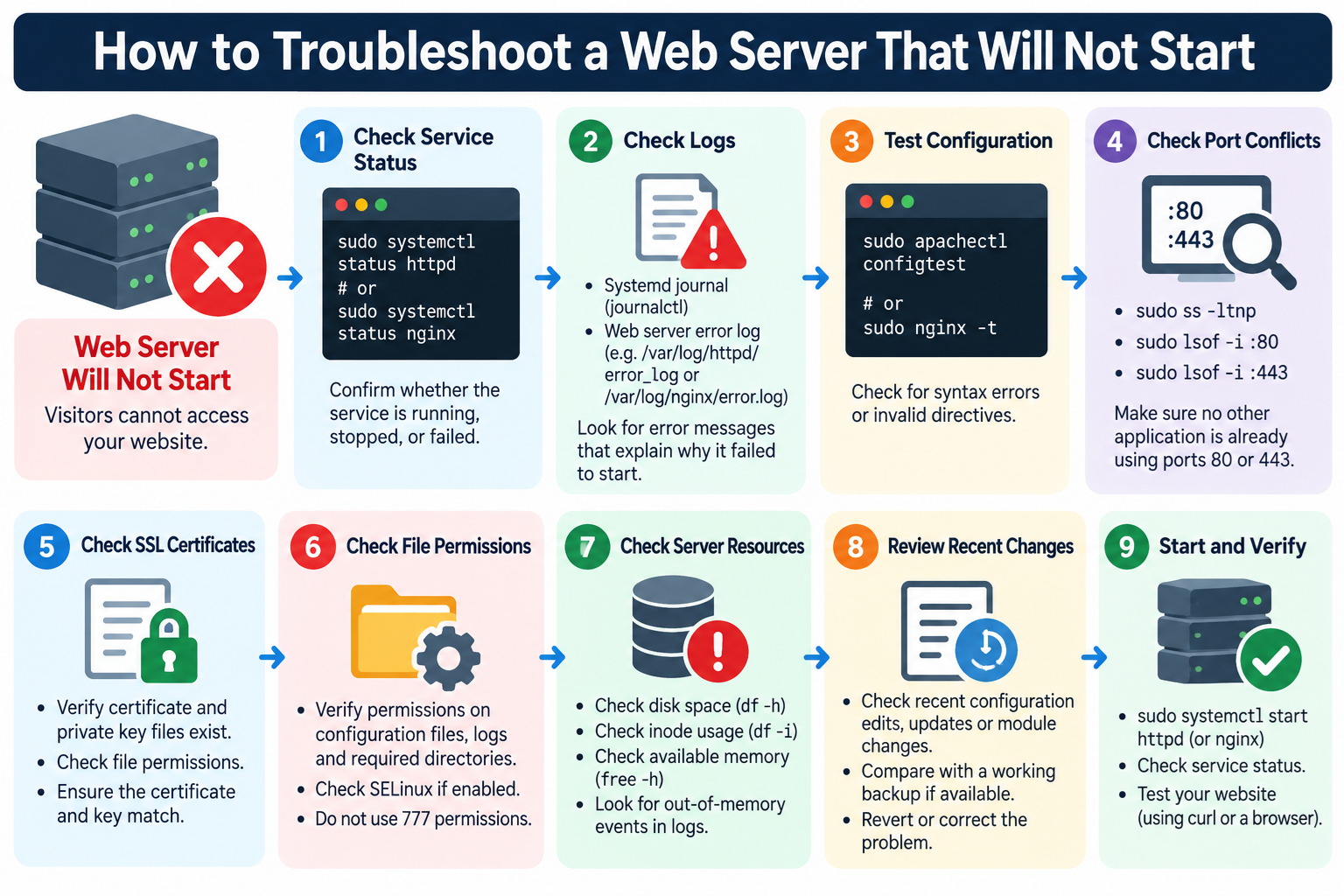
18. A Practical Troubleshooting Workflow
When a Linux web server refuses to start, use a consistent diagnostic sequence.
Step 1: Confirm the service state. Use systemctl status to establish whether Apache or Nginx is stopped, failed, or running unexpectedly.
Step 2: Examine the logs. Read the systemd journal and web server error logs. Identify the earliest relevant failure rather than focusing only on the final error message.
Step 3: Validate configuration syntax. Use apachectl configtest or nginx -t to detect configuration problems before making another start attempt.
Step 4: Check listening ports. Use ss to determine whether another process is occupying port 80 or 443.
Step 5: Verify referenced files. Inspect certificate files, private keys, include files, log directories, and other resources mentioned in errors.
Step 6: Check system resources. Examine disk space, inode availability, memory pressure, and possible out-of-memory events.
Step 7: Review recent changes. Determine whether the problem began after a software update, configuration edit, certificate replacement, or control panel operation.
Step 8: Correct the identified cause. Make the smallest necessary change, preserve backups, and avoid unrelated modifications.
Step 9: Test again before starting. Confirm that the configuration passes validation and that the original error has been addressed.
Step 10: Start and verify the service. Once the problem is corrected, start the relevant service and test HTTP and HTTPS responses.
For example, on a Red Hat-based Apache server:
sudo systemctl start httpd
For Nginx:
sudo systemctl start nginx
Then inspect the service status and perform local and external website tests.
This approach is generally safer and more effective than restarting services repeatedly without knowing why they failed.
19. How to Prevent Future Web Server Startup Failures
Although not every server failure can be prevented, good administration practices can reduce the risk of unexpected downtime.
Always test Apache or Nginx configuration changes before applying them.
Maintain backups of important configuration files, certificates, and application data.
Use configuration management or version control where practical so changes can be reviewed and reversed.
Monitor available disk space, memory, filesystem health, and service availability.
Avoid installing unrelated web servers or applications that may unexpectedly occupy production listening ports.
Keep the operating system, web server, PHP runtime, and supporting packages updated through reliable maintenance procedures.
For important production systems, perform major configuration changes during planned maintenance windows and maintain a recovery procedure.
Where possible, use automated monitoring to detect service failures and alert administrators.
Automatic service restarts can be useful for certain transient failures, but they should not conceal persistent configuration errors or repeated crashes.
On managed hosting servers, follow the control panel’s supported configuration procedures to avoid conflicts with automatically generated files.
20. Frequently Asked Questions
Why does Apache fail to start after editing httpd.conf?
The configuration file may contain an invalid directive, incorrect syntax, or a reference to a missing resource.
Run apachectl configtest and examine the reported error before attempting another restart.
Why does Nginx report Address already in use?
Another process may already be listening on the address and port Nginx wants to use.
Check the relevant listening socket using ss and determine which application should own that port.
Can an expired SSL certificate stop Apache or Nginx from starting?
Certificate expiration alone does not necessarily prevent startup. However, missing certificate files, invalid key files, incorrect permissions, or certain certificate configuration errors can cause startup failures.
Can a full disk prevent a web server from starting?
Yes. A full filesystem can prevent the creation of logs, PID files, temporary files, and other required resources.
Use df -h and df -i to inspect disk space and inode availability.
Why does systemctl report that Apache failed when the configuration test passes?
A syntax test does not verify every runtime condition.
Port conflicts, resource exhaustion, permission problems, systemd configuration errors, and other runtime issues may still prevent the service from starting.
Inspect the systemd journal for additional information.
Should I reinstall Apache or Nginx when the service will not start?
Usually not as a first step.
Most startup failures can be diagnosed through logs, configuration tests, and system resource checks.
Reinstallation may be appropriate if installation files or packages are genuinely damaged, but it should follow a specific diagnosis.
Should I reboot the server?
A reboot may temporarily resolve some operating system or resource-related conditions, but it can also interrupt other services and obscure diagnostic evidence.
Inspect logs and system state first whenever possible.
If a reboot is necessary, follow an appropriate maintenance and recovery procedure.
Why does Apache run from the command line but fail under systemd?
The systemd unit may use different executable arguments, environment variables, permissions, security restrictions, or startup conditions.
Compare the systemd service definition with the manual startup method and inspect the journal.
What is the difference between a web server failing to start and a 502 Bad Gateway error?
A web server startup failure means Apache or Nginx itself cannot begin operating correctly.
A 502 Bad Gateway error usually means that a gateway or proxy received an invalid response from an upstream service.
For example, Nginx may be running normally while PHP-FPM is stopped or malfunctioning.
Conclusion
When Apache or Nginx refuses to start, the most effective solution is to identify the exact failure rather than repeatedly restarting the service.
Begin with systemctl status, examine systemd journal messages, and check the web server error logs.
Next, validate configuration syntax, investigate listening port conflicts, verify SSL certificate files and permissions, and examine available disk space and memory.
For managed servers using cPanel and WHM, remember that configuration files may be generated automatically and should be maintained through supported control panel procedures.
A failed web server does not always indicate a serious operating system problem.
Many startup failures result from a single incorrect directive, unavailable port, missing file, or exhausted filesystem.
With a systematic troubleshooting approach, Linux administrators can often identify and correct these problems without unnecessary reinstallations, uncontrolled changes, or extended downtime.
Understanding how web servers start, where they record errors, and how they interact with the Linux operating system makes troubleshooting faster, more reliable, and safer for production websites.