
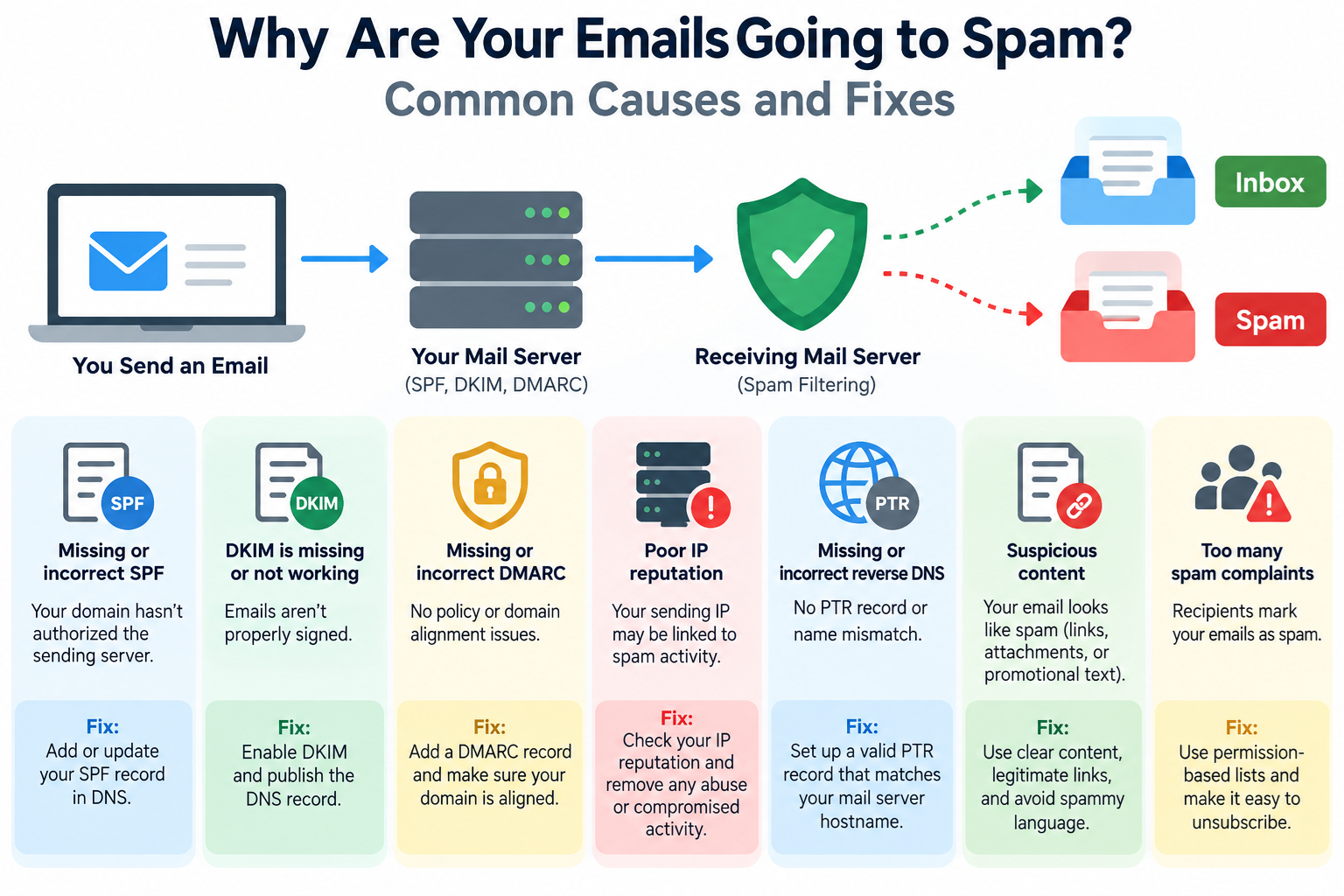
Email remains one of the most important communication tools for businesses, website owners, and online stores.
Whether you are sending invoices, customer notifications, password reset links, or ordinary business correspondence, you expect your messages to reach the recipient’s inbox.
Unfortunately, legitimate emails sometimes end up in spam folders. In other cases, messages are rejected entirely by the receiving mail server.
This problem can affect almost any email service, including email accounts hosted on cPanel servers, dedicated mail servers, Google Workspace, Microsoft 365, and third-party email platforms.
The good news is that many email deliverability problems can be identified and corrected.
Understanding how spam filtering works is the first step toward improving email reliability.
1. How Email Spam Filtering Works
When you send an email, the receiving mail server does more than simply accept the message and place it in the recipient’s inbox.
It performs a series of checks to determine whether the message is legitimate, suspicious, or potentially harmful.
Modern email filtering systems examine several factors, including the reputation of the sending IP address, domain reputation, sender authentication, message content, embedded links, recipient engagement, and previous spam complaints.
For example, when you send an email from support@example.com to a Gmail account, Google’s mail infrastructure may examine whether your server is authorized to send email for example.com, whether the message has a valid digital signature, and whether the sending server has a history of abusive activity.
Even when the message passes technical authentication checks, Gmail may still classify it as spam based on other signals.
This is an important distinction: successful email delivery does not necessarily mean successful inbox placement.
An email may be accepted by the receiving server but placed in the spam folder instead of the inbox.
2. Missing or Incorrect SPF Records
One of the most common technical reasons for email delivery problems is a missing or incorrectly configured Sender Policy Framework (SPF) record.
SPF is an email authentication mechanism that allows domain owners to specify which mail servers are authorized to send email using their domain in the SMTP envelope sender.
An SPF record is published in DNS as a TXT record.
For example, a domain might use the following SPF record:
v=spf1 ip4:192.0.2.10 -all
In this example, the domain authorizes the IPv4 address 192.0.2.10 to send email using that domain’s SPF identity.
The -all mechanism indicates that other sending sources should fail SPF authentication.
The address shown is a documentation example, not a real mail server you should authorize.
If your website sends email through a hosting server but your SPF record authorizes only a third-party email provider, mail sent directly from the hosting server may fail SPF authentication.
This often happens when website owners move their email service to Google Workspace or Microsoft 365 but continue sending WordPress notifications through their web hosting server.
How to Fix SPF Problems
First, identify every legitimate service that sends email for your domain.
These services may include your hosting server, business email provider, email marketing platform, and transactional email service.
Next, examine your existing SPF TXT record and confirm that all required sending sources are authorized.
If you use cPanel, open Email → Email Deliverability to review the SPF configuration recommended for your hosting server.
If your domain uses an external DNS provider such as Cloudflare, the authoritative DNS record must be updated there rather than only on your hosting server.
A domain should publish only one SPF policy record for a given domain name. If multiple services require authorization, combine their mechanisms into the same SPF record.
Also remember that SPF has a limit of ten DNS-querying mechanisms or modifiers during evaluation. Exceeding this limit can produce SPF errors.
Do not blindly copy SPF records from online examples. The correct configuration depends on the services actually sending your email.
3. DKIM Is Missing or Not Working
DomainKeys Identified Mail (DKIM) is another important email authentication technology.
DKIM uses cryptographic signatures to help receiving servers verify that a message was signed by a domain authorized to use the corresponding private key and that signed portions of the message were not modified during transmission.
When a mail server sends a DKIM-signed message, it adds a digital signature to the email header.
The receiving server retrieves the corresponding public key from DNS and uses it to verify the signature.
If DKIM verification succeeds, the receiving server gains additional confidence in the message’s authentication.
However, if the DKIM record is missing, the signature is invalid, or the message has been modified in a way that breaks the signature, verification may fail.
How to Fix DKIM Problems
If you use cPanel, navigate to Email → Email Deliverability, locate your domain, and click Manage.
Check whether cPanel reports a valid DKIM record. If the record is missing or incorrect, review the suggested DNS configuration.
If your domain uses external DNS hosting, copy the correct DKIM record into the authoritative DNS zone.
If you use Google Workspace, Microsoft 365, or another hosted email service, generate and configure DKIM according to that provider’s instructions.
Remember that each email service may use a different DKIM selector and signing key.
A valid DKIM record for your hosting server does not automatically authenticate messages sent through another provider.
For reliable business email delivery, DKIM should normally be enabled for every legitimate sending service that supports it.
4. Missing or Incorrect DMARC Configuration
Domain-based Message Authentication, Reporting, and Conformance (DMARC) builds on SPF and DKIM.
DMARC allows a domain owner to publish a policy explaining how receiving servers should handle messages that fail DMARC authentication.
It also introduces domain alignment. This means that the domain authenticated through SPF or DKIM must align with the domain displayed in the message’s visible From address.
For example, if an email appears to come from billing@example.com, DMARC checks whether an appropriate authenticated domain aligns with example.com.
A simple monitoring-only DMARC record might look like this:
v=DMARC1; p=none
This record is published as a TXT record at _dmarc.example.com.
The p=none policy requests monitoring without directing receivers to quarantine or reject messages solely because they fail DMARC.
Other policy values include p=quarantine, which requests suspicious messages be treated as potentially unwanted, and p=reject, which requests rejection of failing messages.
How to Fix DMARC Problems
Before applying a strict DMARC policy, verify that legitimate email services are properly authenticated and aligned with your domain.
Start with a monitoring policy, review available authentication reports, and identify any services that are failing DMARC checks.
Once legitimate senders are correctly configured, consider moving to a stronger policy.
Do not immediately publish p=reject unless you understand your email infrastructure.
An incorrectly configured strict policy can interfere with legitimate business communications.
A message can pass DMARC when either SPF or DKIM passes with proper alignment.
Both do not have to be aligned simultaneously, although configuring both correctly is good practice.
5. Your Sending IP Address Has a Poor Reputation
Email providers track the behavior and reputation of sending IP addresses.
If an IP address has previously been associated with spam, phishing, malware distribution, or excessive unsolicited email, receiving servers may treat messages from that address with suspicion.
This problem can be particularly relevant to shared hosting environments, where multiple websites or email accounts may send mail through the same outgoing IP address.
If another account on the server sends large volumes of spam, the shared sending infrastructure may develop a poor reputation.
However, reputation is not determined by IP address alone. Modern providers also evaluate sending domains, authentication, traffic patterns, and recipient feedback.
How to Fix IP Reputation Problems
Identify the public IP address your outgoing mail server actually uses. This may be different from your website’s IP address.
You can inspect email headers, mail server logs, or your hosting provider’s mail configuration to determine the sending IP.
Check its reputation using services such as Spamhaus and other recognized reputation-monitoring resources.
If the address appears on a blocklist, investigate the underlying cause before requesting removal.
Look for compromised email accounts, unauthorized SMTP usage, suspicious scripts, excessive outgoing mail, and infected websites.
Simply removing an IP address from a blocklist will not solve the problem if abusive activity continues.
If you are using shared hosting and the outgoing IP has persistent reputation problems, contact your hosting provider for assistance.
Moving to a different IP address may sometimes help, but it is not a substitute for correcting the original problem.
6. Reverse DNS Records Are Missing or Incorrect
Reverse DNS is another important component of mail server configuration.
Ordinary DNS translates a hostname into an IP address.
Reverse DNS performs the opposite lookup, associating an IP address with a hostname through a PTR record.
For example, a mail server might use the hostname mail.example.com with the IP address 192.0.2.10.
A properly configured setup would include a forward DNS record mapping mail.example.com to 192.0.2.10 and a PTR record mapping 192.0.2.10 back to mail.example.com.
Major email providers expect legitimate sending servers to have consistent forward and reverse DNS configurations.
How to Fix Reverse DNS Problems
First, determine the outgoing IP address and hostname used by your mail server.
Check that the IP address has a valid PTR record and that the PTR hostname resolves back to the sending IP address.
For self-managed mail servers, also verify that the SMTP hostname presented during the connection is configured appropriately.
PTR records are normally managed by the organization controlling the IP address, such as your hosting provider, VPS provider, or dedicated server provider.
Changing an ordinary DNS A record does not automatically change reverse DNS.
If your server is missing a PTR record, contact the organization that controls the IP allocation.
7. Your Email Content Looks Suspicious
Technical authentication is important, but message content also influences spam filtering.
Email providers examine message structure, links, attachments, and other characteristics that may indicate unwanted or malicious activity.
Messages that contain misleading subject lines, deceptive links, suspicious attachments, or patterns commonly associated with phishing may receive additional scrutiny.
Excessive promotional language, unusually aggressive formatting, and poorly structured HTML may also contribute to filtering when combined with other negative signals.
However, there is no universal list of words that automatically sends an email to spam.
Modern filtering systems evaluate messages using many signals rather than a simple collection of forbidden keywords.
How to Improve Email Content
Write subject lines that accurately describe the message.
Use clear business language and avoid misleading claims.
Ensure that links point to legitimate destinations related to your organization. Avoid unnecessary URL shorteners and unfamiliar tracking domains.
For HTML email, use clean markup, readable text, meaningful link labels, and appropriate image sizes.
For ordinary business correspondence, simple formatting is usually sufficient.
If you send promotional emails, provide accurate sender information and a clear way for recipients to unsubscribe.
Most importantly, send messages that recipients actually expect and want to receive.
8. Too Many Spam Complaints
Spam complaints are a strong negative signal for email reputation.
When recipients repeatedly mark your messages as spam, email providers may reduce trust in your sending domain or infrastructure.
This can happen even when your email server is properly configured.
For example, a company may collect email addresses from customers during registration and then begin sending frequent promotional messages without clearly communicating what subscribers will receive.
Recipients who do not recognize the sender or no longer want the messages may report them as spam.
How to Reduce Spam Complaints
Use permission-based mailing lists and clearly explain what recipients are subscribing to.
Avoid purchased or scraped email lists.
Make unsubscribe options easy to find and honor opt-out requests promptly.
Do not repeatedly send promotional messages to recipients who never engage or who have already requested removal.
For legitimate newsletters, a recognizable sender identity and consistent sending schedule can help recipients understand why they are receiving your email.
Google recommends keeping user-reported spam rates below 0.1% and preventing them from reaching 0.3% or higher.
These numbers are particularly important for organizations sending large volumes of email to Gmail accounts.
9. Sending Too Many Emails Too Quickly
Sending volume and traffic patterns can influence how receiving servers evaluate email.
A domain that normally sends a few dozen messages per day may attract additional scrutiny if it suddenly begins sending thousands of messages.
Sudden increases can resemble the behavior of compromised accounts or newly established spam operations.
This does not mean every high-volume sender is suspicious.
Legitimate email platforms send enormous volumes of mail, but they typically maintain established reputations and controlled sending practices.
How to Fix Sending Volume Problems
If you are starting a legitimate email campaign from a new domain or sending infrastructure, increase sending volume gradually while monitoring delivery performance.
For newsletters or large promotional campaigns, use a reputable email delivery platform designed for bulk messaging.
Do not use an ordinary web hosting mailbox as a substitute for a professional mass-email service.
Keep transactional messages, such as account verification and password reset emails, logically separate from promotional traffic when practical.
This helps reduce the risk that marketing-related complaints will affect essential account notifications.
10. WordPress Is Sending Email Incorrectly
WordPress websites frequently send automated emails for contact forms, user registrations, password resets, WooCommerce orders, and administrative notifications.
By default, WordPress commonly uses the PHP mail functionality through its underlying mailing library unless another delivery method has been configured.
Depending on the server, this may route messages through the local mail transfer agent.
Although this approach can work, it may produce delivery problems when the server is not correctly configured for authentication or when the message uses an inappropriate sender address.
For example, a contact form may incorrectly attempt to send an email using the visitor’s Gmail address as the From address.
Your hosting server is not authorized to impersonate that Gmail account, so the message may fail authentication or be rejected.
How to Fix WordPress Email Problems
A reliable approach is to configure WordPress to send email through an authenticated SMTP service or a supported transactional email API.
Several WordPress plugins provide this functionality, including WP Mail SMTP and FluentSMTP.
After installing an appropriate plugin, configure it to work with your authorized mail service.
Use an email address belonging to a domain you control as the From address.
For contact forms, place the visitor’s email address in the Reply-To field rather than using it as the authenticated sender.
Use a valid sending domain, configure SPF and DKIM for your chosen email provider, and send a test message.
If your website sends important transactional emails, monitor failures rather than assuming that successful form submission guarantees delivery.
11. Your Domain or Mail Server May Be Compromised
Sometimes email deliverability suddenly deteriorates because a website, mailbox, or server has been compromised.
Attackers may exploit vulnerable WordPress plugins, stolen email passwords, insecure scripts, or poorly protected SMTP services to send unauthorized messages.
A compromised server may begin sending thousands of emails without the website owner’s knowledge.
This can quickly damage the reputation of the affected sending infrastructure.
How to Investigate a Possible Compromise
Review outgoing email logs and identify unusual sending activity.
Look for unexpected sender addresses, unusually large message volumes, and repeated attempts to deliver email to unfamiliar recipients.
If you manage a cPanel server, tools such as Track Delivery can help investigate individual messages.
Server administrators with WHM access may also use Mail Queue Manager and Exim logs, depending on the server configuration.
If you find suspicious activity, reset affected credentials, remove malicious scripts, update vulnerable software, and examine the server for additional signs of compromise.
Do not merely delete messages from the outgoing queue. The source of unauthorized email must be identified and stopped.
After the incident has been contained, evaluate whether the IP address or domain reputation needs further remediation.
12. Gmail and Yahoo Have Stricter Sender Requirements
Major email providers have strengthened sender authentication and anti-spam requirements.
Google introduced additional sender requirements beginning in February 2024, and later increased enforcement against noncompliant mail traffic.
For senders delivering messages to personal Gmail accounts, Google’s requirements include email authentication, appropriate DNS configuration, TLS encryption, and compliance with relevant message formatting and anti-abuse expectations.
Senders transmitting 5,000 or more messages per day to personal Gmail accounts are subject to additional requirements, including SPF, DKIM, DMARC, alignment, and applicable one-click unsubscribe requirements for marketing or subscribed messages.
Yahoo also maintains requirements for email senders, with additional obligations for bulk senders.
These requirements do not mean that every small business must operate an advanced email infrastructure.
However, even low-volume senders should configure SPF, DKIM, and DMARC correctly whenever possible.
An important point is that satisfying the minimum technical requirements does not guarantee inbox placement.
Message reputation and recipient behavior remain important.
You can review Google’s official sender guidelines at:
https://support.google.com/mail/answer/81126
13. How to Check Email Deliverability in cPanel
If your email service is hosted on a cPanel server, several built-in tools can help identify delivery problems.
Start by logging in to your cPanel account and opening Email → Email Deliverability.
This section examines the email authentication records associated with your domain and may identify problems involving SPF, DKIM, or other mail-related DNS settings.
Select Manage to review the recommended records.
If cPanel controls the authoritative DNS zone, it may offer an automatic repair option.
If the domain uses external DNS, you may need to copy the suggested records into the external DNS provider’s interface.
Next, open Email → Track Delivery, if your hosting provider has enabled this feature.
Track Delivery can show message routing information and delivery outcomes for mail handled by the server.
Look for deferred messages, rejected messages, authentication errors, and remote server responses.
A message reported as successfully delivered to the recipient’s mail server may still have been placed in spam.
Track Delivery generally cannot tell you which inbox folder the receiving provider selected.
If your email is hosted entirely with a third-party provider, use that provider’s administration and message-tracing tools instead.
14. How to Examine Email Headers
Email headers contain technical information showing how a message traveled between mail servers.
They can also contain authentication results and diagnostic clues.
For example, Gmail allows recipients to open a message, select Show original, and inspect the message headers.
Look for the authentication results associated with SPF, DKIM, and DMARC.
A properly authenticated message may contain results such as:
spf=pass
dkim=pass
dmarc=pass
These indicate successful checks performed by the receiving authentication system, although the details of the authenticated domains still matter.
If you see spf=fail, dkim=fail, or dmarc=fail, investigate the relevant configuration and domain alignment.
Be aware that headers can include authentication results inserted by intermediate systems.
Focus on results added by the receiving provider you trust.
Also examine SMTP error codes if the message was rejected.
For example, a permanent 550-series rejection may indicate a policy violation, authentication failure, invalid recipient, or other permanent delivery issue.
The accompanying SMTP response text provides the actual reason.
Temporary 4xx responses generally indicate that delivery may be retried.
Do not assume that every rejected message has the same cause.
15. How to Test Your Email Configuration
After adjusting your configuration, test email delivery rather than assuming the problem has been solved.
Start by sending messages from your business domain to accounts you control at different providers, such as Gmail, Outlook, and Yahoo.
Check whether each message arrives in the inbox, spam folder, or not at all.
Review the complete headers to verify SPF, DKIM, and DMARC authentication results.
You can also use online diagnostic tools to inspect DNS records and identify common mail configuration problems.
Useful resources include:
MXToolbox: https://mxtoolbox.com/
Google Postmaster Tools: https://postmaster.google.com/
Mail-Tester: https://www.mail-tester.com/
Spamhaus: https://www.spamhaus.org/
MXToolbox provides various DNS and mail infrastructure checks. Google Postmaster Tools provides reputation, spam, and authentication-related information for eligible verified sending domains, subject to data availability.
Mail-Tester can analyze a message sent to its testing address and highlight potential authentication or formatting problems.
Spamhaus publishes reputation and blocklist information useful when investigating abuse-related delivery issues.
No single testing service can guarantee inbox placement at every email provider. Use test results as diagnostic evidence, not as a universal deliverability score.
16. Common Email Problems and Their Solutions
The following situations illustrate how different email problems should be approached.
Problem: Messages from your business domain reach Gmail’s spam folder.
First, verify SPF, DKIM, and DMARC. Then examine your sending reputation, message content, links, and complaint history.
If authentication passes, investigate reputation and recipient-related factors instead of repeatedly modifying DNS records.
Problem: WordPress contact form notifications never arrive.
Check whether WordPress is generating the messages, whether the sending server accepts them, and whether delivery attempts appear in the mail logs.
Configure a legitimate SMTP service or transactional email API and use a properly authenticated From address.
Problem: Emails work with some providers but fail with others.
Inspect the exact rejection response from each receiving server. Different providers use different filtering policies, reputation systems, and enforcement mechanisms.
Problem: Email stopped working after changing DNS or nameservers.
Verify that the new authoritative DNS zone contains the correct MX, SPF, DKIM, and DMARC records.
Check any other records required by your email provider. DNS changes may take time to propagate through caches.
Problem: Your server’s outgoing IP is blocklisted.
Investigate whether unauthorized mail is being sent. Stop abusive activity, secure compromised accounts, and follow the relevant blocklist operator’s remediation process.
Problem: Your newsletters increasingly land in spam.
Review subscriber consent, list quality, sending frequency, complaints, unsubscribe handling, and engagement.
Authentication alone cannot overcome persistent negative recipient feedback.
17. Best Practices for Reliable Email Delivery
Maintaining reliable email delivery requires attention to both technical configuration and everyday sending behavior.
For a typical small business, a good starting point is to configure SPF, DKIM, and DMARC, ensure that the mail server has valid forward and reverse DNS, and use a trustworthy outbound email service.
Keep mail accounts protected with strong passwords and multifactor authentication where supported.
Apply security updates to websites and applications that can generate email, particularly WordPress installations and their plugins.
Avoid sending unsolicited bulk messages, and never use purchased email lists.
Monitor outgoing traffic for unexpected changes and investigate repeated authentication failures or delivery errors.
For business-critical communication, consider using a dedicated transactional email service or a professionally managed business email platform rather than relying entirely on a general-purpose website hosting server.
For websites using both transactional and promotional email, separating their sending services or domains can also make reputation management easier.
Finally, remember that email reputation is built over time. Correct configuration helps establish legitimacy, but consistent and responsible sending behavior is what supports long-term deliverability.
18. Frequently Asked Questions
Why do my emails go to spam even though SPF, DKIM, and DMARC all pass?
Email authentication confirms important aspects of sender identity and message integrity, but it does not establish that a message is wanted.
Receiving providers also examine sender reputation, spam complaints, content, links, and recipient behavior.
Can changing my email address solve the problem?
Sometimes using an appropriate, properly authenticated sender address resolves a configuration issue. However, simply changing the mailbox name from info@example.com to support@example.com will not normally fix domain-wide authentication or reputation problems.
Does a dedicated IP address improve email deliverability?
A dedicated IP can provide greater control over IP reputation, particularly for organizations sending substantial volumes of email.
However, it also requires careful management and may initially have little sending reputation.
For low-volume senders, a reputable shared sending service can perform better than an improperly managed dedicated IP.
Can Cloudflare cause email delivery problems?
Cloudflare DNS itself does not normally interfere with properly configured email authentication.
However, missing or incorrect DNS records can cause problems, especially after moving authoritative nameservers.
Verify SPF, DKIM, DMARC, and MX records in the authoritative Cloudflare DNS zone when applicable.
Mail hostnames used for ordinary SMTP, IMAP, and POP connections should normally remain DNS-only unless a specifically supported proxy service is being used.
How long does it take to fix emails going to spam?
DNS corrections may become effective after caches expire, depending on the records’ TTL values and DNS behavior.
Authentication problems may be resolved relatively quickly once the correct records are visible to receiving servers.
Reputation-related issues can take substantially longer because receiving providers evaluate sending behavior over time.
There is no guaranteed recovery period for inbox placement.
Can my hosting provider guarantee that emails will reach the inbox?
No hosting provider can guarantee inbox placement at Gmail, Outlook, Yahoo, or every other receiving service.
A hosting provider can help maintain correctly configured servers, DNS records, and email infrastructure, but the receiving provider ultimately decides how to classify incoming messages.
Conclusion
When legitimate emails end up in spam folders, the cause is often a combination of technical configuration, sender reputation, and recipient-related signals.
Start by checking SPF, DKIM, and DMARC authentication. Then verify the sending IP address, reverse DNS, mail server configuration, and actual SMTP delivery results.
If your technical configuration is correct, examine domain reputation, spam complaints, sending patterns, and message content.
For WordPress websites, using authenticated SMTP or a transactional email service can help avoid problems associated with improperly configured local mail delivery.
Reliable email delivery is not achieved through a single DNS record or a particular email plugin.
It depends on correctly configured infrastructure, secure systems, and responsible sending practices.
By regularly checking email authentication, reviewing delivery failures, and maintaining your sending reputation, you can reduce the likelihood that important business messages will be rejected or sent to spam.
For website owners using cPanel hosting, the Email Deliverability and Track Delivery features provide useful starting points for identifying and troubleshooting common problems.