
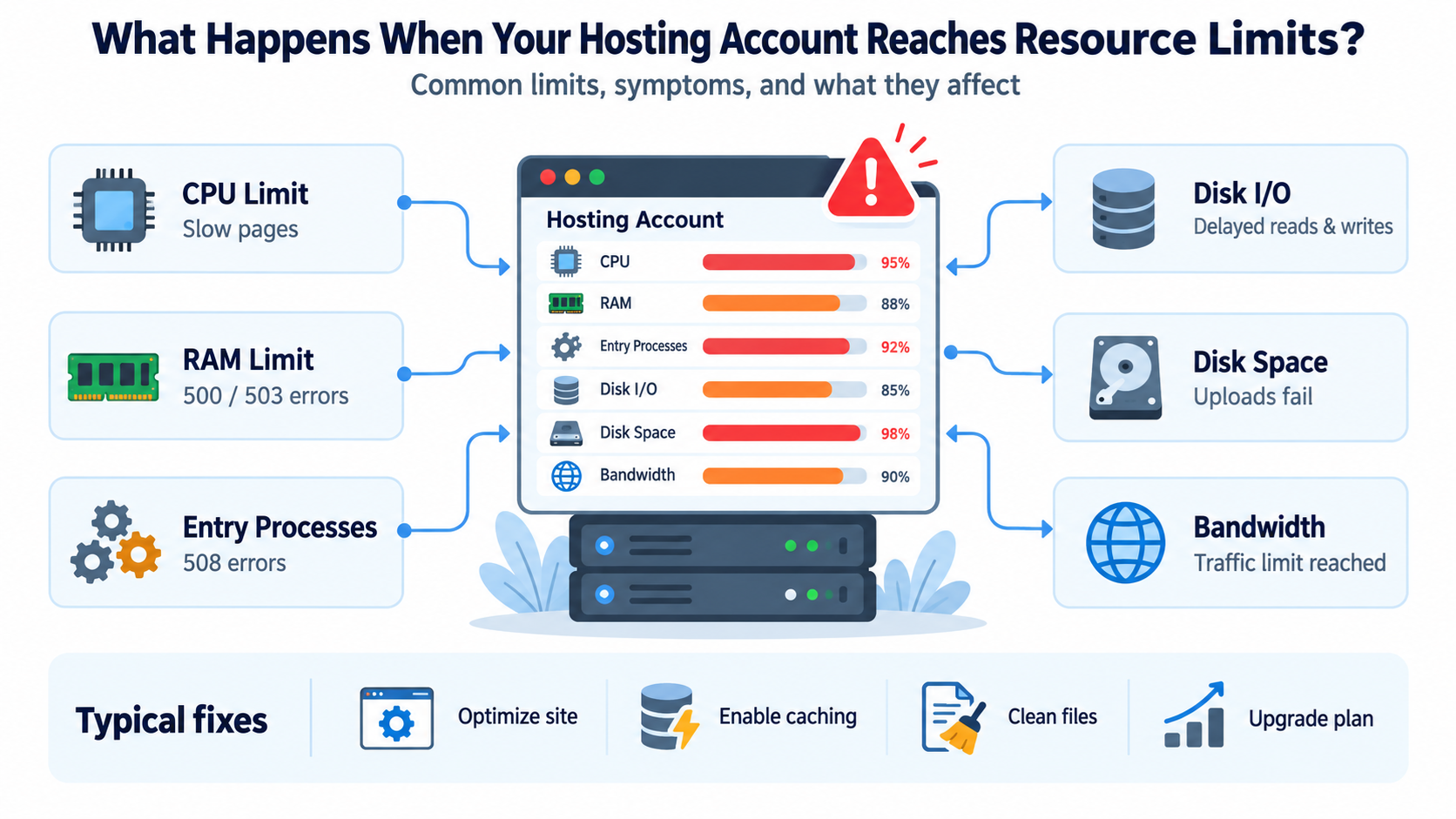
Every website requires server resources to operate.
When visitors open a webpage, submit a contact form, search a product catalog, or log in to WordPress, the hosting server must process requests, execute applications, access databases, and transfer data.
These activities consume CPU processing power, memory, disk I/O, storage space, and network bandwidth.
Most web hosting plans provide access to a defined amount of these resources.
Shared hosting accounts, in particular, often have limits designed to prevent one website from consuming an excessive portion of a server’s capacity.
But what happens when your website reaches those limits?
The answer depends on which resource has been exhausted.
Your website may become slow, display error messages, reject new requests, fail to upload files, or temporarily become unavailable.
Understanding how hosting resource limits work can help you identify performance problems, avoid unnecessary upgrades, and keep your website running reliably.
1. What Are Web Hosting Resource Limits?
Web hosting resource limits define how much of a server’s capacity an individual hosting account is allowed to use.
In a shared hosting environment, multiple customers operate websites on the same physical or virtual server.
Each website uses some of the server’s processing power, memory, storage, and network resources.
Without resource controls, one poorly optimized website or resource-intensive application could consume enough server capacity to affect other customers.
Hosting providers therefore establish limits that help distribute resources among accounts.
Common resource limits include:
- CPU usage
- Physical memory (RAM)
- Entry Processes (EP)
- Number of Processes (NPROC)
- Disk I/O throughput
- I/O Operations Per Second (IOPS)
- Disk storage space
- File and directory counts (inodes)
- Monthly bandwidth or data transfer
Not every hosting plan enforces all these limits in the same way.
For example, a CloudLinux-based shared hosting server may use Lightweight Virtual Environment (LVE) technology to control CPU, memory, and process usage for individual accounts.
A VPS generally operates with a different resource allocation model, and a dedicated server provides access to hardware resources without the same type of shared-account restrictions.
The important point is that reaching one resource limit does not necessarily mean your entire hosting account has run out of capacity.
A website may have plenty of free disk space while simultaneously exhausting its available CPU or memory.
2. What Happens When You Reach Your CPU Limit?
CPU stands for Central Processing Unit. It performs the calculations and instructions required to execute server-side programs.
When a visitor opens a WordPress page, the server may need to execute PHP code, query a MySQL database, process plugin functionality, and generate HTML.
All these operations consume CPU time.
A website with complex plugins, inefficient database queries, or substantial traffic may use considerably more CPU resources than a simple static website.
Symptoms of High CPU Usage
When your hosting account reaches its CPU allocation, website requests may take longer to complete.
Visitors may notice that pages load slowly, especially pages requiring dynamic PHP execution.
The WordPress administration dashboard may become sluggish, and tasks such as publishing articles or updating plugins may take longer than usual.
If requests cannot finish within configured timeouts, some operations may eventually fail.
On CloudLinux systems, hitting a CPU limit normally causes processing to be throttled rather than automatically taking the entire website offline.
However, sustained throttling can contribute to application timeouts and upstream errors.
How to Fix High CPU Usage
Start by identifying the activities consuming CPU resources.
For WordPress websites, inefficient plugins, heavy themes, excessive background tasks, and uncached page requests are common contributors.
Enable an appropriate caching solution, reduce unnecessary plugins, and investigate slow database queries.
Check whether scheduled tasks, backup plugins, security scanners, or import processes are running too frequently.
Traffic spikes may also increase CPU consumption.
A content delivery network (CDN) and properly configured page caching can reduce the number of requests that reach PHP.
If your website consistently requires more CPU power even after optimization, a hosting plan with higher resource allocations may be necessary.
3. What Happens When You Run Out of RAM?
RAM is the working memory used by running applications and operating system processes.
Web applications need memory to execute PHP scripts, process data, and manage active requests.
A WordPress website with many plugins or memory-intensive operations may require more RAM than a basic HTML website.
Symptoms of Memory Limits
When a hosting account reaches its physical memory limit, some processes may fail to allocate additional memory.
Depending on the hosting environment, this can produce HTTP 500 or 503 errors, failed scripts, interrupted processes, or temporary application unavailability.
Visitors may see error messages rather than the requested webpage.
WordPress administrators may experience failed plugin installations, incomplete imports, or errors when generating large reports.
It is important to distinguish the hosting account’s physical memory limit from PHP’s own memory_limit setting.
For example, increasing PHP memory_limit from 128 MB to 256 MB does not automatically increase the total RAM allocated to your hosting account.
The PHP memory limit controls how much memory an individual PHP script may allocate, while the hosting account may have a separate overall memory restriction.
How to Fix Memory Problems
Review your hosting account’s memory usage and identify which applications or processes are responsible.
Disable unnecessary WordPress plugins and investigate applications that consume unusually large amounts of memory.
Break large import or processing jobs into smaller operations when practical.
If a PHP script is failing because its individual memory limit is too low, adjusting PHP memory_limit may help, provided sufficient account memory is available.
However, increasing PHP’s memory allocation without addressing an inefficient application can make overall resource pressure worse.
For persistent memory exhaustion, additional RAM or a more suitable hosting environment may be required.
4. What Happens When You Reach the Entry Processes Limit?
Entry Processes, often abbreviated EP, are commonly misunderstood.
In CloudLinux-based hosting, the Entry Processes limit controls the number of concurrent requests or processes entering an account’s resource environment through supported mechanisms.
For websites using Apache and PHP, this often relates to concurrent dynamic requests.
Entry Processes are not the same as the number of visitors currently browsing your website.
A visitor reading a fully loaded webpage may not be consuming an Entry Process.
Likewise, a single visitor may generate multiple requests that require server-side processing.
What Happens When the Limit Is Reached?
When the Entry Processes limit is exhausted, the server may refuse additional requests requiring an entry into the account’s resource environment.
On a typical CloudLinux and Apache configuration, this can produce:
508 Resource Limit Is Reached
A visitor may see an error page instead of the requested content.
Existing requests may continue processing, but new requests can be rejected until capacity becomes available.
For example, suppose a hosting account permits 20 concurrent Entry Processes.
If 20 qualifying requests are already occupying those slots, another request may encounter a resource-limit error until one of the existing processes finishes.
The exact behavior depends on the server configuration and the web server’s integration with CloudLinux.
How to Fix Entry Process Problems
Start by investigating why requests remain active for too long.
Slow PHP scripts, inefficient database queries, external API calls, and overloaded applications can increase the time each request occupies server resources.
Improve caching, optimize database performance, and reduce unnecessary dynamic processing.
Examine whether automated bots are generating excessive requests.
If legitimate traffic consistently exceeds your available concurrency, upgrading to a plan with a higher Entry Processes limit may be appropriate.
Remember that increasing the EP limit alone will not solve underlying CPU, memory, or database bottlenecks.
5. What Happens When You Reach the Number of Processes Limit?
The Number of Processes limit, usually displayed as NPROC in CloudLinux environments, controls how many processes an account may run simultaneously.
This differs from Entry Processes.
NPROC can include processes such as PHP workers, shell commands, scheduled tasks, and other account-owned processes within the controlled environment.
When the process limit is reached, the system may prevent additional processes from starting.
Common Symptoms
Scheduled tasks may fail to launch.
PHP applications may encounter errors when attempting to create additional processes.
Some server operations may fail temporarily, and visitors may experience HTTP 500 or 503 errors.
This problem can occur even when a website does not appear to have a large number of active visitors.
For example, a poorly configured cron job may repeatedly start new processes before earlier executions have finished.
How to Fix Process Limit Problems
Check scheduled jobs and identify overlapping or long-running tasks.
Avoid running unnecessary background scripts.
Investigate WordPress plugins that initiate frequent external commands or background processes.
If a scheduled task requires substantial processing time, consider running it less frequently or restructuring it into smaller jobs.
For applications that legitimately require many concurrent workers, a VPS or another hosting configuration may provide more appropriate process management.
6. What Happens When You Reach the Disk I/O Limit?
Disk I/O refers to the amount of data read from or written to storage over time.
Websites perform disk operations when accessing PHP files, reading cached content, writing logs, uploading images, and working with application files.
Hosting providers may limit disk I/O throughput to prevent one account from monopolizing storage resources.
For example, an account might have an I/O allocation of 1 MB per second. This is only an illustrative value; actual limits vary by provider and plan.
Symptoms of Disk I/O Limits
When an account reaches its disk I/O throughput limit, storage-related operations may slow down.
Pages that require frequent file access may take longer to generate.
Large file operations, backups, imports, and uploads may perform poorly.
Disk I/O throttling usually slows affected operations rather than immediately producing a specific HTTP error.
However, prolonged delays can contribute to timeouts and other application failures.
How to Fix Disk I/O Problems
Identify processes generating substantial disk activity.
Common causes include frequent backups, image processing, large file operations, and applications repeatedly reading or writing files.
Schedule resource-intensive jobs during periods of lower traffic.
Avoid running multiple backup processes simultaneously.
Review caching configurations and investigate applications generating excessive disk activity.
For consistently storage-intensive workloads, a hosting plan with higher I/O allowances or faster storage infrastructure may be necessary.
7. What Happens When You Reach the IOPS Limit?
IOPS stands for Input/Output Operations Per Second.
While disk I/O throughput measures how much data is transferred, IOPS measures how many individual storage operations occur during a second.
The difference is important.
An application reading one large file may generate substantial throughput but relatively few I/O operations.
Another application reading thousands of tiny files may generate relatively little total data transfer while consuming many IOPS.
Symptoms of IOPS Limits
Websites that depend on frequent file operations may experience increased response times.
Applications that scan directories, access many small files, or generate numerous logs can be affected.
If an IOPS limit is enforced, additional operations may be delayed, reducing overall application performance.
How to Fix IOPS Problems
Reduce unnecessary file operations and optimize applications that repeatedly access large numbers of small files.
Review backup utilities, malware scanning tools, and filesystem-intensive tasks.
Use appropriate caching where it reduces repeated filesystem access.
If the workload naturally requires high IOPS, consider a hosting environment designed for more intensive storage operations.
8. What Happens When Your Disk Space Is Full?
Disk space is one of the easiest hosting resources to understand.
Your hosting account uses storage for website files, databases, email messages, backups, logs, and other application data.
When your account reaches its disk quota, the server may no longer allow additional data to be written under that quota.
Symptoms of a Full Hosting Account
You may be unable to upload new files through cPanel, FTP, or WordPress.
WordPress updates and plugin installations may fail because the system cannot create or replace necessary files.
Applications may be unable to write logs, cache files, or temporary data.
Email delivery to locally hosted mailboxes may fail if sufficient storage is not available.
Database operations may also fail when the relevant storage or quota is exhausted, although database storage limits can be managed separately depending on the hosting environment.
Common error messages include:
Disk quota exceeded
No space left on device
These messages do not always mean the entire physical server is full. Your individual account may have reached its allocated quota.
How to Fix Disk Space Problems
In cPanel, open Files → Disk Usage to identify directories consuming large amounts of storage.
Pay particular attention to old backup archives, unused website installations, accumulated logs, and large media files.
WordPress backup plugins sometimes store multiple complete website backups inside the hosting account.
These files can consume substantial storage without the website owner noticing.
Download any backups you need to retain to a separate location before removing redundant copies.
Do not delete unfamiliar system files or database directories without understanding their purpose.
If storage usage continues to grow despite cleanup, consider increasing your disk quota.
9. What Happens When You Reach the Inode Limit?
An inode is a filesystem data structure that stores information about a file or directory.
Hosting providers commonly use inode counts as a way to limit the number of filesystem objects an account can contain.
In practical terms, a website containing hundreds of thousands of small files can consume a large inode allocation even when the total storage size is relatively modest.
This is particularly relevant for websites containing large caches, email storage directories, or many generated files.
Symptoms of Inode Limits
When an enforced inode limit is reached, creating additional files or directories may fail.
WordPress may be unable to generate new cache files, install plugins, or complete updates.
Email storage and temporary file creation can also be affected.
The exact behavior depends on whether the limit is enforced through filesystem quotas, CloudLinux controls, or provider-specific policies.
How to Fix Inode Problems
Inspect directories containing unusually large numbers of files.
Common sources include cache directories, temporary files, outdated backups, and accumulated email messages.
Clear caches through the appropriate application controls.
Remove unnecessary files only after verifying that they are safe to delete.
For email accounts using Maildir storage, large numbers of stored messages can contribute significantly to inode usage.
If your application legitimately requires a very large number of files, contact your hosting provider about higher inode allowances.
10. What Happens When You Reach Your Bandwidth Limit?
Bandwidth in web hosting plans commonly refers to the amount of data transferred during a billing or measurement period, usually one month.
This should not be confused with the instantaneous network connection speed.
For example, if a hosting plan includes 100 GB of monthly data transfer, website visits, file downloads, and other counted traffic can consume that allowance.
A website hosting large images, downloadable software, or video files may transfer considerably more data than a small business website containing mostly text.
What Happens When Monthly Bandwidth Is Exhausted?
The behavior depends on the hosting provider and the account configuration.
In a cPanel/WHM environment where a bandwidth quota is enforced, the account may become bandwidth-limited, and HTTP or HTTPS visitors may see a bandwidth limit message.
Other providers may offer overage allowances, additional transfer capacity, or different usage policies.
Reaching a monthly bandwidth quota does not necessarily mean the entire hosting account is permanently suspended.
In cPanel/WHM, bandwidth limiting and account suspension are separate mechanisms.
How to Reduce Bandwidth Usage
Optimize images and use modern image formats where appropriate.
Enable caching and compression.
Use a CDN to serve suitable static content and reduce traffic reaching the origin server.
Avoid hosting very large video files directly on a basic shared hosting account when a dedicated media delivery service would be more appropriate.
Investigate unexpected increases in transfer usage, including excessive bot requests, hotlinking, or abusive downloads.
If traffic growth is legitimate and sustained, a hosting plan with a more suitable transfer allocation may be necessary.
11. Why Resource Limits Can Cause HTTP Errors
When hosting resources are exhausted, websites may display different HTTP errors.
The error code often provides a useful clue, although it does not identify the underlying cause by itself.
500 Internal Server Error
An HTTP 500 error indicates that the server encountered an unexpected condition preventing it from completing the request.
Memory exhaustion, process creation failures, application crashes, and other server-side problems can contribute to this error.
However, a 500 error can also result from incorrect PHP code, configuration problems, file permissions, or incompatible plugins.
Do not assume every HTTP 500 error indicates exhausted hosting resources.
503 Service Unavailable
An HTTP 503 error indicates that the server is temporarily unable to handle the request.
This may happen when the application is overloaded, worker processes are unavailable, or the server is undergoing maintenance.
Resource exhaustion is one possible cause, but not the only one.
508 Resource Limit Is Reached
On CloudLinux-based shared hosting systems, a 508 error commonly indicates that an account has reached its Entry Processes limit.
This is a strong clue that the server is refusing additional requests because of an enforced resource restriction.
However, HTTP 508 also has a different standardized meaning, Loop Detected, in WebDAV environments. The message and server configuration determine which situation applies.
504 Gateway Timeout
An HTTP 504 error occurs when a gateway or proxy does not receive a timely response from an upstream server.
Severe resource pressure can contribute to slow upstream responses.
For example, if PHP workers are delayed by CPU contention or slow database operations, a reverse proxy may eventually time out.
A 504 error alone does not prove that an account reached its resource limit.
12. How to Check Resource Usage in cPanel
If your hosting provider uses CloudLinux and has enabled its resource monitoring interface, cPanel may include a Resource Usage section.
Log in to your cPanel account and look for Metrics → Resource Usage.
The interface can display current and historical account resource consumption.
Depending on the installation, you may see CPU usage, physical memory, I/O throughput, IOPS, Entry Processes, and process counts.
You may also see notifications that your account has reached one or more resource limits.
Understanding Usage, Limits, and Faults
Resource monitoring often distinguishes between actual usage, configured limits, and faults.
Usage represents the resources consumed during the measurement period.
Limit represents the maximum allocation configured for that resource.
Faults represent recorded limit violations or attempts to exceed specific allocations.
For example, a high CPU utilization reading may indicate that your website is operating near its allocated processing capacity.
Repeated Entry Processes faults may explain intermittent 508 errors during traffic spikes.
Physical memory faults can indicate that processes attempted to use more memory than the account was permitted to allocate.
Historical graphs are especially useful because resource exhaustion may occur only during specific periods.
If your website becomes slow every morning, compare the timing with scheduled backups, cron jobs, automated scans, and traffic patterns.
An important distinction is that reaching 100% of a throttled CPU or I/O allocation may cause slower processing without necessarily producing a fault counter in the same way as rejected process or memory allocations.
Therefore, examine both utilization graphs and fault records.
The Resource Usage interface is not available on every cPanel server. If you cannot find it, your hosting provider may use a different operating system, monitoring system, or feature configuration.
13. Why WordPress Websites Often Reach Resource Limits
WordPress is flexible, but its performance depends heavily on configuration, plugins, themes, and traffic patterns.
A simple WordPress installation can operate efficiently on modest hosting resources.
However, adding unnecessary plugins, complex themes, and resource-intensive features can increase server workload.
Too Many or Poorly Optimized Plugins
The number of plugins alone does not determine performance.
A website with 30 well-designed plugins may perform better than another website with five inefficient plugins.
The more important factors are what those plugins do, how frequently they execute, and how much processing they require.
Plugins that perform heavy database queries, external API requests, real-time analytics, or frequent background operations can increase CPU and memory usage.
Inefficient Database Queries
WordPress uses a database to store posts, configuration settings, user information, and other application data.
Some plugins or themes generate expensive database queries, especially on large websites.
Slow queries keep requests active longer, potentially increasing concurrent request pressure and the likelihood of reaching resource limits.
Excessive WordPress Cron Activity
WordPress includes a task scheduling mechanism commonly called WP-Cron.
By default, scheduled tasks are checked through website requests.
Plugins may schedule tasks for backups, email notifications, content processing, and maintenance operations.
When many tasks accumulate or take a long time to complete, background processing can contribute to resource pressure.
For suitable environments, configuring an actual system cron job to run scheduled WordPress tasks at controlled intervals may improve predictability.
Lack of Effective Caching
Without effective page caching, repeated visits may require WordPress to execute PHP and query the database for every dynamic page request.
A properly configured cache can often serve previously generated content without repeating the full application execution process.
However, personalized pages, shopping carts, administrative pages, and authenticated sessions may require special caching rules.
Heavy Backup and Security Scanning Tasks
Backup and security plugins can consume considerable CPU, memory, and disk I/O.
Running multiple resource-intensive tasks simultaneously may temporarily overload an otherwise healthy website.
Schedule these operations thoughtfully and avoid unnecessary duplication.
14. How to Troubleshoot Resource Limit Problems Step by Step
When your website becomes slow or unavailable, avoid immediately upgrading the hosting plan.
First, determine whether resource exhaustion is actually responsible.
Step 1: Identify the Symptoms
Record the exact error message and the time the problem occurred.
Determine whether the entire website is affected or only specific pages and functions.
For example, a slow WordPress administration dashboard may suggest a different problem than a bandwidth limit page.
Step 2: Check Hosting Resource Usage
Review the resource monitoring interface provided by your hosting provider.
Look for usage peaks and recorded limit violations around the time the problem occurred.
Also inspect disk space, inode counts, and bandwidth usage.
Step 3: Review Application and Server Logs
Examine the available error logs for PHP failures, application errors, and timeout messages.
For WordPress, enable appropriate diagnostic logging when necessary, taking care not to expose sensitive information publicly.
Hosting providers or server administrators may have access to additional web server, PHP-FPM, and operating system logs.
Step 4: Identify Resource-Intensive Operations
Investigate backup jobs, security scans, scheduled tasks, slow database queries, and plugins associated with performance problems.
If a specific operation consistently causes resource spikes, optimize or reschedule it.
Step 5: Apply Targeted Improvements
Enable appropriate caching, optimize database operations, reduce unnecessary processes, and remove unused applications.
For disk-related problems, remove redundant files and move retained backups to suitable external storage.
For traffic-related problems, consider CDN caching and appropriate bot mitigation.
Step 6: Monitor the Results
After making changes, compare resource usage with previous measurements.
Pay attention to whether page response times improve and whether faults decrease.
Avoid changing many unrelated settings simultaneously, because doing so makes it difficult to identify which change actually helped.
Step 7: Upgrade Only When Necessary
If your website continues to reach resource limits during normal legitimate operation, even after reasonable optimization, additional resources may be justified.
Use actual measurements to determine what kind of upgrade is required.
A CPU-bound website needs a different solution from one primarily constrained by disk space or concurrent requests.
15. Shared Hosting vs. VPS vs. Dedicated Hosting
Different hosting environments provide different levels of resource control.
Shared Hosting
Shared hosting is generally suitable for small business websites, personal blogs, informational sites, and many WordPress installations.
The provider manages the underlying server, while each account receives access to an allocation of shared resources.
Advantages include relatively simple administration and lower operating costs.
However, account-level limits can become restrictive as application demands increase.
Virtual Private Server (VPS)
A VPS provides an isolated virtual server environment with allocated resources.
Depending on the virtualization platform and plan, the VPS may have assigned virtual CPUs, RAM, storage, and network allocations.
This environment offers greater flexibility for configuring web servers, databases, PHP processes, and background services.
However, a VPS is not automatically faster than shared hosting.
Performance depends on hardware, resource allocation, virtualization, server configuration, and workload.
A managed VPS may also be preferable for website owners who do not want to administer the operating system themselves.
Dedicated Server
A dedicated server provides exclusive access to a physical server.
It is suitable for applications requiring substantial computing resources, specialized configurations, or greater control over the server environment.
Even dedicated servers have physical limits, including CPU capacity, available memory, storage performance, and network throughput.
Moving to a dedicated server does not eliminate the need for monitoring, optimization, backups, and security maintenance.
16. When Should You Upgrade Your Hosting Plan?
Not every resource spike requires an upgrade.
An occasional CPU peak during a software update or backup operation may be normal.
The more important question is whether the available resources are sufficient for your website’s regular workload.
Consider upgrading when your website repeatedly experiences resource-related errors, application response times remain poor after optimization, or legitimate traffic consistently exceeds the available capacity.
You should also consider whether your website requires background services, custom server software, or configurations unavailable on shared hosting.
For example, a growing WooCommerce website may require more resources as its product catalog, order volume, integrations, and concurrent customer activity increase.
In that situation, a managed VPS or another appropriately sized hosting platform may provide more flexibility.
However, if your only problem is accumulated backup files consuming disk space, increasing CPU or memory allocations will not address the underlying issue.
Choose upgrades based on the specific resource bottleneck.
17. How to Prevent Resource Limits from Becoming a Problem
Preventing resource exhaustion is generally easier than recovering from repeated outages.
Monitor resource usage periodically rather than checking it only when the website stops working.
Keep WordPress, themes, and plugins updated, and remove components that are no longer needed.
Configure caching appropriately and optimize large images before publishing them.
Use reliable backup procedures, preferably keeping recovery copies outside the active hosting account.
Review scheduled tasks and avoid running resource-intensive maintenance jobs unnecessarily.
Monitor unusual traffic patterns and investigate spikes that may be associated with bots, abusive requests, or application problems.
Maintain adequate free disk space for updates, temporary files, application operations, and routine maintenance.
For growing websites, review hosting requirements before launching major advertising campaigns, new features, or large content imports.
Most importantly, distinguish between normal resource utilization and repeated resource-limit violations.
Using a substantial portion of the resources you pay for is not inherently a problem.
The concern arises when insufficient capacity begins affecting performance, reliability, or important website functions.
18. Frequently Asked Questions
Does reaching a resource limit automatically suspend my hosting account?
Not necessarily. CPU, memory, and I/O limits commonly result in throttling, failed processes, or temporary errors rather than automatic account suspension.
Disk quotas and bandwidth limits may be enforced differently.
Account suspension is generally a separate administrative action or provider-specific policy.
Why does my website show a 508 Resource Limit Is Reached error?
On CloudLinux-based shared hosting, this commonly indicates that the account has reached its Entry Processes limit.
Slow PHP scripts, excessive concurrent dynamic requests, or unusually heavy traffic may contribute to the problem.
Review your resource usage history and investigate why requests are occupying processing slots.
Can a website exceed CPU limits without going offline?
Yes. On CloudLinux systems, CPU limits commonly throttle available processing capacity.
The website may continue working but respond more slowly.
Severe or sustained resource pressure may eventually contribute to timeout errors.
Does unlimited web hosting mean unlimited CPU and memory?
No. Hosting plans advertised with unlimited or unmetered features may still enforce CPU, memory, process, inode, or other operational limits.
The meaning of unlimited or unmetered depends on the specific service terms.
For example, unmetered bandwidth does not necessarily mean unlimited network speed or unrestricted server resource usage.
Always review the hosting provider’s resource allocation and acceptable use policies.
Why is my website slow when CPU usage appears normal?
CPU usage is only one performance indicator.
Slow pages may result from database delays, disk I/O limitations, network latency, external API calls, PHP worker shortages, or inefficient application code.
Review multiple resource metrics rather than relying on CPU usage alone.
Can a CDN solve resource limit problems?
A CDN can reduce origin server traffic and transfer usage by caching appropriate content.
This may significantly reduce CPU usage for cacheable pages and static resources.
However, a CDN cannot fix every resource bottleneck.
Uncached dynamic pages, administrative requests, database-intensive tasks, and background processes may continue consuming origin server resources.
Does increasing PHP memory_limit give my website more RAM?
No. PHP memory_limit controls the memory allocation available to individual PHP scripts.
It does not increase the physical RAM allocation assigned to your hosting account or server.
Will upgrading to a VPS solve all performance problems?
Not necessarily. A VPS provides additional configuration flexibility and potentially more dedicated resources, but inefficient application code or poorly optimized databases can still cause problems.
Optimization and correct server sizing remain important.
Conclusion
Web hosting resource limits play an important role in maintaining stable server operations, particularly in shared hosting environments.
When an account reaches its CPU limit, processing may slow down. Memory and process limits can cause application failures.
Entry Processes limits can prevent additional dynamic requests from being handled. Disk I/O and IOPS restrictions can reduce storage performance.
Disk quota exhaustion may prevent files from being written, inode limits may interfere with creating new files, and monthly bandwidth restrictions can affect website accessibility.
These problems do not all have the same solution.
The most effective troubleshooting approach is to identify the exhausted resource, examine the activity responsible, and apply targeted improvements.
For WordPress websites, caching, efficient plugins, optimized database operations, and properly scheduled background tasks can substantially reduce resource consumption.
When legitimate traffic and application requirements grow beyond the capacity of the existing hosting plan, moving to a more suitable environment may be the appropriate next step.
Whether you use shared hosting, a VPS, or a dedicated server, understanding resource limits helps you make better decisions about website performance, hosting costs, and long-term reliability.
A well-managed website is not necessarily one that uses the fewest resources.
It is one that uses available resources efficiently while maintaining acceptable performance and reliability for its visitors.