
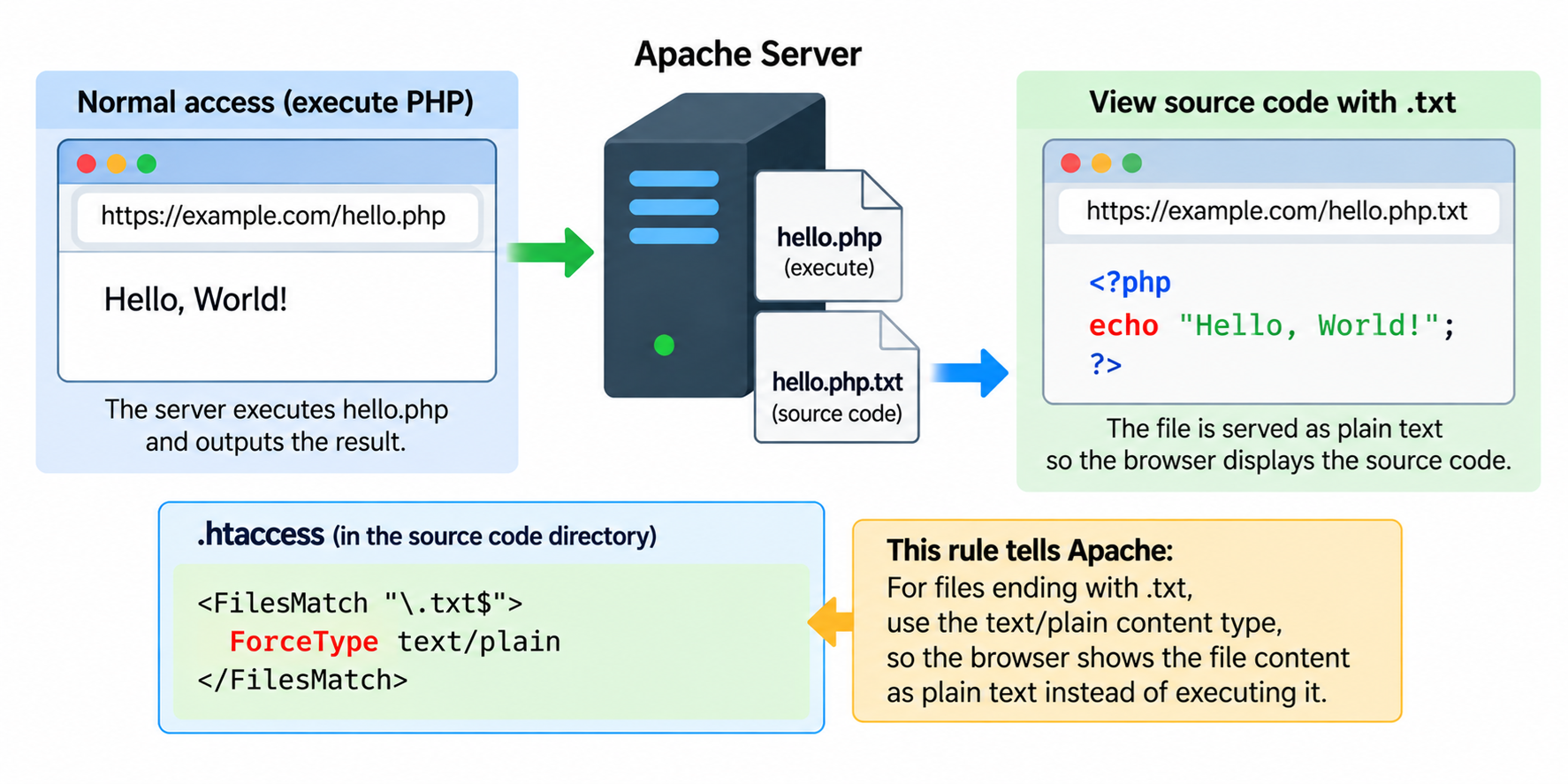
Normally, when a visitor requests a PHP script from a website, the server executes the PHP code and sends the resulting output to the browser.
The visitor sees the generated webpage rather than the PHP source code that created it.
However, there are situations where a website owner or developer may want to display script source code instead of executing it.
For example, a programming tutorial might demonstrate how PHP works by showing readers the actual PHP statements used in an example.
A developer documentation website may also publish source code so that visitors can study, copy, and understand it.
Apache provides several configuration mechanisms that can help control how files are handled and delivered to browsers.
Some of these settings can be configured through an .htaccess file.
However, displaying script source code requires special care.
Incorrectly disabling PHP execution can expose database passwords, application configuration, authentication secrets, and other sensitive information.
We will explain how Apache handles PHP scripts, how to display selected source code files safely, how to use .htaccess to serve source code as plain text, and why you should never expose an entire website’s PHP source code.
What Happens When a Browser Requests a PHP Script?
PHP is a server-side scripting language widely used to build dynamic websites.
When a visitor requests a PHP page, the web server normally passes the script to the configured PHP runtime.
For example, suppose a website contains a file named hello.php with the following code:
<?php
echo "Hello, World!";
?>
When a visitor opens:
the server processes the PHP script.
The browser receives the generated output:
Hello, World!The visitor does not normally receive the original PHP statements.
This behavior is fundamental to server-side programming. PHP code runs on the server, while the browser receives the result of that execution.
The same principle applies to many other server-side technologies, although their execution mechanisms differ.
Why Would You Want to Display Script Source Code?
Displaying source code can be useful for educational websites, programming tutorials, technical documentation, and software demonstrations.
For example, a PHP tutorial may explain how variables, functions, loops, and conditional statements work.
Readers may understand the examples more easily when they can inspect the original code directly.
A tutorial might provide one link to execute a demonstration and another link to view its source code.
For example:
https://example.com/examples/hello.php
could execute the PHP script, while:
https://example.com/examples/hello.php.txt
could display a published copy of the source code.
However, these two URLs should not be treated as interchangeable.
The first is an executable application endpoint.
The second should be a deliberately prepared public source code file that contains no private information.
For production websites, publishing selected example files is much safer than changing the execution behavior of existing application scripts.
Understanding Apache File Handling
Apache determines how to handle requested resources according to its configuration.
For example, static HTML files are commonly delivered to browsers as text/html documents.
CSS files are usually served with the text/css media type.
JavaScript files are commonly served with a JavaScript media type.
PHP files, however, generally require a PHP handler or an external PHP execution service.
Depending on the hosting environment, Apache may use mod_php, PHP-FPM, CGI, or FastCGI to process PHP requests.
These different execution methods are important because not every .htaccess directive works in every PHP hosting configuration.
Apache also provides directives such as AddType, ForceType, AddHandler, SetHandler, and RemoveHandler to influence content types and request handling.
Changing a file’s Content-Type does not necessarily disable an existing PHP execution handler.
For this reason, you should not assume that assigning text/plain to an ordinary .php file will safely make its source code visible.
A safer method is to create a separate source code copy that Apache handles as an ordinary static text file.
Method 1: Display PHP Source Code Using a .txt File
The simplest and safest way to display PHP source code is to publish a separate text file containing the code you want visitors to see.
Suppose you have the following example script:
<?php
$name = "Visitor";
echo "Hello, " . $name;
?>
Save the executable script as:
hello.phpThen create a second file named:
hello.php.txtCopy the example PHP statements into the text file.
Your website directory might look like this:
public_html/
    examples/
        hello.php
        hello.php.txt
When a visitor requests hello.php, the server executes the PHP code.
When a visitor requests hello.php.txt, Apache normally serves the file as plain text, assuming there are no unusual handler mappings or overriding configurations.
This allows readers to examine the source without executing the text copy as PHP.
The two URLs serve different purposes.
The executable version is:
https://example.com/examples/hello.php
The source code version is:
https://example.com/examples/hello.php.txt
This technique is easy to maintain and works with many hosting environments.
It does not require changing how the server processes ordinary PHP files.
Before publishing the text copy, review its contents and remove passwords, API keys, database credentials, internal server paths, and other private information.
Method 2: Use .htaccess to Display Source Files as Plain Text
Apache provides the ForceType directive, which can specify the media type used when serving matching static files.
For example, suppose your website contains a directory named source containing publicly approved code examples.
The directory structure could be:
public_html/
    source/
        example.php.txt
        calculator.php.txt
        functions.php.txt
        .htaccess
Create an .htaccess file inside the source directory.
Add the following configuration:
<FilesMatch "\.txt$">
    ForceType text/plain
</FilesMatch>
This tells Apache to use the text/plain media type for matching text files within the applicable directory scope.
When visitors open a source file, the browser will generally display its contents as text rather than interpret it as HTML.
For example:
https://example.com/source/example.php.txt
should display the source text.
This configuration changes the media type of the matching static files. It does not disable PHP execution for ordinary .php files.
That distinction is important.
The example is intended for files that are already safe to serve as static text.
It should not be used as a way to bypass or override PHP execution handlers on sensitive application scripts.
Also, ForceType is primarily a content-type directive. It does not guarantee that an independently configured execution handler will be disabled.
Only publish files after confirming that they are handled as static text and contain no confidential information.
Method 3: Create a Dedicated Source Code Directory
A useful approach for programming tutorial websites is to maintain a separate directory containing only published code examples.
For example:
public_html/
    index.php
    tutorials/
        php-basics.php
    source/
        hello.php.txt
        variables.php.txt
        functions.php.txt
        .htaccess
The tutorials directory contains normal application pages.
The source directory contains source code files intended for public viewing.
Inside the source directory, create an .htaccess file containing:
<FilesMatch "\.txt$">
    ForceType text/plain
</FilesMatch>
Now visitors can open the source files using URLs such as:
https://example.com/source/variables.php.txt
This allows you to separate educational examples from the actual application code used by your website.
The source directory should contain only files that have been intentionally approved for publication.
Do not place real configuration files, database connection scripts, private libraries, or other sensitive application components inside the public source directory.
It is also a good practice to disable directory listings unless you specifically intend visitors to browse an index of the available files.
You can add:
Options -IndexesThis prevents Apache’s automatic directory listing when no suitable directory index file exists, provided the hosting configuration permits the directive.
You can still create an HTML page containing links to individual source code examples.
Method 4: Display PHP Source Code with Syntax Highlighting
Plain-text source code is useful, but programming tutorials often benefit from syntax highlighting.
Syntax highlighting uses different colors to distinguish language keywords, variables, strings, comments, and other programming elements.
PHP provides a built-in function called highlight_file() that can display PHP source code with syntax highlighting.
For example, a dedicated demonstration page may contain:
<?php
highlight_file(__DIR__ . '/examples/hello.php');
?>
When executed, PHP reads the specified source file and generates highlighted HTML output.
However, this function can expose everything contained in the selected file.
Therefore, it should only be used with source files specifically approved for public display.
Never pass an arbitrary filename supplied by a website visitor directly to highlight_file().
Otherwise, a visitor might be able to request sensitive files that were never intended to be public.
For example, do not create a source viewer that accepts an unrestricted query parameter such as a filename and then displays whichever server file the visitor requests.
A safer implementation uses a fixed filename or an explicit allowlist of approved tutorial files.
For many educational websites, publishing pre-generated highlighted HTML is even simpler and avoids providing a live source-file viewing mechanism.
Method 5: Display PHP Source with the .phps Extension
Some Apache environments using mod_php support a special PHP source-code handler associated with the .phps extension.
Historically, PHP documentation has described a configuration such as:
AddType application/x-httpd-php-source .phpsOn compatible installations, this handler allows a .phps file to be displayed as syntax-highlighted PHP source.
However, this functionality depends on the PHP handler and Apache configuration.
It is not a universal feature of PHP-FPM or modern shared hosting environments.
Adding the directive to .htaccess does not guarantee that the server will display highlighted source code.
The directive may be unsupported, ignored, or conflict with existing handler settings.
More importantly, enabling source-code display for files that contain private information can create serious security risks.
For these reasons, the .phps technique should be used only in a controlled environment with deliberately prepared public demonstration files.
Do not enable source-code display for an entire production application’s PHP files.
For ordinary WordPress and shared hosting websites, a separate .txt file or published HTML code example is usually a better choice.
Why You Should Not Disable PHP Execution for the Entire Website
Some older tutorials suggest removing PHP handlers or changing PHP file types so that browsers display PHP source code instead of executing it.
This approach can be dangerous.
For example, suppose your WordPress website contains:
wp-config.phpThis file may contain database connection information, authentication keys, and other sensitive configuration values.
Under normal conditions, the PHP runtime processes PHP scripts rather than revealing their source.
If a web server is incorrectly configured to serve PHP files as ordinary text, sensitive PHP source code may become downloadable.
This can reveal information that should never be public.
Other PHP files may contain hardcoded credentials, internal network addresses, file paths, business logic, or security-related settings.
Disabling PHP execution across an entire directory or website may also break WordPress and other PHP applications.
Therefore, never use a broad .htaccess rule to expose all files ending in .php.
Do not remove the PHP handler from your website’s document root simply to demonstrate how source code looks.
Instead, create a separate, carefully reviewed source code copy.
What About RemoveHandler and RemoveType?
Apache provides RemoveHandler and RemoveType directives that can remove handler or media-type associations inherited from certain configurations.
However, these directives should not be treated as universal methods for safely displaying PHP source code.
For example, PHP execution may be configured through SetHandler, FilesMatch, PHP-FPM proxy handling, or other server-level rules.
Removing a handler association established through AddHandler may not override a separate SetHandler configuration.
Likewise, changing a file’s media type does not necessarily stop Apache from passing the request to a PHP execution service.
The precise result depends on how the hosting environment is configured.
Attempting to override these settings without understanding the active PHP handler can cause unexpected behavior, server errors, or exposure of application source code.
For educational source display, use intentionally published static files rather than manipulating production PHP handlers.
How to Test Your Source Code Display Configuration
After creating the source directory and adding the .htaccess configuration, verify the result.
First, open the example text file in a browser:
https://example.com/source/hello.php.txt
The browser should display the PHP statements as ordinary text.
For example, you should see the actual source:
<?php
echo "Hello, World!";
?>
You should not see only the generated output:
Hello, World!Next, inspect the HTTP response headers using curl.
For example:
curl -I https://example.com/source/hello.php.txtA correctly configured static text response may include:
Content-Type: text/plainThe complete header may also specify a character encoding.
You can inspect the response body using:
curl https://example.com/source/hello.php.txtThis should return the contents of the deliberately published text file.
Finally, verify that ordinary PHP pages on your website still execute normally.
This is especially important if you have modified any Apache handler-related settings.
A safe source display configuration should not interfere with the website’s normal PHP processing.
Prevent Browsers from Interpreting Source Code as HTML
When publishing source code, you generally want browsers to display the source text rather than interpret it as an HTML document.
The text/plain media type tells browsers that the content is plain text.
For additional protection against certain kinds of MIME-type interpretation, Apache’s mod_headers module can add the X-Content-Type-Options response header.
For example, inside the dedicated source directory’s .htaccess file, you may use:
<IfModule mod_headers.c>
    Header set X-Content-Type-Options "nosniff"
</IfModule>
This header instructs supporting browsers not to override the declared media type in certain security-sensitive contexts.
For a dedicated directory of public source code text files, you can combine the rules:
<FilesMatch "\.txt$">
    ForceType text/plain
</FilesMatch>

<IfModule mod_headers.c>
    Header set X-Content-Type-Options "nosniff"
</IfModule>
The first rule identifies matching static files as plain text.
The second adds the nosniff header.
These directives do not replace careful control over which files are published.
They also require the relevant Apache configuration permissions and, for the header directive, an available mod_headers module.
Important Security Considerations
Displaying source code is not inherently unsafe when the source has been intentionally prepared for public release.
Many open-source projects publish their code publicly.
The security problem occurs when private application source code is exposed unintentionally.
Before publishing a source file, review it for database passwords, API keys, access tokens, private encryption keys, authentication secrets, and internal infrastructure details.
Do not assume that a file is safe merely because it is a programming example.
If an example originally comes from a production application, remove confidential values and replace them with harmless placeholders before publication.
Also, avoid creating unrestricted source code viewers that allow visitors to choose arbitrary server files.
Protect private application directories using appropriate filesystem permissions and web server access controls.
Keep sensitive configuration files outside the public document root whenever practical.
Remember that changing the MIME type of a file does not provide confidentiality or access control.
If a file should not be public, do not publish it as a static source file.
Common Problems When Displaying Source Code
One common problem is that the browser executes the PHP script instead of displaying its source.
This usually means the request is still being handled by the PHP runtime.
A safe solution is to publish a separate .txt copy of the source code.
Another problem is that the browser downloads the file instead of displaying it.
This may happen because the response contains a Content-Disposition attachment header or another configuration that instructs the browser to download the resource.
Check the effective response headers and the browser’s handling of the declared media type.
A third issue is that the website returns an HTTP 500 Internal Server Error after modifying .htaccess.
This may occur when Apache rejects an unsupported or unauthorized directive.
Restore the original .htaccess file and inspect the Apache error log.
Another problem occurs when a source file becomes publicly accessible but contains information that should remain private.
This is not merely a display problem. It is an information disclosure problem that may require immediate removal of the file and rotation of exposed credentials.
Finally, remember that Nginx does not process Apache .htaccess files.
If your website uses Nginx, source code display and MIME-type configuration must be managed through the appropriate Nginx or application-level configuration.
Recommended Configuration for a PHP Tutorial Website
For a simple PHP tutorial website, the following approach provides a practical balance between convenience and safety.
Create a dedicated directory named source inside the website’s document root.
Place only deliberately published source examples in that directory, using filenames ending in .txt.
For example:
public_html/
    source/
        hello.php.txt
        variables.php.txt
        loops.php.txt
        functions.php.txt
        .htaccess
Inside the source directory’s .htaccess file, add:
Options -Indexes

<FilesMatch "\.txt$">
    ForceType text/plain
</FilesMatch>

<IfModule mod_headers.c>
    Header set X-Content-Type-Options "nosniff"
</IfModule>
This configuration disables automatic directory listings, identifies matching text files as plain text, and adds a browser MIME-type protection header when mod_headers is available.
The Options directive requires the appropriate Apache override permission.
If your hosting provider does not allow it, remove that directive and use the hosting provider’s supported directory listing controls.
Do not place actual executable PHP application files or private configuration files in this directory.
The published source files should be ordinary text copies that have been reviewed for public distribution.
Normal PHP files elsewhere on the website can continue using the hosting provider’s standard PHP handler.
This method is suitable for programming tutorials, educational examples, and technical documentation.
Best Practices for Publishing Source Code
Keep public source examples separate from production application code.
Use descriptive filenames so that visitors can easily identify the examples.
Publish only files that have been deliberately reviewed and approved.
Prefer static text files or pre-generated highlighted HTML over unrestricted dynamic source viewers.
Do not modify the PHP handler for your entire website.
If you use syntax highlighting, make sure it operates only on trusted, predetermined source files.
Avoid exposing database credentials, API keys, configuration secrets, or internal deployment information.
Test both the source viewing URL and the normal executable PHP URL.
Use appropriate HTTP Content-Type headers so that browsers handle the published files as intended.
Finally, review the configuration after hosting migrations or PHP upgrades, because server handlers and Apache settings may change.
Conclusion
Displaying script source code can be useful for programming tutorials, developer documentation, and educational websites.
Apache provides directives that influence how files are handled and delivered to browsers, and some of these settings can be configured through .htaccess.
For example, the ForceType directive can specify that selected static text files should be served with the text/plain media type.
However, displaying PHP source code is different from executing PHP scripts.
Changing PHP execution handlers can introduce serious security risks if private application files become publicly accessible.
For most website owners, the recommended approach is to create a separate source code file, such as hello.php.txt, and publish it in a dedicated tutorial directory.
You can then use the following .htaccess configuration to identify the text file as plain text:
<FilesMatch "\.txt$">
    ForceType text/plain
</FilesMatch>
This allows visitors to inspect the selected source code without modifying the normal execution behavior of PHP scripts elsewhere on the website.
Always review public source files carefully and never expose sensitive application configuration or private credentials.