
When someone visits a directory on your website, what should they see?
In most cases, visitors should see a webpage, an image, or another intended resource.
However, depending on your web server configuration, they may instead see a complete list of files and subdirectories.
This feature is called directory listing, also known as directory indexing or autoindexing.
For example, imagine that your website contains an images directory with hundreds of photographs.
If directory listing is enabled and the directory has no default index page, visitors may be able to browse the filenames, modification dates, and file sizes.
For some websites, this behavior is undesirable because it exposes unnecessary information about the website’s directory structure.
For others, particularly software repositories, documentation archives, and public download libraries, directory listings can be useful.
Fortunately, the Apache HTTP Server allows you to control directory listings using the .htaccess file.
You can disable directory browsing entirely or enable a more informative directory listing using Apache’s FancyIndexing feature.
We will explain how directory listings work, how to prevent directory browsing, how to enable FancyIndexing, how to customize file listings, and how to troubleshoot common configuration problems.
What Is Directory Listing?
Directory listing is a web server feature that generates a list of files and subdirectories when a visitor requests a directory URL.
For example, suppose your website contains the following directory:
public_html/
index.html
images/
logo.png
banner.jpg
background.webp
products/
If someone opens:
https://example.com/images/
Apache normally checks whether the directory contains a suitable index document, such as index.html, according to its DirectoryIndex configuration.
If an index document is available, Apache generally serves that document.
However, if no suitable index document exists and automatic indexing is enabled, Apache may generate a directory listing.
The browser might display a page containing:
Index of /images
logo.png
banner.jpg
background.webp
products/
Depending on the configuration, the listing may also display file sizes, modification dates, descriptions, and icons.
The visitor can click the filenames to open or download the corresponding resources, assuming the server permits access.
This functionality is provided primarily by Apache’s mod_autoindex module.
Why Can Directory Listing Be a Security Concern?
Directory listing is not automatically a security vulnerability.
Public file repositories and download directories often intentionally provide file indexes.
However, automatic listings can reveal information that website administrators did not intend to expose.
For example, a poorly organized website might contain files named:
backup.zip
database.sql
old-config.txt
website-backup.tar.gz
debug.log
If these files are publicly accessible, directory listing can make them easier to discover.
An attacker may also learn about the website’s directory structure, application filenames, or outdated backup files.
However, disabling directory listing does not make these files private.
A visitor who already knows a filename may still be able to request it directly.
For example, disabling the listing for /backups/ does not automatically prevent someone from requesting:
https://example.com/backups/backup.zip
Directory listing controls whether Apache automatically displays the contents of a directory. It does not replace file access restrictions.
Sensitive files should be stored outside the public document root or protected using appropriate authentication and authorization rules.
What Is the .htaccess File?
The .htaccess file is a directory-level configuration file supported by the Apache HTTP Server.
It allows website administrators to modify certain server behaviors without directly editing Apache’s main configuration files.
Depending on the hosting environment, .htaccess can control URL redirects, access restrictions, caching behavior, custom error pages, MIME types, and directory indexing.
On many shared hosting accounts, the main .htaccess file is located inside the public_html directory.
For example:
public_html/
.htaccess
index.php
images/
downloads/
You can also create separate .htaccess files inside specific directories when your hosting environment permits them.
Configuration rules typically apply to the directory containing the .htaccess file and its applicable subdirectories.
However, Apache must permit the relevant directives through its AllowOverride or AllowOverrideList settings.
The Indexes override category is relevant to Apache’s automatic directory indexing directives, while the Options directive requires the applicable Options permissions.
Websites running only on Nginx cannot use .htaccess files to control directory listings.
Step 1: Locate Your .htaccess File
Before changing the directory listing behavior, locate the appropriate .htaccess file.
If you use cPanel, log in to your hosting account and open File Manager.
Navigate to your website’s document root, usually named public_html on many shared hosting accounts.
Look for the file named:
.htaccess
Because the filename begins with a period, it may be hidden by default.
Enable the option to display hidden files if necessary.
If the file already exists, download a backup before making changes.
If it does not exist, create a new plain-text file named exactly .htaccess.
Do not name the file .htaccess.txt.
You can also edit .htaccess using an SFTP client or SSH connection if your hosting provider supports those methods.
Step 2: Disable Directory Listing Using .htaccess
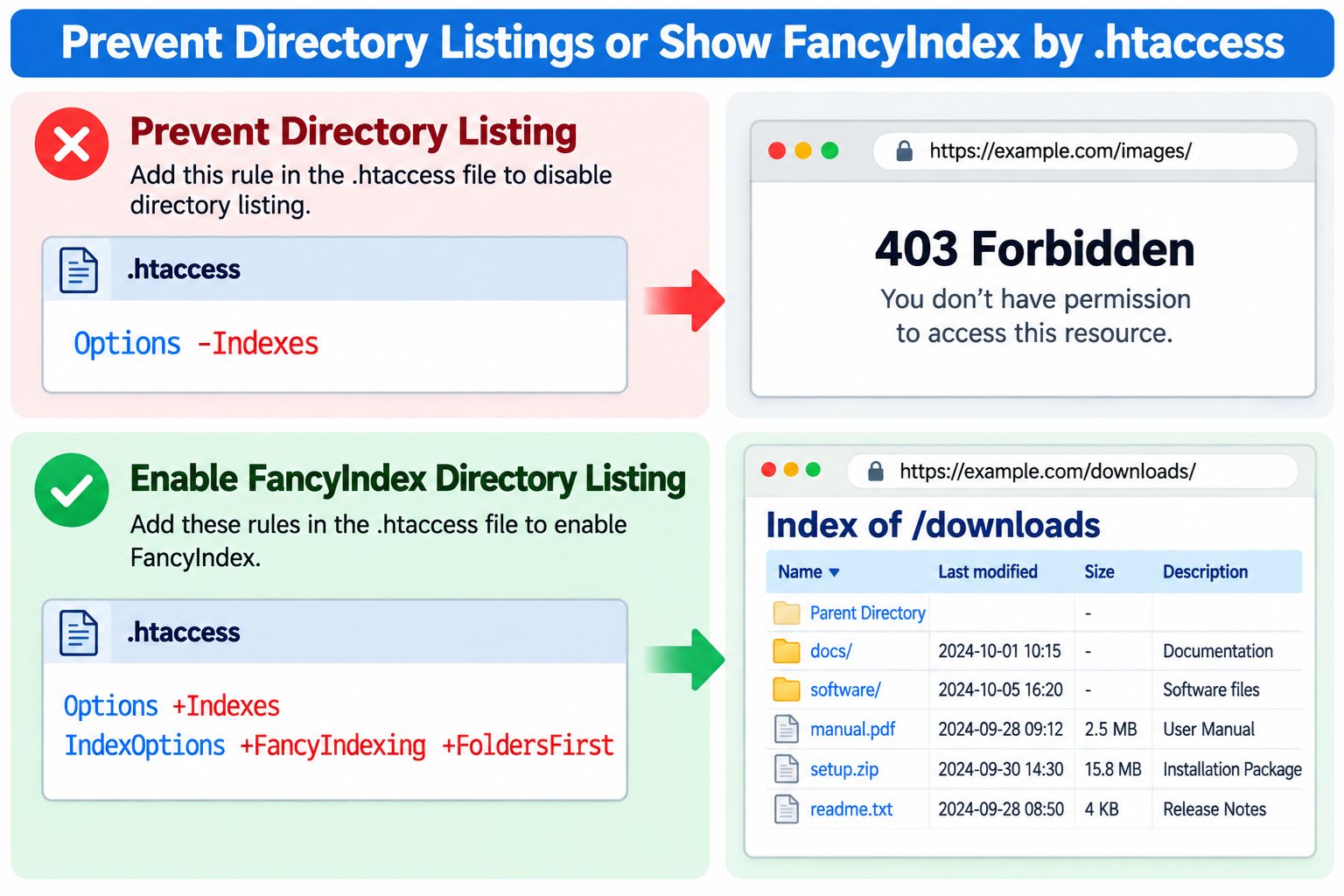
The simplest way to prevent Apache from generating directory listings is to add the following directive:
Options -Indexes
This tells Apache to disable the Indexes directory option in the applicable configuration context.
For example, suppose your website contains:
public_html/
.htaccess
images/
downloads/
private-files/
If you place Options -Indexes inside public_html/.htaccess, Apache generally disables automatic directory listings for public_html and its applicable subdirectories, unless a more specific configuration enables them again.
For example, a visitor opening:
https://example.com/images/
may receive:
403 Forbidden
This commonly happens when the directory contains no suitable index document and automatic listing is disabled.
Ordinary files inside the directory can still be requested directly if access is otherwise allowed.
For example:
https://example.com/images/logo.png
should continue to work normally.
The directive disables automatic directory listings; it does not disable access to every file.
Step 3: Disable Directory Listing for Only One Folder
You may not want to disable directory listing across your entire website.
For example, perhaps your website contains a public software download folder where directory browsing is useful, but you want to disable browsing inside your images directory.
In that situation, create a separate .htaccess file inside the images directory.
Your website structure might look like this:
public_html/
index.html
images/
.htaccess
logo.png
banner.jpg
downloads/
Place this directive inside images/.htaccess:
Options -Indexes
Apache will then disable automatic directory listings for the images directory and its applicable subdirectories.
The downloads directory can continue using its own directory indexing configuration.
This approach provides more precise control.
It is particularly useful for websites containing a combination of public repositories, downloadable files, media folders, and ordinary webpages.
Step 4: Test Whether Directory Listing Is Disabled
After saving your .htaccess file, open a directory URL that does not contain an index document.
For example:
https://example.com/images/
If automatic directory listing is disabled, Apache will generally return a 403 Forbidden response when no suitable index document is available.
You can inspect the HTTP status code using curl:
curl -I https://example.com/images/
A typical response might begin with:
HTTP/1.1 403 Forbidden
However, if the directory contains index.html, index.php, or another configured index document, Apache may return that page instead.
This does not mean that Options -Indexes failed.
It means Apache found an index document and did not need to generate a directory listing.
To test the behavior accurately, use a directory without an index document or inspect the server configuration.
Also remember that browsers, reverse proxies, and CDNs may cache responses.
Step 5: Enable Directory Listing Using .htaccess
Sometimes directory listing is exactly what you want.
For example, you might operate a public download directory containing software packages, documentation files, or installation archives.
Instead of manually creating an HTML page containing links to every file, you can allow Apache to generate the directory listing automatically.
To enable directory listing in a permitted directory, use:
Options +Indexes
This enables Apache’s Indexes directory option.
For example, create a directory named downloads:
public_html/downloads/
Inside that directory, create a .htaccess file containing:
Options +Indexes
Now suppose the directory contains:
manual.pdf
software.zip
installation.txt
If no suitable index document exists, visitors opening:
https://example.com/downloads/
may see an automatically generated listing of those files.
This requires Apache’s mod_autoindex module and an appropriate server configuration.
Security warning: Enable directory listing only for folders intentionally containing public files.
Do not enable automatic indexing for directories containing database backups, application configuration, authentication information, or other sensitive data.
Step 6: Enable FancyIndexing with .htaccess
Apache offers a feature called FancyIndexing, which produces more informative directory listings than a minimal file index.
FancyIndexing is part of Apache’s mod_autoindex module.
To enable it, place the following directives in the relevant .htaccess file:
Options +Indexes
IndexOptions +FancyIndexing
The first directive enables automatic directory indexing.
The second enables the FancyIndexing display mode.
When Apache generates the directory listing, the page can contain additional columns showing information about the files.
For example, a FancyIndexing page may include:
Name — Last Modified — Size — Description
Visitors may also see icons identifying different types of files and directories, depending on the server’s configuration.
In a typical Apache FancyIndexing layout, column headings can be used to change the sorting order.
For example, visitors may be able to sort files alphabetically or by modification date and file size.
FancyIndexing can make a public download directory much easier to navigate.
However, its appearance is relatively simple. It is not the same as a complete custom file manager or modern web application.
Step 7: Customize FancyIndexing Options
Apache provides additional IndexOptions settings that control how automatic directory listings appear.
For example, you can use:
Options +Indexes
IndexOptions +FancyIndexing +FoldersFirst +NameWidth=*
This configuration enables directory listing, activates FancyIndexing, and requests additional formatting behavior.
The FoldersFirst option places directories before ordinary files in supported fancy directory listings.
This is helpful when a public repository contains multiple subdirectories.
The NameWidth=* option allows Apache to size the filename column according to the names being displayed instead of using a fixed width.
You can also include:
IndexOptions +HTMLTable
This requests an HTML table-based layout for FancyIndexing.
For example, a combined configuration might contain:
Options +Indexes
IndexOptions +FancyIndexing +FoldersFirst +NameWidth=* +HTMLTable
The resulting page can display a more structured directory listing.
The exact appearance depends on Apache’s configuration, supported options, and any additional indexing customization.
Step 8: Display File Sizes in a Readable Format
When offering downloadable files, showing file sizes can help visitors choose what to download.
FancyIndexing normally supports a file size column.
Apache also provides an IndexOptions setting that controls whether sizes are displayed using exact byte counts or human-readable units.
For example:
IndexOptions +FancyIndexing -ExactSize
This enables FancyIndexing while ensuring the ExactSize option is disabled.
The listing can then use rounded size representations such as kilobytes and megabytes rather than displaying every file size as a precise number of bytes.
If you want exact byte counts, you can use:
IndexOptions +FancyIndexing +ExactSize
For an ordinary public download directory, approximate human-readable sizes are often easier for visitors to understand.
For technical archives where exact file sizes matter, ExactSize may be more useful.
Step 9: Hide Selected Files from Directory Listings
Apache provides the IndexIgnore directive to exclude selected filenames or patterns from automatically generated directory listings.
For example:
IndexIgnore *.bak *.tmp *.log
This tells Apache not to include matching backup, temporary, and log filenames in its automatic directory listings.
You can also hide a specific filename:
IndexIgnore notes.txt
Or combine multiple patterns:
IndexIgnore *.bak *.tmp *.log .htaccess
These rules affect the generated directory listing.
However, IndexIgnore does not prevent someone from requesting a hidden file directly by URL.
For example, a backup file excluded from a listing may still be accessible if the visitor knows its exact URL and the server allows access.
Never use IndexIgnore as the only protection for private files.
If a file contains sensitive information, store it outside the public document root or enforce an appropriate access restriction.
IndexIgnore is primarily a presentation and organization feature.
Step 10: Customize the Order of Files in FancyIndexing
Apache provides the IndexOrderDefault directive to control the initial sorting order of a FancyIndexing directory listing.
For example:
IndexOrderDefault Ascending Name
This requests alphabetical sorting by filename in ascending order.
You can also sort by modification date:
IndexOrderDefault Descending Date
This can be useful for a download directory where visitors may be interested in recently modified files.
Another example is sorting by file size:
IndexOrderDefault Descending Size
The supported sorting keys include Name, Date, Size, and Description.
For example, a software download archive could use:
Options +Indexes
IndexOptions +FancyIndexing +FoldersFirst
IndexOrderDefault Descending Date
This configuration enables a fancy directory listing and requests descending modification-date ordering as the default.
The sorting behavior may still be changed through clickable column headings unless you disable that functionality.
Step 11: Add Descriptions to Directory Listings
FancyIndexing can display a description column when the relevant configuration provides descriptive text.
Apache’s AddDescription directive allows administrators to associate descriptions with selected filenames or patterns.
For example:
AddDescription "User Documentation" manual.pdf
AddDescription "Installation Package" software.zip
AddDescription "Release Notes" release-notes.txt
This can make a download directory more informative.
Instead of seeing only filenames, visitors may see short descriptions explaining the purpose of each file.
For example, a software repository might identify which archive contains the installation package and which document contains the setup instructions.
Descriptions are especially useful when filenames are technical or abbreviated.
However, avoid placing sensitive information inside descriptions because they are intended to be visible in the public listing.
Step 12: Add a Custom Header to the Directory Listing
Apache also provides a HeaderName directive that can insert content at the top of an automatically generated directory listing.
For example:
HeaderName HEADER.html
You can create a file named HEADER.html in the directory and use it to display introductory information.
For example, the file could contain a short message:
Welcome to Our Download Center
Download the latest public documentation and installation packages below.
When configured correctly, Apache can include this content above the generated file listing.
This is useful for public repositories that need basic instructions or explanations.
For example, you might tell visitors which file to download first or provide information about supported operating systems.
The referenced content must meet Apache’s requirements for the HeaderName directive.
Apache also provides the ReadmeName directive to append content after the generated listing.
For example:
ReadmeName FOOTER.html
This allows you to include additional information below the file list.
These features provide a simple way to customize an automatically generated index without creating a complete download application.
Step 13: Example FancyIndex Configuration for a Public Download Folder
Suppose your website contains a public directory named downloads.
You want visitors to browse downloadable files, see useful file information, and find folders before ordinary files.
You also want to exclude temporary and backup filenames from the generated listing.
Inside downloads/.htaccess, you could use:
Options +Indexes
IndexOptions +FancyIndexing +FoldersFirst +NameWidth=*
IndexOrderDefault Ascending Name
IndexIgnore *.bak *.tmp *.log
This configuration enables directory indexing and applies several display settings.
Visitors can browse the public files using the automatically generated index.
However, backup and temporary files should not be stored in the public directory merely because IndexIgnore hides them from the listing.
If files are confidential, use actual access restrictions or place them outside the document root.
For a publicly accessible software repository, this configuration can be useful when all files are intentionally available for download.
Step 14: Disable Directory Listings Across Your Entire Website
For websites that do not intentionally publish a directory index, it is often sensible to disable automatic indexing throughout the website.
A common configuration is:
Options -Indexes
Place this directive in the .htaccess file located in the document root.
For example:
public_html/.htaccess
In a conventional Apache configuration, this prevents automatic directory listings in the root and applicable subdirectories unless another configuration overrides the setting.
This is commonly appropriate for WordPress websites, company websites, personal websites, and ordinary content sites.
Most visitors should navigate through the site’s pages and menus rather than browse the server’s directory structure.
However, if a specific directory is intended to provide a public file index, you may configure that directory separately where permitted.
For example, the root .htaccess file could disable indexing while a separate downloads/.htaccess file enables it for the public download directory.
This gives you control over where automatic listings are permitted.
Step 15: Disable Directory Listing in WordPress
WordPress normally generates pages through PHP and uses its own application routing system.
It does not require Apache directory listing to display WordPress posts, pages, images, or ordinary media.
For many Apache-based WordPress websites, adding the following directive to the root .htaccess file is appropriate:
Options -Indexes
This disables automatic indexing where the directive applies.
However, do not remove or replace the existing WordPress rewrite rules.
WordPress often maintains a section in .htaccess identified by BEGIN WordPress and END WordPress markers.
Custom Apache configuration is generally better placed outside the WordPress-managed section.
On managed WordPress hosting, the provider may already disable directory listing through server-level configuration.
Some hosting platforms use Nginx or another system that does not process Apache .htaccess files.
In those situations, adding the directive may be unnecessary or ineffective.
Also remember that disabling directory listing does not prevent visitors from accessing public WordPress media files through their direct URLs.
Directory Listing vs. Directory Access Restrictions
There is an important difference between disabling directory listing and blocking access to a directory.
For example, consider:
Options -Indexes
This prevents Apache from automatically generating a list of directory contents when no index document is available.
It does not deny access to all files inside the directory.
Now consider Apache 2.4 access control:
Require all denied
When placed in an appropriate directory context, this directive denies access to resources covered by that configuration.
This is much more restrictive.
For example, an images directory protected with Require all denied would normally prevent visitors from loading its images as well.
That is why you should not use Require all denied when your goal is simply to hide directory listings while continuing to serve public files.
Use Options -Indexes for directory listing control.
Use proper access restrictions when the directory or files must not be publicly accessible.
Directory Listing vs. DirectoryIndex
Apache also provides a directive named DirectoryIndex.
This specifies which documents Apache should look for when a visitor requests a directory.
For example:
DirectoryIndex index.html index.php
When a visitor requests a directory URL, Apache can look for index.html first and then index.php according to the applicable configuration.
If a suitable index document exists, Apache normally serves that document rather than generating an automatic directory listing.
However, DirectoryIndex does not itself disable automatic indexing.
If no index document exists and Options +Indexes is enabled, Apache may still generate a listing.
If directory indexing is disabled, the request may instead result in a 403 response.
Therefore, DirectoryIndex and Options -Indexes serve different purposes.
DirectoryIndex determines which default documents should be considered.
Options -Indexes controls whether automatic directory listing is permitted.
For many websites, both settings are relevant to how directory requests are handled.
Can Directory Listing Be Used as a File Download System?
Yes. Apache directory indexing can serve as a simple public file browsing interface.
For example, a software company might publish open-source releases in a download directory.
A documentation project might maintain an archive of older manuals.
A research organization might provide public datasets through a directory structure.
For these situations, FancyIndexing can be sufficient without installing a separate file management application.
However, Apache autoindex is not a complete download management system.
It does not automatically provide user accounts, download analytics, file version management, access approval workflows, or advanced search capabilities.
If you need private downloads, per-user permissions, expiring links, or sophisticated file management, a dedicated application or managed storage solution is usually more appropriate.
Security Considerations When Enabling FancyIndexing
Because FancyIndexing displays more information than a basic file index, you should be careful about where you enable it.
File modification times and sizes can reveal useful operational details about a website or application.
Filenames can also expose internal naming conventions, backup files, or outdated software versions.
Therefore, only enable FancyIndexing for directories deliberately intended for public browsing.
Do not enable it for configuration directories, private backups, application source code, logs, or directories containing user-specific private information.
Even if you hide some filenames using IndexIgnore, remember that the files may still be directly accessible.
The safest approach is to place only approved public files inside directories where indexing is enabled.
For websites that allow users to upload files, validate uploads and ensure that uploaded content cannot be executed as server-side code.
Directory listing configuration is one component of website administration, not a complete security boundary.
Common Problems When Configuring Directory Listings
1. The Website Returns a 500 Internal Server Error
A 500 error can occur when Apache rejects an unsupported or disallowed directive.
For example, the hosting provider may not permit the Options directive inside .htaccess.
Invalid IndexOptions syntax can also cause configuration problems.
If the error begins immediately after editing .htaccess, restore the previous version and review the Apache error log.
2. Directory Listing Still Appears
First, confirm that the .htaccess file is located in the correct directory.
Next, verify that Apache is actually handling the request and that the relevant directory overrides are enabled.
Also check whether a more specific configuration re-enables indexing.
If the request is handled by Nginx, Apache .htaccess rules will not control the result.
3. FancyIndexing Does Not Work
FancyIndexing requires automatic directory indexing to be enabled.
Check that both the Indexes option and the FancyIndexing option are active.
Also confirm that Apache’s mod_autoindex module is available.
If the directory contains a suitable index document, Apache may serve that document instead of generating a fancy listing.
4. Visitors Receive a 403 Forbidden Error
If directory indexing is disabled and the directory contains no suitable index document, a 403 response is common.
This may be the expected behavior.
If you intended visitors to see a directory listing, verify that Options +Indexes is enabled in the applicable configuration.
Also check ordinary filesystem permissions and access-control rules.
5. Some Files Are Missing from the Listing
Check whether IndexIgnore patterns are excluding those files.
Also verify whether the files are accessible through Apache’s normal file-serving configuration.
Remember that files may be omitted from a listing for reasons other than IndexIgnore, including permissions and access-control settings.
6. Directory Listing Is Disabled but Files Are Still Accessible
This is normal.
Options -Indexes disables automatic directory listings, not direct file access.
If a particular file must be private, configure appropriate authorization rules or move it outside the public document root.
7. The .htaccess File Has No Effect
Apache may be configured to ignore .htaccess files in that directory.
The hosting provider may also prohibit specific indexing directives.
If you administer the server, check the relevant AllowOverride and AllowOverrideList settings.
If you use shared hosting, contact your provider to determine which directives are supported.
Best Practices for Directory Listing Configuration
For most ordinary websites, disable automatic directory listing unless there is a clear reason to enable it.
Use Options -Indexes in the appropriate Apache configuration context.
For public download directories, consider FancyIndexing when a simple generated file listing meets your needs.
Place only intentionally public files inside indexed directories.
Do not rely on IndexIgnore to protect sensitive files.
Keep database backups, private configuration files, logs, and application secrets outside the public document root whenever possible.
Use consistent folder structures and meaningful filenames for public download repositories.
If you operate a WordPress website, preserve its existing .htaccess rewrite rules.
For servers you administer, consider moving stable Apache configuration into the main server or virtual host configuration rather than relying on numerous .htaccess files.
Finally, test your configuration after server upgrades, application migrations, or hosting changes.
Frequently Asked Questions
What does Options -Indexes do?
It disables Apache’s automatic directory listing feature in the applicable configuration context.
Visitors requesting a directory without a suitable index document will commonly receive a 403 Forbidden response.
What does Options +Indexes do?
It enables automatic directory listing where the server permits it and mod_autoindex is available.
If the directory has no suitable index document, Apache may generate a listing of its files and subdirectories.
What is FancyIndexing?
FancyIndexing is an Apache mod_autoindex feature that creates more informative directory listings, including file details and sorting capabilities.
It can be enabled using IndexOptions +FancyIndexing.
Does disabling directory listing improve website security?
It can reduce unnecessary exposure of filenames and directory structure.
However, it does not prevent direct access to publicly accessible files and should not be treated as a complete security measure.
Can I hide selected files from a directory listing?
Yes. Apache’s IndexIgnore directive allows you to exclude selected filenames and patterns from generated listings.
However, hidden files may still be directly accessible through their URLs.
Can I enable directory listing for only one folder?
Yes. You can place an appropriate .htaccess file inside the selected directory if your Apache configuration permits those overrides.
Can I use FancyIndexing on WordPress?
Technically, Apache can enable FancyIndexing for a suitable directory on a WordPress hosting account.
However, it is generally unnecessary for ordinary WordPress operation.
Does .htaccess work on Nginx?
No. Nginx does not interpret Apache .htaccess files.
You must use Nginx configuration or your hosting provider’s supported controls.
Do I need to restart Apache after changing .htaccess?
Normally, no. Apache generally applies permitted .htaccess directives during request processing.
Browser or proxy caching may affect when changes become visible.
Can FancyIndexing replace a file manager?
It can provide a simple public file index, but it does not replace a complete file manager with authentication, upload controls, file editing, and permission management.
Conclusion
Apache’s directory indexing features allow website administrators to decide whether visitors can browse the contents of website directories.
For most ordinary websites, disabling directory listing is a sensible configuration.
The essential directive is:
Options -Indexes
This prevents Apache from generating automatic directory listings while allowing ordinary public files to remain accessible under their existing access rules.
If you intentionally want visitors to browse a public file directory, you can enable indexing and FancyIndexing using:
Options +Indexes
IndexOptions +FancyIndexing
You can further customize the generated listing with options such as FoldersFirst, NameWidth, IndexIgnore, IndexOrderDefault, HeaderName, and ReadmeName.
However, always remember that hiding a filename from a directory listing does not make that file private.
Sensitive files require real access controls or storage outside the public document root.
By understanding the difference between disabling listings, enabling FancyIndexing, and restricting file access, you can configure Apache directories to match your website’s usability and security requirements.