
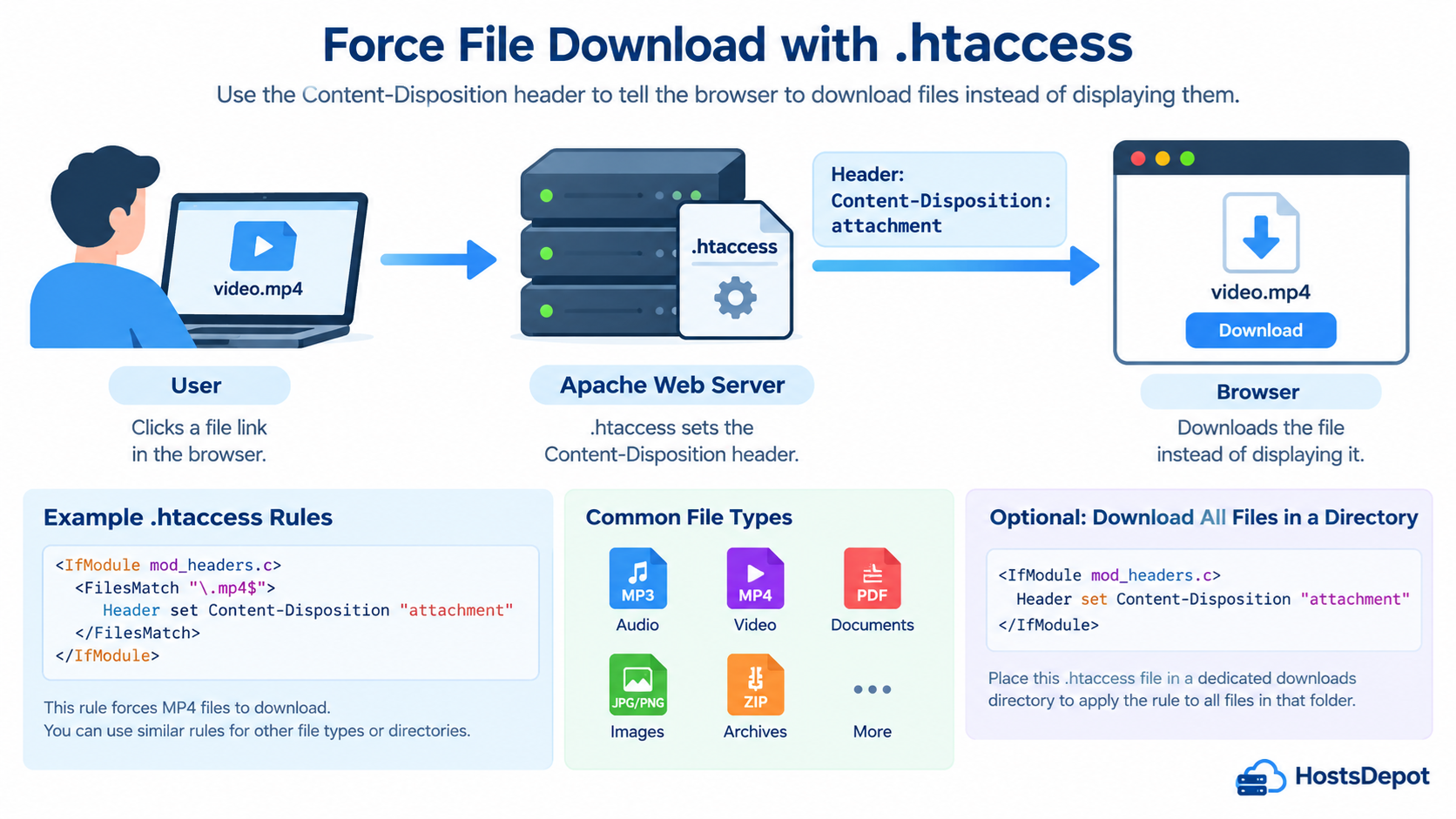
When visitors click a link to an image, video, audio file, or PDF document, their web browsers often display the content directly instead of downloading it to their computers.
This behavior is convenient for viewing online content, but it is not always what website owners want.
For example, you may operate a website that provides downloadable MP3 music, MP4 videos, PDF manuals, software packages, or image collections.
Instead of opening these files in the browser, you may want visitors to download them.
Apache HTTP Server provides a simple solution using the .htaccess file.
By configuring the HTTP Content-Disposition response header, you can instruct browsers to treat selected files as downloadable attachments rather than displaying them inline.
We will explain how browser file handling works, how to configure automatic downloads using .htaccess, and how to apply these rules to specific file types or directories without affecting other website content.
1. Why Do Browsers Display Media Files Instead of Downloading Them?
Modern web browsers support many different file formats, including JPEG and PNG images, MP3 audio, MP4 video, and PDF documents.
When a visitor opens a URL such as:
https://example.com/media/video.mp4
The web server sends the file along with HTTP response headers that describe its content.
For example, an MP4 video may be delivered with the following header:
Content-Type: video/mp4
The Content-Type header identifies the file’s media format.
Because modern browsers can play many MP4 videos directly, they may open a built-in video player rather than initiate a download.
Similarly, a PDF document may be delivered with:
Content-Type: application/pdf
Most modern browsers include PDF viewers and can display compatible PDF files without requiring external software.
This behavior is generally controlled by the browser’s capabilities, user settings, and HTTP response headers.
If you want to change the preferred handling of a file, the Content-Disposition header is the appropriate place to start.
2. Understanding the Content-Disposition Header
The Content-Disposition HTTP response header tells the browser whether content should normally be displayed inline or treated as a downloadable attachment.
There are two important values:
Content-Disposition: inline
Content-Disposition: attachment
The inline value indicates that content can be displayed directly when the browser supports it.
The attachment value instructs the browser to treat the content as a download.
For example:
Content-Disposition: attachment
When a browser receives this header with an MP4 file, it will generally download the video rather than open its built-in video player.
The same principle applies to images, audio files, PDF documents, and other downloadable resources.
You can also specify a suggested download filename:
Content-Disposition: attachment; filename=”tutorial.mp4″
This tells the browser to suggest tutorial.mp4 as the filename when saving the file.
The final behavior can still depend on the browser, its configuration, and the user’s download preferences.
Some browsers automatically save downloads, while others display a Save As dialog.
3. Requirements Before Editing .htaccess
Before adding download rules, confirm that your hosting environment uses Apache HTTP Server and supports .htaccess configuration.
The Apache mod_headers module must be enabled because the examples in this tutorial use the Header directive.
You also need permission to edit the .htaccess file in the directory containing your website or downloadable files.
On many cPanel hosting accounts, the main website directory is:
public_html
The .htaccess file is usually located inside this directory, although it may not be visible until you enable the option to show hidden files.
Before making changes, download a backup copy of the existing .htaccess file.
An incorrect Apache directive can cause an HTTP 500 Internal Server Error, so always test the configuration after saving it.
4. Force MP3 Files to Download Instead of Playing
Suppose your website provides MP3 audio recordings and you want visitors to download them instead of listening through the browser’s built-in audio player.
Add the following configuration to your .htaccess file:
<IfModule mod_headers.c> <FilesMatch “\.mp3$”> Header set Content-Disposition “attachment” </FilesMatch> </IfModule>
The FilesMatch directive identifies filenames ending with .mp3.
The Header directive sets the Content-Disposition response header to attachment.
When visitors request matching MP3 files handled by Apache, the server sends the response header instructing the browser to download the file.
For example:
https://example.com/audio/lesson.mp3
Instead of opening the audio player, the browser will normally initiate a download.
This is particularly useful for websites offering language lessons, podcasts, interviews, audio tutorials, or downloadable recordings.
The regular expression in this example matches lowercase .mp3 extensions. To include uppercase or mixed-case extensions, use the case-insensitive form:
<FilesMatch “(?i).mp3$”>
5. Force MP4 Video Files to Download
You can apply the same technique to MP4 video files.
Add the following directives:
<IfModule mod_headers.c> <FilesMatch “\.mp4$”> Header set Content-Disposition “attachment” </FilesMatch> </IfModule>
Now, when visitors open a matching MP4 file URL, Apache supplies the attachment header.
For example:
https://example.com/videos/linux-tutorial.mp4
The browser will generally download the video instead of playing it directly.
This configuration can be useful for websites that distribute downloadable training videos, recorded webinars, educational materials, or offline video courses.
However, remember that forcing video downloads can interfere with embedded video players.
If your website uses HTML5 video elements to play MP4 files, applying this rule to the same resources may prevent the intended playback behavior.
For this reason, consider keeping downloadable videos in a separate directory from videos intended for online streaming.
6. Force PDF Documents to Download Instead of Opening in the Browser
PDF documents are commonly displayed directly in Chrome, Firefox, Edge, and Safari.
If you distribute PDF manuals, reports, forms, or ebooks, you may prefer visitors to download the files.
Use the following configuration:
<IfModule mod_headers.c> <FilesMatch “\.pdf$”> Header set Content-Disposition “attachment” </FilesMatch> </IfModule>
For example, suppose your website contains:
https://example.com/downloads/linux-guide.pdf
With this configuration, Apache instructs the browser to download the PDF rather than open it in the built-in PDF viewer.
This approach is suitable for downloadable documentation, course materials, installation guides, and printable reference documents.
However, if your website contains PDFs that visitors should read online, do not apply this rule to those files.
You can use a dedicated downloads directory to separate downloadable PDFs from documents intended for online viewing.
7. Force Images to Download Instead of Displaying Them
Browsers normally display JPEG, PNG, GIF, and WebP images directly because these formats are supported natively.
To instruct browsers to download these image files, you can use:
<IfModule mod_headers.c> <FilesMatch “\.(jpg|jpeg|png|gif|webp)$”> Header set Content-Disposition “attachment” </FilesMatch> </IfModule>
This rule applies to files with the specified extensions.
For example:
https://example.com/downloads/diagram.png

The browser will generally treat the image as a download rather than display it as a standalone image.
Be careful when using this rule in the main website directory.
Websites frequently depend on images for logos, icons, product photographs, article illustrations, and other visual elements.
Applying download headers to all images may interfere with page rendering, previews, or image-processing behavior in some contexts.
For ordinary websites, it is better to place downloadable images in a separate directory and apply the rule only there.
8. Force Multiple Media File Types to Download
If your website distributes different types of downloadable media, you can combine several file extensions into a single FilesMatch rule.
For example:
<IfModule mod_headers.c> <FilesMatch “\.(mp3|mp4|avi|mov|wav|pdf|zip)$”> Header set Content-Disposition “attachment” </FilesMatch> </IfModule>
This configuration instructs browsers to download matching audio, video, document, and archive files.
The supported extensions in this example include MP3, MP4, AVI, MOV, WAV, PDF, and ZIP.
You can add or remove extensions depending on the files your website offers.
To support uppercase and mixed-case extensions, use a case-insensitive regular expression:
<IfModule mod_headers.c> <FilesMatch “(?i)\.(mp3|mp4|avi|mov|wav|pdf|zip)$”> Header set Content-Disposition “attachment” </FilesMatch> </IfModule>
This version matches filenames such as VIDEO.MP4, Audio.Mp3, and Document.PDF.
Notice that the rule matches filenames by extension rather than checking the actual content inside each file.
The configuration changes browser handling behavior; it does not validate file contents or provide malware protection.
9. Force All Files in a Download Directory to Be Downloaded
For many websites, the simplest and cleanest approach is to create a dedicated download directory.
For example:
public_html/downloads/
Place downloadable files inside this directory and create a separate .htaccess file there.
Add the following configuration to that file:
<IfModule mod_headers.c> Header set Content-Disposition “attachment” </IfModule>
Now, responses for files served within that directory will generally include the attachment header.
For example:
https://example.com/downloads/manual.pdf
https://example.com/downloads/training.mp4
https://example.com/downloads/audio.mp3
The browser will normally download these files instead of displaying or playing them directly.
This approach is convenient because you do not need to maintain a separate list of file extensions.
However, the rule also applies to other responses within that directory’s configuration scope, including HTML files or dynamically generated responses.
Therefore, keep the download directory dedicated to downloadable resources. Avoid using it for scripts, application pages, or resources that need to render normally.
For a typical Apache website, a dedicated downloads directory provides a straightforward way to separate downloadable content from ordinary website assets.
10. Specify a Custom Download Filename
Sometimes the filename stored on the server is not the filename you want visitors to receive.
For example, your server may store a document as:
report-2026-final.pdf
But you want visitors to download it as:
Linux-Server-Guide.pdf
You can specify the suggested filename using Content-Disposition.
For one particular file, add:
<IfModule mod_headers.c> <Files “report-2026-final.pdf”> Header set Content-Disposition “attachment; filename=\”Linux-Server-Guide.pdf\”” </Files> </IfModule>
When the file is requested, the browser receives the suggested filename Linux-Server-Guide.pdf.
The escaped quotation marks are used to include a quoted filename inside Apache’s configuration string.
It is important not to use one fixed filename for an entire directory unless that is intentional.
Otherwise, multiple downloads may all be suggested with the same name.
For international filenames containing non-ASCII characters, additional Content-Disposition encoding rules may be necessary to ensure compatibility across different browsers.
11. Should You Change the MIME Type to application/octet-stream?
Some older tutorials recommend forcing downloads by changing the MIME type.
For example, they may suggest using application/octet-stream for media files.
This MIME type represents generic binary data and often causes browsers to treat a response as a downloadable file.
However, changing the Content-Type is not the best way to control whether a browser downloads or displays content.
For example, an MP4 video should normally retain:
Content-Type: video/mp4
A PDF document should normally retain:
Content-Type: application/pdf
The Content-Disposition header can then indicate that the file should be downloaded.
This preserves accurate information about the file while providing the desired download behavior.
Therefore, using Content-Disposition: attachment is generally preferable to disguising every file as application/octet-stream.
Correct MIME types remain important for compatibility, file identification, and applications that process downloaded resources.
12. How to Test Your Download Rules
After updating your .htaccess file, open a browser and visit a file URL that should trigger a download.
For example:
https://example.com/downloads/sample.mp4
If the configuration works, the browser should normally download the file rather than open its built-in video player.
You can also inspect HTTP response headers using the curl command from Linux, macOS, Windows, or WSL.
For example:
curl -I https://example.com/downloads/sample.mp4
Look for a response header similar to:
Content-Disposition: attachment
You may also see:
Content-Type: video/mp4
This combination indicates that the server identifies the resource as an MP4 video while instructing the browser to handle it as an attachment.
If you want to test the actual download, use:
curl -L -OJ https://example.com/downloads/sample.mp4
The -L option follows HTTP redirects.
The -O option saves the downloaded file using a remote filename, and the -J option allows curl to use a filename supplied by Content-Disposition when available.
For a more controlled test, you can specify the local output filename directly:
curl -L -o downloaded-video.mp4 https://example.com/downloads/sample.mp4
If the response does not include the expected header, check whether mod_headers is enabled and whether Apache is actually serving the requested file.
Also consider whether a CDN, cache, reverse proxy, or application is modifying the response.
13. Troubleshooting Common Problems
The Browser Still Displays the File
First, inspect the HTTP response headers and confirm that Content-Disposition: attachment is present.
If it is missing, the .htaccess file may not be applied to the requested resource.
Your hosting provider may also restrict .htaccess directives or disable the required Apache module.
Another possibility is that the file is being served by a different web server, CDN, or application.
If your website uses Nginx as the file-serving web server, Apache .htaccess directives will not apply to those requests.
Some browser settings and extensions can also affect how downloads are handled.
The Website Returns HTTP 500 Internal Server Error
This usually indicates a server configuration problem or an unsupported directive.
Restore your previous .htaccess file, then check the Apache error log for the exact cause.
Confirm that the mod_headers module is enabled and that the hosting configuration permits Header directives.
Do not continue adding rules until the underlying configuration error has been resolved.
Images or Videos Stop Working Properly
If images, video players, or PDF previews stop functioning after applying the rules, you may have applied the attachment header too broadly.
Move downloadable resources into a dedicated directory and limit the configuration to those files.
Your normal website resources should continue to use their original content-delivery behavior.
The Rule Does Not Work with Dynamically Generated Files
A FilesMatch directive operates on filenames as handled by Apache.
If a PHP application generates a download through a URL such as:
https://example.com/download.php?id=123
A rule matching .mp4 or .pdf filenames will not necessarily apply, even if the response contains a video or PDF.
In this situation, the application generating the response should normally set its own Content-Disposition header.
For PHP, the application can use a response header such as:
header(‘Content-Disposition: attachment; filename=”download.pdf”‘);
This header must be sent before the response body.
The application should also set the correct Content-Type and securely validate which file the visitor is authorized to download.
14. Using .htaccess with WordPress
WordPress websites commonly use Apache rewrite rules inside the main .htaccess file.
If you want to force downloads for a specific group of files, avoid modifying the WordPress-generated section unnecessarily.
A safer approach is to create a separate directory such as:
public_html/downloads/
Then add a dedicated .htaccess file inside that directory containing the download rules.
This reduces the chance of interfering with WordPress permalinks and ordinary website resources.
However, WordPress media libraries often store uploaded files under:
wp-content/uploads/
Applying attachment headers to the entire uploads directory is generally not recommended because WordPress uses that location for images and other media displayed throughout the website.
For download products, protected files, or paid digital content, you may need a WordPress download-management solution or application-level delivery mechanism instead.
Remember that the Content-Disposition header does not restrict access to files.
Anyone who can access a public file URL may still be able to download it unless additional authentication or authorization controls are implemented.
15. Important Security and Performance Considerations
Forcing file downloads does not make files more secure or prevent unauthorized copying.
The Content-Disposition header only influences how browsers handle the response.
It does not encrypt files, control who can access them, prevent redistribution, or provide digital rights management.
If you provide private files, premium downloads, or customer-only documents, implement appropriate authentication and authorization.
For large media downloads, make sure your server supports efficient file delivery, including HTTP range requests where appropriate.
Avoid routing large static files through PHP unnecessarily when Apache, a CDN, or another suitable delivery mechanism can serve them efficiently.
Keep accurate Content-Type headers and avoid changing unrelated website resources.
Finally, test download behavior in multiple browsers because the exact user experience may vary.
Some browsers display a download dialog, others save the file automatically, and some use settings that determine where downloads are stored.
Conclusion
Apache .htaccess files provide a convenient way to instruct browsers to download media files instead of displaying them directly.
The key setting is the HTTP Content-Disposition header with the attachment value.
By combining this header with the FilesMatch directive, website administrators can force selected file types such as MP3, MP4, PDF, JPEG, PNG, and ZIP to be downloaded.
For websites containing both online media and downloadable resources, placing download files in a dedicated directory is often the simplest solution.
Avoid applying download rules globally unless every affected resource should be treated as an attachment.
With a carefully configured .htaccess file, you can provide a more predictable download experience while preserving the normal operation of your website.