
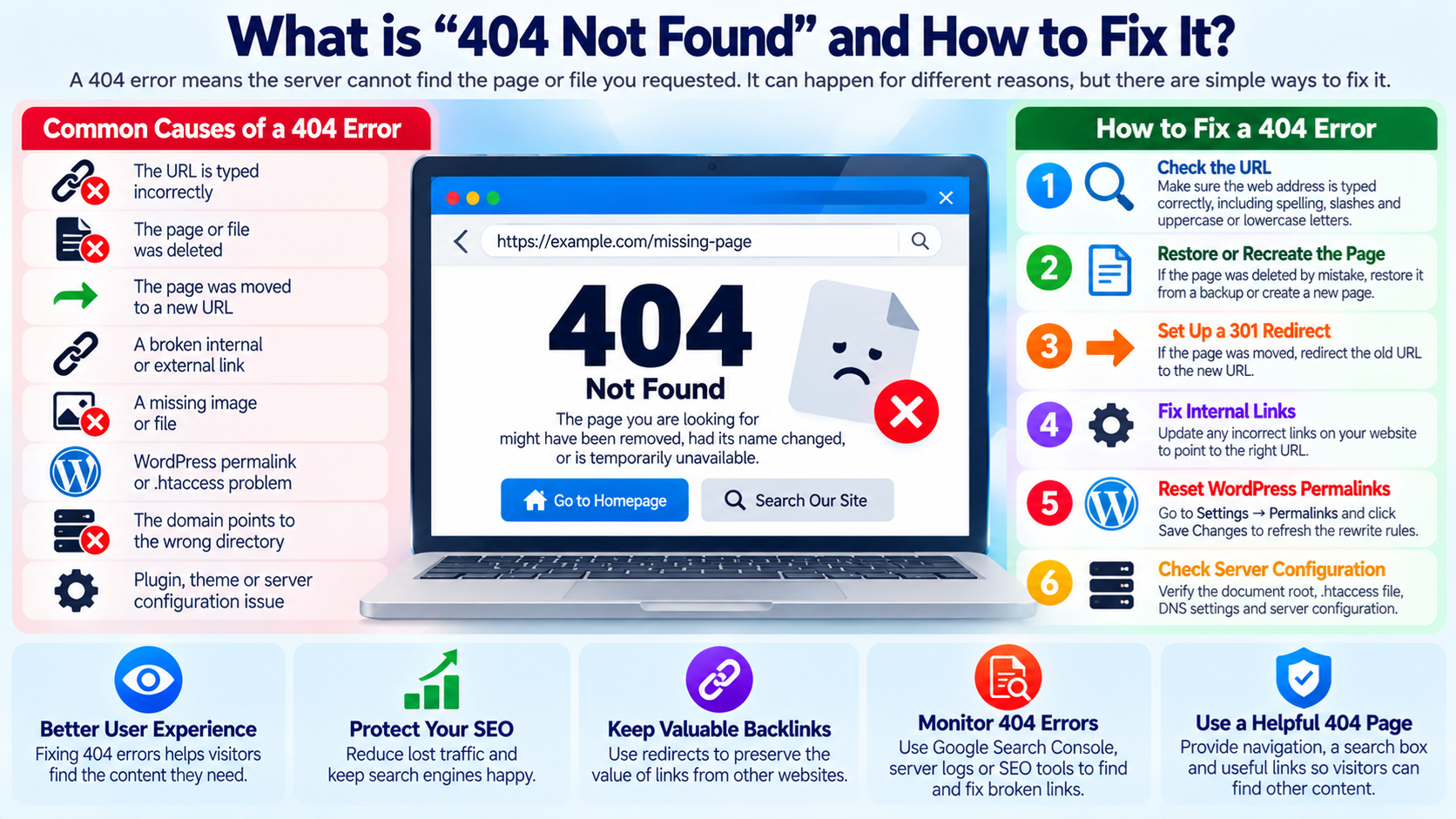
A 404 Not Found error is one of the most common errors you may see on the web.
It usually means that your browser successfully reached the web server, but the server could not find the page or file you requested.
For example, you might visit:
https://example.com/contact-us
but the page no longer exists, the URL was typed incorrectly, or the website configuration cannot locate the requested resource.
In that situation, the server may return an HTTP status code: 404
and display a message such as:
404 Not Found
Page Not Found
The Requested URL Was Not Found
Oops! We Couldn’t Find That Page
A 404 error does not necessarily mean that the entire website is down. In many cases, only one particular page, image, file, or URL is missing.
What Does “404 Not Found” Mean?
When your browser requests a web page, the server returns an HTTP response.
That response includes a status code.
A successful request commonly returns:
200 OK
If the server cannot find the requested resource, it normally returns:
404 Not Found
The important point is that the server itself may be working perfectly.
The problem is that the requested resource cannot be found at the specified URL.
For example:
may work normally, while:
https://example.com/missing-page
returns a 404 error.
This means the website is online, but that particular page does not exist at that location.
Why Is It Called 404?
404 is an HTTP status code.
HTTP status codes are three-digit numbers used by web servers to communicate the result of a request.
The first digit identifies the general category.
Codes beginning with 2 usually indicate success.
Codes beginning with 3 generally involve redirects.
Codes beginning with 4 usually indicate a client-side request problem.
Codes beginning with 5 normally indicate a server-side problem.
A 404 status belongs to the 4xx category.
It specifically means that the requested resource was not found.
Is a 404 Error a Server Problem?
Not always.
A 404 response means the server received the request but could not find the requested resource.
This can happen because:
The URL is incorrect.
The page was deleted.
The page was moved.
The filename changed.
The permalink changed.
A rewrite rule is incorrect.
The document root is wrong.
A WordPress configuration is broken.
A link points to an old URL.
The requested file was never uploaded.
The domain points to the wrong directory.
So while the web server is involved, the root cause is often a missing page or incorrect configuration rather than a server outage.
Common Causes of a 404 Error
There are many possible reasons for a 404 error.
Some are simple.
Others require checking the website configuration.
The most common causes include:
A mistyped URL.
A deleted page.
A renamed file.
A changed permalink.
A broken internal link.
An incorrect redirect.
A missing image or file.
A WordPress rewrite problem.
An incorrect .htaccess file.
A domain pointing to the wrong document root.
A website migration that did not preserve old URLs.
A web application route that no longer exists.
Understanding which situation applies to your website is the first step toward fixing it.
Cause 1: The URL Was Typed Incorrectly
The simplest cause is a typing mistake.
For example:
instead of:
The server looks for the exact requested path.
If that path does not exist, it may return a 404 response.
Before making any technical changes, check the URL carefully.
Look for:
Misspelled words.
Missing characters.
Extra characters.
Incorrect slashes.
Wrong file extensions.
Uppercase and lowercase differences.
Incorrect folder names.
A small mistake can create a completely different URL.
Uppercase and Lowercase Can Matter
On many Linux hosting systems, filenames and directory names are case-sensitive.
For example:
/Images/photo.jpg
and:
/images/photo.jpg
may be treated as different paths.
If the actual directory is named:
images
but your website requests:
Images
the file may not be found.
This is especially important when moving a website from Windows hosting to Linux hosting because Windows systems may handle filename capitalization differently.
Cause 2: The Page Was Deleted
A page may have existed previously but was later removed.
Suppose your website once had:
https://example.com/old-service
Visitors, search engines, and other websites may still have links pointing to that URL.
If you delete the page without creating a redirect, those visitors may receive a 404 error.
This is common after website redesigns or content cleanup.
Cause 3: The Page Was Moved
A page may still exist, but under a new URL.
For example:
Old URL:
https://example.com/services/web-hosting
New URL:
If the old URL is no longer configured, visitors following older links may see a 404 error.
In this situation, the best solution is often to create a redirect from the old URL to the new one.
What Is a 301 Redirect?
A 301 redirect tells browsers and search engines that a resource has permanently moved to a new URL.
For example:
/old-page
can redirect to:
/new-page
Instead of showing a 404 error, the visitor is automatically sent to the new page.
A 301 redirect is especially useful when:
You rename a page.
You change a permalink.
You reorganize website sections.
You move content to a new location.
You change domain names.
You merge multiple pages into one.
Redirects help preserve usability and reduce broken links.
Cause 4: A Link Is Broken
Sometimes the page exists, but the link pointing to it is wrong.
For example, your homepage might contain a link to:
/about-us.html
while the real page is:
/about.html
Visitors clicking the bad link receive a 404 error.
The page itself is not broken.
The hyperlink is incorrect.
To fix it, update the link to point to the correct URL.
Broken Internal Links
Internal links are links between pages on your own website.
Broken internal links create a poor user experience because visitors click something on your site and end up on a missing page.
You should periodically check your site for broken internal links, especially after:
Changing page URLs.
Deleting content.
Migrating a website.
Changing a CMS.
Redesigning navigation.
Renaming folders.
Updating categories.
Fixing internal links is usually better than simply allowing users to hit a 404 page.
Cause 5: A File Is Missing
A 404 error can also occur when requesting a file rather than a normal web page.
For example:
https://example.com/images/logo.png

may return 404 if logo.png was deleted or never uploaded.
This can affect:
Images
PDF files
JavaScript files
CSS files
Downloads
Videos
Documents
Fonts
If a page looks broken, open the browser developer tools and check whether some files are returning 404 responses.
A missing CSS or JavaScript file can make an otherwise working page appear damaged.
Cause 6: The File Is in the Wrong Directory
Suppose your website expects:
/images/banner.jpg
but you uploaded the file into:
/uploads/banner.jpg
The server will not automatically search every directory.
It looks at the path requested by the browser.
If the file is not there, the server may return 404.
Make sure the file is stored in the correct document root and directory.
What Is a Document Root?
A document root is the directory from which a web server serves files for a domain or website.
On a cPanel hosting account, the primary domain commonly uses a directory such as:
public_html
An additional domain may use another directory.
For example:
public_html/example2
or another configured path.
If your domain points to the wrong document root, the web server may be looking in the wrong place for the requested files.
This can result in 404 errors even though the files exist somewhere else on the hosting account.
Check the Domain’s Document Root in cPanel
If you use cPanel, open the Domains section.
Find the domain that is showing 404 errors.
Check the document root.
Then compare that location with the directory where your website files are actually stored.
For example, if cPanel says the domain uses:
/home/username/public_html/example.com
but your files are stored in:
/home/username/public_html/
the server may not be serving the files you expect.
Correcting the document root or moving the files to the correct location may solve the problem.
Cause 7: WordPress Permalink Problems
WordPress websites frequently use rewritten URLs.
For example:
instead of:
https://example.com/?page_id=123
WordPress uses rewrite rules to convert friendly URLs into internal requests.
If these rules become corrupted or unavailable, the homepage may work while internal pages return 404 errors.
This is a very common WordPress issue.
WordPress Homepage Works but Other Pages Return 404
If the homepage loads correctly but posts and pages return 404 errors, permalink settings are one of the first things to check.
Log in to WordPress.
Go to:
Settings → Permalinks
You usually do not need to change the permalink structure.
Simply open the page and save the settings again.
WordPress may regenerate the rewrite rules.
After saving, test the pages again.
This simple step fixes many WordPress 404 problems.
Check the .htaccess File
On Apache-based hosting, WordPress often uses a file named:
.htaccess
This file may contain rewrite rules.
If the file is missing, corrupted, incorrectly edited, or blocked by permissions, WordPress-friendly URLs may stop working.
Before editing .htaccess, make a backup.
Incorrect changes to this file can cause additional website errors.
If WordPress cannot write to the file automatically, you may need to restore the standard WordPress rewrite rules manually or ask your hosting provider for assistance.
What Is .htaccess?
.htaccess is a configuration file commonly used by Apache web servers.
It can control behavior such as:
URL rewriting
Redirects
Access control
Custom error pages
Directory behavior
Caching
Security rules
A mistake in .htaccess can affect many pages on a website.
Sometimes a bad rule returns 404 errors.
Other times it may cause 403 or 500 errors instead.
Cause 8: WordPress Plugin or Theme Conflicts
A plugin or theme can sometimes modify URL routing or rewrite rules.
For example, a plugin may create:
Custom post types
Special URL structures
Membership pages
E-commerce routes
Language-specific URLs
If that plugin is disabled or incorrectly configured, some URLs may stop working.
If a 404 problem started immediately after installing, updating, or disabling a plugin, investigate that change.
Do not randomly disable everything on a production website without a backup.
Instead, troubleshoot carefully and use a staging environment when possible.
Cause 9: Website Migration Problems
404 errors frequently appear after moving a website to a new server or domain.
Possible causes include:
Files were not copied.
The database contains old URLs.
Rewrite rules were not migrated.
The document root changed.
The permalink structure changed.
The web server configuration differs.
Old redirects were not copied.
The domain is pointing to the wrong location.
After migration, test more than just the homepage.
Check:
Pages
Posts
Images
Downloads
Contact forms
Login pages
Admin pages
CSS and JavaScript
A migration can appear successful even while many internal URLs are broken.
Cause 10: DNS Is Pointing to the Wrong Server
A 404 can sometimes appear because the domain is reaching a different server than you expect.
For example, you moved your website to a new hosting provider, but DNS still points to the old server.
The old server receives the request but no longer contains the requested website.
It may respond with a default page or a 404 error.
Check the domain’s DNS records and confirm that they point to the intended server.
DNS Changes and Caching
After changing DNS, some visitors may temporarily reach the old server while others reach the new one.
This happens because DNS information can remain cached.
During a migration, you might therefore see inconsistent results.
One device may display the new website.
Another may display an old version.
Another may receive a 404 error.
This can continue until cached DNS records expire.
Cause 11: Incorrect Virtual Host Configuration
On VPS or dedicated servers, web server configuration determines which domain uses which directory.
Apache and Nginx both use virtual-host style configurations.
If the domain is mapped to the wrong directory, requests may return 404.
This is more likely on manually administered servers than on standard shared hosting.
Check:
Server name
Server aliases
Document root
Location rules
Rewrite configuration
Proxy rules
Application routes
After editing server configuration, validate it before reloading the web server.
Cause 12: Application Routing Problems
Modern web applications do not always map every URL directly to a physical file.
Frameworks may use application routes.
For example:
/products/123
may not correspond to a real directory called products.
Instead, the application interprets the route and dynamically displays product 123.
If the route is removed, renamed, or misconfigured, the application may return a 404.
This is common in frameworks such as:
Laravel
Django
Ruby on Rails
Express
Next.js
ASP.NET
Other application frameworks
In these cases, the problem may be inside the application rather than the web server.
404 vs. 403
A 404 error means:
The requested resource was not found.
A 403 error means:
The server understands the request but refuses access.
These are different problems.
If a file exists but permissions prevent access, the server may return 403 rather than 404.
However, some systems intentionally return 404 instead of 403 to avoid revealing whether a protected resource exists.
404 vs. 500
A 404 error normally means the requested resource was not found.
A 500 Internal Server Error means something went wrong while the server was trying to process the request.
For example:
Broken PHP code may generate a 500 error.
A missing page usually generates a 404.
Understanding the status code helps narrow down the troubleshooting process.
404 vs. 503
A 503 Service Unavailable response usually means the server or application is temporarily unable to handle the request.
Possible causes include:
Maintenance
Overload
Application failure
Unavailable backend service
A 404 is different because the server is responding but cannot find the requested resource.
How to Fix a 404 Error as a Website Visitor
If you are simply visiting a website and see a 404 error, try a few simple steps.
Check the URL for typing mistakes.
Remove part of the URL and try the main website.
For example, if:
example.com/category/old-page
returns 404, try:
example.com
Use the website’s navigation or search feature to find the page.
Refresh the page in case the error is temporary.
Try finding the content through a search engine.
If the page was moved, search results may show the new location.
How to Fix a 404 Error as a Website Owner
If you own the website, troubleshoot systematically.
First, determine whether the problem affects:
One URL
Many pages
All internal pages
One domain
The entire website
Only images or files
This information can quickly narrow down the cause.
Step 1: Test the Homepage
Open the main website.
If the homepage also fails, the problem may be larger than a simple missing page.
Check:
DNS
Hosting account
Document root
Web server
Website files
If the homepage works but one page fails, focus on that specific URL.
Step 2: Verify the URL
Check whether the requested URL should exist.
Look inside your CMS or hosting account.
If the page exists under another URL, update the broken link or create a redirect.
If the page no longer exists and has no replacement, a 404 may actually be the correct response.
Step 3: Check the File or Page
If the URL refers to a file, verify that the file exists.
If it refers to a WordPress page, confirm that the page is:
Published
Not in Trash
Not Draft
Using the expected permalink
If the content was deleted accidentally, restore it from a backup if appropriate.
Step 4: Check Internal Links
Find links pointing to the missing page.
Update them to the correct destination.
If many pages contain the same incorrect link, use your CMS or a search-and-replace tool carefully.
Always make a backup before performing large-scale URL replacements.
Step 5: Create a Redirect When Content Has Moved
If a page moved permanently, create a 301 redirect.
Redirect the old URL to the most relevant new URL.
Do not redirect every missing page to the homepage.
That can confuse visitors and search engines.
The new destination should be closely related to the original content.
Step 6: Refresh WordPress Permalinks
For WordPress sites where many internal pages suddenly return 404:
Go to Settings → Permalinks.
Review the permalink structure.
Click Save Changes.
Then test the site again.
If the problem remains, inspect .htaccess, plugin conflicts, and server rewrite support.
Step 7: Check .htaccess
If using Apache, inspect .htaccess.
Look for:
Missing WordPress rules
Incorrect redirects
Old domain rules
Security plugin changes
Broken rewrite conditions
Make a backup before editing.
If you are unsure, restore a known-good version or contact your hosting provider.
Step 8: Check File Permissions
Although permission problems often return 403, incorrect permissions can contribute to access issues.
Typical website files should not be given dangerously open permissions.
Do not solve access problems by setting everything to 777.
That can create security risks.
Use permissions appropriate for your hosting environment.
Step 9: Check the Document Root
In cPanel, Plesk, or your server configuration, confirm that the domain points to the folder containing the website.
This is especially important after:
Adding an addon domain
Moving files
Migrating hosting
Changing the primary domain
Creating a staging site
Changing subdomains
If the server is looking in the wrong directory, every valid website file may appear to be missing.
Step 10: Check DNS
Confirm that the domain resolves to the intended hosting server.
If you recently changed hosting providers, make sure the DNS A and AAAA records are correct.
If you use a CDN or reverse proxy, verify its origin server configuration as well.
Step 11: Check CDN and Cache Configuration
A CDN or caching system can sometimes continue serving an old 404 response after you fix the underlying page.
After correcting the problem, clear relevant caches.
This may include:
WordPress cache
Server cache
CDN cache
Reverse proxy cache
Browser cache
Do not clear every cache unnecessarily, but if the page is fixed on the origin server and still shows 404 elsewhere, caching is worth checking.
Step 12: Check Server Logs
Web server logs can provide useful information about 404 requests.
Access logs may show:
Requested URL
Time of request
IP address
Referrer
User agent
Error logs may reveal related configuration problems.
On managed shared hosting, you may have log access through the control panel.
On a VPS, administrators can inspect Apache or Nginx logs directly.
Logs are often the fastest way to discover which URLs visitors are actually requesting.
Custom 404 Pages
A website can display a custom 404 page.
Instead of showing a plain server message, you can provide a branded page with helpful options.
A good custom 404 page might include:
A short explanation.
A link to the homepage.
Website navigation.
A search box.
Links to popular content.
Contact information.
The page should still return the correct 404 HTTP status.
Do Not Return 200 OK for a Missing Page
Some websites display a message saying:
Page not found
but return:
200 OK
This is sometimes called a soft 404.
The page looks like an error page, but the server tells search engines that the request was successful.
This can create indexing problems.
A genuinely missing page should normally return a real 404 or sometimes 410 status.
What Is a Soft 404?
A soft 404 occurs when a page appears to be missing but does not return the correct HTTP error status.
For example:
The user requests a nonexistent URL.
The website displays:
Sorry, this page does not exist.
But the HTTP response is:
200 OK
Search engines may recognize this inconsistency and classify the page as a soft 404.
Proper status codes help search engines understand your site.
What Is 410 Gone?
410 Gone is another HTTP status code.
It means that a resource has been intentionally removed and is not expected to return.
404 means:
The resource cannot be found.
410 means:
The resource is gone.
Most websites simply use 404 for missing pages.
410 can be useful when you intentionally want to communicate that content has been permanently removed.
Do 404 Errors Hurt SEO?
A normal 404 does not automatically hurt your website’s SEO.
Pages naturally disappear over time.
Search engines expect websites to have some 404 responses.
Problems arise when:
Important pages return 404 accidentally.
Internal links point to missing pages.
Many valuable backlinks point to dead URLs.
A migration creates large numbers of broken URLs.
The website returns soft 404s incorrectly.
Visitors repeatedly encounter broken pages.
The goal is not to eliminate every 404 response.
The goal is to fix 404 errors that represent broken website functionality or lost valuable content.
What Should You Do With Old Pages?
If an old page has no replacement and no value, allowing it to return 404 may be perfectly acceptable.
If the page has a clear replacement, redirect it.
If several old pages have been combined into one new page, redirect them to the new relevant page.
Do not create random redirects simply to avoid seeing 404 responses.
A correct 404 is better than an irrelevant redirect.
Backlinks and 404 Errors
Suppose another website links to:
but that page now returns 404.
If the old page had valuable backlinks, you may want to redirect it to a relevant replacement.
Otherwise, visitors following those backlinks encounter a dead page.
A properly chosen redirect can preserve usability and may help preserve some of the value of those links.
404 Errors After Changing Permalinks
Changing a WordPress permalink structure can create many broken URLs at once.
For example, you might change from:
/2025/10/article-name/
to:
/article-name/
Old links may stop working unless redirects are configured.
Before changing an established permalink structure, create a redirect plan.
Otherwise, search engines, bookmarks, and external links may point to old URLs that now return 404.
404 Errors After Changing Domains
When moving from:
oldexample.com
to:
newexample.com
you should normally redirect old URLs to corresponding new URLs.
Ideally:
oldexample.com/about
redirects to:
newexample.com/about
rather than sending every old URL to the new homepage.
This preserves a better user experience and gives search engines clearer migration signals.
How to Monitor 404 Errors
Website owners can monitor 404 errors through:
Google Search Console
Server logs
Analytics
WordPress plugins
SEO crawling tools
CDN dashboards
Hosting control panels
You do not need to fix every strange URL requested by bots.
Focus on missing URLs that:
Receive real traffic
Have backlinks
Appear in navigation
Were previously valid
Represent important content
A bot requesting random nonexistent files does not necessarily require action.
Bots Generate Many 404 Requests
Internet bots constantly request strange URLs.
For example, a bot may search for:
Old WordPress files
Administration panels
Backup files
Known plugin paths
Configuration files
Vulnerable scripts
Your server may correctly return 404 for all of these requests.
That is actually a good result if the files do not exist.
Do not assume every 404 in your server logs is a website problem.
404 Can Sometimes Be Good
A 404 response is not inherently bad.
If someone requests a file that does not exist, 404 is the correct response.
For example, an attacker may request:
/old-vulnerable-script.php
If that file is not present, the server should return 404.
The goal is not to eliminate 404 entirely.
The goal is to make sure real visitors can find the content that should exist.
A Simple Troubleshooting Example
Suppose your homepage works:
but this page returns 404:
First, check whether the page exists in WordPress.
If it exists, check its permalink.
If all WordPress pages except the homepage return 404, resave Permalink settings.
If only this one page fails, check whether its slug changed.
If the page moved to:
https://example.com/our-services
create a redirect from the old URL.
This simple process can solve many common 404 problems.
When Should You Contact Your Hosting Provider?
Contact your hosting provider when:
The document root appears incorrect.
Rewrite rules are not working.
You cannot modify .htaccess.
The web server configuration appears broken.
A domain points to the correct server but still returns unexpected 404 errors.
The problem started after a server-side change.
You do not have access to the required server settings.
Provide the exact URL that returns the error.
It is much easier to troubleshoot:
https://example.com/products/widget
than simply saying:
My website does not work.
Final Thoughts
A 404 Not Found error means that the server received the request but could not find the requested page, file, or resource at that URL.
Sometimes the cause is as simple as a mistyped address.
Other times it may involve deleted content, broken links, WordPress permalinks, .htaccess rules, document roots, DNS, migrations, or application routing.
The most important step is to determine whether the missing URL should actually exist.
If the page exists, fix the configuration or link.
If the page moved, create an appropriate redirect.
If the page was intentionally removed and has no replacement, returning 404 may be completely correct.
For WordPress websites, if the homepage works but internal pages suddenly return 404, checking Settings → Permalinks is one of the best first troubleshooting steps.
A 404 error is not always a disaster.
It is simply the web server saying:
I received your request, but I cannot find what you asked for.